
App Access & Permissions
AI funding and usage
AI included uses REDA credits. Bring your own AI uses your organisation’s provider account, billed directly by that provider. The licence selects one funding model for the organisation. In either model, REDA AI governs configured tools and actions in Salesforce. Set up your licence and AI accounts.
REDA AI uses Salesforce Permission Sets to control who can access the app and what they can do. There are four permission sets included with the package, each designed for a different type of user.
Available Permission Sets
| Permission Set | Assign to | What it allows |
|---|---|---|
| REDA AI Admin | Salesforce Administrators / super users who configure the platform | Full access to all REDA AI configuration — agents, prompts, tools, credits, admin tab, incident logs, and all app settings. |
| REDA AI User | Internal Salesforce users who interact with agents | Access to the AI chat interface on record pages and the app. Cannot modify agent configuration or access the Admin tab. |
| REDA AI Community User | Experience Cloud portal users (customers, partners) | Access to the AI chat component on Experience Cloud sites. Required for the Community channel. |
| REDA AI External Guest User | Anonymous website visitors using the external chat widget | Minimal access needed for the External Widget channel to function. Assigned to the Salesforce Site guest user profile. |
Assigning Permission Sets to Users
- Go to Setup — Click the gear icon at the top right and select Setup.
- Find the user — In the Quick Find box, type Users and click Users. Search for the user you want to update.
- Open the user record — Click the user's name to open their profile.
- Go to Permission Set Assignments — Scroll down to the Permission Set Assignments related list and click Edit Assignments.
- Add the permission set — Find the relevant REDA AI permission set in the Available column, select it, and click the right arrow to move it to the Enabled column. Click Save.
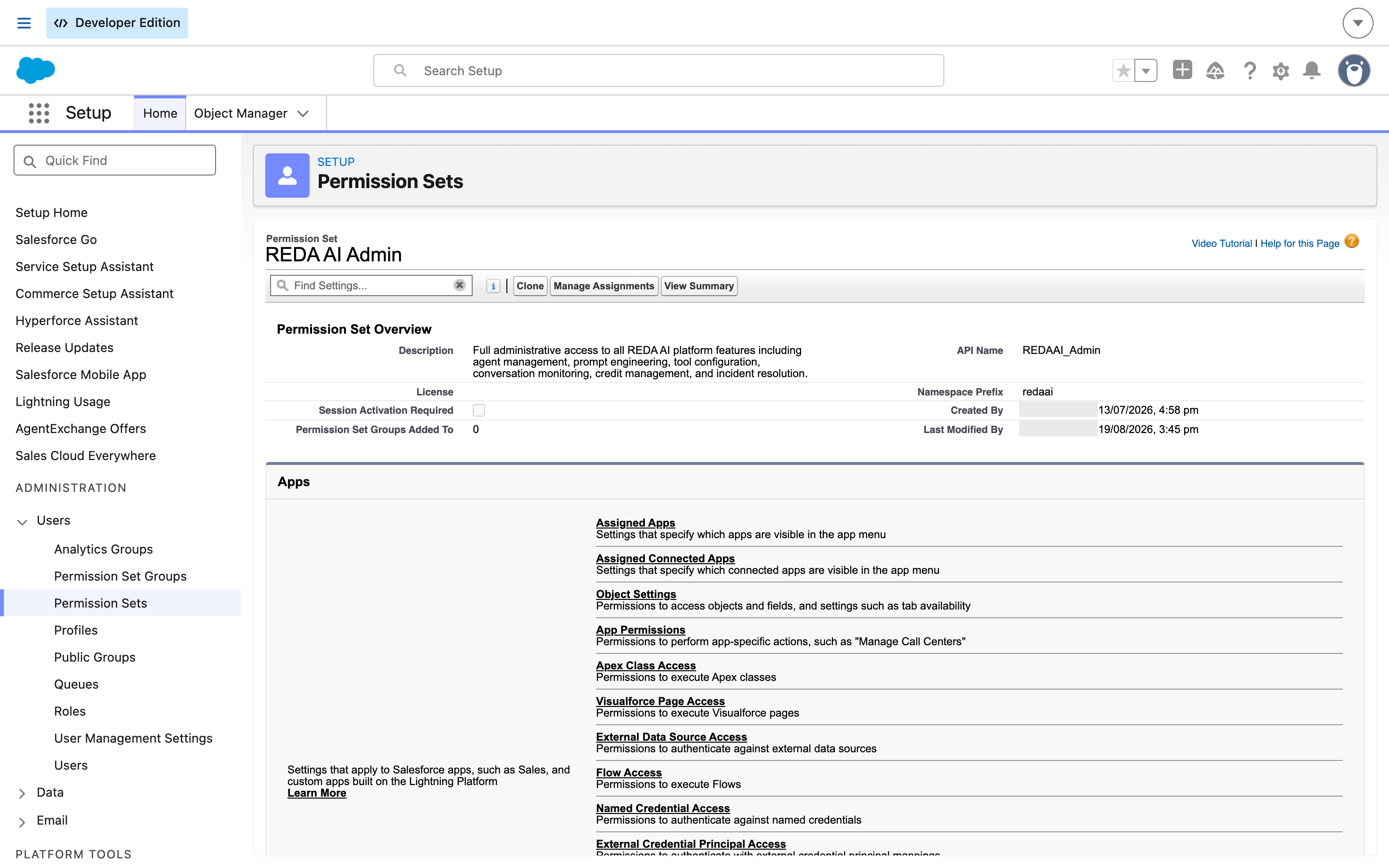
REDAAI_Admin, is what you match on if you assign it from a script or a permission set group.Who Should Get Which Permission Set?
As a general guide:
- 1–3 users should receive REDA AI Admin — typically the Salesforce Admin and perhaps a senior power user who will configure agents.
- All other internal users who need to use the AI chat should receive REDA AI User.
- Community (portal) users should receive REDA AI Community User — this is typically assigned to a Profile or Permission Set Group rather than individually.
- External Guest access is configured at the Salesforce Site level for the External Widget channel — see Data Access & Permissions for Channels.
Connect selected agents through MCP
MCP connects an approved AI assistant to selected active Internal agents. Each person signs in with their Salesforce identity. The host receives agent entry points; individual REDA tool and prompt definitions are not exposed as separate MCP tools. Configure a Salesforce Site, an External Client App, both REDA AI User and REDA AI MCP User assignments, and agent opt-in. See the administrator setup guide and user guide. Interaction data can reach the connected host and configured AI providers as well as Salesforce. Review the intended data and agreements; this is not a promise that data never leaves Salesforce.
Frequently Asked Questions
No. The Admin permission set already includes everything in the User set. Assign only the Admin permission set to your administrators — there is no need to also assign the User set to them.
First, confirm the user has been assigned the REDA AI User (or Admin) permission set. Second, confirm the agent is active (Is Active = true on the Agent Definition). Third, check that the agent's Lightning component has been added to the relevant page layout in Lightning App Builder.
Yes. You can include REDA AI permission sets inside a Salesforce Permission Set Group. This is especially useful for assigning access to large groups of users (such as all Community users) in bulk.