
Conversation Transcripts
Every interaction with REDA AI is captured as a full, searchable transcript stored within your Salesforce org. Admins and users can review exactly what was asked, what the AI responded, which tools were called, and how many credits were consumed — giving you a complete audit trail of every AI interaction.
How Transcripts Are Structured
Each conversation in REDA AI consists of two levels of Salesforce records:
| Record Type | Object | What It Contains |
|---|---|---|
| Conversation | REDA AI Conversation | Metadata for the session — agent used, user, start time, end time, total messages, credit accounting status. |
| Message | REDA AI Message | Each individual message in the conversation — role (User or Assistant), full message content, timestamp, and credits consumed. |
Understanding the Conversation Record
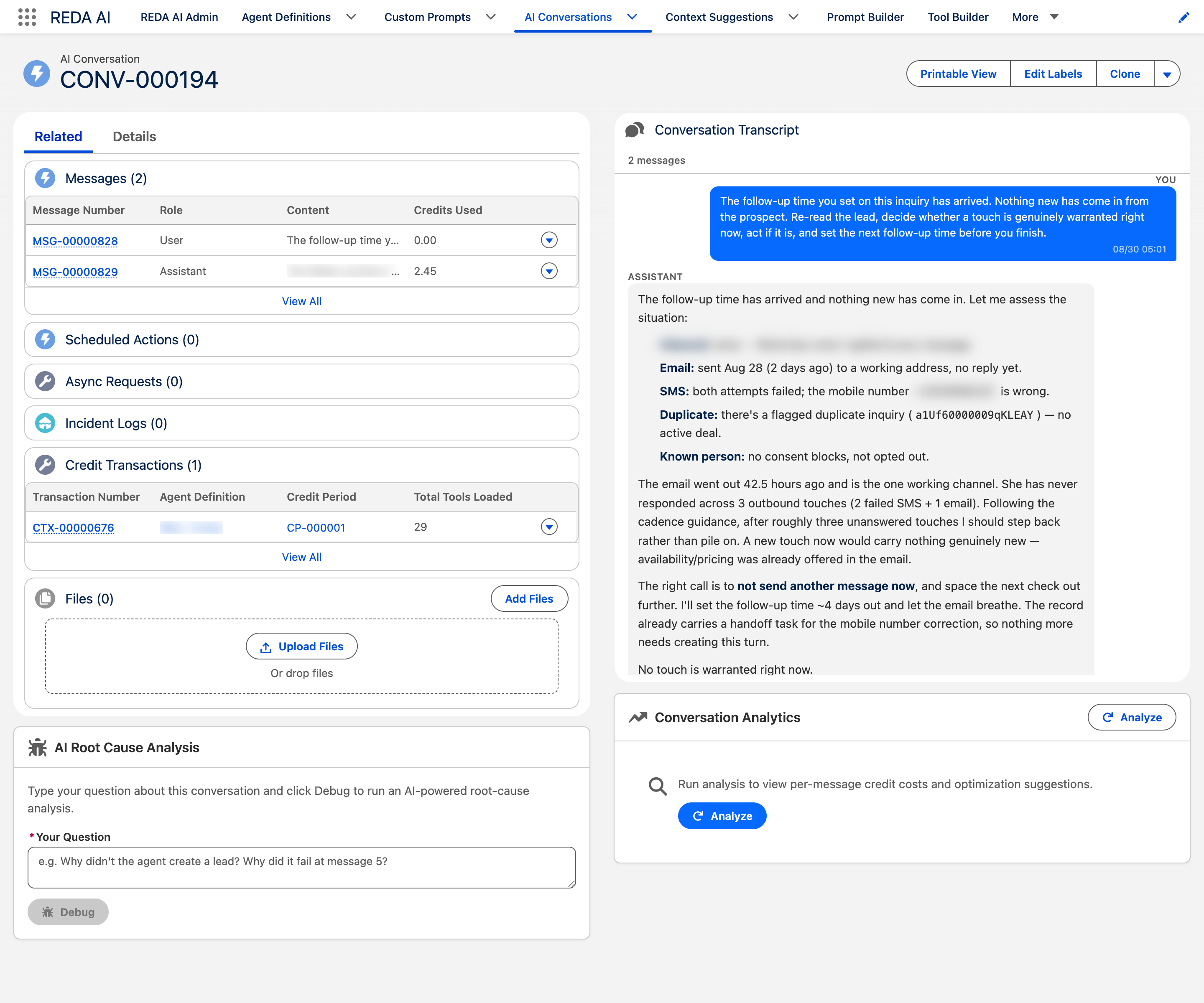
The Conversation record acts as the parent for a session. Key fields include:
| Field | Description |
|---|---|
| Agent | The Agent Definition that handled this conversation. |
| User | The Salesforce user who initiated the conversation (blank for anonymous external widget sessions). |
| Channel | Where the conversation took place: Internal, External Widget, Community, or API. |
| Started At | Timestamp when the first message was sent. |
| Ended At | Timestamp of the last message or when the session timed out. |
| Message Count | Total number of messages (user + assistant) in the conversation. |
| Credit Status | Whether credits have been accounted for this conversation (used internally for credit reconciliation). |
| Context Record | The Salesforce record (e.g. Opportunity, Case) the conversation was associated with, if applicable. |
Understanding Message Records
Each message is a child record of the conversation. The full field set:
| Field | What it holds |
|---|---|
| Role | user or assistant — lower case, which is what you filter on. |
| Content | The message text. |
| Sequence | Position of the message within the conversation. Order by this, not by created date. |
| Status | Sent (user message delivered), Processing (awaiting the AI response, async only), Complete (response received), Error (processing failed). A message stuck at Processing is the signature of a failed async turn. |
| Credits Used | Credits consumed by this turn. Only populated on assistant messages. |
| Tools Used | Comma-separated list of the tools the agent invoked for this response — the quickest way to see what an answer actually did. |
| File IDs | Comma-separated ContentDocument Ids of files the user attached to this message. |
| Feedback Rating | positive or negative, set by the thumbs up/down in the chat UI. This is where that feedback lands and where you report on it. |
| Tool Context | Serialised tool_use and tool_result blocks from the agentic loop, kept so an API conversation can be reconstructed across turns. Not shown in the UI and not meant for reading. |
Who Can See Transcripts
Transcript visibility in REDA AI follows standard Salesforce sharing rules:
- Admins (REDA AI Admin permission set) — full access to all conversations across all users and agents.
- Users (REDA AI User permission set) — can view only their own conversations, subject to Salesforce record sharing settings.
- External Widget visitors — anonymous; no Salesforce record is linked to a Salesforce user. No end-user access to transcripts from outside Salesforce.
Searching and Filtering Conversations
Because conversations and messages are standard Salesforce records, you can use all native Salesforce tools to search and filter them:
- List Views — Create custom list views on the Conversations object to filter by agent, date range, user, channel, or message count.
- Reports — Build Salesforce reports on REDA AI Conversation and REDA AI Message objects for operational insights. For example, filter for all conversations with more than 20 messages to identify unusually long sessions.
- Global Search — Salesforce's global search indexes message content, so you can search for specific keywords across all transcripts.
Retention and Archival
Conversation and message records accumulate over time. REDA AI includes a nightly archival batch that removes conversations older than each agent's configured retention period (set via Archival Retention Days on the Agent Definition). Archival activity is recorded in AI Archival Log records so you have a complete audit trail.
If you need to retain conversations for compliance or legal purposes, set the Skip Archival flag on the relevant Agent Definition — this exempts all conversations for that agent from the automatic archival process.
See AI Archival Logs for full details.
Frequently Asked Questions
Yes. Because conversations and messages are standard Salesforce records, you can export them using Data Loader, Salesforce CLI, or Reports. Export REDA AI Message records with their parent Conversation information to get a full transcript export in CSV or other formats.
No. External Widget visitors are anonymous — the User field on the Conversation record is blank for external sessions. The conversation is linked to the Agent Definition and the session token, but not to a specific Salesforce user identity. If you need to associate external visitors with Salesforce contacts, you would need to build a custom authentication flow using Experience Cloud or a custom identity solution.
Message records can be deleted by a Salesforce admin with sufficient object permissions. However, deleting individual messages may affect the integrity of the transcript and is not generally recommended. If you need to remove sensitive content from a transcript, delete the entire Conversation record and its child messages, or use the archival process.
Yes — Conversation Analytics can be run on any conversation record from the "Analyse Conversation" button. It works best on conversations with multiple turns, as single-message exchanges give limited optimisation insight. See Conversation Analytics for full details.