
Admin Overview
AI funding and usage
AI included uses REDA credits. Bring your own AI uses your organisation’s provider account, billed directly by that provider. The licence selects one funding model for the organisation. In either model, REDA AI governs configured tools and actions in Salesforce. Set up your licence and AI accounts.
For current plans, prices, evaluation terms and top-up options, see REDA AI pricing. Plan examples and usage figures in this guide explain operation; they are not a commercial quotation.
REDA AI administrators are responsible for configuring agents, managing the platform, controlling access, monitoring usage, and ensuring the system operates smoothly for all users. This article provides an overview of who REDA AI admins are, what they can do, and how to set up administration in your organization.
Who Is a REDA AI Admin?
A REDA AI administrator is a Salesforce user who has been assigned the REDA AI Admin permission set. This permission set grants elevated access to REDA AI configuration, monitoring, and management features.
How to Assign the Admin Permission Set
- Open Setup in Salesforce — Click the gear icon (Settings) and select Setup.
- Navigate to Permission Sets — In the Quick Find box, type "Permission Sets" and click the Permission Sets link.
- Find and click "REDA AI Admin" — Locate the REDA AI Admin permission set in the list.
- Click "Manage Assignments" — This opens a list of users currently assigned to this permission set.
- Click "Add Assignments" — Select the users you want to make REDA AI admins and click Assign.
- Confirm and Save — Click Done to finalize the assignments.
Admin Capabilities
Users with the REDA AI Admin permission set have access to the following features and tabs in the REDA AI app:
| Feature | What Admins Can Do |
|---|---|
| Agent Configuration | Create, edit, and delete Agent Definition records. Configure agent name, description, system prompt, channels, tools, and context fields. Enable/disable agents. |
| Prompt Management | Create, edit, and manage Custom Prompts, and start from the built-in starter templates. Assign prompts to agents, or leave the agent blank to make a prompt universal. Deactivate a prompt to retire it without deleting it. |
| Tool Management | Build and manage custom tools (SOQL Template, Apex Class, or File Mapping), preview what an agent will load, and scope each tool by channel and context object. Rate limits are set per agent, not per tool. |
| Context Field Management | Define context fields that agents can access. Configure field visibility, data types, and query logic. Assign context fields to agents. |
| View All Conversations | Access the Conversations tab and view every conversation across all users and agents. Regular users can only see their own conversations. |
| View Incident Logs | Access the AI Incident Logs list. View detailed error information, use Debug with AI to analyse errors, and document resolutions. |
| Manage Credits | View credit history, current period usage, and credit allocation. Redeem credit top-up keys. Monitor credit consumption by agent and channel. |
| Activate Licence | Enter and validate REDA AI licence keys. View plan details and subscription status. Set up alerts for license renewal and credit depletion. |
| Manage API Keys | Generate and revoke API keys for External Widget agents. Configure rate limits and allowed origins. |
| Run Conversation Analytics | Generate analytics reports on conversation data, user engagement, and agent performance. Export data for analysis. |
| Platform Settings | Configure platform-wide settings, including data retention policies, audit logging, and compliance options. |
| Manage Email Routing | Map inbound Email Service addresses to API-channel agents. Add, edit, deactivate and reactivate routing entries from the Operations area of the Admin tab. |
The Admin Tab
The Admin Console includes AI Connections alongside License & Credits, Configuration and Operations. AI Connections is where administrators create, test and activate provider connections and set the organisation default. It supplies admin AI tools, document processing and agents that inherit it. Connections can be prepared while the org uses REDA credits; they take effect when its customer-account licence is activated. Follow the setup guide.
License & Credits
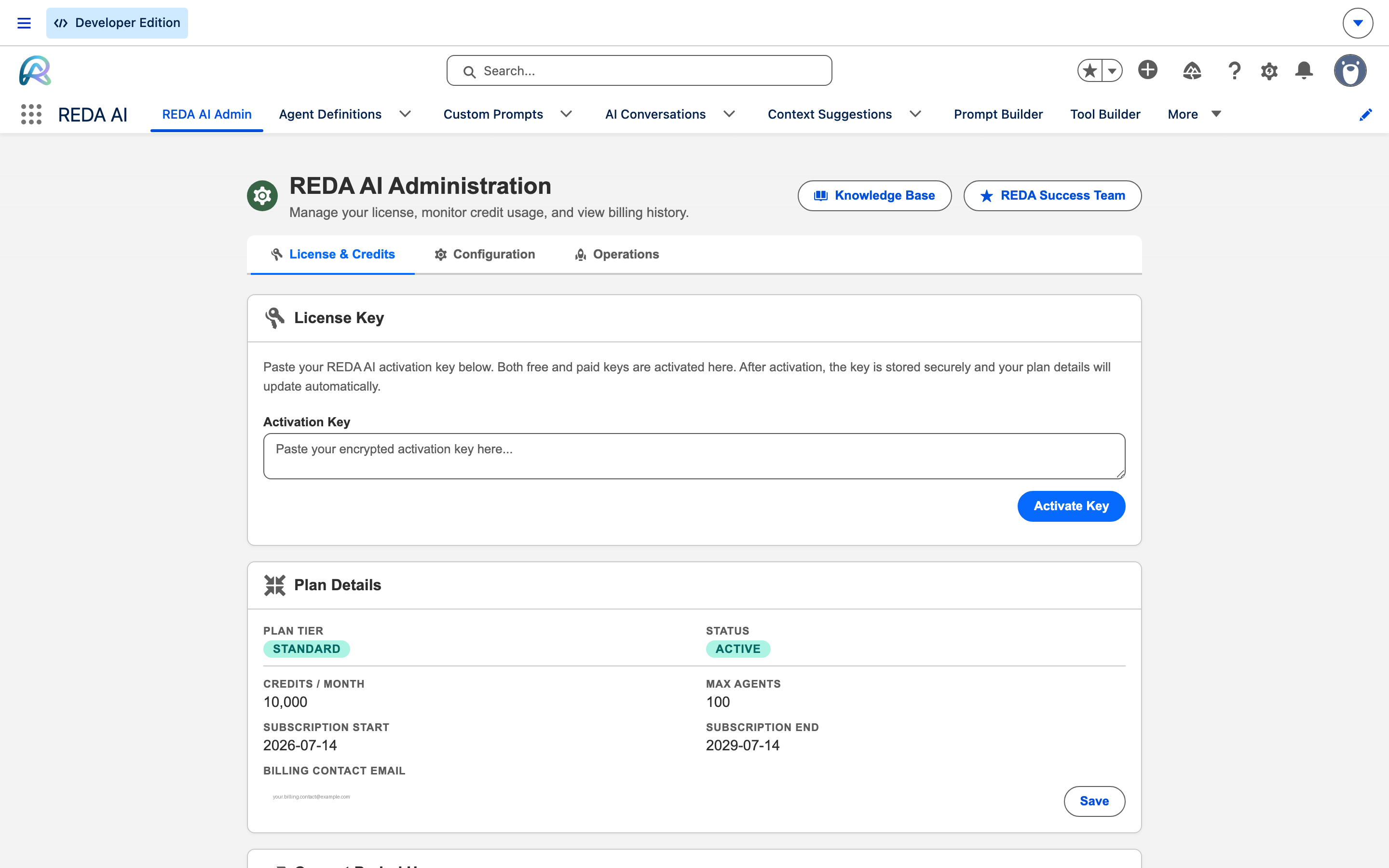
Licensing and consumption. Four cards, top to bottom:
- License Key — paste an activation key and press Activate Key. Both free and paid keys are activated here; the key is stored securely and plan details update automatically.
- Plan Details — Plan Tier, Status, Credits / Month, Max Agents, subscription start and end, and the billing contact email used for renewal notices.
- Current Period Usage — a progress bar with Allocated, Rolled Over, Used and Remaining for the open period, plus the button to redeem a top-up.
- Credit History — a table of past periods with allocated, rollover, top-up, total, used and available credits.
Configuration
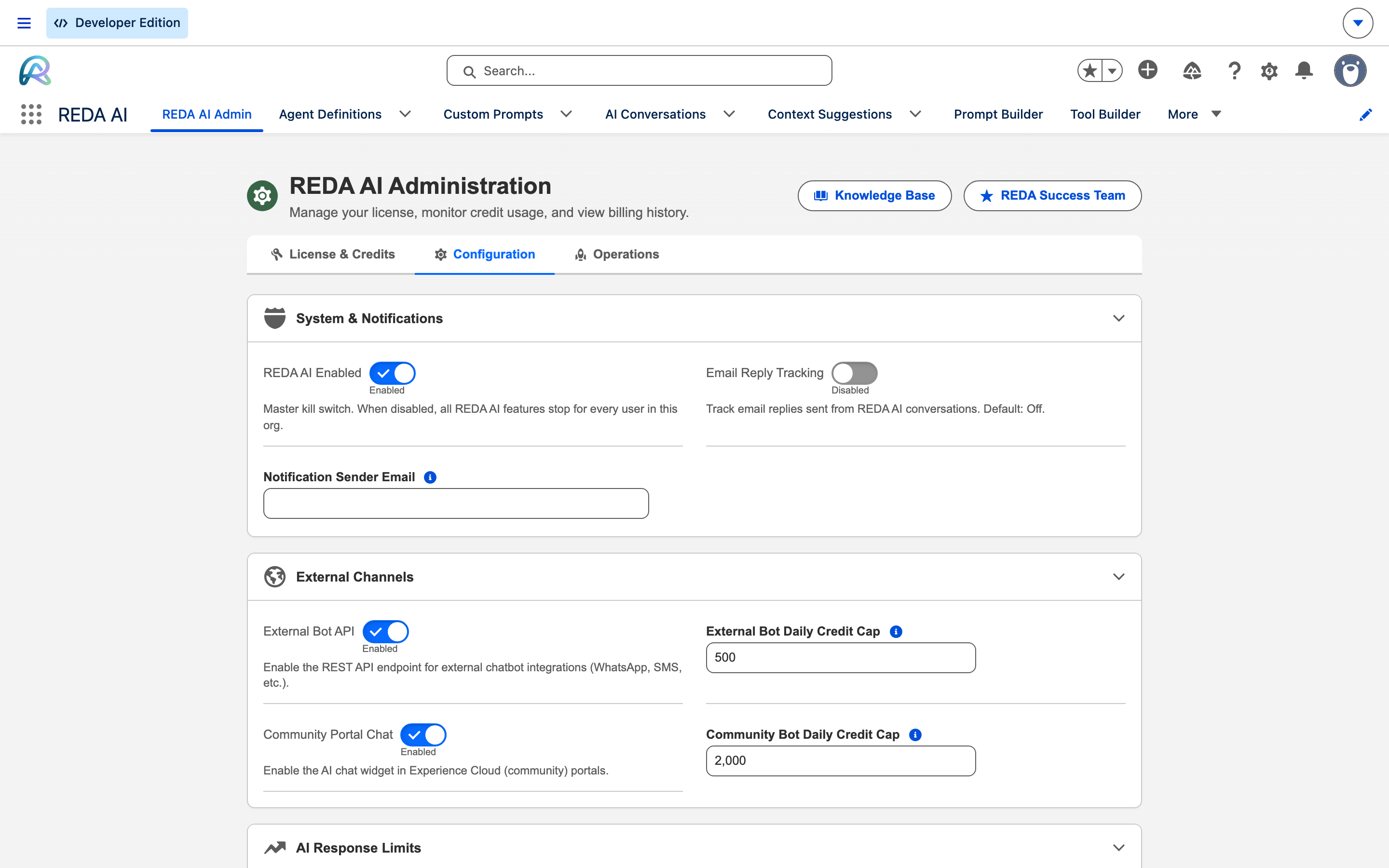
Org-wide platform settings, grouped into six blocks — 34 settings in all. The full field-by-field reference is in Platform Settings Reference; what matters here is what each block governs:
- System & Notifications — REDA AI Enabled is the master kill switch: turn it off and every REDA AI feature stops for every user in the org. Alongside it sit Email Reply Tracking (off by default) and the Notification Sender Email.
- External Channels — the External Bot API (the REST endpoint for WhatsApp, SMS and other external chatbots) and Community Portal Chat (the widget in Experience Cloud portals), each with its own daily credit cap so an external channel cannot drain the org's credits.
- AI Response Limits — per-feature token ceilings: Max Output Tokens for ordinary replies, plus separate budgets for Agent Builder, Prompt Optimizer, Tool Builder and the Debugger.
- Query & Data Limits, Conversation Optimization and File Processing & Streaming — the remaining three blocks: row and result-size ceilings, archival retention and incident de-duplication; the conversation History Token Budget; and the file rules (max size, allowed extensions, CSV character cap, the credit multiplier for file work, and the distribution threshold and link expiry).
Operations
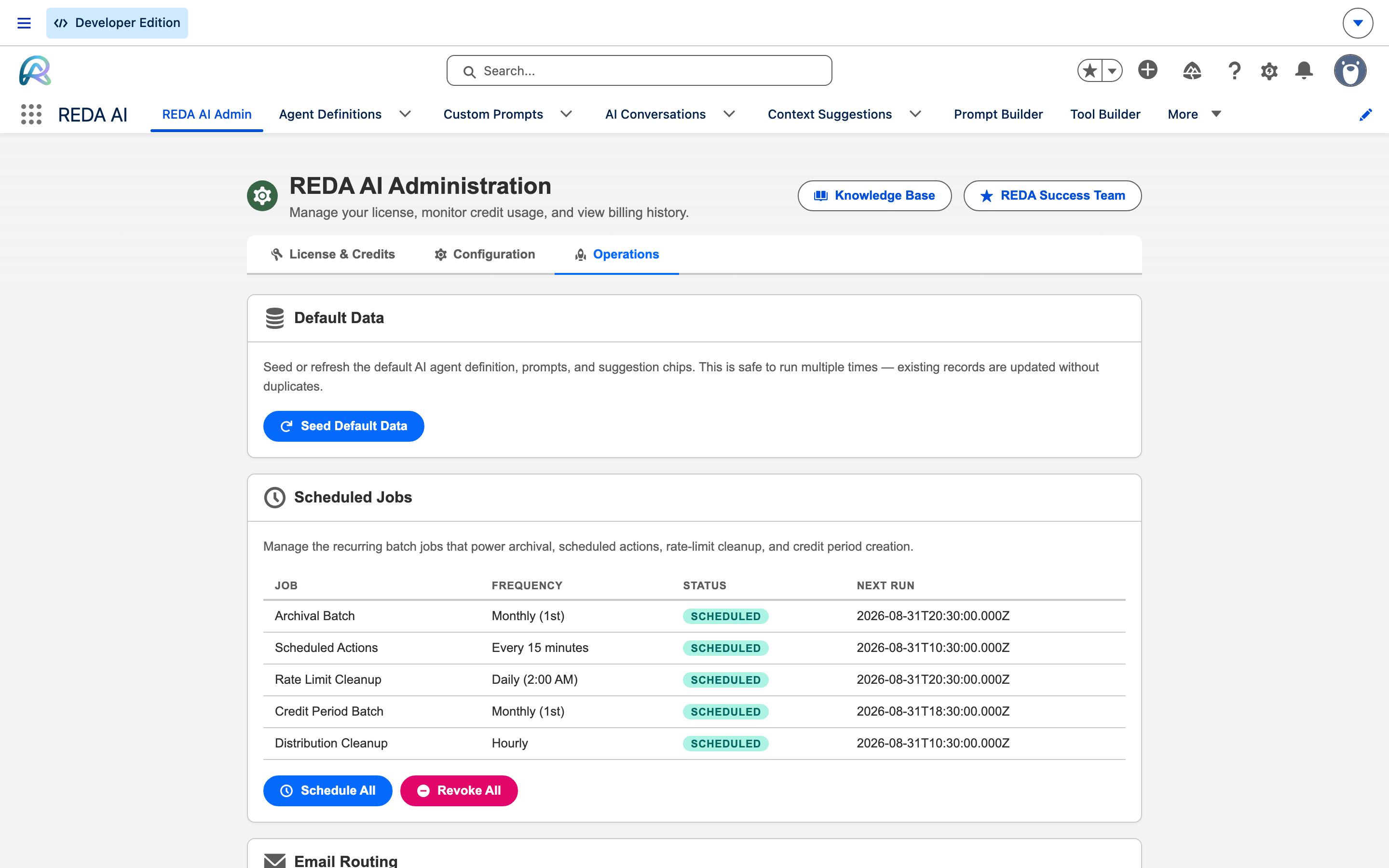
The running of the platform, rather than its settings:
- Default Data — Seed Default Data creates or refreshes the default agent definition, prompts and suggestion chips. It is safe to run repeatedly: existing records are updated rather than duplicated.
- Scheduled Jobs — the recurring batches that keep the platform healthy, each showing its frequency, status and next run, with Schedule All and Revoke All to manage them together.
| Job | Frequency | What it does |
|---|---|---|
| Archival Batch | Monthly (1st) | Archives conversations and messages past their retention window — see Archival & Audit |
| Scheduled Actions | Every 15 minutes | Runs agent actions queued for a later time |
| Rate Limit Cleanup | Daily (2:00 AM) | Clears expired rate-limit counters |
| Credit Period Batch | Monthly (1st) | Opens the next credit period and carries the rollover forward |
| Distribution Cleanup | Hourly | Tidies up distribution records left by completed work |
Regular Users vs. Admins
The table below contrasts the capabilities of regular REDA AI users (REDA AI User permission set) with admins:
| Capability | Regular User (REDA AI User) | Admin (REDA AI Admin) |
|---|---|---|
| Chat with agents | Yes | Yes |
| View own conversations | Yes | Yes |
| View all conversations | No | Yes |
| Create/edit agents | No | Yes |
| Create/edit tools | No | Yes |
| Create/edit prompts | No | Yes |
| View incident logs | No | Yes |
| Use Debug with AI | No | Yes |
| Manage credits | No | Yes |
| Activate licence | No | Yes |
| Run analytics | No | Yes |
Admin Responsibilities and Best Practices
Platform Maintenance
- Monitor incident logs regularly: Check for new High Severity incidents at least weekly. Use Debug with AI to diagnose issues and prevent recurrence.
- Track credit usage: Review the Admin tab's Usage & Credits section to ensure you're not on track to overspend. Top up credits proactively if needed.
- Review conversations: Periodically spot-check conversations to ensure agents are performing well and users are satisfied with responses.
- Monitor agent performance: Use Conversation Analytics to identify underperforming agents or tools that need tuning.
Configuration Management
- Document agent purposes: Clearly name agents and document their purpose in the Description field so users know which agent to use.
- Review tool configurations: Ensure tools are correctly configured and tested before deploying to users.
- Version prompts: Keep prompt versions organized. Document changes in version notes so you can revert if needed.
- Test changes: Always test agent changes in a sandbox before promoting to production.
Security and Compliance
- Control admin access: Assign the REDA AI Admin permission set only to users who need it. Review assignments quarterly.
- Audit conversation access: Use Salesforce's audit trail to track who accessed sensitive conversations.
- Manage API keys securely: Ensure External Widget API keys are stored securely and rotated regularly.
- Protect data: Configure context fields and tools to respect Salesforce's sharing rules and field-level security.
Common Admin Tasks
Task: Create a New Agent
- In the REDA AI app, navigate to the Agents tab.
- Click "New" to create a new Agent Definition.
- Fill in Agent Name, Description, and System Prompt.
- Configure channels (Slack, Teams, External Widget, etc.).
- Assign tools and context fields.
- Click Save and then "Activate" to make the agent available to users.
Task: Investigate a High Severity Incident
- Open the REDA AI app and navigate to AI Incident Logs (More menu).
- Filter for High Severity incidents or incidents for a specific agent.
- Click on an incident log to open it.
- Review the Error Message and Error Context.
- Click "Debug with AI" to get a plain-language analysis.
- Follow the AI's suggested steps to resolve the issue.
- Update the Status field to "Resolved" and document your fix in Resolution Notes.
Task: Top-Up Credits Mid-Period
- In the Admin tab, scroll to "Top-Up Credits."
- Paste your top-up key (obtained from REDA AI) into the field.
- Click "Redeem."
- The credits are added immediately to your current period's available balance.
- Verify the updated balance in the Usage & Credits section.
Task: Monitor Agent Usage
- Open the REDA AI app and navigate to the Conversations tab.
- Use the Agent filter to select a specific agent.
- Review recent conversations and message counts.
- Or, click "Conversation Analytics" (available to admins) for detailed usage reports.
Upgrade checklist for administrators
- Confirm the package: Setup → Installed Packages → REDA AI must show 1.16000 after the upgrade. Test in an appropriate sandbox before production use.
- Preserve configuration: back up custom metadata tool records, prompt customisations, relevant layouts/permissions and pending scheduled work.
- Merge tool definitions: in Setup → Custom Metadata Types → REDA AI Tool Definitions → Manage Records, review send_email Description/Input Schema and schedule_action Description. Existing subscriber-controlled descriptions, schemas and channels require a deliberate merge; do not replace customised records wholesale. For older baselines, also review create_task, create_event and get_record changes. The packaged Requires Confirmation flag is developer-controlled.
- Merge prompts carefully: Seed Default Data can overwrite all shared default prompts. Preserve and merge local changes; do not run it blindly to update one instruction.
- Review fields and permissions: use the table below. Packaged permission-set definitions can upgrade; assignments and your own profiles/cloned sets do not become correct automatically. Add fields to customised layouts through Setup → Object Manager → object → Page Layouts. Grant only the required field access through your custom permission sets.
- Review picklists: in Object Manager → Fields & Relationships, check Agent Definition → Processing Tier for the exact API value
Economy. If Request Type already existed on AI Async Request, checkContinuationandBulk Turn. Add missing values, retain their exact API spelling and enable them for the applicable record types; restricted picklists can reject missing values. A newly installed field includes its packaged value set. - Review schedules before enabling: use REDA AI Admin's scheduler controls to verify the processor, owner and existing pending actions. Activating a processor may run existing work; the upgrade does not perform that decision for you.
Complete field and verification checklist
Frequently Asked Questions
Yes. A Salesforce admin (System Administrator) and a REDA AI admin (REDA AI Admin permission set) are separate roles. A Salesforce admin has access to all of Salesforce, while a REDA AI admin has access only to REDA AI configuration. You may designate a Salesforce admin as a REDA AI admin, but they are not required to be the same person. In fact, for security, you may want a dedicated REDA AI admin who is not a Salesforce system admin.
Best practice is to designate 1–2 trusted individuals as REDA AI admins. One admin can handle configuration and day-to-day management; a second admin provides backup and redundancy in case the primary admin is unavailable. Avoid assigning admin access to many users, as this increases the risk of accidental misconfiguration or unauthorized changes.
Yes. Open the Conversations tab and look at the Message records — each message shows the credits consumed. You can also use the Conversation Analytics feature (visible to admins) to generate reports on credit usage by agent, user, and date range. This helps identify high-usage agents or expensive conversations.
Immediately remove their REDA AI Admin permission set assignment. Open Setup > Permission Sets > REDA AI Admin > Manage Assignments, find their user, and remove the assignment. If you're the only admin and they're leaving, designate a replacement admin and assign them the REDA AI Admin permission set before the departing admin's last day.