
AI Archival Logs
REDA AI automatically manages conversation history and message data to optimize storage, maintain system performance, and help organizations comply with data retention policies. The AI Archival Logs provide a complete audit trail of this automated cleanup process, showing exactly what data was archived, when, and whether the operation succeeded.
By examining archival logs, administrators gain visibility into data lifecycle management and can verify that old conversations are being cleaned up according to your retention policies.
How Archival Works
Each night, REDA AI runs an automated batch job that scans all Agent Definition records and checks each agent's retention policy. For agents with an active retention period, the batch deletes conversations and messages that are older than the retention threshold.
Retention Policy Configuration
Each agent has two settings that control archival behavior:
| Field | Purpose | Default / Example |
|---|---|---|
| Archival Retention (Days) | Number of days to retain this agent’s records before archival. Anything older is deleted by the monthly run. Minimum 60 days — a lower value is raised to 60. | 180 days org-wide (per-agent override, minimum 60 days) |
| Skip Archival | Checkbox. If enabled (true), archival is completely skipped for this agent — conversations are never automatically deleted. | Unchecked (false) by default |
What Gets Archived
A run deletes four record types, each aged against its own retention window:
- Conversations older than the applicable retention period.
- Messages — aged on their own age, in their own step. They are not deleted as children of an archived conversation, so a long conversation can lose its oldest messages while the conversation itself survives.
- Credit transactions — the per-interaction ledger. Their credit and token sums are written onto the archival log first, so the period’s consumption figures survive the delete.
- Scheduled actions — aged against the global retention setting, because they carry no agent link. A per-agent override never applies to them.
Deletion is permanent. What you keep is the archival log and its CSV attachments, written in step 1 before anything is removed.
What Does NOT Get Archived
The following is never touched by a run:
- Configuration — Agent Definitions, tools, prompts and context-field setup. None of it is data the run ages.
- Incident logs — they are the error audit trail, so they persist until an administrator removes them.
- Archival logs themselves — the record of what was deleted outlives what it describes.
- Anything belonging to an agent with Skip Archival ticked — excluded from every step.
Accessing Archival Logs
- Open the REDA AI app — Click the App Launcher in Salesforce and select REDA AI.
- Click the "More" menu — In the REDA AI navigation bar, find and click the More (three-dot) button to reveal additional options.
- Select "AI Archival Logs" — This opens the list view of all archival log records, ordered by most recent run first.
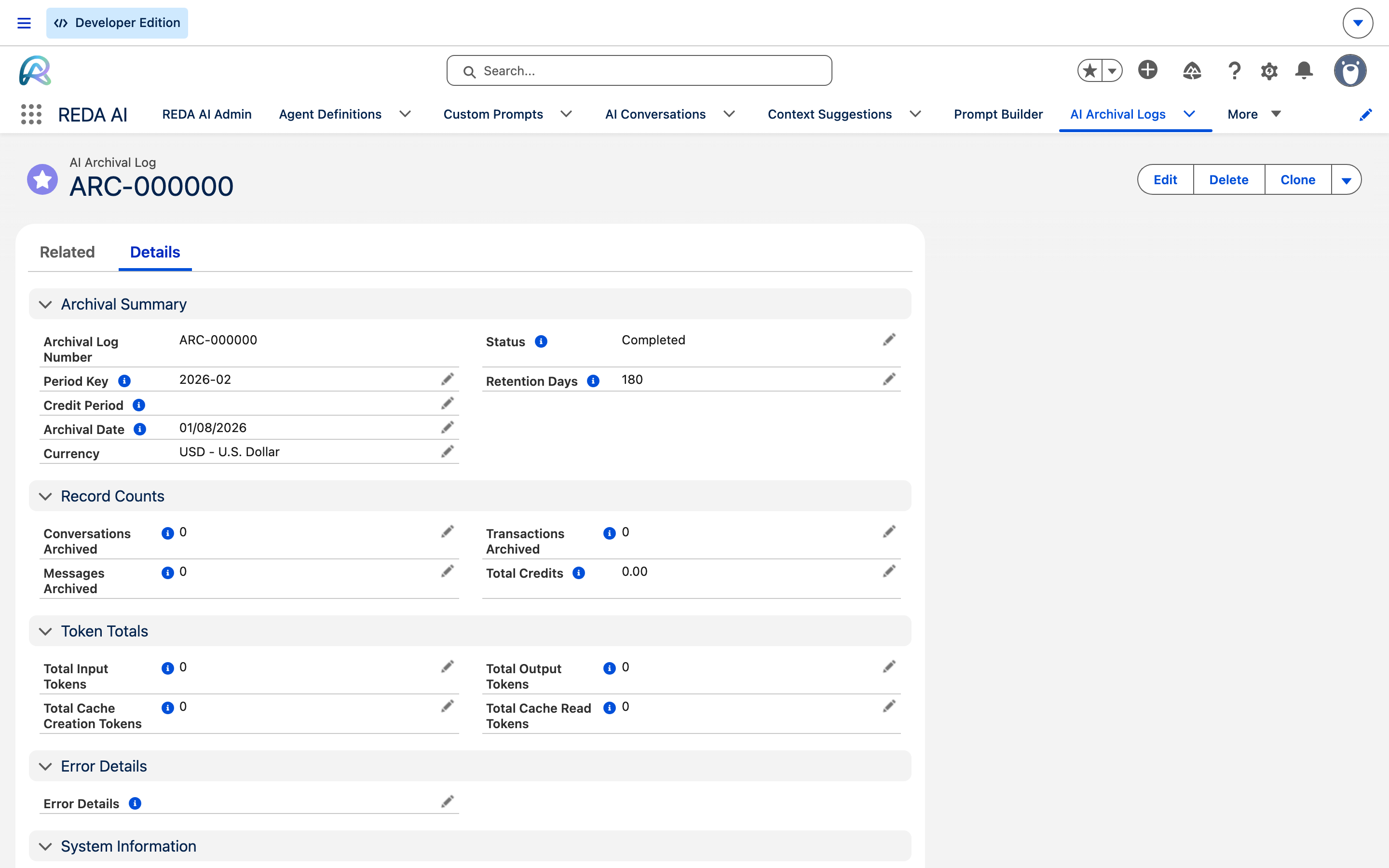
Understanding Archival Log Fields
An archival log is a record of one run, org-wide. It is not per agent and carries no Agent field — a single run sweeps every agent that is not excluded, and reports one set of totals.
| Field | Description |
|---|---|
| Archival Date | The date the run executed. One log record is created per run. |
| Period Key | The YYYY-MM period being archived. Matches the Period Key on the related Credit Period. |
| Credit Period | Lookup to the Credit Period this run covered. |
| Retention Days | The retention period, in days, that was in effect when this run executed. Recorded on the log so a later reader knows the rule that was applied, not the rule in force today. |
| Status | In Progress, Completed or Failed. See Interpreting Archival Results. |
| Conversations Archived | Number of conversation records deleted in this run. |
| Messages Archived | Number of message records deleted in this run. |
| Transactions Archived | Number of credit transaction records deleted in this run. |
| Total Credits | Sum of the credits on every credit transaction deleted in this run. |
| Total Input Tokens | Sum of the input tokens across those deleted transactions. |
| Total Output Tokens | Sum of the output tokens across those deleted transactions. |
| Total Cache Read Tokens | Sum of the cache-read tokens across those deleted transactions. |
| Total Cache Creation Tokens | Sum of the cache-creation tokens across those deleted transactions. |
| Error Details | Error messages if the run hit failures. Also where a CSV truncation notice lands — read it even when Status is Completed. |
Why the credit and token totals are on the log. The run deletes the credit transactions themselves, so without these fields the period’s consumption figures would vanish with them. The totals are computed before the delete and kept permanently, so you can still answer “what did we spend in March 2026?” long after March’s ledger rows are gone.
Interpreting Archival Results
Status: In Progress
The run is still working through its six steps, or a step failed hard enough that the chain never reached
Finalize. A log left at In Progress long after the run window is a signal to check
Error Details and the AI Incident Logs.
Status: Completed
The chain finished. The three count fields tell you how much was removed; zeros are normal when nothing had aged past its retention window.
A green Completed does not by itself mean the CSVs are complete. Each CSV is
capped at 50,000 rows while the deletes are not, so a large run can delete more than its CSV records. When
that happens the run still completes and writes a note such as
“Messages CSV truncated at 50000 rows” to Error Details. Read that
field before treating an attachment as the full list.
Status: Failed
The run hit an error. Error Details carries the message, and the same failure is captured in the AI Incident Logs with its context. Common causes:
- Org storage or governor limits reached mid-run.
- Record locks — another process was holding the same records.
- Permission or sharing configuration preventing the delete.
Because the CSVs are written in step 1, before anything is deleted, a failure in a later step still leaves you the evidence of what the run was about to remove.
Managing Retention Policies
Adjusting Retention for a Specific Agent
To change how long conversations are kept for an agent:
- Open the REDA AI app and navigate to the Agent Definitions tab.
- Click on the agent you want to modify.
- Find the Archival Retention (Days) field and enter the number of days to retain conversations (e.g., 90, 180, 365).
- Save the record. The new retention period applies from the next monthly run.
Disabling Archival for an Agent
If you want to preserve all conversations for a specific agent indefinitely:
- Open the Agent Definition record.
- Check the Skip Archival checkbox.
- Save the record. That agent's conversations will never be archived.
Re-enabling Archival
To resume archival for an agent where it was previously disabled:
- Open the Agent Definition record.
- Uncheck the Skip Archival checkbox.
- Ensure Archival Retention (Days) has the desired retention period (e.g., 90).
- Save. Archival resumes on the next monthly run.
Archival and Compliance
Conversation archival helps organizations comply with data retention and privacy regulations:
- GDPR: Organizations can set retention periods aligned with GDPR's "storage limitation" principle, ensuring old conversations are automatically deleted.
- CCPA / CPRA: Automatic deletion of aged data supports compliance with state privacy laws.
- Industry Standards: Many industries (healthcare, finance) require data retention policies; archival logs provide an audit trail proving compliance.
- Data Minimization: By automatically removing old conversations, you minimize the volume of sensitive data stored in Salesforce.
Archive logs themselves are a compliance asset — they document when and how much data was removed, which satisfies audit requirements for data governance.
Common Scenarios
Scenario 1: Reducing Storage Footprint
Your REDA AI conversations have accumulated over a year and are consuming significant storage. Set Archival Retention (Days) to 90 for the agents concerned. The next monthly run deletes everything older than 90 days. Storage is not freed immediately — it is freed on the 1st, when the run executes. Archival logs will show the number of records deleted.
Scenario 2: Preserving Conversations for Legal Hold
You're involved in litigation and must preserve all conversations as evidence. Enable Skip Archival on the relevant agent definitions until the case concludes. Archival logs will show "Skipped" status, confirming no data was deleted during the hold period.
Scenario 3: Investigating Archival Gaps
You notice archival logs show 0 conversations archived for several days, which is unusual for a busy agent. Check the Notes field for clues. If status is "Skipped," check if Skip Archival was accidentally enabled. If status is "Success," conversations may simply be younger than the retention threshold.
Frequently Asked Questions
No. Archival permanently deletes conversations and messages. REDA AI does not maintain a separate backup or archive of deleted conversations. If you need to preserve conversations long-term, disable archival for those agents (enable Skip Archival) or export conversations before they reach the retention age threshold.
No. Archival is an administrative data cleanup process that does not consume credits. Credits are only consumed when users interact with agents (conversations, messages, tool executions, etc.).
At 2:00 AM on the 1st of each month. The job is scheduled automatically when the package is installed, under the name REDAAI_Archival_Monthly, and you can see it in Setup then Scheduled Jobs. It is monthly, not nightly.
The packaged schedule is the only trigger REDA AI provides, and it fires monthly. If you need data removed sooner, delete the records with Salesforce's own tools, or contact REDA AI Support.