
Platform Settings Reference
Every setting, group by group
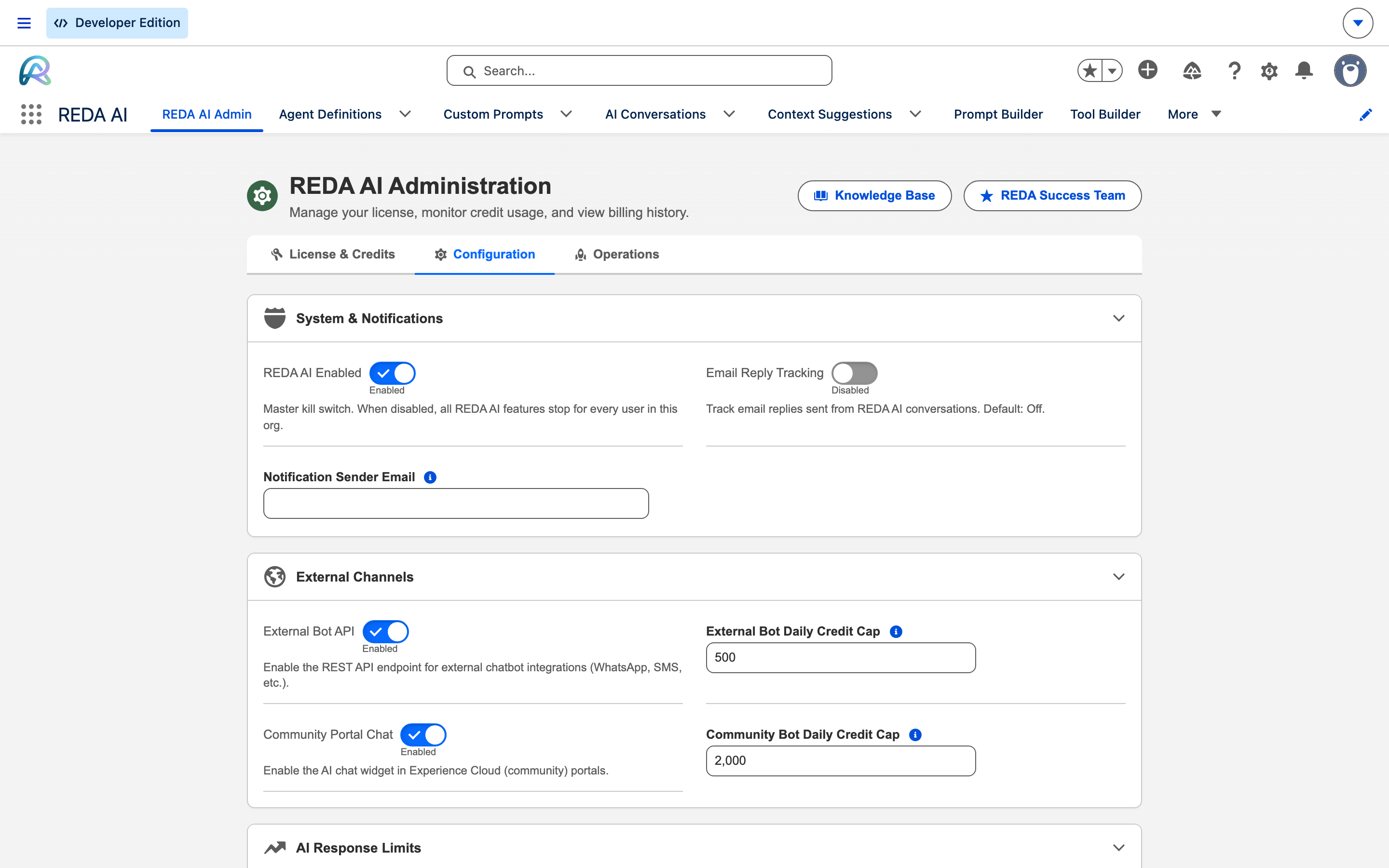
This is the complete list as it appears in REDA AI Admin → Configuration in the current release — 34 settings in six groups, in screen order, with the shipped default and the product’s own description of each. The topical sections that follow go deeper on the ones that need it.
System & Notifications
| Setting | Default | What it controls |
|---|---|---|
| REDA AI Enabled | — | Master kill switch. When disabled, all REDA AI features stop for every user in this org. |
| Email Reply Tracking | Off | Track email replies sent from REDA AI conversations. |
| Notification Sender Email | — | The "From" address for incident notification emails. Must be a verified org-wide email address. |
External Channels
| Setting | Default | What it controls |
|---|---|---|
| External Bot API | — | Enable the REST API endpoint for external chatbot integrations (WhatsApp, SMS, etc.). |
| External Bot Daily Credit Cap | 500 | Maximum credits per day for external bot API calls. Set to 0 for unlimited. |
| Community Portal Chat | — | Enable the AI chat widget in Experience Cloud (community) portals. |
| Community Bot Daily Credit Cap | 2000 | Maximum credits per day for community portal chat. Set to 0 for unlimited. |
AI Response Limits
| Setting | Default | What it controls |
|---|---|---|
| Max Output Tokens | 4000 | Maximum response length for standard AI chat and file pre-extraction. A ceiling, not a target — you pay only for tokens actually generated, so raising it costs more only on calls that genuinely produce longer output (e.g. extracting a large document). The model output ceiling is ~8192; values above that have no effect. |
| Agent Builder Max Tokens | 12000 | Maximum tokens for "Build Agent with AI". Split 60/40 across two AI calls (Step 1 = 7200, Step 2 = 4800). Raise to 16000 for very complex agents with many prompts, tools, and context fields. |
| Prompt Optimizer Max Tokens | 4096 | Maximum tokens for prompt and context field optimization. |
| Tool Builder Max Tokens | 4096 | Maximum tokens for tool generation and optimization. Complex Apex tools may need 6000+. |
| Debugger Max Tokens | 3000 | Maximum tokens for conversation debugging and incident analysis. |
| Conflict Detector Max Tokens | 1024 | Maximum tokens for prompt conflict detection analysis. |
| Prompt Generator Max Tokens | 2048 | Maximum tokens for AI-generated prompt content. |
| Tool Iteration Max Tokens | 1000 | Tokens per intermediate tool-loop turn (tool calls only, not full prose). |
| Greeting Max Tokens | 800 | Tokens for short greeting responses ("Hi", "Hello"). |
| Deep Reasoning Max Tokens Cap | — | Upper limit on an agent's total output tokens (answer + extended thinking) when Deep Reasoning is on. Higher reasoning levels add token headroom; this cap keeps the total bounded so responses finish in time. Default 24000. |
| Max API Retries | 3 | Retry attempts for rate-limited (429) or overloaded (529) API calls. Does not affect scheduled action retries. |
| Web Search Max Uses | 5 | Web searches per conversation turn. Each search costs additional credits. Only applies to agents with Allow Web Search enabled. |
Query & Data Limits
| Setting | Default | What it controls |
|---|---|---|
| Max Query Rows | 200 | Auto-appended LIMIT on SOQL queries generated by tools. |
| Max Display Rows | 50 | Rows shown inline before summarizing with "showing X of Y". |
| Max Query Result Length | 15000 | Maximum characters per tool result sent to the AI model. Higher values provide more data context but use more tokens. |
| Archival Retention Days | 180 | Days to retain archived conversation records before deletion. |
| Incident Deduplication Window | 0 (disabled, logs all incidents) | Minutes to suppress duplicate incidents (same class/method/error). |
Conversation Optimization
| Setting | Default | What it controls |
|---|---|---|
| History Token Budget | — | Estimated token budget for conversation history. The most recent complete messages are kept until this budget is reached; older messages are dropped whole — never truncated. Higher = more memory and higher per-turn cost. Default 30000, minimum 4000. |
| Greeting Char Threshold | 20 | Input shorter than this is treated as a greeting (uses reduced token budget). |
File Processing & Streaming
| Setting | Default | What it controls |
|---|---|---|
| Max File Size (MB) | 5 MB | Maximum upload file size in megabytes. Files exceeding this are rejected. |
| Allowed File Extensions | pdf,csv,png,jpg,jpeg,txt,json | Comma-separated allowed extensions for uploads. |
| Max CSV Characters | 50000 | Maximum character count for CSV file content. CSVs exceeding this return an error. |
| File Processing Credit Multiplier | 2 (e | Multiplies the max output token budget for file processing. g., 2000 tokens x 2 = 4000 for file requests). |
| File Distribution Threshold (KB) | 1300 KB | Binary files larger than this get a temporary public URL for the AI. |
| Distribution Link Expiry (Minutes) | 30 | Minutes until temporary file links auto-expire. Links are also deleted after each API call. |
| Email File Processing | Off | Process file attachments received via the Email Service. Requires an Email Processing Agent. |
| Admin Tools Always Stream | On | Admin tools (Agent Builder, Tool Builder, Prompt Builder) use streaming API calls to prevent timeouts. |
Agent Definition → Max Tool Iterations, default 6 — five tool turns plus one forced
text response). The org-wide record is deprecated and is no longer read, so changing it has no effect. Set the cap per agent.
Master Switches
These flip whole capabilities on and off. Use 1 for enabled and 0 for disabled.
| Setting | Default | Purpose |
|---|---|---|
| Is Enabled | 1 |
Master kill switch for REDA AI. When disabled, all AI interactions are blocked. |
| External Bot Enabled | 1 |
Master toggle for the external chatbot feature. When disabled, all REST API requests from external chatbot widgets are rejected. Enable after configuring a Salesforce Site and Guest User profile. |
| Community Bot Enabled | 1 |
Master toggle for the community portal chatbot. When disabled, all REST API requests from community widgets are rejected. |
| Email File Processing Enabled | 0 |
Security control for whether attachments on inbound Email Service messages are processed. When disabled, the handler ignores attachments — but a routed email still reaches its agent as a conversation; it does not gate the channel. Off by default. |
| Email Tracking Enabled | 0 |
Enables email reply tracking for scheduled actions. When enabled, an EmailMessage trigger monitors inbound replies to tracked outbound emails and fires associated scheduled actions. Requires Enhanced Email enabled in the org. |
| Admin Tools Always Stream | 1 |
When enabled, admin tools (Agent Builder, Tool Builder, Prompt Builder) always use the streaming API regardless of agent settings. Prevents timeouts during complex AI-assisted operations. |
Licence Keys
These settings hold encrypted licence values that the platform uses to authorise AI calls. They’re populated by the licence-activation flow in the Admin tab; admins never edit the values directly. See Activating Your Licence.
To change which licence is in effect, run the Activate Licence flow from the Admin tab. The platform handles the secure update of these settings for you.
File Processing
Controls what files agents can read, how big they can be, and how large files are delivered to the model. See Document Processing for the broader pipeline.
| Setting | Default | Purpose |
|---|---|---|
| Allowed File Extensions | pdf,csv,png,jpg,jpeg,txt,json |
Comma-separated list of allowed file extensions for upload. Files with extensions not in this list are rejected. |
| Max File Size MB | 5 |
Maximum allowed file size for uploads in megabytes. Files exceeding this limit are rejected before processing. |
| Max CSV Characters | 50000 |
Maximum number of characters allowed in a CSV file. Files exceeding this limit return an error (no truncation). Set to 0 for unlimited. |
| File Distribution Threshold KB | 1300 |
File size (KB) above which binary files (PDF, PNG, JPG) get a temporary public URL for the model instead of being inlined. Text files are always inlined regardless of this threshold. |
| Distribution Expiry Minutes | 30 |
Minutes until a temporary file distribution link expires. Acts as a safety net — links are also deleted after the model API call and by the hourly cleanup job. |
| File Processing Credit Multiplier | (platform default) | Controls how aggressively the platform expands the output budget on file-aware turns so the agent can produce richer extraction results. Lower it on agents that need short structured outputs from many small files; raise it for agents that produce long structured extractions. |
Credit Caps
Daily caps prevent runaway costs from public-facing channels. They are independent of monthly licence credits. See How Credits Work.
| Setting | Default | Purpose |
|---|---|---|
| External Daily Credit Cap | 500 |
Maximum total credits that all external chatbot sessions combined may consume per day across all agents. Set to 0 for unlimited (not recommended). |
| Community Daily Credit Cap | 2000 |
Maximum credits that all community portal chatbot sessions combined may consume per calendar day. Leave blank or 0 for unlimited. Independent of External Daily Credit Cap. |
Conversation History & Context
Controls how much past conversation the model sees on each turn. REDA AI keeps the most recent complete messages whose combined size fits a token budget — it never truncates an individual message (truncation would corrupt tool calls/results). A smaller budget saves credits; a larger budget gives the agent more memory.
| Setting | Default | Purpose |
|---|---|---|
| History Token Budget | 30000 |
Token budget for conversation history per request. REDA AI includes the most recent whole messages that fit this budget and drops older ones entirely — never cutting a message mid-content. Minimum 4,000. |
| Max Continuation Depth | 3 |
On External Widget and Community channels, after an action auto-executes the agent automatically takes a follow-up turn to report the real outcome. Caps how many such automatic continuation turns may occur per request. |
Agent Runtime
Controls the model’s output budget per turn and the agentic loop’s shape.
| Setting | Default | Purpose |
|---|---|---|
| Max Output Tokens | 2000 |
Maximum output tokens for REDA AI responses. Higher values allow longer responses (e.g. complex action plans) but cost more credits. Range: 1000–4096. |
| Max Tool Iterations | 6 |
Maximum iterations in the agentic tool loop (N−1 tool turns + 1 forced text response). Range: 3–10. Higher values allow more complex multi-step requests but consume more credits. |
| Tool Iteration Max Tokens | — | Per-iteration output budget within the agentic tool loop. Tightens output during intermediate tool-calling turns to control cost. |
| Greeting Char Threshold | 20 |
Character length threshold below which a new-conversation message is treated as a greeting. Range: 5–100. Greetings get the smaller Greeting Max Tokens budget. |
| Greeting Max Tokens | 800 |
Max output tokens for new-conversation greeting messages (short input). Range: 400–2000. |
Query & Display
Caps on what the agent reads from Salesforce per request, and how much of that the user sees.
| Setting | Default | Purpose |
|---|---|---|
| Max Query Rows | 200 |
Cap on the number of rows the agent retrieves per SOQL query. Applied automatically when a query has no LIMIT clause; non-grouped aggregate queries are exempt. |
| Max Query Result Length | 15000 |
Maximum length (characters) of a serialised query result returned to the agent. Larger payloads are truncated to keep the model’s context manageable. |
| Max Display Rows | 50 |
Maximum rows displayed in formatted query results. Higher row counts return totals only with a note explaining the cap. |
Web Search
| Setting | Default | Purpose |
|---|---|---|
| Web Search Max Uses | 5 |
Maximum number of web searches the AI can perform per conversation turn. Controls the model’s server-side web-search budget. |
Admin AI Features — Output Token Budgets
Each AI-assisted admin feature has its own response budget. Larger budgets produce richer outputs at higher credit cost.
| Setting | Default | Used by |
|---|---|---|
| Agent Builder Max Output Tokens | 12000 |
Build Agent with AI — broad cross-surface analyser, hence the largest budget. |
| Tool Builder Max Output Tokens | 4096 |
The Tool Builder’s AI Generator when producing SOQL Template, File Mapping or Apex Class tool definitions. |
| Prompt Generator Max Output Tokens | 2048 |
AI Prompt Generator when producing new agent prompts from user intent descriptions. |
| Optimizer Max Output Tokens | 4096 |
Prompt Optimizer and Context Field Optimizer. |
| Debugger Max Output Tokens | 3000 |
Conversation Debugger and Debug with AI on incidents. |
| Conflict Detector Max Output Tokens | 1024 |
The Prompt Conflict Detector AI analysis. Detects conflicts between agent prompts, tools and context fields. |
Network & Retries
| Setting | Default | Purpose |
|---|---|---|
| Max Retries | 3 |
Maximum HTTP callout retry attempts for rate-limited (HTTP 429) or overloaded (HTTP 529) model API responses. Does not affect Scheduled Action execution retries. |
Notifications
| Setting | Default | Purpose |
|---|---|---|
| Notification From Email | (blank) | Email address used as the sender for incident notification emails. Must also be configured as an Organisation-Wide Email Address in Setup. Leave blank to disable email notifications — in-app notifications still work. |
| Billing Contact Email | (blank) | Email address for credit-threshold alerts and monthly usage summaries. Leave blank to disable email notifications. |
Incident Handling
| Setting | Default | Purpose |
|---|---|---|
| Incident Deduplication Minutes | 0 |
Minutes to suppress duplicate incidents that share the same class, method and error type. Set to 0 (default) to disable deduplication and log every incident. Range: 0–60. |
Archival & Retention
| Setting | Default | Purpose |
|---|---|---|
| Archival Retention Days | 180 |
Days to retain Conversations, Messages and Credit Transactions before archival. Set to 0 to disable archival. |
Knowledge Base Integration
| Setting | Purpose |
|---|---|
| KB JWT Secret | HMAC-SHA256 shared secret used for Knowledge Base JWT authentication. Customers integrating with the hosted REDA AI Knowledge Base set this to match the corresponding environment variable on the KB host. |
Where to Edit Settings
Open the REDA AI Admin tab and select Platform Settings. Each setting is a Custom Metadata record in the package. Edits made through the Admin UI are deployed via the standard Salesforce Metadata API; expect a short delay between save and effective change.
Settings can also be edited directly in Setup › Custom Metadata Types › REDA AI Setup › Manage Records, but the Admin tab presents them with friendly labels, validation and grouping that the raw record list does not.
Upgrade checklist for administrators
- Confirm the package: Setup → Installed Packages → REDA AI must show 1.16000 after the upgrade. Test in an appropriate sandbox before production use.
- Preserve configuration: back up custom metadata tool records, prompt customisations, relevant layouts/permissions and pending scheduled work.
- Merge tool definitions: in Setup → Custom Metadata Types → REDA AI Tool Definitions → Manage Records, review send_email Description/Input Schema and schedule_action Description. Existing subscriber-controlled descriptions, schemas and channels require a deliberate merge; do not replace customised records wholesale. For older baselines, also review create_task, create_event and get_record changes. The packaged Requires Confirmation flag is developer-controlled.
- Merge prompts carefully: Seed Default Data can overwrite all shared default prompts. Preserve and merge local changes; do not run it blindly to update one instruction.
- Review fields and permissions: use the table below. Packaged permission-set definitions can upgrade; assignments and your own profiles/cloned sets do not become correct automatically. Add fields to customised layouts through Setup → Object Manager → object → Page Layouts. Grant only the required field access through your custom permission sets.
- Review picklists: in Object Manager → Fields & Relationships, check Agent Definition → Processing Tier for the exact API value
Economy. If Request Type already existed on AI Async Request, checkContinuationandBulk Turn. Add missing values, retain their exact API spelling and enable them for the applicable record types; restricted picklists can reject missing values. A newly installed field includes its packaged value set. - Review schedules before enabling: use REDA AI Admin's scheduler controls to verify the processor, owner and existing pending actions. Activating a processor may run existing work; the upgrade does not perform that decision for you.
Complete field and verification checklist
Frequently Asked Questions
Org-wide. Every user of REDA AI in your org sees the same setting values. Per-agent overrides happen on the Agent Definition record, not in Platform Settings.
On the next agent conversation. Edits are deployed through the Metadata API; in-flight conversations finish on the values they started with.
No — these settings hold encrypted values managed by the platform. To rotate or replace a licence, use the Activate Licence flow in the Admin tab. The platform handles the secure update for you.
Conservative defaults keep credit consumption predictable on day one. Once you’ve observed real usage in the Conversation Analytics view, raise the values that improve agent quality and lower the ones that don’t.
For most agents, History Token Budget and Max Output Tokens have the biggest direct impact. File-heavy agents are also sensitive to File Processing Credit Multiplier. See Credit Usage Optimisation.
The platform clamps to the supported range at runtime. Out-of-range values don’t error but they don’t take effect either — the closest in-range value is used.
Some settings honour 0 or blank as “disabled” (Archival Retention Days, Notification From Email, External Daily Credit Cap, Incident Deduplication Minutes). Each setting’s description above mentions whether 0/blank is a valid disabling value.
Next Steps
Read Platform Settings for the admin-panel walkthrough, or Credit Usage Optimisation for which settings to tune for cost.