
Platform Settings (Admin Panel)
AI funding and usage
AI included uses REDA credits. Bring your own AI uses your organisation’s provider account, billed directly by that provider. The licence selects one funding model for the organisation. In either model, REDA AI governs configured tools and actions in Salesforce. Set up your licence and AI accounts.
The allowance, balance, top-up and rollover instructions below apply to AI included. With Bring your own AI, REDA measures usage but does not deduct a REDA allowance. Your configured per-user and per-channel limits still apply. Provider quotas and invoices are managed with your provider. Understand metering in both models.
The Admin tab in the REDA AI app is your central control panel for platform-level settings. These settings govern how REDA AI behaves across your entire organisation, affecting all agents, all channels, and all users. Unlike agent-specific settings (which vary from agent to agent), platform settings are organisation-wide and enforce global constraints and defaults. These settings are stored as configuration records and are managed exclusively through the Admin UI — never edited directly in metadata.
Accessing Platform Settings
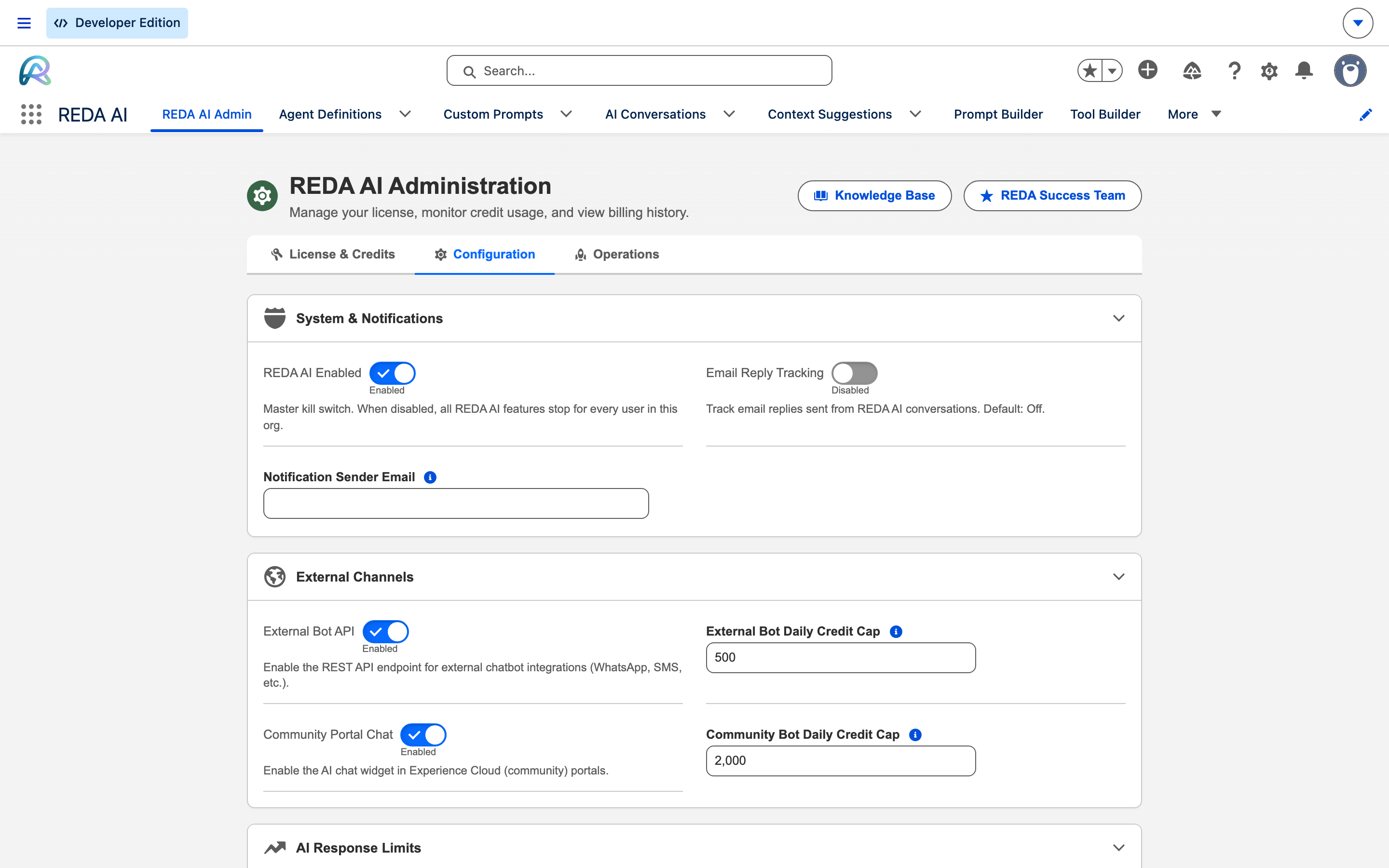
- Open the REDA AI app in your Salesforce org.
- Open the REDA AI Admin tab in the app navigation.
- Open the Configuration sub-tab — the settings sit there, in six groups. (License & Credits and Operations are the other two sub-tabs.)
- Review or modify any setting, then save.
Core Platform Settings
| Setting | Type | Default | Description |
|---|---|---|---|
| Enable REDA AI | Boolean | true | Master switch — enable or disable REDA AI across the entire org. When false, all agents stop responding and the AI is unavailable to all users and channels. |
| History Token Budget | Number | 30000 | Token budget for conversation history included in each AI request. REDA AI keeps the most recent complete messages whose combined size fits this budget — it never truncates an individual message. Higher values give the agent more memory at higher token cost (minimum 4,000). |
| Max Continuation Depth | Number | 3 | On External Widget and Community channels, after an action auto-executes the agent automatically takes a follow-up turn to report the real outcome. Caps how many such automatic continuation turns may occur per request. |
| Max Query Rows | Number | 10 | Maximum Salesforce records returned by the agent when querying a tool (e.g. "get related opportunities"). Limits data volume per query to manage API calls and token usage. |
| Max Display Rows | Number | 50 | Maximum records displayed in the UI from a tool result. Even if a query returns more rows than this, only this many are shown to the user (the agent still sees the full result). |
| External Daily Credit Cap | Number | 500 | Daily credit cap for the External Widget channel. Once reached, the external widget stops responding for the rest of the calendar day (resets at midnight). Protects your credit budget from external traffic spikes. |
| Community Daily Credit Cap | Number | 2,000 | Daily credit cap for the Community (Experience Cloud) channel. Same logic as External Widget — enforces a daily limit to prevent community users from exhausting credits. |
| Greeting Character Threshold | Number | 20 | Character count threshold for detecting greetings. Messages shorter than this (e.g. "hi", "hello", "thanks") receive a lightweight response without full AI processing, saving credits. |
| Token Budget | Number (per agent) | None | Optional per-agent setting on Agent Definition — maximum tokens the agent can use per conversation turn. Set this to cap costs on high-volume agents or free-tier deployments. |
| Max Tool Iterations | Number | 6 | Maximum number of tool calls the agent can make in a single conversation turn. Prevents runaway loops and controls credit consumption. |
| Web Search Max Uses | Number | 5 | Maximum number of web searches the agent can perform per conversation turn (range: 1–10). Only applies to agents with Allow Web Search enabled. Each search consumes additional credits. See Web Search. |
| Max File Size (MB) | Number | 5 | Maximum allowed file size for uploads in megabytes (range: 1–25). Files exceeding this limit are rejected. |
| Allowed File Extensions | Text | pdf,csv,png,jpg,jpeg,txt,json | Comma-separated list of file extensions allowed for upload. Files with other extensions are rejected. See File Upload. |
| Max CSV Characters | Number | 50000 | Maximum character count for CSV file content (range: 10,000–200,000). CSVs exceeding this limit return an error. |
| File Processing Credit Multiplier | Number | 2 | Expands the maximum output token limit for file processing requests (range: 1–10). Higher values allow more detailed file analysis at increased credit cost. |
The three Admin sub-tabs
The Admin Console includes AI Connections alongside License & Credits, Configuration and Operations. AI Connections is where administrators create, test and activate provider connections and set the organisation default. It supplies admin AI tools, document processing and agents that inherit it. Connections can be prepared while the org uses REDA credits; they take effect when its customer-account licence is activated. Follow the setup guide.
- License & Credits — the License Key card, Plan Details, Current Period Usage and Credit History.
- Configuration — the 34 org-wide settings this article is about, in six groups. The full list with defaults is in Platform Settings Reference.
- Operations — Seed Default Data and the five recurring jobs (archival, scheduled actions, rate-limit cleanup, credit periods, distribution cleanup). See Admin Overview.
Per-User Credit Management
In addition to org-wide settings, you can limit individual users' monthly credit consumption. This is especially useful in large organisations where a few power users might otherwise exhaust the shared credit pool.
Setting a User's Credit Limit
- Go to Setup → Users → find the user.
- Open the user record and click Edit.
- Find the Monthly Credit Limit field (added by REDA AI package).
- Enter a number (e.g. 100) to cap that user's monthly usage at 100 credits.
- Leave blank (null) to apply no individual limit (user can use the full org pool).
- Save the user record.
What Happens When a User Hits Their Limit
- The AI notifies the user: "You've reached your monthly credit limit."
- The user cannot send new messages until the next calendar month begins (1st of the month at 12:00 AM UTC).
- Other users are unaffected — the shared pool remains available to them.
- Scheduled/automated agents (Flow invocations) are not affected by user credit limits; they draw from the org pool.
Common Configuration Scenarios
Scenario 1: Limiting External Widget Usage
You've deployed REDA AI on your public website via the External Widget channel. To prevent external traffic from consuming your entire monthly credit budget, set External Daily Credit Cap to a reasonable daily limit (e.g. 50 credits). Once reached each day, the widget stops responding until midnight UTC, protecting your budget.
Scenario 2: Deep Conversation Memory for Internal Support
Your internal support team uses REDA AI for customer support tickets. You want the agent to remember more conversation context, so you raise History Token Budget from the default 30,000 to, say, 50,000. REDA AI then keeps more recent complete messages per request — improving the agent's grasp of multi-turn support conversations at a modest increase in token usage. (Messages are never cut mid-content; the budget controls how many whole recent messages are retained.)
Scenario 3: Controlling User Overspending
Your org has 500 users, and you've allocated 1000 credits per month. To prevent a few enthusiastic users from monopolising credits, set the Monthly Credit Limit to 50 for most users, and higher limits (e.g. 200) for your dedicated support team. This spreads credit availability fairly across the org.
Best Practices
- Monitor Credit Usage Regularly: Check the Current Usage and Credit History sections weekly to spot trends. If consumption is rising faster than expected, investigate which agents or channels are driving usage.
- Set Realistic Daily Caps: For public channels (External, Community), set daily caps based on your expected traffic and budget. Too-low caps frustrate users; too-high caps waste credits. Start conservative and adjust after a few weeks of data.
- Use Greeting Detection: Leave Greeting Character Threshold at a reasonable value (default 20 chars) so that simple greetings don't consume full AI processing. This saves significant credits on high-volume deployments.
- Adjust History Budget Per Use Case: A large History Token Budget is valuable for support (more remembered context) but costly for quick lookups. Lower it for agents focused on quick, single-turn answers. Because REDA AI keeps whole messages within the budget rather than truncating, you tune memory by token budget, not a message count.
- Document Your Token Budgets: If you set per-agent token budgets, document why in your agent notes. This helps future admins understand the constraints and adjust if needed.
Troubleshooting
Check if you're looking at a cached version of the app. Clear your browser cache, log out of Salesforce, and log back in. The Enable REDA AI setting is checked on every request, so disabling it should take effect immediately.
Daily caps reset at midnight UTC (00:00 UTC), not at your local time or org time. If you need the widget to respond before midnight, manually increase the daily cap or add a top-up for that day.
Edit the user record and set Monthly Credit Limit to null (blank). The user's limit is removed, and they can use the shared org pool again. Alternatively, increase the limit to a higher number.
Lowering Max Query Rows reduces data volume per query, saving tokens and credits. However, if your agents frequently need to see more records to make good decisions, a low limit may hurt performance. Test with your actual workload and adjust based on results.