
Installing REDA AI
AI funding and usage
AI included uses REDA credits. Bring your own AI uses your organisation’s provider account, billed directly by that provider. The licence selects one funding model for the organisation. In either model, REDA AI governs configured tools and actions in Salesforce. Set up your licence and AI accounts.
Before You Begin
Before installing REDA AI, confirm the following:
- You have System Administrator profile access in your Salesforce org.
- Your org is running Salesforce Lightning Experience. REDA AI is a Lightning-native application and does not support Salesforce Classic.
- You are installing into a sandbox first to test before going to production. See Best Practices for why this matters.
Installation Steps
-
Go to the AppExchange
Visit appexchange.salesforce.com and search for REDA AI. Click the REDA AI listing to open it. -
Click "Get It Now"
Select whether you are installing into a sandbox or production org, then log in to your Salesforce org when prompted. -
Choose "Install for All Users" or "Install for Admins Only"
We recommend Install for Admins Only first. You can grant access to additional users by assigning permission sets after installation. -
Approve third-party access
REDA AI communicates with the AI service to process requests. When prompted, check the box to approve access and click Continue. -
Wait for installation to complete
Installation typically takes 1–3 minutes. You will receive an email confirmation when it is done. -
Open the REDA AI app
In Salesforce, click the App Launcher (the nine-dot grid icon) and search for REDA AI. Open the app to confirm it is installed.
Post-Installation Checklist
Once installed, complete these steps before inviting your users:
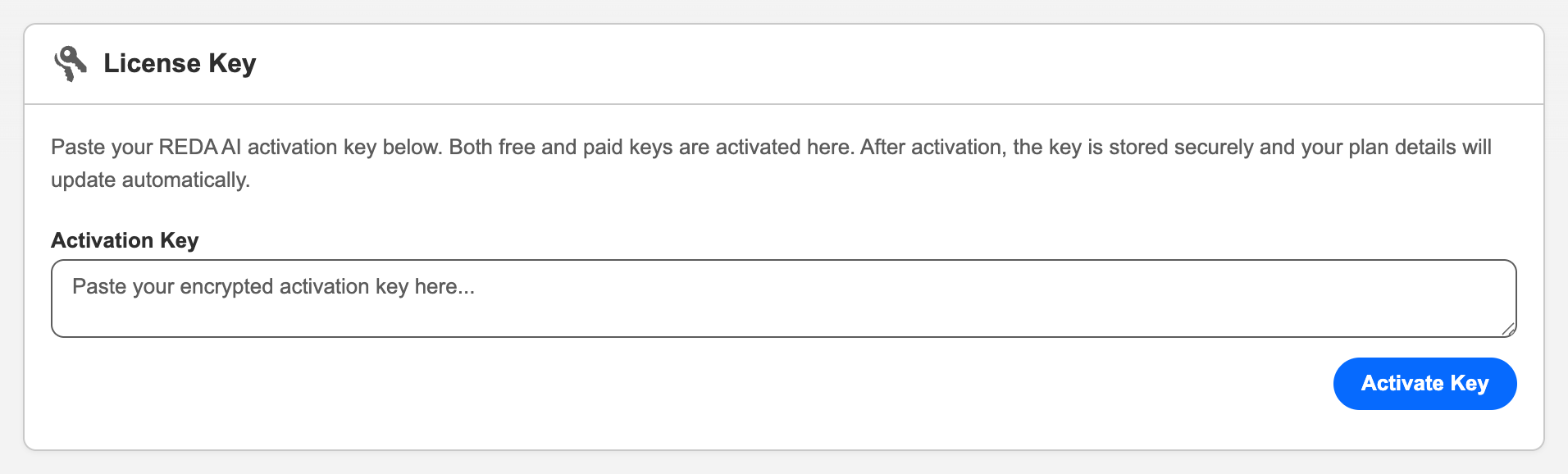
- Activate your licence key (Admin tab)
- Create the first Credit Period (Admin tab — Credits section)
- Assign permission sets to your users and admins
- Create and configure at least one Agent Definition
- Test the agent in your sandbox before deploying to production
Client steps to start using 1.16000
Open the complete field and layout checklist.
Complete this checklist for your installed baseline. It includes patches 1.15001–1.15009 as well as main release 1.16000. Features are optional; complete their setup before enabling them. The field table lists all 13 packaged fields added since main release 1.15000: nine in patches and four in 1.16000.
1. Record the baseline and preserve configuration
In Setup → Installed Packages, record the current REDA AI version. Test the upgrade with your own configuration in a suitable sandbox. Back up agent settings, custom prompts, tool custom metadata, layouts, permission sets and pending schedules. If upgrading from before 1.15000, also complete the 1.15000 upgrade steps. Install 1.16000 using the details supplied by REDA, then verify the version again.
2. Place the fields where your team works
For each object in the field table, open Setup → Object Manager → object → Page Layouts. Use Page Layout Assignment to identify every layout used by the relevant profiles and record types. Edit each applicable layout, add the listed fields to the specified section, and save. A package upgrade does not add fields to a subscriber’s customised layout. If the Lightning record page uses Dynamic Forms, also open Edit Page, add the fields to its field sections, review visibility rules and activate the appropriate page assignment. A page-layout change alone is insufficient for Dynamic Forms.
On the Agent Definition layout, add the Exclusive Prompts related list so administrators can create assignments. Include the prompt, Active and Load Mode columns. Make the new Exclusive Prompt object and its layout accessible through the app or an approved related-list workflow. Keep Via MCP, credit Processing Tier and Request Type read-only in operational layouts; they are stamped by the application.
3. Check permission sets and actual user access
Review REDA AI Admin for administrators, REDA AI User for internal users and REDA AI Community User for the applicable community users. Assigned packaged sets can receive updated permissions; an upgrade does not create missing assignments or update your cloned/custom sets. For custom sets, review object access and field access for the table’s objects and fields. Required relationship fields follow the object’s access rules and may not have a separate editable field-permission entry.
MCP users need REDA AI User plus REDA AI MCP User; the latter also grants edit access to the two MCP configuration fields. Review that grant against your roles. The REDA AI MCP Guest set is for the endpoint’s Site guest user, not a substitute for authenticated users’ business-data permissions.
4. Check picklists and stale help text
On Agent Definition → Processing Tier, verify the API value Economy and its availability for applicable record types. On an existing Async Request → Request Type, verify Continuation and Bulk Turn. Add missing values using the exact API spelling. New fields bring their packaged values; existing subscriber configurations still need checking.
Older field help text can survive an upgrade. Review Processing Tier, Deep Reasoning, Conversation Window, Economy Tier Consent, prompt Context Objects, agent Default Context Objects, Agent ID and Persona. Use the current guides for behavior. In particular, Economy requests without consent are refused; replace any help text saying they automatically run as Efficient. Suggested consent help: “Confirms your organisation accepted the Economy processing disclosures. Without consent, Economy requests are refused. Select only after approval.”
5. Configure the features you intend to use
- Conversation continuity: set Conversation Window (Hours) explicitly where needed. Blank now uses the organisation default, initially 30 minutes;
0prevents automatic resume. A positive value sets the window. Test record and no-record contexts; this setting does not delete history. - Economy: request a reissued licence from REDA if your key predates Economy credentials, activate it through the normal licence process, and create/verify your approved active Remote Site Setting for
https://api.deepseek.com. Review the processing terms before checking Economy Tier Consent on each intended agent. Missing consent or missing Economy credentials causes refusal. A provider-availability fallback is a different case and may be billed as Efficient. Ordinary Economy usage now uses 0.40× the base credit rate; file pre-extraction is full rate. Deep Reasoning is unavailable on Economy. - Exclusive Prompts: add Exclusive Prompt and Summary to Custom Prompt. Create the shared prompt with no direct Agent Definition, mark it exclusive, and write a useful summary. Create an Exclusive Prompt assignment for each chosen agent, select the prompt, set Active and choose Always, On Context or On Demand (API values
Always,On_Context,On_Demand). On Demand needsget_context_promptsavailable in the agent’s tool loadout. A prompt with a nonblank context scope no longer loads on a context-free turn: clear the scope only when that prompt is intended to apply everywhere. Check the result in Agent Runtime Preview, both with a record ID and with no record. - MCP: configure the Site endpoint and Salesforce External Client App, approve the permission set in the app’s policy, assign users, then enable MCP only on the intended active Internal agents. Complete MCP Setup and the user guide. Installation alone does not connect an external assistant.
6. Merge tool and prompt configuration
In Setup → Custom Metadata Types → REDA AI Tool Definitions → Manage Records, compare existing subscriber-controlled values with the current REDA definitions. Preserve client customisations while merging these changes:
create_taskandcreate_event: Description and Input Schema must advertisefield_values;create_eventmust includeInternal;APIin Channels if you want it on API agents.send_email: merge the current Description and Input Schema, includingrecipient_id, To/Cc handling and the recipient-versus-related-record guidance.schedule_action: merge the current Description. On older baselines also compareget_recordagainst the current reference. Verify the required tools are actually offered by the intended agent.
Do not replace the entire tool record blindly: descriptions, schemas and channels are subscriber-controlled, while the packaged Requires Confirmation setting is developer-controlled.
Review _common:language-directive-api, _common:language-directive-external and _common:core-instructions-api. Merge updated language and human-recipient instructions while preserving your business rules. Seed Default Data can overwrite all shared default prompts; it is not a safe one-prompt update. API/external language should follow the incoming message, rather than the service or guest user’s language.
7. Review automation before running it
For bulk Flow invocations, check whether downstream elements expect an immediate answer: deferred processing returns an asyncRequestId instead of immediate response and credit output. Review every API agent configured with Execution Context = System: the patches make automated actions honor that setting where some previously ran in User mode. That can change effective object and field permissions; confirm it is intended before running the workflow.
For time-based actions, verify the scheduled processor is runnable and review its owner and existing pending work. New Pending or rescheduled actions are rejected when no runnable processor exists. Do not activate it merely to clear an error without reviewing what will run. Delayed jobs use the scheduler owner’s execution identity. Email-reply tracking and routine history/status updates are separate cases. Verify explicit datetime offsets in a disposable test.
8. Verify and hand over
Use an ordinary authorised user, with an administrator as a comparison. Confirm field visibility, allowed and denied record access, a harmless action proposal/decline/approval and its actual Salesforce result, conversation resume, and the features you enabled. Inspect a new credit transaction’s Processing Tier and an MCP message’s Via MCP flag. Older credit rows are not backfilled; do not interpret a historical blank as measured usage of a tier. Record the installed version, layouts/permissions changed, features enabled, test results and any remaining client-owned setup before wider use.
Frequently Asked Questions
Yes. The REDA team offers free installation and setup assistance for REDA AI. Email sales@reda.one to schedule it — the team installs the package, activates your licence, and configures your first agent with you.
Yes. REDA AI can be installed in any number of orgs. Each org requires its own licence key. Contact the REDA team at sales@reda.one to obtain a key for additional orgs.
No. AppExchange upgrades are applied on top of the existing installation. Simply install the new version and your existing configuration, agents, and data are preserved.
Uninstalling a managed package removes the app's components. Any data stored in the package's custom objects (conversation records, agent definitions, etc.) will also be deleted. We recommend exporting data before uninstalling. Contact the REDA team at support@reda.one before proceeding.