
Internal Channel
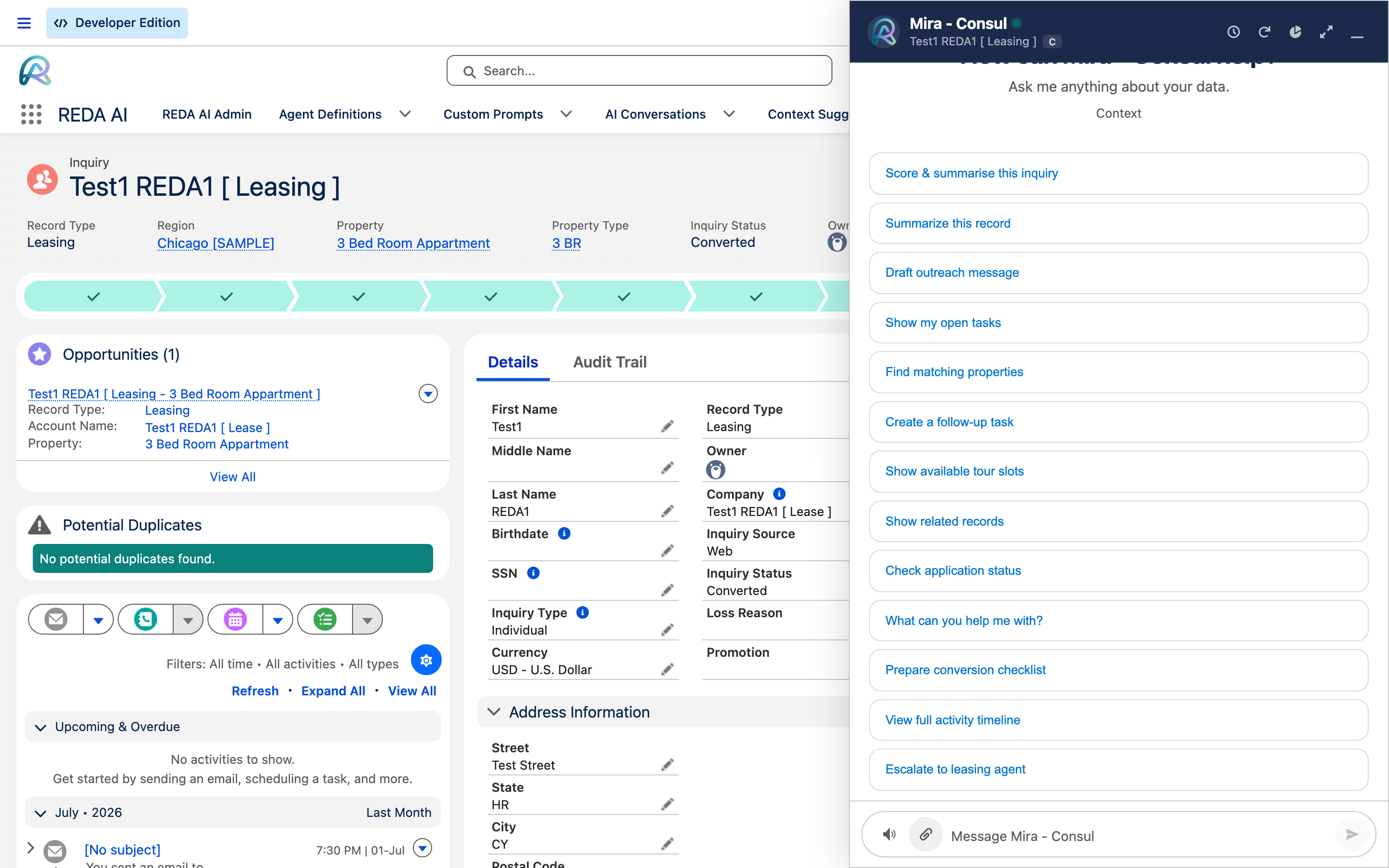
Overview
The Internal Channel deploys REDA AI as a chat assistant for your internal Salesforce users — the people inside your organisation who work in Salesforce day to day. This is the most common deployment mode and is typically the starting point for any REDA AI rollout.
The Internal Channel is embedded directly inside Salesforce Lightning. Your users do not need to leave Salesforce or open a separate application — the AI assistant appears on the same screen as the record they are working on.
Any Salesforce user assigned the REDA AI User permission set. Only users with this permission set will see the chat interface. See App Access & Permissions for details.
MCP connects an approved AI assistant to selected active Internal agents. Each person signs in with their Salesforce identity. The host receives agent entry points; individual REDA tool and prompt definitions are not exposed as separate MCP tools. Configure a Salesforce Site, an External Client App, both REDA AI User and REDA AI MCP User assignments, and agent opt-in. See the administrator setup guide and user guide. Interaction data can reach the connected host and configured AI providers as well as Salesforce. Review the intended data and agreements; this is not a promise that data never leaves Salesforce.
Where to Place the Chat Component
The REDA AI Internal Channel component can be placed in three locations within Salesforce Lightning:
| Placement | Best for | Notes |
|---|---|---|
| Record Page | Contextual AI assistance on specific object types (Accounts, Opportunities, Cases, etc.) | The AI automatically reads the current record's context fields. Most powerful placement. |
| Home Page | General-purpose AI assistant not tied to a specific record | Useful for dashboards, reporting, or team home pages. |
| Utility Bar | Persistent access from any page in Salesforce | Users can expand and collapse the AI panel without navigating away from their current page. |
Adding the Component to a Record Page
-
Open the Lightning App Builder
Navigate to the record page where you want to add the AI component. Click the gear icon ⚙️ in the top-right corner of Salesforce and select Edit Page. -
Find the REDA AI component
In the left-hand Components panel, search for REDA AI Chat. You will see the REDA AI Chat component listed under custom components. -
Drag the component onto the page
Drag the REDA AI Chat component to your preferred position on the page layout. A sidebar or full-height panel on the right side of the page works well. -
Select the Agent
In the component properties panel on the right, set Agent Id to the agent you want on this page. Only active agents configured for the Internal channel will run here. Leave Agent Id blank to auto-detect — the component then picks the agent from the page context, which is useful when one page layout serves several teams or when you'd rather manage the choice on the Agent Definitions than on every page. -
Save and activate the page
Click Save, then Activate. Set the page as the default for all users, or target it to specific profiles or apps as needed.
Display Mode
In the component’s properties panel, the Display Mode setting controls how the assistant appears on a record, app, or home page:
| Display Mode | What the user sees |
|---|---|
| Embedded (default) | The assistant sits inline in the page region where you placed it. |
| Docked Right / Docked Left | A launcher appears in the region; opening it slides a tall panel in over the page from that edge. The page stays usable behind it. |
| Chat Bubble | A floating button appears in the corner; clicking it expands the assistant into a panel. |
On phones and the Salesforce mobile app, the Docked and Chat Bubble panels open full-screen for a comfortable mobile experience.
You can also style the assistant from the same properties panel — Header Color, Header Icon Color, User Bubble Color, Chat Background Color, Font Size, and Chip Style. By default it uses a modern light theme; set a Header Color (and a contrasting Header Icon Color) to apply your brand.
Adding the Component to the Utility Bar
-
Go to App Manager
In Salesforce Setup, search for App Manager. Find the Lightning app where you want to add the REDA AI utility bar item. -
Edit the app
Click the dropdown arrow next to the app and select Edit. -
Open Utility Items
In the App Builder navigation on the left, select Utility Items (Desktop Only). -
Add a utility item
Click Add Utility Item, then search for and select the REDA AI Chat component. -
Configure the item
Set a label (e.g. "REDA AI"), choose an icon, and select the Agent you want to run in this utility bar context. Set the panel width and height to your preference. -
Save the app
Click Save. The utility bar item will appear at the bottom of the Salesforce screen for all users of this app.
Record Context & Context Fields
When the Internal Channel component is placed on a record page, REDA AI automatically reads the current record's data and passes it to the AI before processing the user's message. This is what enables the AI to give contextually relevant answers — it "knows" what record the user is looking at.
Which fields are read is controlled by your Context Fields configuration. If no context fields are defined for the current object, the AI will still work but will not have record-specific context.
Suggestion Chips
Suggestion chips are pre-defined prompt shortcuts that appear at the bottom of the chat interface. They help users quickly ask the most common questions relevant to the current record type — without having to type anything.
Chips are configured per agent and appear contextually based on the page the user is on. You can define multiple chip sets for different object types. See Context Suggestions (Chips) for configuration details.
Action Confirmations
When an Internal Channel agent performs a Salesforce action — such as updating a field, creating a task, or sending an email — REDA AI presents the user with a confirmation card before executing the action. The user must explicitly click Confirm before any changes are made to the Salesforce record.
You cannot switch confirmation off for the packaged Action tools that carry it, so on an interactive internal agent a create, update, delete or send is always shown before it happens.
Two things do bypass the card, and both are worth knowing. Three Action tools ship with Requires Confirmation off — schedule_action, link_file_to_record and continue_workflow — so they execute silently even here; schedule_action writes a Scheduled Action record when it does. And a custom Action tool you build can be saved with Requires Confirmation off, which is your decision to make rather than the platform's. See Action Confirmations for more detail.
Visibility & Access Control
The REDA AI component is visible only to users who have been assigned the REDA AI User permission set. Users without this permission set will not see the chat component, even if it is placed on the page layout they are using.
You can also control visibility at the Lightning App Builder level using visibility rules — for example, showing a different agent to Sales users vs. Service users on the same record page.
Connect selected agents through MCP
MCP connects an approved AI assistant to selected active Internal agents. Each person signs in with their Salesforce identity. The host receives agent entry points; individual REDA tool and prompt definitions are not exposed as separate MCP tools. Configure a Salesforce Site, an External Client App, both REDA AI User and REDA AI MCP User assignments, and agent opt-in. See the administrator setup guide and user guide. Interaction data can reach the connected host and configured AI providers as well as Salesforce. Review the intended data and agreements; this is not a promise that data never leaves Salesforce.
Review conversation continuity
A blank Conversation Window (Hours) now uses the organisation default, initially 30 minutes. A positive value sets the agent's window; 0 disables automatic resume. Matching remains channel-specific: API uses agent and record context; authenticated Internal/MCP uses agent, user and the relevant record context. Community uses the shared window setting instead of the external-session timeout. Home, app-page and utility-bar chat can resume eligible conversations. Explicit conversation identifiers remain subject to their route's access checks. Review agents that relied on blank meaning a new conversation, and use 0 where that behaviour is required. Packaged permission fixes also address Internal and Community conversation access.
Frequently Asked Questions
Yes. You can add the REDA AI Chat component to as many page layouts and object types as you need. Each placement can point to a different agent if required — for example, a sales agent on Opportunity pages and a service agent on Case pages.
Yes. You can use Lightning App Builder visibility rules to show different component configurations to different profiles, roles, or permission sets. Each visible variant can point to a different agent.
The conversation history within a single session is retained as the user navigates. However, record context (the fields read from the current record) is updated each time the user interacts with the agent from a new page. The agent always uses the context of the current record in its response.
The functionality is identical — both use the same agent configuration and context field system. The difference is purely in placement: a record-page panel is larger and fixed to one object type, while the utility bar provides a persistent, collapsible panel accessible from anywhere in the app.