
Set up MCP access for REDA AI
Model Context Protocol (MCP) lets a connected AI assistant use the business agents you configure in REDA AI. The assistant delegates a request to an agent, which works with its configured instructions, business context, tools and actions. This guide walks a Salesforce administrator through connecting Claude to REDA AI 1.16000 or later.
You configure three parts: a Salesforce Site that publishes the endpoint, an External Client App that handles Salesforce sign-in, and the agents and users allowed to use it. The screenshots come from REDA’s internal demonstration org. They show the English Salesforce interface; your org’s language and platform release may change some labels.
Before you start
- In Setup → Installed Packages, confirm REDA AI is version 1.16000 or later. Obtain installation details from your REDA account executive or support@reda.one. Upgrading does not complete the setup below.
- Use a Salesforce administrator who can manage Sites, External Client Apps and permission sets. A permission set is a bundle of access rights assigned to a user. See App access and permissions.
- Have an active REDA AI licence, available credits, a configured Internal agent and a Salesforce user who can access its intended business records.
- Have access to custom connectors in Claude. For a managed Claude workspace, involve its administrator. This walkthrough covers the tested hosted Claude connection; confirm other clients with REDA before relying on them.
Review the data and access boundary
Hosting the endpoint in Salesforce does not mean data never leaves Salesforce. Information used in the interaction can be processed by Claude and by REDA AI’s configured AI providers. Review the intended data, provider agreements and workspace controls before enabling access. See Data security in REDA AI.
Choose only the agents and users needed for the workflow. Business instructions guide the agent; permissions, validation and configured action approvals provide the enforceable boundaries. An agent’s MCP description is visible to the connected assistant, so keep credentials and sensitive record content out of it.
1. Publish the Salesforce Site endpoint
- Open the Salesforce gear menu → Setup. In Quick Find, search for Sites and open it.
- If your org has no Sites domain, register one through the Salesforce setup flow. Create an active Site, or use an existing Site approved by your administrator. Some editions limit the number of Sites; check existing Sites before creating another. Record the Site’s HTTPS address and any path prefix.
- Open the Site and select Public Access Settings to identify its guest user. The guest user handles the public endpoint entry point; it is not the Salesforce identity used for an authenticated business request.
- Go to Setup → Permission Sets → REDA AI MCP Guest → Manage Assignments → Add Assignments. Select the guest user for that Site and assign the set. It grants access to the MCP endpoint class, not business-object or field permissions. Review any other access already assigned to that guest separately.
- Build the connector URL using your Site address:
https:/. Omit/ <site-host>/ <prefix>/ services/ apexrest/ redaai/ mcp/ v1 /<prefix>if your Site has no prefix. Keep/redaai/and do not use a Lightning record URL.
Check the result: the endpoint must be reachable over HTTPS from Claude’s cloud. A request without a user token should receive an authentication challenge (HTTP 401), not business data. Being able to reach a URL only from your laptop or private network is insufficient.
2. Create the External Client App
An External Client App registers the connection in your Salesforce org. OAuth lets users sign in through Salesforce without giving Claude their Salesforce password. This app is a separate customer setup step.
- In Setup → Quick Find, enter External Client App Manager.
- Open it and click New External Client App.
- Complete Basic Information using the values below. Optional phone, logo and description fields can follow your organisation’s conventions.
| Field | Value to enter |
|---|---|
| External Client App Name | REDA AI MCP, or an equivalent name your users will recognise. |
| API Name | REDA_AI_MCP; check the auto-filled value. |
| Contact Email | Your organisation’s responsible administrator or support address. |
| Distribution State | Local. |
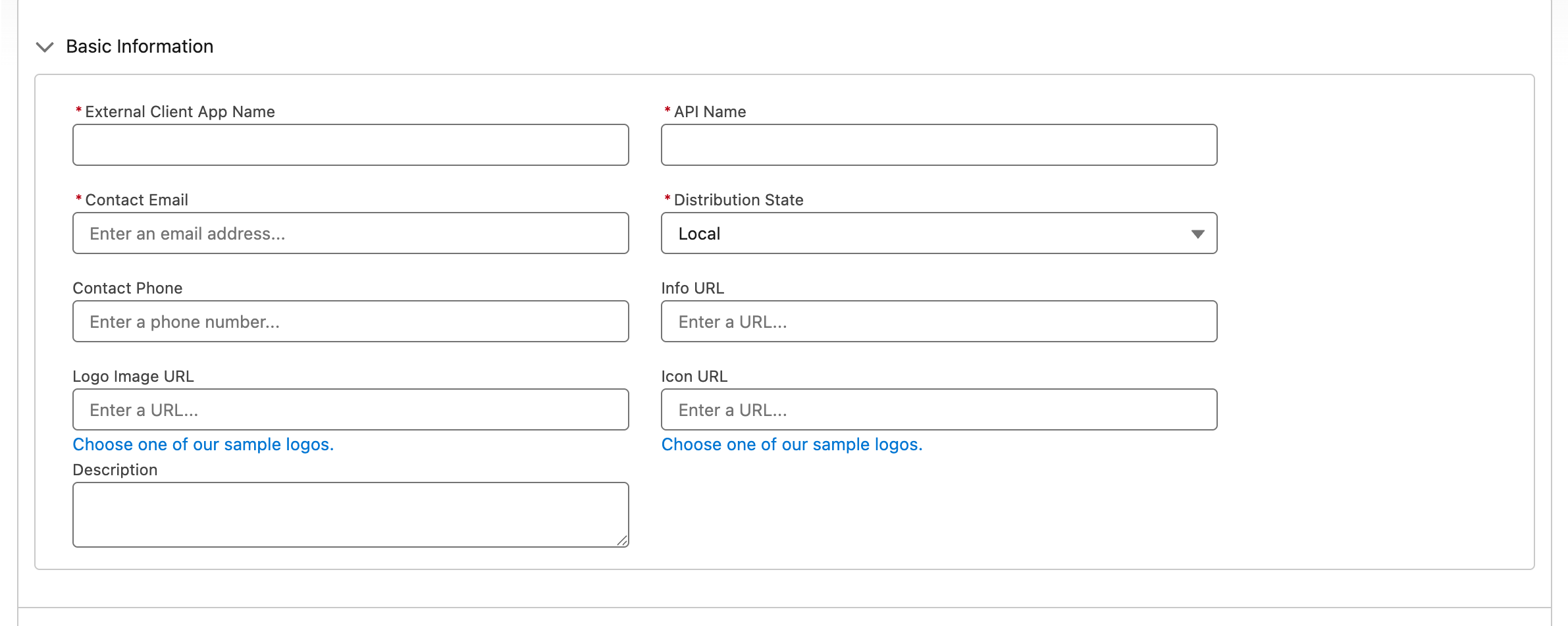
Expand API (Enable OAuth Settings), then select Enable OAuth. This reveals the callback, scopes and security controls. Complete steps 3 and 4 before clicking Create. If the app already exists, open its name, choose Settings → Edit, expand OAuth Settings and update the same fields instead.

3. Enter the callback URL and OAuth scopes
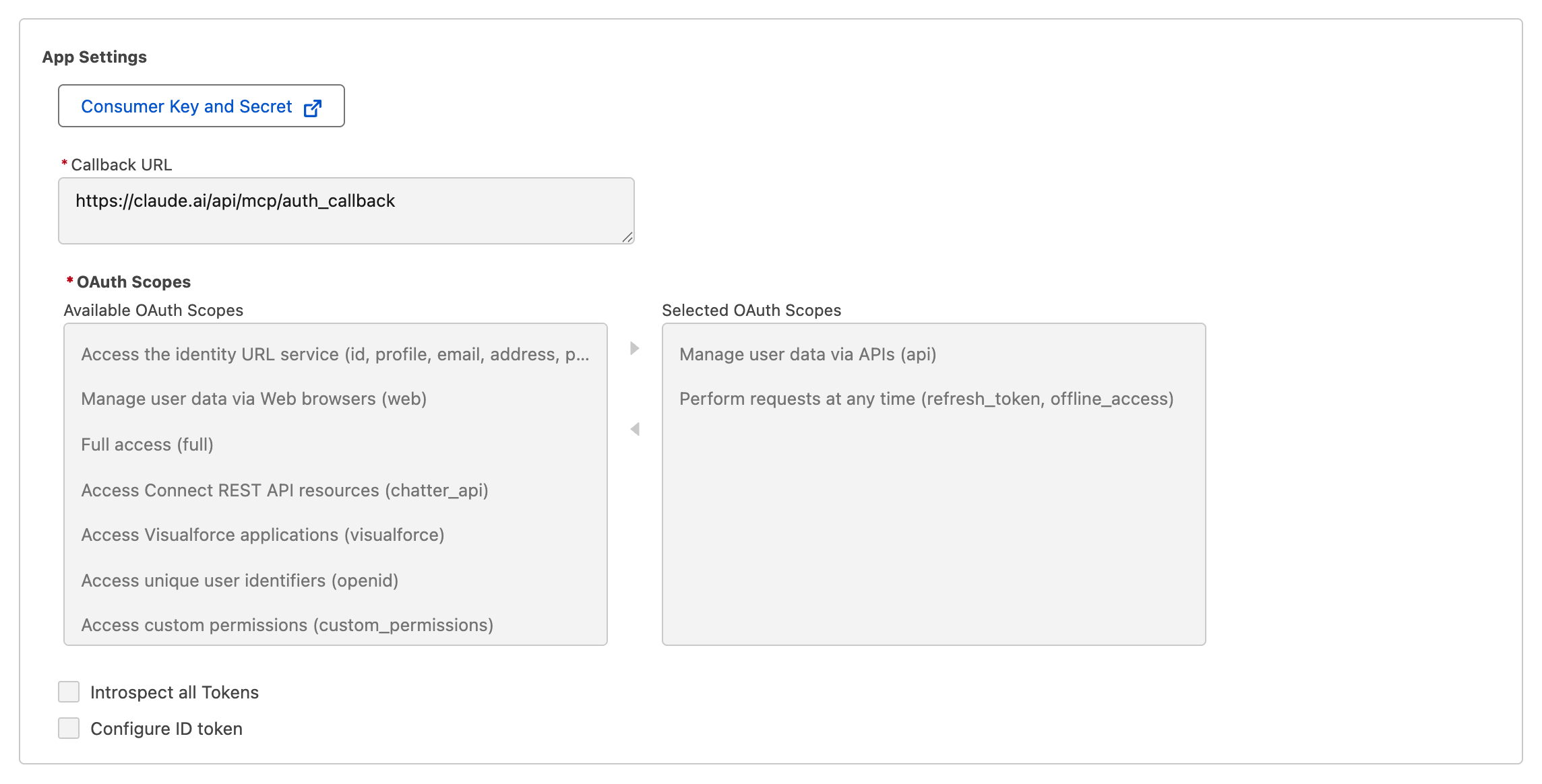
In Callback URL, enter https:/ exactly. This is where Salesforce returns the user after sign-in; it is different from your Salesforce Site’s connector URL.
Under Available OAuth Scopes, select each of the following and use the right arrow to move it into Selected OAuth Scopes:
- Manage user data via APIs (api) — allows the Salesforce API access used by this connection.
- Perform requests at any time (refresh_token, offline_access) — allows the connection to renew access subject to your token policy.
Use these two scopes for REDA’s Site endpoint. Do not substitute the mcp_api scope for Salesforce-hosted MCP servers, or add Full access (full) just to resolve a sign-in problem. OAuth scopes do not replace the user’s object, field and record permissions.
4. Configure the flow and security settings
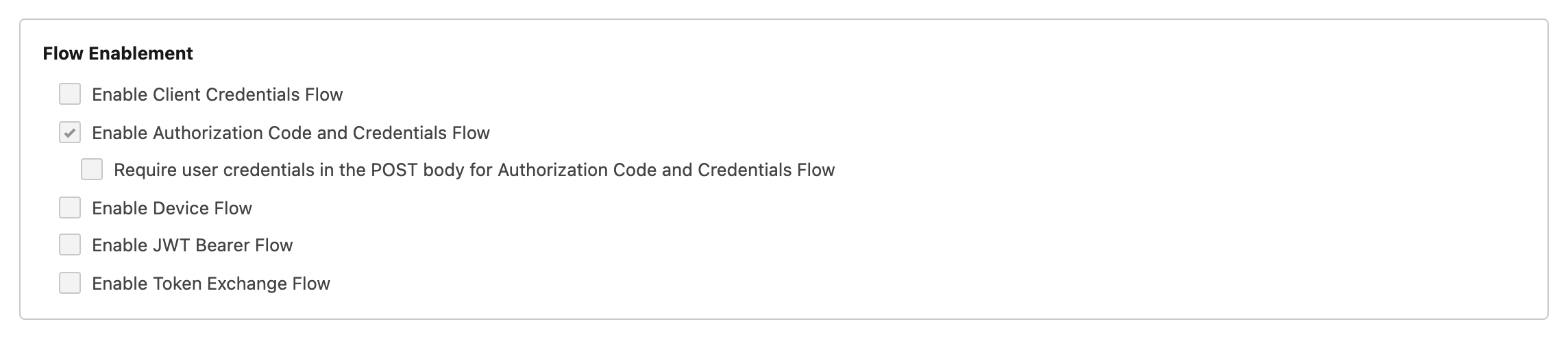
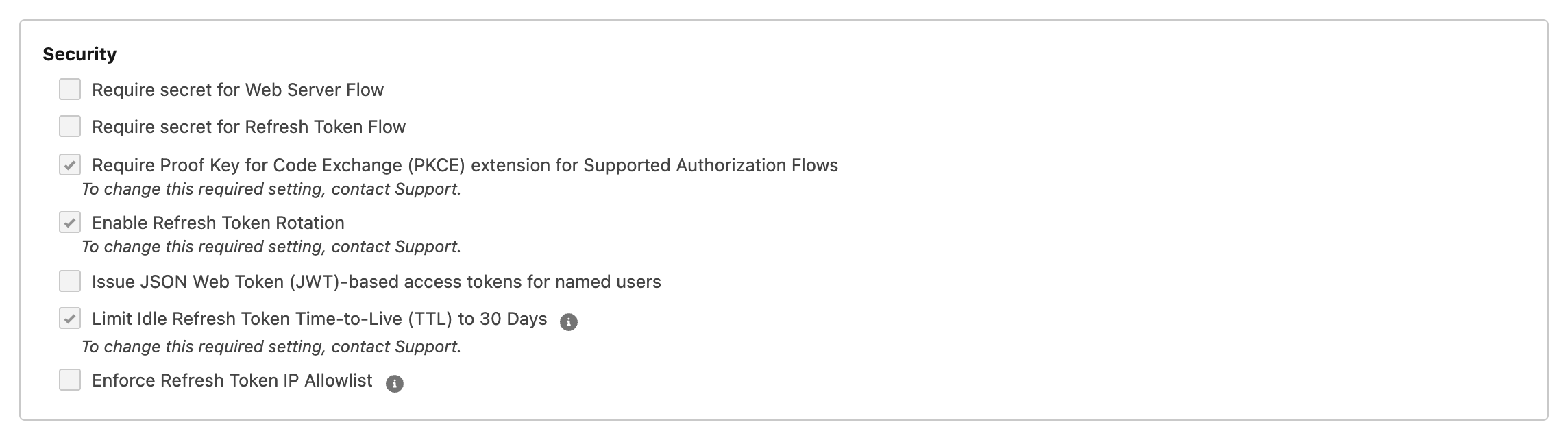
Use the following profile for this tested connection. Proof Key for Code Exchange (PKCE) binds the authorisation-code exchange to the client that initiated it. This profile uses a client ID and PKCE without a client secret; it is not a statement that every OAuth integration should omit a secret.
| Setting | Value for this walkthrough |
|---|---|
| Enable Authorization Code and Credentials Flow | Selected. |
| Require user credentials in the POST body for Authorization Code and Credentials Flow | Not selected. |
| Enable Client Credentials Flow; Device Flow; JWT Bearer Flow; Token Exchange Flow | Not selected. This connection uses an interactive user sign-in. |
| Require secret for Web Server Flow | Not selected. |
| Require secret for Refresh Token Flow | Not selected. |
| Require Proof Key for Code Exchange (PKCE) extension for Supported Authorization Flows | Selected. |
| Enable Refresh Token Rotation | Selected. |
| Issue JSON Web Token (JWT)-based access tokens for named users | Not selected in this tested profile. |
Click Create for a new app, or Save for an existing app. Reopen its Settings and verify the saved values. Confirm App Status is Enabled. A newly created app may take time to become available; Salesforce advises allowing up to 30 minutes before treating an immediate sign-in failure as a configuration defect.
5. Decide who may connect and how sessions expire
Open the app → Policies → Edit → OAuth Policies. Choose the Permitted Users policy deliberately:
- Admin approved users are pre-authorized: use this when administrators must approve the eligible users. After saving, use the app’s Permission Sets or Profiles controls to authorise the intended access group, such as REDA AI MCP User. Users must also hold that assignment.
- All users can self-authorize: users consent individually. This is the demonstration app’s policy. REDA AI’s MCP permission and agent-access checks still apply; self-authorisation does not grant access to every agent or record.
Two separate checks: under the admin-approved policy, assigning REDA AI MCP User to a person is not enough unless that permission set is also authorised on the External Client App. Conversely, approving the set on the app does not assign it to anyone.
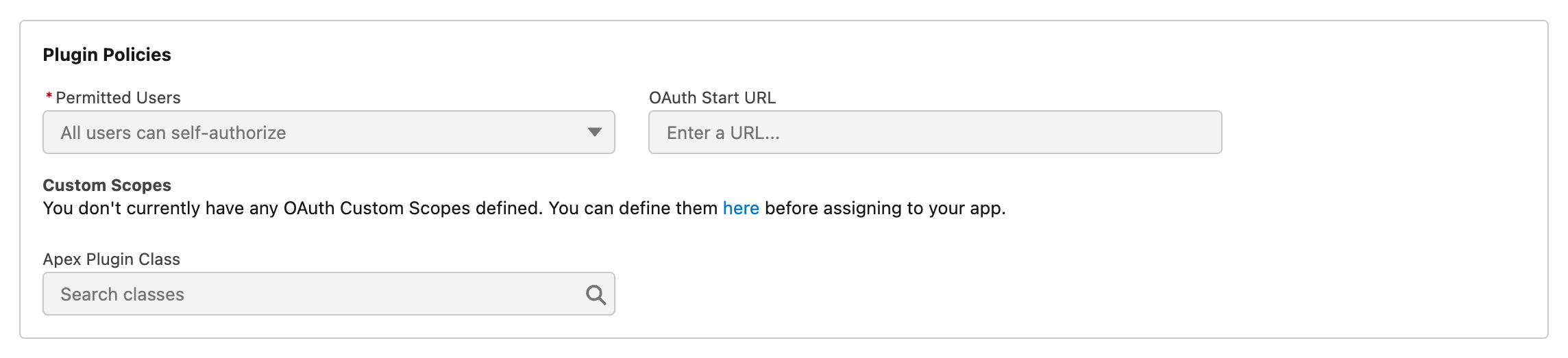
In App Authorization, review Refresh Token Policy, its validity period and unit, IP Relaxation, session timeout and any high-assurance requirements with your Salesforce security administrator. These are organisational choices; do not copy the screenshot’s values without review. Refresh-token rotation is configured in Settings; expiry is configured here in Policies.
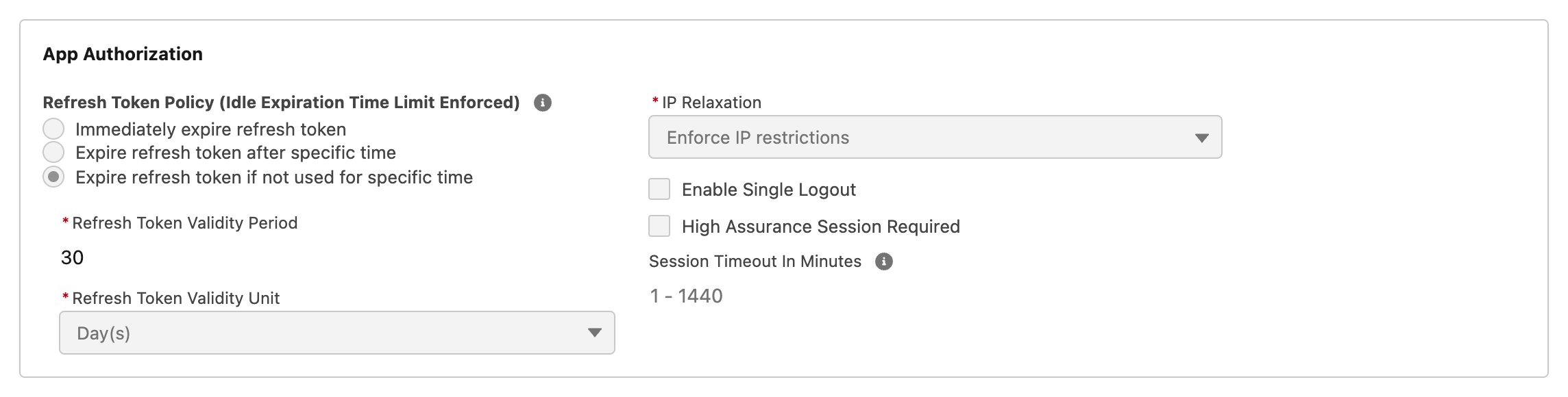
If your policy requires a refresh-token IP allowlist, review Settings → OAuth Settings → Security and Refresh Token IP Allowlist. Confirm the connector host’s current outbound IP ranges before enabling enforcement. Claude’s hosted connection originates from its cloud, not your users’ office IP addresses. Keep required controls in place while diagnosing network failures.

6. Copy the Consumer Key for Claude
- Open the app → Settings → OAuth Settings.
- Click Consumer Key and Secret. Complete any Salesforce verification prompt.
- Copy only the Consumer Key. Claude calls this the OAuth Client ID.
- Give the connector administrator the Client ID and the Site connector URL from step 1. Do not supply the Consumer Secret for this profile, a Salesforce password or an access token.
The Consumer Key identifies this app. Keep the Consumer Secret and all user tokens confidential. The earlier App Settings screenshot shows the button’s location without revealing either value.
7. Enable agents and assign users
- Open App Launcher → REDA AI → Agent Definitions and choose an active Internal agent. MCP is an additional access surface; it is not a separate Channel value.
- Open Details → AI Assistant Access (MCP). Edit the record, select MCP Enabled, and enter MCP Instructions describing the agent’s purpose and when the assistant should call it. Save.
- If those fields are missing, open Setup → Object Manager → Agent Definition → Page Layouts, edit the layout used by the target profile/record type, and place MCP Enabled and MCP Instructions in a suitable section. For Dynamic Forms, review the Lightning record page’s field placement too. Check field-level access in custom permission sets. See the release upgrade checklist.
- In Setup → Permission Sets, assign both REDA AI User and REDA AI MCP User to the intended Salesforce users through Manage Assignments → Add Assignments. Review the complete grants: the MCP set also allows editing its two agent configuration fields. The Site guest set is a different assignment.
- Confirm these users can see the intended Agent Definition and have the required business-object, field and record access. Do not use an administrator’s successful test as proof of an ordinary user’s access.

Example: “Service desk assistant: reviews case status and prepares follow-up tasks. Use it for case progress, next steps and approved service actions.” Keep the detailed SOPs, tool configuration and approval rules in the agent’s normal setup. Test requests that start without an open Salesforce record; prompts that assume a record page or a Lightning button may need adaptation. See Custom prompts per agent and Action confirmations.
8. Review origins and conversation continuity
For a client that sends an Origin header, open REDA AI Admin → Configuration → External Channels and add its exact approved HTTPS origin in the MCP origins setting. Separate multiple origins with commas. Do not enter wildcard domains or a callback path. Blank adds no extra origins; clients that send no Origin header remain supported.
Review the agent’s Conversation Window (Hours). Blank uses the organisation default, initially 30 minutes; a positive value sets that agent’s window; 0 disables automatic resume. This controls continuation of a recent conversation across supported surfaces, not data retention or deletion.
9. Connect and verify with an ordinary user
- In Claude, open Settings → Connectors and add a custom connector. Enter a recognisable name and the complete Site connector URL.
- In the OAuth client or advanced settings, choose Use your own OAuth client and enter the Consumer Key as the Client ID. Leave Client Secret empty for this profile.
- Connect and sign in through Salesforce as the intended user. Check the org shown on the sign-in/consent screen before authorising. Detailed usage is in the MCP user guide.
- Confirm the expected agent appears. Start with a read-only request against a known record the user may access. Compare the result with Salesforce.
- Test a record the user must not access. Then, in your test environment, try an action configured to require confirmation: review the proposal, approve it, and verify the resulting record or status in Salesforce.
- Open REDA AI → AI Conversations and review the associated messages. The Via MCP field identifies MCP messages. See Viewing conversations.
Completion check: the right user can connect to the right agent, expected data is returned, forbidden data is not exposed, and a controlled action follows its approval rule. Reconnect when testing catalogue changes because an assistant may cache the available agents.
Troubleshooting and removing access
| Symptom | What to check |
|---|---|
| 404 or an HTML Site page | Verify the active Site, its path prefix and the complete /services/apexrest/redaai/mcp/v1 suffix. |
| HTTP 401 before sign-in | An unauthenticated challenge is expected. If it continues after connection, reconnect and check the app, user assignment and token policy. |
redirect_uri_mismatch | Compare Callback URL character for character with the Claude callback in step 3. |
| Application not approved for this user | Check both app-side permission-set approval and the user’s assignment. Confirm you signed in to the intended org. |
| Client ID or authentication error | Use the Consumer Key from this org’s app, not the API Name. Verify Enabled status, PKCE and secret settings; allow for new-app propagation. |
| Sign-in works but the agent is missing | Check both user permission sets, Agent Definition visibility, Active, Internal and MCP Enabled. Refresh the connector’s catalogue. |
| Origin or IP rejection | Check the exact origin and the host’s outbound IPs against the relevant controls. Do not broaden business-record permissions to solve a network error. |
| Frequent reconnection | Review refresh-token expiry, rotation and applicable session/IP policies. Expired or revoked tokens require sign-in again. |
To remove one user’s access, remove REDA AI MCP User and revoke their existing OAuth authorisation in Salesforce. To remove an agent, clear MCP Enabled. To stop the whole connection, disable the External Client App’s OAuth; deactivating a shared Site can also interrupt other services using it. Verify the result from the connected assistant.
Platform references: Salesforce External Client App OAuth settings and Claude connector authentication.