
AI Incident Logs
REDA AI automatically captures errors and unexpected events as AI Incident Log records. These logs give your administrators full visibility into what is happening under the hood — so issues can be identified, investigated, and resolved quickly without guesswork.
How Incident Logs Are Created
When an error occurs — for example, a tool fails to retrieve data, an action cannot complete, or the AI service returns an unexpected response — REDA AI automatically creates an Incident Log record. This happens in the background without any action required from the user or admin.
Each incident is classified by severity and given a status so you can prioritise and track resolution.
Not every entry here is a failure. Some record a deliberate stop — a safeguard that decided an action should not go ahead. The most common is a scheduled action whose condition could not be checked: rather than run unchecked, it is skipped, and the reason is written down so the decision is visible rather than silent. When you see one of these, read the reason before treating it as a fault; often the answer is that a field the condition referred to has been renamed or removed, and the condition needs updating. See Conditional Execution.
Distinguishing the two matters when you are working through a list: a genuine failure needs fixing, while a recorded skip may be the system doing exactly what it should.
Accessing Incident Logs
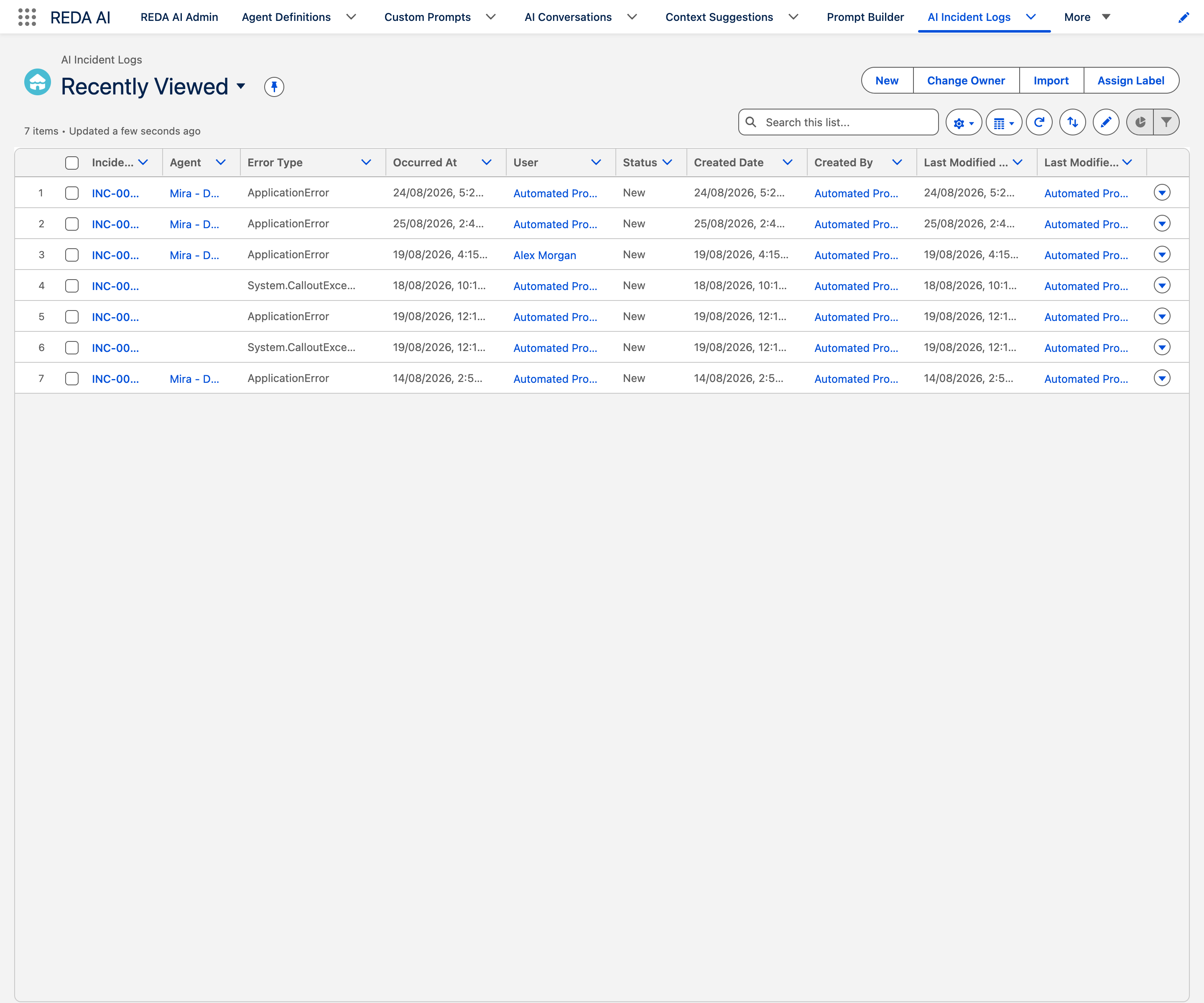
- Open the REDA AI app — Click the App Launcher and open REDA AI.
- Click the "More" menu — In the REDA AI navigation bar, click the arrow (More) button to reveal additional tabs.
- Select "AI Incident Logs" — The list view shows all incident log records, ordered by most recent first.
Understanding Incident Log Fields
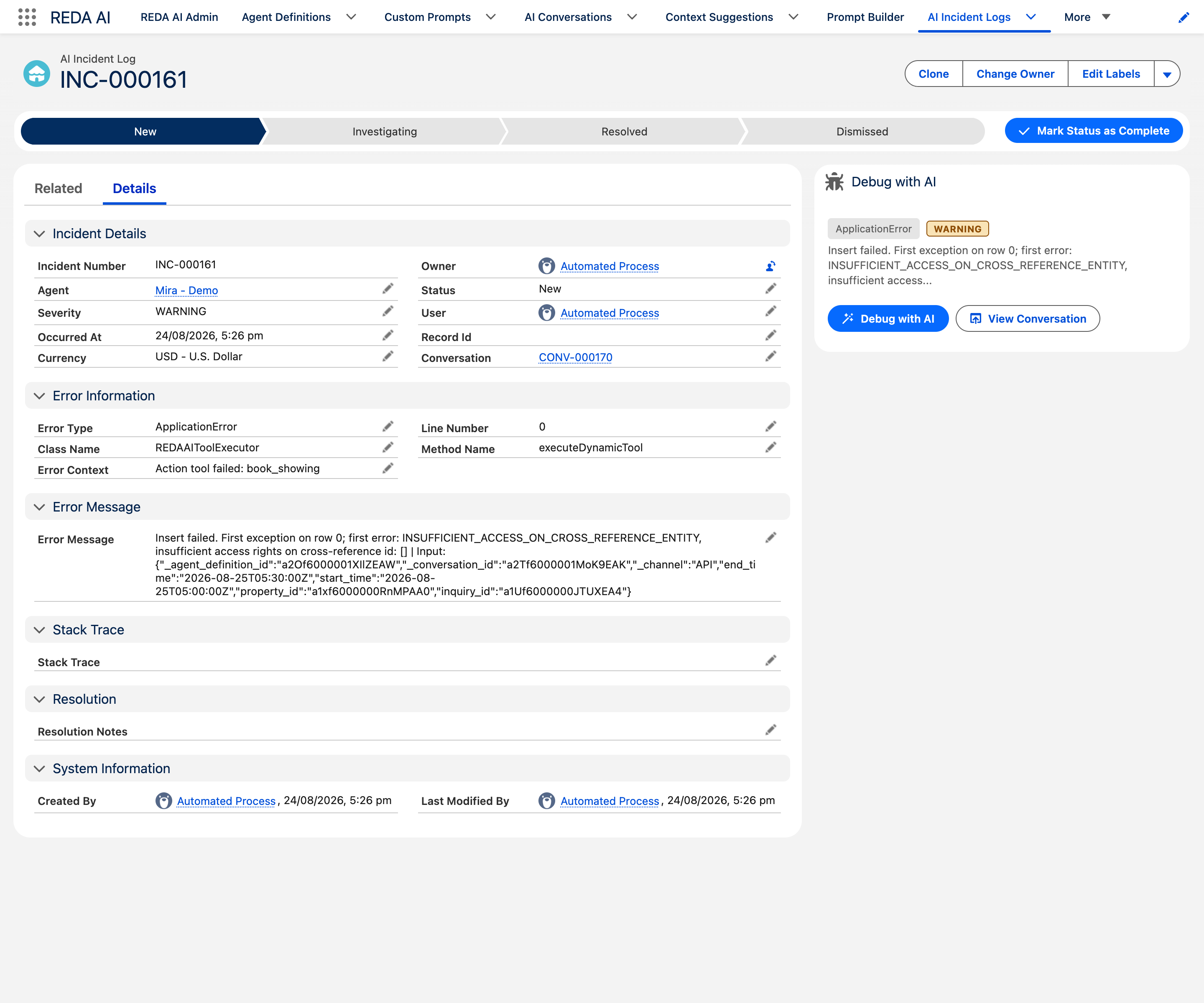
An incident log carries three groups of information: what happened (Severity, Error Type, Error Message), exactly where (Class Name, Method Name, Line Number, Stack Trace), and in what context (Agent, Conversation, User, Record Id). The middle group is what turns a support ticket from a description into a diagnosis — include it when you escalate.
| Field | What it shows |
|---|---|
| Severity | ERROR, WARNING or CRITICAL — the exact values, in capitals, that you filter a list view on. |
| Status | New, Investigating, Resolved or Dismissed. |
| Occurred At | When the error was captured. |
| Error Type | The exception class, for example System.QueryException or System.DmlException. The fastest way to group a recurring failure. |
| Error Message | The message itself. Platform errors can quote the offending value, so treat this field as potentially containing record data. |
| Error Context | What REDA AI was doing when it failed — typically the class and operation, such as REDAAIArchivalBatch.attachFile (DML). |
| Class Name | The Apex class that raised the error. |
| Method Name | The method within that class. |
| Line Number | The line the error was raised on. With Class Name and Method Name, this is what REDA support needs to place a failure exactly. |
| Stack Trace | The full trace. The single most useful field when you escalate. |
| Agent | The Agent Definition involved, when the failure happened inside an agent turn. Blank for org-wide jobs such as archival. |
| Conversation | The conversation the error occurred in. Click through for the transcript. |
| Scheduled Action | The scheduled action involved, when the failure came from one. |
| User | The user interacting with the agent at the time, where applicable. |
| Record Id | The record being operated on when the failure occurred, where one applies. |
| Resolution Notes | Free text for whoever works the incident — what it was, what fixed it. |
Managing Incident Status
Use the Status field to track your progress. The values are the four the picklist actually ships, and they appear in English in every language — the Incident Log object carries no translations, so what you filter on is the English value.
- New — logged, not yet reviewed.
- Investigating — someone is actively looking into it.
- Resolved — the root cause was found and addressed.
- Dismissed — no action needed. A transient blip, a duplicate, or a failure you have decided to accept.
Whichever you land on, put the reasoning in Resolution Notes. A dismissed incident with no note is indistinguishable next quarter from one nobody looked at.
Filtering and Monitoring
Use Salesforce list views to filter incidents by status, severity, agent, or date range. For example, create a list view for "New incidents in the last 7 days" and check it regularly as part of your platform maintenance routine.
Severity is one of three values: WARNING, ERROR or CRITICAL. If you build a Salesforce Flow to alert your team when an incident is logged, filter on those exact values — for example Severity = 'CRITICAL'. Every incident is always written to the log in full, whatever its severity.
Automation and reliability
Bulk Flow invocations can return deferred request IDs instead of immediate answers. Review downstream Flow elements that expect response, credits or action-result output in the same transaction. Automated action handling carries the configured channel and execution mode, and retains actual outcomes in conversation context; this does not guarantee an extra narrated turn. Explicit datetime offsets are preserved in supported event, scheduled-action, field-write and CSV paths. Offset-free values retain the running user's interpretation. Routine System-mode processing no longer raises warning incidents merely because it uses that mode; ERROR-level notifications and incident logs remain. File extraction respects the configured output limit, semantic status colours work across the supported Salesforce themes, and packaged tests avoid static Account record-type references that blocked installation in orgs without those record types.
Frequently Asked Questions
Incident logs are retained in your Salesforce org indefinitely unless you delete them manually or configure an automated archival process. REDA AI's archival batch primarily targets conversation records; incident log records follow the standard Salesforce record lifecycle and storage rules for your org.
A steady trickle of WARNING incidents is normal — transient errors happen in any connected system. What deserves investigation is a high volume, or repeated CRITICAL incidents for the same agent or tool warrants investigation. Use the Debug with AI feature to get a plain-language explanation of each incident and recommended next steps.
No. Access to Incident Log records is restricted to users with the REDA AI Admin permission set. Regular users (REDA AI User permission set) do not have visibility into incident logs.