
API Key Management
REDA AI can be deployed via the External Widget channel, allowing the AI agent to power a chatbot on your website or external application. To secure this channel and prevent unauthorized use of your agent, each External Widget agent requires a unique API key. This article explains how to generate, manage, revoke, and protect API keys.
Understanding API Keys
An API key is a long, cryptographically secure token that authenticates requests from your external website or application to your REDA AI agent. The key serves two critical purposes:
- Authentication: Proves that requests are from your authorized application, not from a malicious third party.
- Rate Limiting & Quota Management: Allows REDA AI to track usage per External Widget agent and enforce rate limits to prevent abuse.
Each External Widget agent gets one API key. If you have multiple external widget deployments, you can have multiple API keys (one per agent).
Generating an API Key
API keys are generated directly on the Agent Definition record for External Widget agents.
- Open the REDA AI app — Click the App Launcher and select REDA AI.
- Navigate to Agent Definitions — In the REDA AI app, click on the Agents tab to view all agents. Find and click on the agent configured for External Widget.
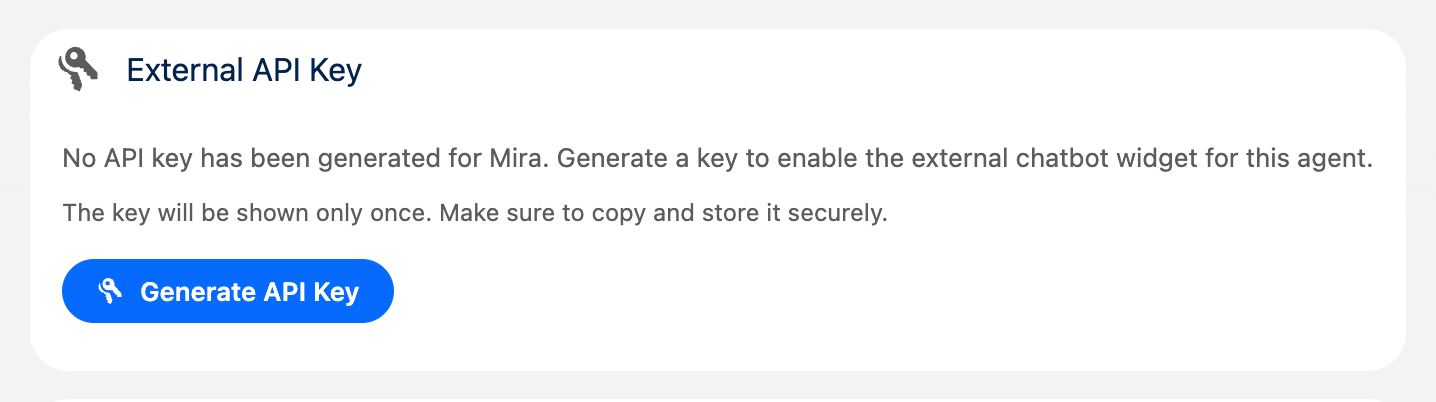
- Scroll to the API Key section — On the Agent Definition record, find the External API Key section (usually near the bottom of the form). Initially, this section shows "No API Key Generated."
- Click "Generate API Key" — A new API key is generated and displayed in a text field. The key is shown in full only once at generation time.
- Copy the key immediately — Copy the full key and paste it into a secure location (password manager, secure document, environment variable). The key is only shown once — after you navigate away from this page, it cannot be retrieved again.
- Save the Agent Definition — Click Save to finalize the key generation.
Using Your API Key
Embedding the External Widget
Once you have your API key, pass it to the External Widget embed script along with your org's endpoint URL. The key goes in the data-api-key attribute of the embed code. See External Widget Setup for the full embed snippet and all available configuration attributes.
Replace the placeholder values with the API key you generated and copied from your Agent Definition, and with your org's endpoint URL. The widget uses these to authenticate requests to your REDA AI agent.
Controlling Allowed Origins
To prevent your API key from being used on unauthorized websites, use the Allowed Origins field on the Agent Definition. This field contains a comma-separated list of domain origins (e.g., https://www.example.com, https://app.example.com).
When a request comes in with your API key from a domain not in the Allowed Origins list, it is rejected. This protects against:
- Key Leakage: If your key is accidentally exposed in source code or a public repo, an attacker could only use it from domains you've explicitly allowed.
- Cross-Site Attacks: Even if an attacker embeds your widget code on their own site, the REDA AI service will reject the request because the origin domain is not whitelisted.
Setting Allowed Origins
- Open the Agent Definition for your External Widget agent.
- Find the Allowed Origins field (or "Allowed Origins" in the UI).
- Enter a comma-separated list of allowed domains, including the protocol (e.g.,
https://www.example.com, https://support.example.com). - Save the record. Changes take effect immediately.
http://localhost:3000) to your Allowed Origins. Remove these before deploying to production.Rate Limiting and Credit Protection
The Agent Definition includes several fields to control API usage and protect against runaway costs or abuse:
| Setting | Purpose | Example |
|---|---|---|
| Rate Limit Per Hour | Maximum number of API requests per hour. Requests exceeding this limit are throttled (receive a 429 Too Many Requests response). | 1000 requests/hour |
| Rate Limit Per Session | Maximum number of messages per individual conversation session. Prevents a single user from sending unlimited messages and running up credits. | 50 messages per session |
| External Daily Credit Cap | Maximum credits that can be consumed by External Widget in a single day. Once the cap is reached, the agent stops responding and returns a "cap exceeded" error. Useful for controlling costs. | 500 credits/day |
Configure these limits based on your expected traffic and acceptable costs. For example, if you're charging customers per API call, set Rate_Limit_Per_Hour high and External Daily Credit Cap based on your monthly credit budget.
Revoking and Rotating API Keys
When to Revoke a Key
Revoke an API key if:
- You suspect the key has been compromised or leaked
- You want to stop serving requests from an old widget deployment
- You're rotating keys as part of your security policy
- An employee who had access to the key has left the organization
How to Revoke a Key
- Open the Agent Definition for the External Widget agent.
- In the External API Key section, click the "Revoke API Key" button.
- A confirmation dialog appears asking "Are you sure?" — Click OK to confirm.
- The key is immediately revoked. All future requests using that key will be rejected with an authentication error.
Rotating Keys (Best Practice)
Follow this process to rotate keys with zero downtime:
- Generate a new API key — Click "Generate API Key" on the Agent Definition. Copy the new key.
- Update your widget deployment — Update the embed code on your website or application to use the new API key. Deploy the change to production.
- Wait for traffic to migrate — Allow time for caches to clear and user sessions to refresh (typically a few hours). Monitor traffic to confirm requests are using the new key.
- Revoke the old key — Once you're confident all traffic has migrated to the new key, return to the Agent Definition and click "Revoke API Key" to disable the old one.
This approach ensures your users experience no interruption while you've rotated to a new, secure key.
API Key Storage and Security
How Keys Are Stored
The key itself is never stored. What REDA AI keeps on the Agent Definition is a one-way SHA-256 hash with a random per-record salt, in the form {nonce}:{hash}. The hash is computed over your Org ID, a server-side secret, that record's own salt, and the key — so the same key generated for two agents still produces two different stored values, and nothing in the record can be reversed back into a key.
The practical consequence: the full key is shown once, at generation. It is not retrievable afterwards from the UI, from the record, or by a Salesforce administrator — not because it is hidden, but because it is not there. Lose it and you regenerate.
Protecting Your API Key
Treat your API key with the same security as a password:
- Never commit to source control: Do not include the key in GitHub, GitLab, or any public or private code repositories.
- Use environment variables: Store the key in an environment variable or secrets manager (AWS Secrets Manager, Azure Key Vault, etc.) on your web server. The embed code should read the key from the environment, not hardcode it.
- Never share via email: If you need to share the key with a colleague, use your organization's secure credential sharing process (password manager, encrypted message, etc.).
- Monitor access: In Salesforce, check who has access to the Agent Definition record. Use Salesforce's sharing rules to restrict visibility to authorized admins only.
- Rotate regularly: As a security best practice, rotate API keys periodically (e.g., quarterly or annually) using the process described above.
Troubleshooting API Key Issues
Widget returns "Unauthorized" or "Invalid API Key" error
Possible causes:
- Key is wrong: Verify you've copied the full key correctly. Check for missing characters or extra spaces.
- Key is revoked: Check the Agent Definition — if no API key is showing, the key may have been revoked. Generate a new one.
- Origin not allowed: Check the Allowed Origins field. The domain making the request may not be in the whitelist. Update Allowed Origins if needed.
- Key expired: If no key is showing and the field is empty, a key may have expired or been deleted. Generate a new one.
Widget responds with "Rate limit exceeded"
Possible causes:
- Hourly limit exceeded: Check Rate Limit Per Hour. If your traffic exceeds this limit, increase it or implement client-side request throttling.
- Session limit exceeded: Check Rate Limit Per Session. If individual users are hitting the limit, increase it or educate users to start new conversations.
- Daily cap exceeded: Check External Daily Credit Cap. If this limit is reached, no requests are processed until the next day. Increase the cap or top up your credits.
Widget returns "Authentication failed"
Possible causes:
- The API key in the embed code does not match the key generated on the Agent Definition.
- The key was revoked after deployment.
- The Agent Definition or agent itself has been deleted or disabled.
Verify the key and agent status, and regenerate/redeploy as needed.
Frequently Asked Questions
No. Each External Widget agent can have only one active API key at a time. However, you can have multiple External Widget agents, each with its own API key. If you need separate keys for different deployments, create separate agents for each deployment.
Immediately revoke the compromised key by clicking "Revoke API Key" on the Agent Definition. Then, generate a new key and deploy the updated embed code to your website. If the compromised key was used on an untrusted site, review your usage logs and credit history to check for suspicious activity. Contact REDA AI Support if you need assistance investigating unauthorized use.
No. API keys are only for the External Widget channel. Slack, Teams, email, and other REDA AI channels use their own authentication methods (workspace tokens, service accounts, etc.) and do not require API keys.
The widget will reject new requests with a "429 Too Many Requests" HTTP status code. The end user will see a message in the widget indicating the agent is temporarily unavailable. The rate limits reset at the next hour or session boundary depending on which limit is exceeded. If you consistently hit limits, increase the Rate Limit Per Hour or Rate Limit Per Session settings on the Agent Definition.