
Viewing Conversations & Transcripts
AI funding and usage
AI included uses REDA credits. Bring your own AI uses your organisation’s provider account, billed directly by that provider. The licence selects one funding model for the organisation. In either model, REDA AI governs configured tools and actions in Salesforce. Set up your licence and AI accounts.
Inspect the conversation’s Funding Mode, AI Connection and AI Model to understand the account used. The Customer AI Account list view finds customer-funded conversations. Their metered credits are a usage measure, not REDA allowance deductions or a provider invoice. A change to the effective account, model or funding mode requires a new conversation for affected interactive sessions. See usage and account-change guidance.
Every conversation between a user and a REDA AI agent is saved in your Salesforce org as a record. These conversations allow you to review past interactions, audit agent responses, and improve agent performance over time. This article explains how to access, view, and understand conversation data.
Understanding Conversations and Messages
REDA AI stores conversation data across two main object types:
Conversation Records
A Conversation is a complete back-and-forth exchange between a user and an agent. Each conversation has:
- Unique ID: A system-generated identifier
- Agent: Which agent was used in the conversation
- User: Which Salesforce user participated
- Start Time: When the conversation began
- End Time: When the conversation ended (or is still active if ongoing)
- Status: Open, Closed, or Archived
- Message Count: How many messages were exchanged
- Total Credits Used: Sum of all credits consumed by all messages in the conversation
- Last Activity: When the conversation was last touched — the field to sort by when looking for stale or abandoned sessions
- Automated Source: Set when a Flow or other automation started the conversation, carrying the label that automation supplied. Filter on it to separate automated traffic from real user chats
- Client IP: For External Widget sessions, the visitor's IP address is recorded on the conversation. Worth knowing for a privacy review — it is personal data under GDPR and similar regimes, it lives in your own org, and it is removed when the conversation is archived
Message Records
A Message is a single turn in a conversation — either a user's question or the AI's response. Each message has:
- Role: Either "User" (user-sent) or "Assistant" (AI-sent)
- Content: The actual text of the message
- Timestamp: When the message was sent/received
- Credits Used: How many credits this specific message consumed
- Parent Conversation: A link to the conversation it belongs to
Messages are child records of Conversations — when you open a conversation, you see all its messages in order.
Accessing the Conversations Tab
To view conversations:
- Open the REDA AI app — Click the App Launcher and select REDA AI.
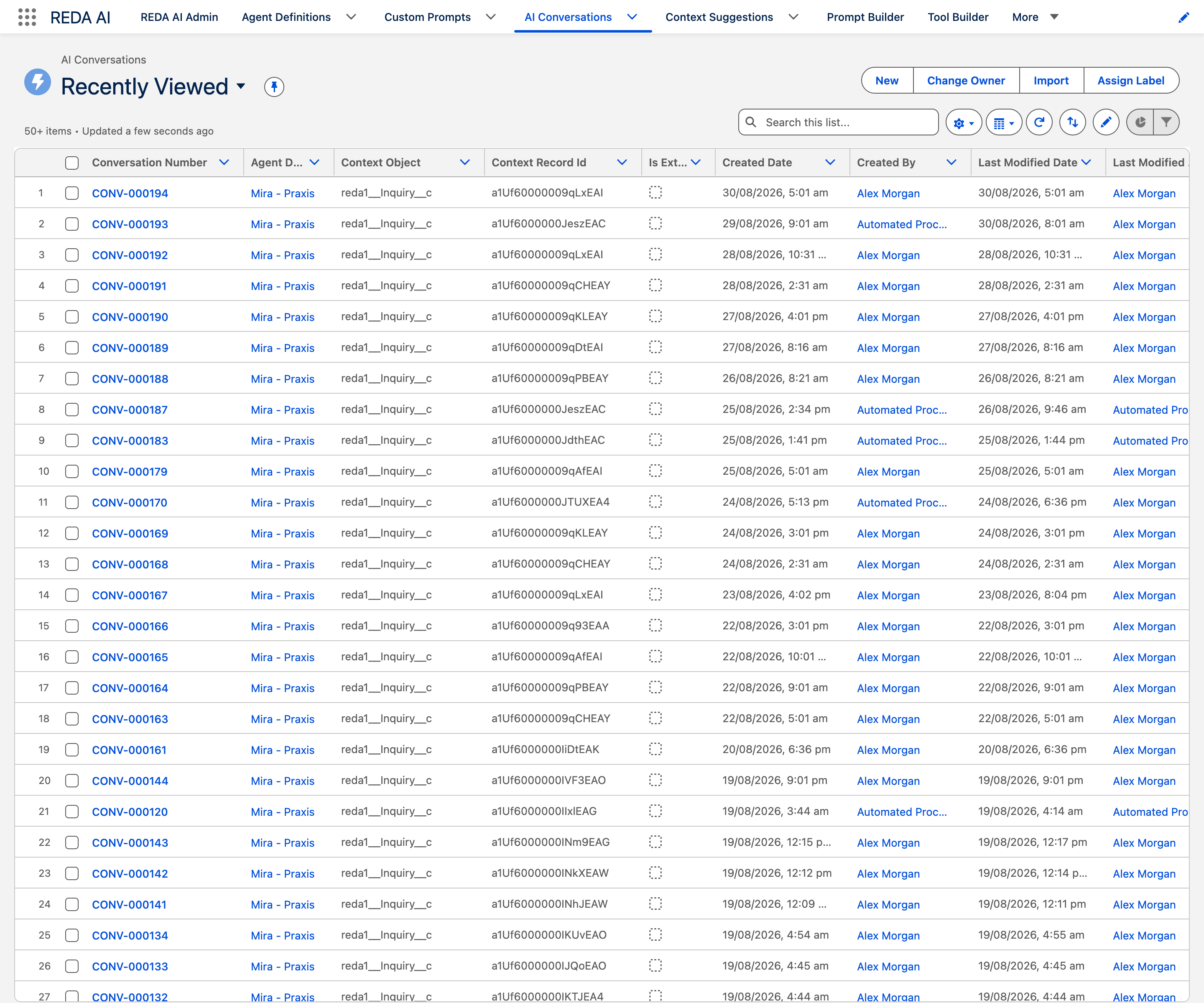
- Click the "Conversations" tab — This list view shows all accessible conversations, ordered by most recent first.
- Review the list — You'll see columns for Agent, User, Start Time, End Time, Status, and Message Count.
- Click a conversation to open it — The full transcript with all messages appears.
Viewing Access Control
REDA AI respects Salesforce's sharing rules for conversations:
Regular Users
- Can view only their own conversations — conversations where they are the User
- Cannot see conversations between other users and agents
- Can see their conversation history and full transcripts
Administrators
- Can view all conversations across all users and agents
- Can access any conversation transcript for audit, training, or troubleshooting
- Can generate Conversation Analytics reports on aggregate conversation data
Understanding Conversation Fields
These are the field labels exactly as they appear on the record. The Conversation object ships no translations, so they read in English in every locale.
| Field | What it holds |
|---|---|
| Agent Definition | The agent this conversation is with. |
| Channel | How the conversation started — Internal, External Widget, Community or API. |
| Context Object | API name of the object the chat was opened from, e.g. Opportunity. |
| Context Record Id | The record the chat was opened from, when it was opened on a record page. |
| Message Count | Number of messages in the conversation. |
| Total Credits Used | Running total of credits consumed by this conversation. |
| Credit Period | The billing period the conversation was created in. Set automatically. |
| Last Activity | Timestamp of the last message or session keepalive. This is the field that drives resume windows and the archival clock — there is no separate start/end timestamp. |
| Age | A readable age label computed from Last Activity. |
| Session Ended | Ticked when the user explicitly ended the chat in the widget. It is only a resume filter — the record is kept, and archival still applies. |
| Is Automated | The conversation came from a Flow, a scheduled job or a programmatic API call rather than a person. |
| Automated Source | Which automation started it, e.g. the Flow name. Populated alongside Is Automated. |
| Is External | The conversation came from the public-facing widget. |
| Session Token | A 256-bit random token identifying an anonymous external session, used instead of an owner for public chat. |
| Client IP | The visitor’s IP, captured from the REST request for audit. |
| Client Origin | The website origin the external conversation came from, e.g. https://example.com, captured from the Origin header. |
| Credit Logging Blocked | Set by the platform when credit accounting fails mid-call. While it is ticked, every further AI call on this conversation is refused before any callout is made, so unrecorded cost cannot accumulate. See the note below. |
A conversation can be permanently paused, and the reason is invisible unless you know this
field. If credit accounting fails during a call — most often because a validation rule or
trigger on REDAAI_Credit_Transaction__c blocks the ledger write — REDA AI ticks
Credit Logging Blocked and refuses every subsequent call on that conversation. The user
sees only: “A credit accounting error occurred. This conversation has been paused. Please
contact your administrator to review credit transaction settings.”
It does not clear itself. Fix the underlying cause, then untick the field manually on the Conversation record to let it resume.
Searching and Filtering Conversations
Using the List View Filter
The Conversations tab includes a filter bar to narrow results:
- By Agent: Click the Agent filter to show conversations only for a specific agent
- By User: Click the User filter to show conversations for a specific Salesforce user
- By Status: Filter for Open, Closed, or Archived conversations
- By Date Range: Use the Start Date filter to find conversations from a specific timeframe
Using Search
The global REDA AI search (top of the app) searches across conversation content. Type a keyword to find conversations containing that word in any message.
Creating Custom List Views
In Salesforce, you can create custom list views of conversations:
- In the Conversations tab, click the dropdown next to "Conversations" (the current list view name).
- Select "Create New View."
- Name your view (e.g., "High-Credit Conversations").
- Set filter criteria (e.g., "Total Credits Consumed > 100").
- Save. Your custom view appears in the list view dropdown for easy access.
Opening and Reviewing a Conversation
Click on any conversation in the list to open its detailed view:
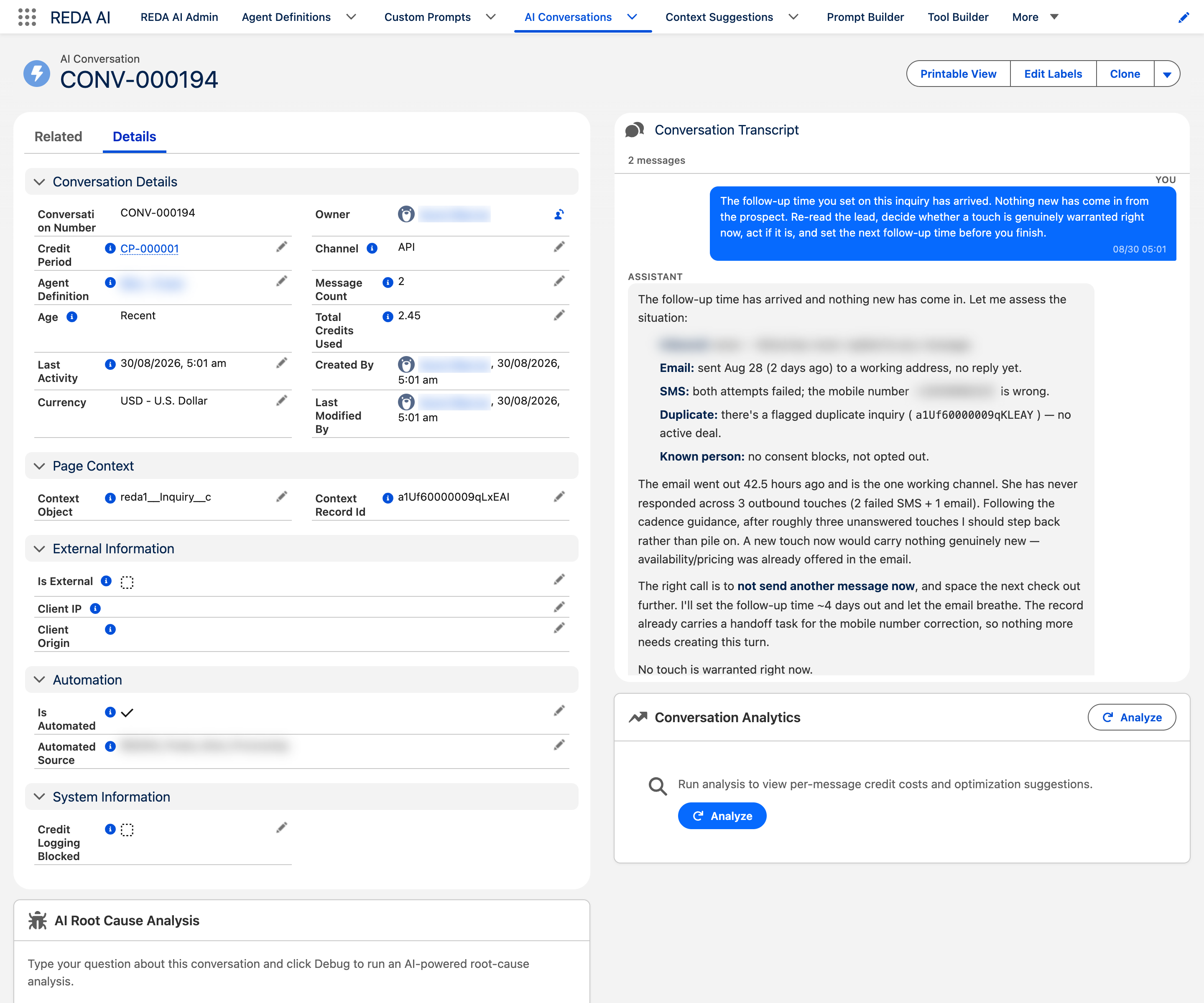
- Review conversation metadata — At the top, you see the Agent, User, Start/End times, Status, and Total Credits Used.
-
Review the message transcript — Scroll down to see all messages in chronological order, with each message showing:
- Role (User or Assistant)
- Message content
- Timestamp
- Credits consumed by that message
- Review related records — If the conversation includes Scheduled Actions (e.g., creating a task), those appear in a Related Scheduled Actions section.
- Use Conversation Analytics (admins only) — Click the "Conversation Analytics" button (on the conversation record) to generate a detailed analysis of this conversation.
Exporting Conversation Data
Export a Single Conversation
To export one conversation and its messages:
- Open the conversation record.
- Click the three-dot menu (More) button.
- Select "Export" (format options: PDF, CSV, or Excel).
- The transcript is downloaded to your computer.
Export Multiple Conversations
To export many conversations at once:
- In the Conversations tab, filter or search — Narrow to the conversations you want to export.
- Select conversations — Use the checkboxes on the left to select multiple records.
- Click the mass action menu — After selecting, a "More" dropdown appears above the list.
- Select "Export" — All selected conversations are exported as a single file.
Message-Level Details
Each message in a conversation provides transparency into credit usage and AI behavior:
User Messages
- Content: The exact question or statement the user sent
- Timestamp: When the user sent it
- Credits Used: Typically 0 for user messages (the prompt itself costs minimal credits)
Assistant Messages
- Content: The AI's response
- Timestamp: When the AI generated and returned the response
- Credits Used: The cost of generating this response, based on response length and complexity
- Tools Used: If the message involved tool calls (e.g., querying Salesforce), those are listed
Archival and Data Retention
Conversations are not retained indefinitely. REDA AI runs a nightly archival batch that deletes conversations older than each agent's retention period:
- Default retention: 180 days org-wide (per-agent override, minimum 60 days)
- Skip archival: Admins can disable archival for specific agents to preserve all conversations
- Archival logs: Track what was deleted by reviewing the AI Archival Logs (More menu in the REDA AI app)
To preserve important conversations long-term, export them before they're archived, or disable archival for that agent.
Accessing Conversations from Related Records
You can also access conversations from related Salesforce records:
From an Agent Definition
- Open an Agent Definition record.
- Scroll to the Related Conversations section.
- View all conversations for this agent, or click one to open it.
From a User Record
- Open a Salesforce User record.
- If the REDA AI app has been configured for user records, a Conversations related list appears.
- Click a conversation to open it.
Review conversation continuity
A blank Conversation Window (Hours) now uses the organisation default, initially 30 minutes. A positive value sets the agent's window; 0 disables automatic resume. Matching remains channel-specific: API uses agent and record context; authenticated Internal/MCP uses agent, user and the relevant record context. Community uses the shared window setting instead of the external-session timeout. Home, app-page and utility-bar chat can resume eligible conversations. Explicit conversation identifiers remain subject to their route's access checks. Review agents that relied on blank meaning a new conversation, and use 0 where that behaviour is required. Packaged permission fixes also address Internal and Community conversation access.
Frequently Asked Questions
Yes. If you're the admin or the owner of the conversation, you can delete it. Open the conversation record, click More, and select Delete. The entire conversation and all its messages are permanently removed. Use caution — deletion is permanent. For archival instead of manual deletion, use REDA AI's automatic archival feature on the Agent Definition.
No. Conversation and message records are read-only once created. This ensures a complete and unmodified audit trail of interactions. If a message contains an error or sensitive information, document it in a case or note, but the original message remains unchanged in the transcript.
You can view conversations back to the agent's creation date, unless they've been archived. The default archival period is 180 days org-wide, and your admin can adjust it — including per agent, with a minimum of 60 days. Conversations older than the retention period are automatically deleted. Check your AI Archival Logs to see which conversations have been archived.
Only if you're an admin (REDA AI Admin permission set). Regular users can only see their own conversations. Admins can see all conversations across all users and agents. This ensures user privacy — conversations with an AI are treated similarly to private email.