
Order and transaction statuses
A payment lives in two records. The Pay Order is your instruction and has a status that combines its type with whether it was carried out. The Pay Transaction is Payload's result and has its own status, type and funding status that keep changing as the money moves through the bank network. This page lists every value, what it means, and what — if anything — to do.
Pay Order status
The Status field on a Pay Order is calculated from its order type, whether it has been processed, whether a link or schedule is active, and whether it was revoked.
| Status | Meaning | Typical next step |
|---|---|---|
| Immediate - Not Processed | A pay-now order that has not been charged: the summary was cancelled, the payment failed, or the order was created by an automation and awaits processing | Check the Pay Transactions list: a failed one means a declined attempt; none means it was never attempted. See the note below about recovered payments |
| Immediate - Processed | Charged; Processed Datetime is set and a processed Pay Transaction exists | Nothing. Watch the transaction's funding status |
| Link - Active | A payment link the customer can still open | Wait, or revoke |
| Link - Inactive | The link expired, or was never activated because the account had no Link Expiration (Minutes) | Create a new link |
| Link - Processed | The customer paid through the link | Nothing |
| Schedule - Active | A recurring template that will run on its next run date | Nothing |
| Schedule - Inactive | The template cannot run: no active method, profile or account, the end date passed, the customer is not registered, or a start date is missing | Fix the cause or revoke |
| Schedule - Not Processed / Schedule - Processed | A payment generated by a schedule (it has a Parent Pay Order), before and after charging | As for Immediate |
| Revoked | Withdrawn with Revoke Order; cannot be processed | Nothing |
A recovered payment leaves the order "Not Processed". When a transaction is recovered after the event — by the failed-payment recovery job, Sync Transaction or reconciliation — the order's Processed Datetime is not set, so an order can show Immediate - Not Processed while holding a processed transaction. Always read the transactions list before acting on a "Not Processed" order; never press Process Pay Order on one that already has a processed payment. See Turn on failed-payment recovery.
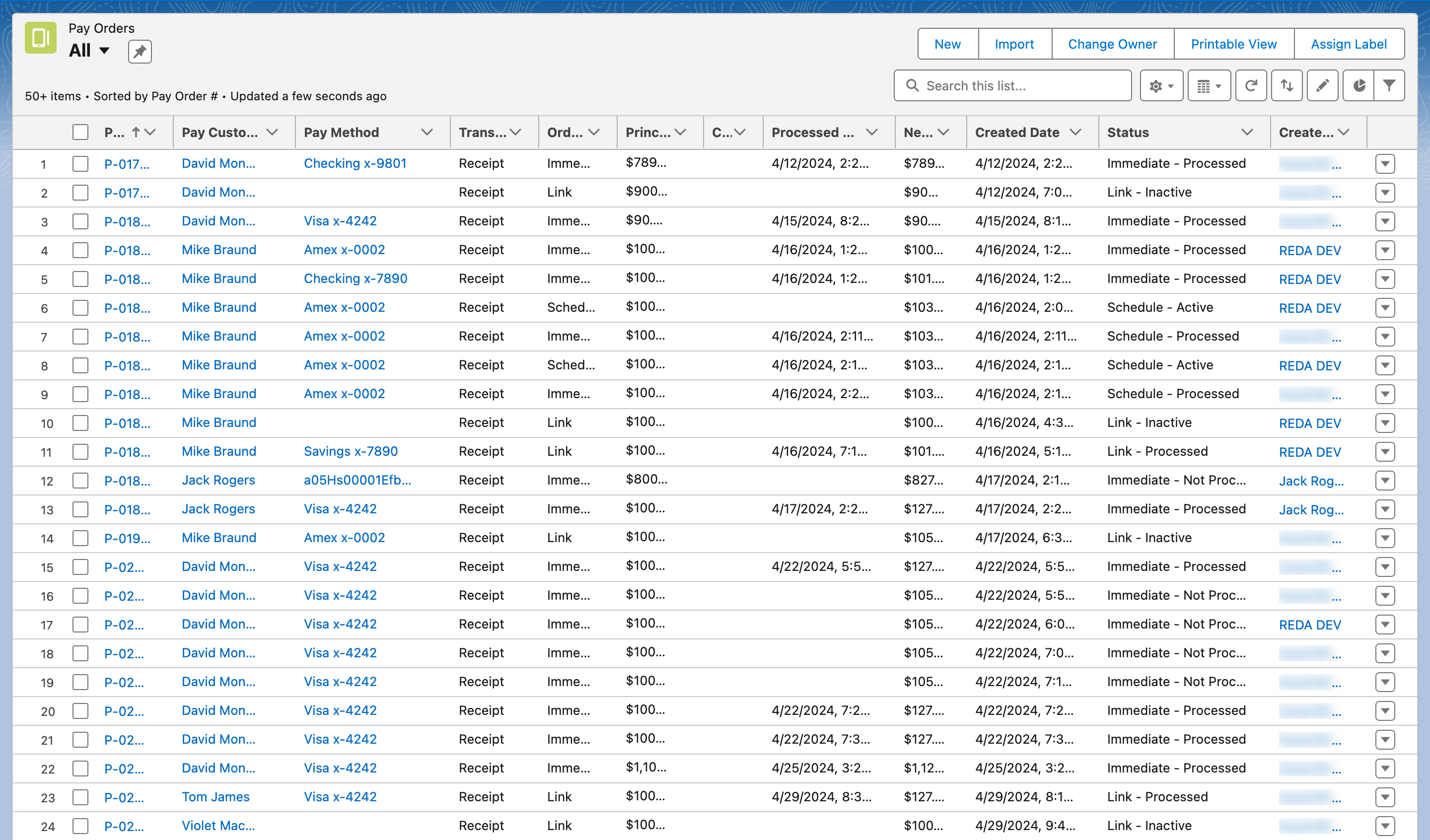
The Status column combines order type and outcome, so one list view answers "what is outstanding".
Pay Transaction type
| Type | Meaning |
|---|---|
| payment | Money received from the customer (a receipt) |
| credit | Money sent to the payee (a disbursement) |
| refund | Money returned for an earlier payment; linked to it through Parent Transaction |
| chargeback, chargeback_reversal | Values reserved for card disputes; no REDA Pay screen creates them in this release |
Pay Transaction status
| Status | Meaning | What to do |
|---|---|---|
| failed | REDA Pay's own value: the attempt never became a Payload transaction — Payload refused it (the reason is in Error Message) or the connection broke (Process Callout Exception ticked) | Read the error; for a callout exception, let the recovery job run |
| authorized | Payload authorised the amount but has not captured it | Rare in this release; wait for processed |
| processing | Payload is processing it | Wait |
| processed | Accepted. For cards this is the approval; for bank payments it means submitted to the bank network — the bank can still reject it for days | Nothing; watch funding status and later status changes |
| declined | The card or bank declined at the time of payment | Take another method |
| rejected | A bank payment accepted earlier was returned (insufficient funds, closed account, stopped payment); Rejected Date is set | Collect again; see Disputes and rejected payments |
| voided | Cancelled before funding with Void Transaction; Voided Date is set | Nothing |
| refunded | Fully refunded; a refund transaction exists under the same order | Nothing |
Status Code and Status Message carry Payload's own code and text, for example approved / "Transaction approved." — useful when talking to Payload support.
Funding status
How far the money has travelled, as reported by Payload:
| Funding Status | Meaning |
|---|---|
| pending | Accepted but not yet batched for funding. A processed payment with pending funding can still be voided |
| batched | Included in a funding batch; a deposit to your bank account will follow. Voiding is no longer possible; refund instead |
| captured | Funds captured |
| refunded | Returned to the payer |
| reversed | Reversed — for example a payout pulled back |
When funds reach your bank, Payload reports a deposit that becomes a Statement Activity — see Reconcile deposits and payouts.
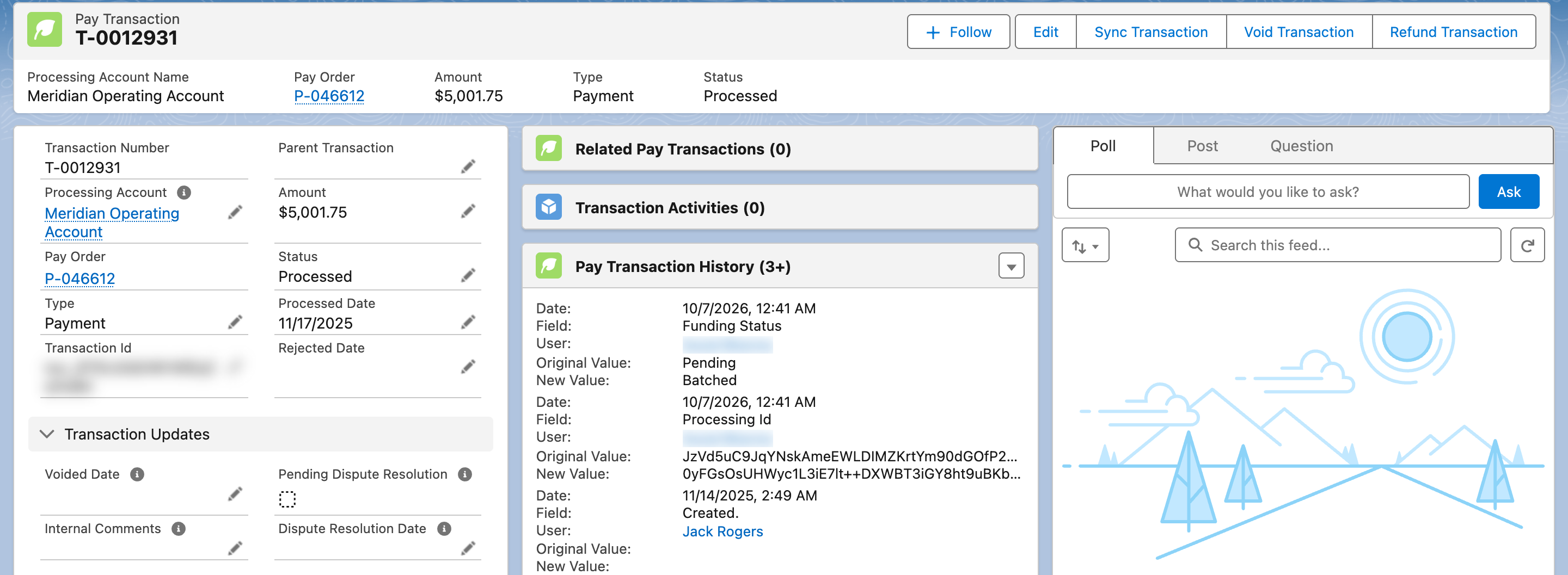
Status, funding status and Payload's own code on one transaction.
How statuses change
| Event | Where it comes from |
|---|---|
| Payment taken on screen | The transaction is created processed or failed immediately |
| Later decline, rejection, refund made outside Salesforce, void | A Payload webhook triggers a re-read of the transaction |
| Deposit or payout to your bank | A webhook creates a Statement Activity |
| Someone presses Sync Transaction | Re-read on demand |
| The failed-payment recovery job | Transactions created from Payload's records of the order |
Reports
Useful fields for reporting: on Pay Order, Status, Order Type, Transfer Type, Processed User Type (Internal, Community, Guest), Net Order Amount, Calculated Convenience Fee; on Pay Transaction, Type, Status, Funding Status, Amount, Processed Date, Rejected Date. The package ships reports such as Receipts By Status and Receipts By Order Type — see Reports and dashboards.
FAQ
Processed means accepted. Funding follows in Payload's batches; the funding status and, later, a Statement Activity tell you when it reached your bank.
Look at its Pay Transactions. A processed one means the payment is real and only the order's stamp is missing. No transaction means no payment reached Payload.
Declined happens at the moment of payment. Rejected happens afterwards, to a bank payment that was first accepted.