
Let customers pay in your portal
If your customers log in to an Experience Cloud site — a resident portal, an owner portal, a client portal — you can put the REDA Pay payment screen inside it. A logged-in customer pays, sets up recurring payments and saves cards and bank accounts, all against their own records, without your team touching a card number. This article sets that up.
- An Experience Cloud site exists, with customers as users (Customer Community or Customer Community Plus licences) whose user record is linked to a Contact.
- REDA Pay is configured through Set up webhooks, and the processing account's branding is done — the portal shows it.
- You hold REDA Pay - Admin User and the Salesforce permissions to edit the site and its sharing settings.
How the portal flow works
A portal customer never picks a record: REDA Pay takes the logged-in user's Contact (or Account) as the parent record, finds or creates its Pay Customer, and opens the same screen staff use. The flow crosses four pages you create in Experience Builder:
| Page | Holds | Purpose |
|---|---|---|
| Payment entry (for example New Pay Order) | NewPayOrder with Is Portal on | Resolves the customer, asks profile and account if needed |
| Payment screen (for example New Pay Order Request) | NewPayOrderRequest | The card/bank form, amount and buttons |
| Success page | NewPayOrderResult with Is Success on | "Your order is successfully processed. Order Reference: …" |
| Error page | NewPayOrderResult with Is Success off | The error and its reason |
The same four, with NewPayMethod, NewPayMethodRequest and NewPayMethodResult, let customers save a method without paying.
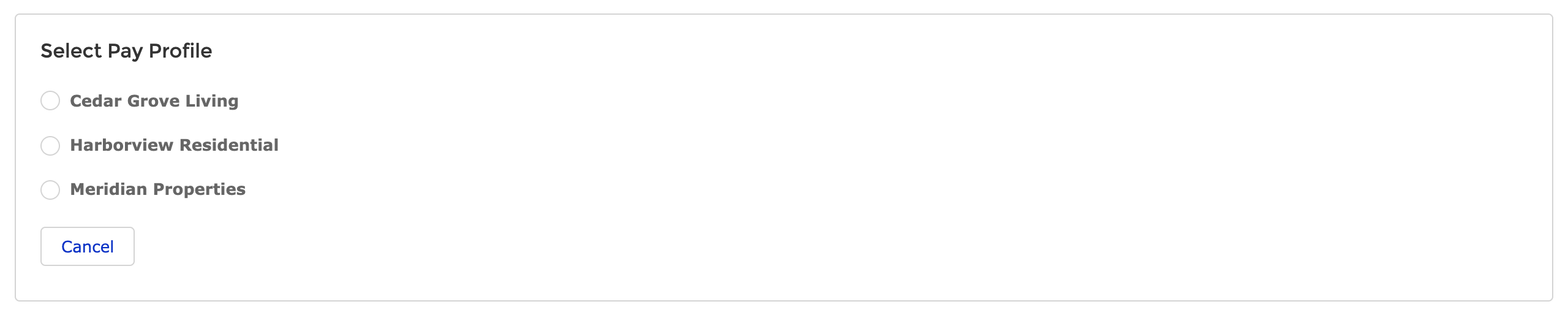
The entry page. A single active profile skips this step.
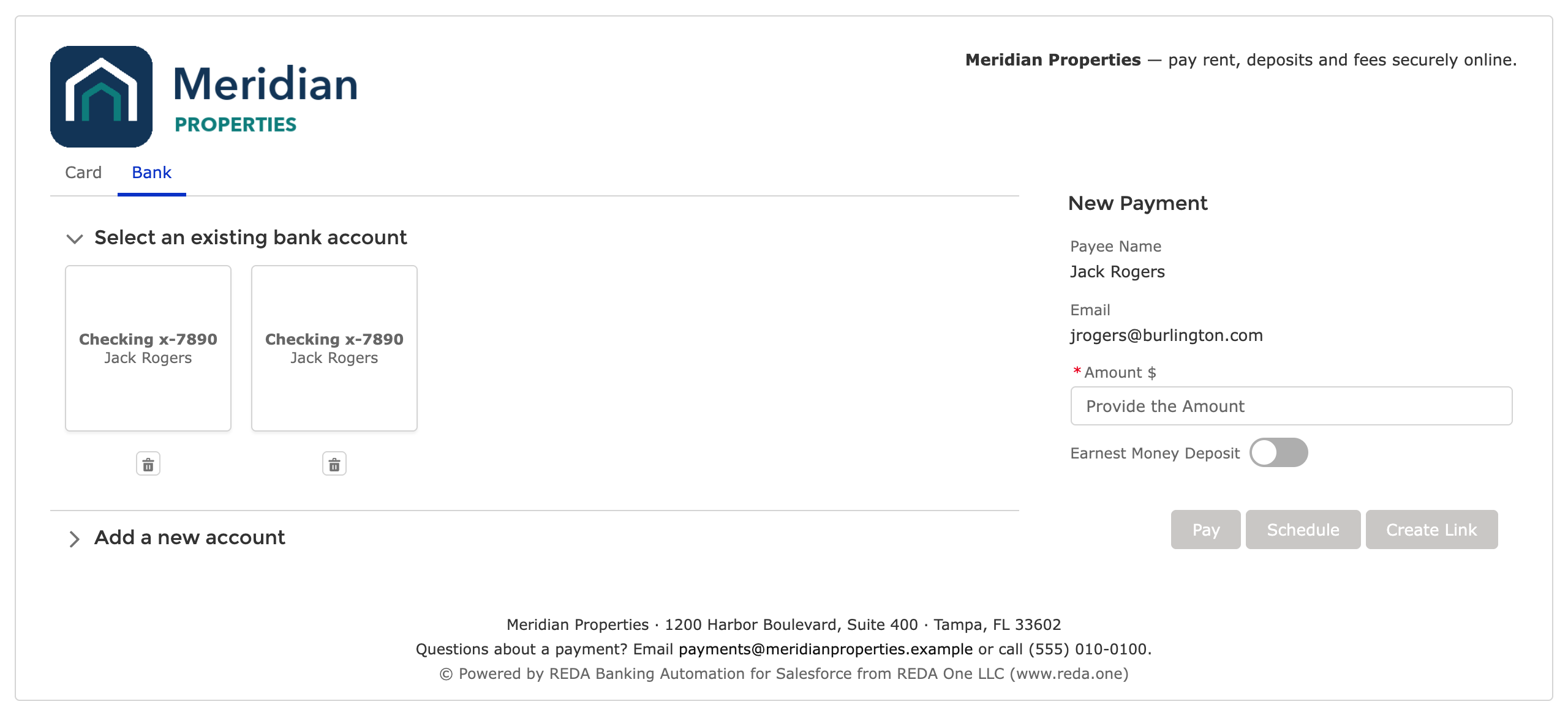
The payment screen inside the portal. Customers see their own saved methods.
Part 1 — Give portal users access
Portal access has four parts. Each is set up step by step, for both kinds of portal licence, in Portal access: permissions and sharing for customers; in short:
- Object, class and metadata access. Assign REDA Pay - Community User to the portal users, or give the portal profile the same settings. It grants create and edit on Pay Customers and Pay Methods, read on Pay Orders, Pay Transactions, Pay Profiles, Processing Accounts and Fee Setups, the two Apex classes behind the screens, and read access to the REDA Pay Process Config and REDA Pay Setup custom metadata types.
- Sharing set. Portal users see only records shared with them. A sharing set on Pay Order, Pay Customer and Pay Method, each matched User: Contact to the object's Contact field with Read/Write, gives each customer their own records: Setup → Digital Experiences → Settings → Sharing Sets.
- Pay Profiles and Processing Accounts. Customers must read the active ones. For role-based licences (Customer Community Plus, Partner), create two criteria-based sharing rules, Is Active equals True, shared with All Customer Portal Users, Read Only. For high-volume licences (Customer Community, Customer Community Login), which sharing rules cannot reach, set the two objects' Default External Access to Public Read Only. Fee Setups follow their Processing Account automatically.
- Site membership. The portal profile must be a member of the site.

The sharing set is what makes "my payments" mean the logged-in customer's payments.
Part 2 — Build the pages
In Experience Builder for the site:
-
Pages → New Page → Standard Page → Blank, named for example New Pay Order (note its API name, shown in the page properties — you will type it below). Drag NewPayOrder (under Custom Components) onto it and set:
- Is Portal: ticked.
- Portal Record Identifier: User-Contact (or User-Account if payments belong to the customer's company).
- Portal Payment Page: the API name of the page in the next step.
- Portal Success Page, Portal Error Page: the API names of the result pages.
- Portal Return URL: where Cancel goes — the site's home, or your website.
- Narrow the screen for this audience: for a resident portal, untick Allow Pay Method Type - Card if cards are not wanted, untick Enable Order Link (links are a staff tool), keep Enable Scheduling Order for autopay. See Component settings reference.
- New Page named for example New Pay Order Request, with NewPayOrderRequest on it. No settings.
- Two more pages, Payment Success and Payment Error, each with NewPayOrderResult; tick Is Success on the first only. Add your own text around the component — "Thank you", what happens next, a link back home.
- Repeat 1–3 with NewPayMethod (setting Portal Method Input Page), NewPayMethodRequest and NewPayMethodResult if customers should save methods without paying.
- Add the entry pages to the site's navigation menu (for example Make a Payment and Payment Methods).
- Publish the site.
Page access: the pages should require login (the default for a page in a login-required site). Only the public payment-link site uses guest access — see Set up the public payment-link site.
Part 3 — Test as a customer
Open a test customer's Contact, use Log in to Experience as User, and walk the flow: choose a profile and account if asked, see your saved methods, enter an amount, press Pay, cancel the summary. Then test on a phone-sized window: the tiles and the payment panel stack and nothing scrolls sideways.
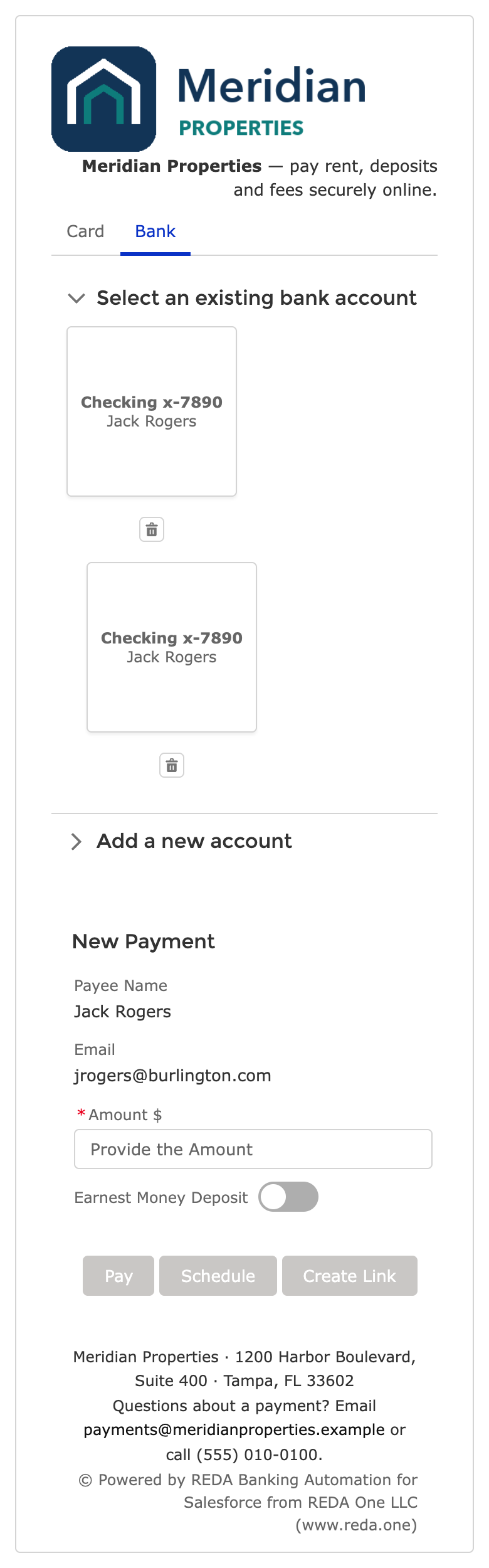
The same page on a phone.
Check as the customer, not as an administrator: an administrator sees records a customer cannot, and a missing sharing rule only shows up for a real portal user.
Worked example
Meridian Properties' resident portal: residents pay rent and set up autopay by bank account; no cards, no links.
| Where | Setting |
|---|---|
| Permission set | REDA Pay - Community User to every resident |
| Sharing set | Pay Order, Pay Customer, Pay Method on Contact, Read/Write |
| Pay Profiles and Processing Accounts | Sharing rules to all customer portal users, Read Only (role-based licence) |
| NewPayOrder on Pay Rent page | Is Portal on; User-Contact; Allow Card off; Enable Order Link off; Portal Payment Page pay_rent_request; success and error pages set; Return URL the portal home |
| Navigation | Pay Rent and Payment Methods items |
Mistakes to avoid
| Mistake | What the customer sees | Fix |
|---|---|---|
| Is Portal left off | The flow breaks after the first step | Tick it on both entry components |
| No sharing set | "Bad Request. Parent record not found." or empty screens | Create the sharing set |
| No access to Pay Profile / Processing Account | "Select Pay Profile" is empty, or no account | Sharing rules, or default external access for high-volume licences |
| Page API names typed as labels | The flow cannot find the next page | Use API names |
| Portal user not linked to a Contact | No parent record | Portal users must have a Contact (or an Account with User-Account) |
| Testing as an administrator only | Everything works for you, not for customers | Log in as a portal user |
FAQ
No. The payment is always for the logged-in user's Contact (or Account). Use payment links for third parties.
Add Pay Order and Pay Transaction record pages or lists to the site; the sharing set gives them access to their own.
No. Limit the page to a profile with Limit Profile Selection if you have several.