
What is REDA Pay?
REDA Pay lets your team take payments and send payouts without leaving Salesforce. A resident pays rent from your customer portal, a buyer pays an earnest money deposit through a link you emailed, a leasing agent takes a card payment from a Lead record — and every one of those payments is a Salesforce record you can report on, automate and reconcile against your bank deposits.
REDA Pay does not move money by itself. Every payment is executed by Payload, a payment processor. You open a Payload account, connect it to REDA Pay, and REDA Pay handles everything on the Salesforce side: the payment screens, the records, the fees, the schedules, the status updates and the reconciliation.
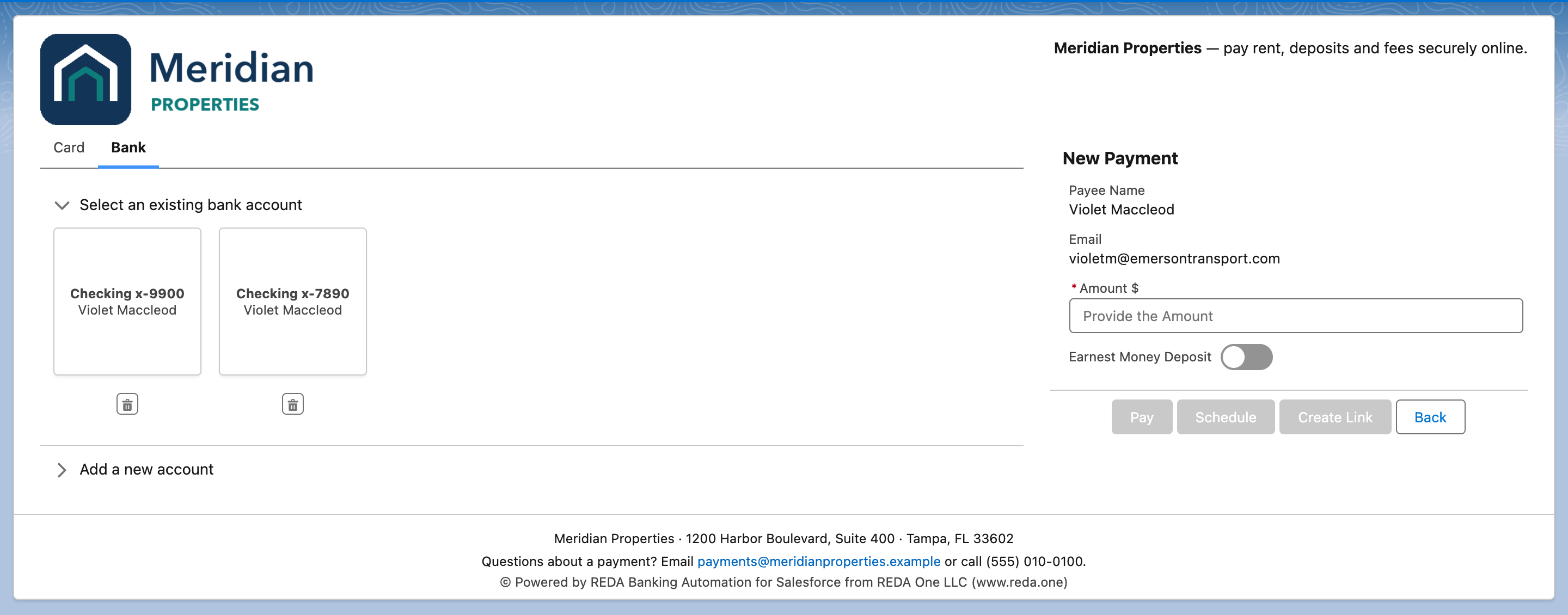
The payment screen your team and your customers use. The logo, header and footer come from your own settings, so every customer sees your brand.
What you can do with REDA Pay
- Receive payments by card or bank account. A receipt is money coming in. The payer chooses a card or a US bank account (ACH, the Automated Clearing House network for bank-to-bank transfers) and either picks a payment method they saved earlier or types a new one.
- Send payments to a bank account. A disbursement is money going out — a refund of a deposit, a payment to a vendor. Disbursements always go to a bank account, and only users you allow can send them — see Send a disbursement.
-
Choose how each payment happens. Every payment is a Pay Order with one of three order types:
- Immediate — the payment is processed now.
- Schedule — the payment repeats on a schedule you set (weekly, monthly, yearly and more) until an end date.
- Link — REDA Pay creates a secure payment link; the customer opens it and pays on a public page.
- Save payment methods. A card or bank account can be saved for reuse. Salesforce keeps only a token and descriptive details such as "Visa x-4242"; the full card number, the security code (CVV) and the full bank account number are never stored in Salesforce.
- Charge convenience fees. Add a percentage fee, a fixed fee or both, with an optional minimum and maximum, set separately for bank payments and for each card brand. The fee can be paid into a separate account — see Set up convenience fees.
- Take earnest money deposits. Mark a bank payment as an earnest money deposit (EMD), the good-faith deposit a buyer or applicant pays with an offer — see Take earnest money deposits.
- Void and refund. Void a payment before it is funded, or refund it in full or in part afterwards.
- Keep statuses current automatically. Payload tells Salesforce when a payment is processed, declined, refunded or rejected, and REDA Pay updates the record — see How payment statuses stay current.
- Reconcile your bank deposits. Each deposit to, or payout from, your bank account arrives as a Statement Activity listing the payments it contains, so finance can confirm that every deposit is accounted for — see Reconcile deposits and payouts.
Where payments happen
REDA Pay works in three places, and you can use any combination of them:
| Channel | Who uses it | What it looks like |
|---|---|---|
| Inside Salesforce | Your staff | A payment screen opened from a record — a Lead, Contact or Account — through a button, a quick action or a component on the record page |
| Your customer portal | Customers who log in to your Experience Cloud site | The same payment screen inside your portal, where customers pay and can set up their own recurring payments |
| Public payment links | Anyone you send a link to | A secure public page that shows the amount you set; the payer adds a card or bank account and pays, without logging in |
To collect from people who reach you through your website, send them a payment link, or point them to the payment page in your customer portal where they log in and pay.
How the pieces fit together
You do not need to memorise these terms now — Key concepts explains each one — but this picture helps:
- A Pay Profile connects Salesforce to one Payload account.
- Under it, each Processing Account is a merchant account at Payload — where money lands and leaves. It also holds your branding and most of your rules.
- Each person or company you take money from, or pay, becomes a Pay Customer, created automatically from the Account, Contact or Lead you start from.
- A Pay Order is the instruction: who, how much, which account, which method.
- A Pay Transaction is what Payload actually did with it — processed, declined, refunded and so on.
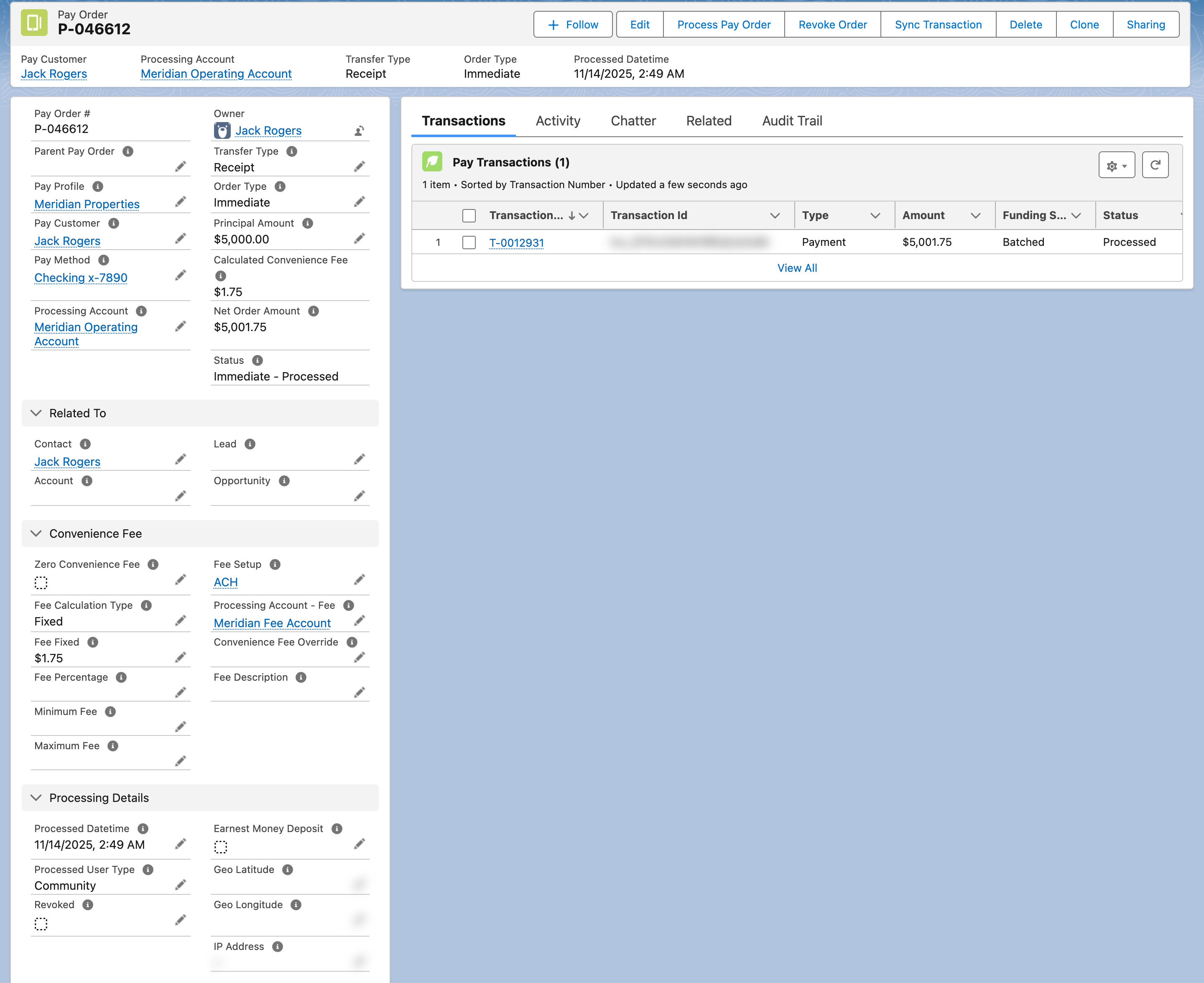
A Pay Order and the transaction Payload created for it. The net amount — principal plus fee — is what is charged.
Customising REDA Pay
Almost everything about how a payment screen behaves is configuration, not code. Settings stack in layers: the Pay Profile, then the Processing Account, then the fee rules, then the customer's own rules, then the settings on the component you place on a page, and finally any values passed in the page address. A value in the page address wins over the component setting. This layering is what lets one org run, say, a resident portal that accepts only bank payments next to a staff screen that also takes cards. The articles in Processing Accounts and Taking Payments cover each layer.
Who uses REDA Pay
REDA Pay ships seven permission sets, one per role: administrators, staff who take payments, a refunds desk, finance, read-only viewers, portal customers and anonymous payers on the public site. Each person gets only what their job needs — see Who can do what: permission sets.
FAQ
Yes. REDA Pay connects Salesforce to Payload, which processes every payment. You create the Payload account with Payload and then connect it to REDA Pay with its API key — see Create a Pay Profile and store your Payload API key.
No. Salesforce stores a token and descriptive details such as the card brand, the last four digits and the expiry. The full card number, the security code and the full bank account number are never stored — see Security and card data.
No. REDA Pay creates the link and shows it on the Pay Order as Link URL; you send it through your usual channel — email, text message or your own automation. See Create and send a payment link.
Yes, through a payment link on your public site. Customers who do log in to your portal can also pay there and save their payment methods.
Where to go next
- Key concepts and terminology — the vocabulary every other article uses.
- Setup roadmap — every step from installation to your first payment, in order.
- Who can do what: permission sets — give each person the right access.