
Take a payment
This is the everyday task: a customer owes an amount and pays it now, by card or bank account, while a staff member drives the screen. The same screen also creates recurring payments and payment links; those are covered in Set up a recurring payment and Create and send a payment link.
- You hold REDA Pay - User (or Admin User) and your user is allowed receipts — see Who can do what.
- The record you start from is an Account, Contact or Lead with a Pay button or the payment component on its page — see Add REDA Pay to record pages.
- For a card payment, the payer's card details are in front of you, or the card is already saved.
Step 1 — Open the screen from the record
Open the customer's record and press the Pay button (its label is whatever your administrator chose, for example Receive Payment). REDA Pay works out, from the record and the button's settings:
- The parent record — the record you started from. Its Pay Customer is found, or created now if this is the customer's first payment (see How Pay Customers are created).
- The direction — receipt (money in) or disbursement (money out). If your user and the button allow both, a screen Select Transfer Type asks: Receipt — To receive payments from customers and clients. or Disbursement — To make payments to your clients, vendors and suppliers.
- The Pay Profile — if more than one is possible, Select Pay Profile lists them.
- The Processing Account — if more than one is possible and no default applies, Select Processing Account lists them by their customer-facing label.
Each question shows radio buttons, Next once you choose, and Cancel to go back to the record. Most configurations ask none of them.

A question you see only when more than one profile is possible. A button that fixes the profile skips it.
Step 2 — Choose or enter the payment method
The payment screen opens with your organisation's logo and header. On the left are the Card and Bank tabs (only the types the account, the customer and the button allow; the tab the account's Default Pay Method Type names opens first). On the right is New Payment with the payer's name and email.
- A saved method: under Select an existing card or Select an existing bank account, click the tile, for example Checking x-7890. A tick marks it. The small bin icon under a tile deletes that method (with a warning that scheduled payments using it will stop).
- A new card: open Add a new card and fill in Card Number, Full Name, Expiry (MM/YY), CVV/CVC and ZIP / Postal Code.
- A new bank account: open Add a new account and fill in Account Holder Name, Account Number, Routing Number (9 digits), Account Type, Account Class, Account Currency and ZIP / Postal Code.
A new card or account is saved to the customer for reuse (Keep Active on) when the payment is processed.
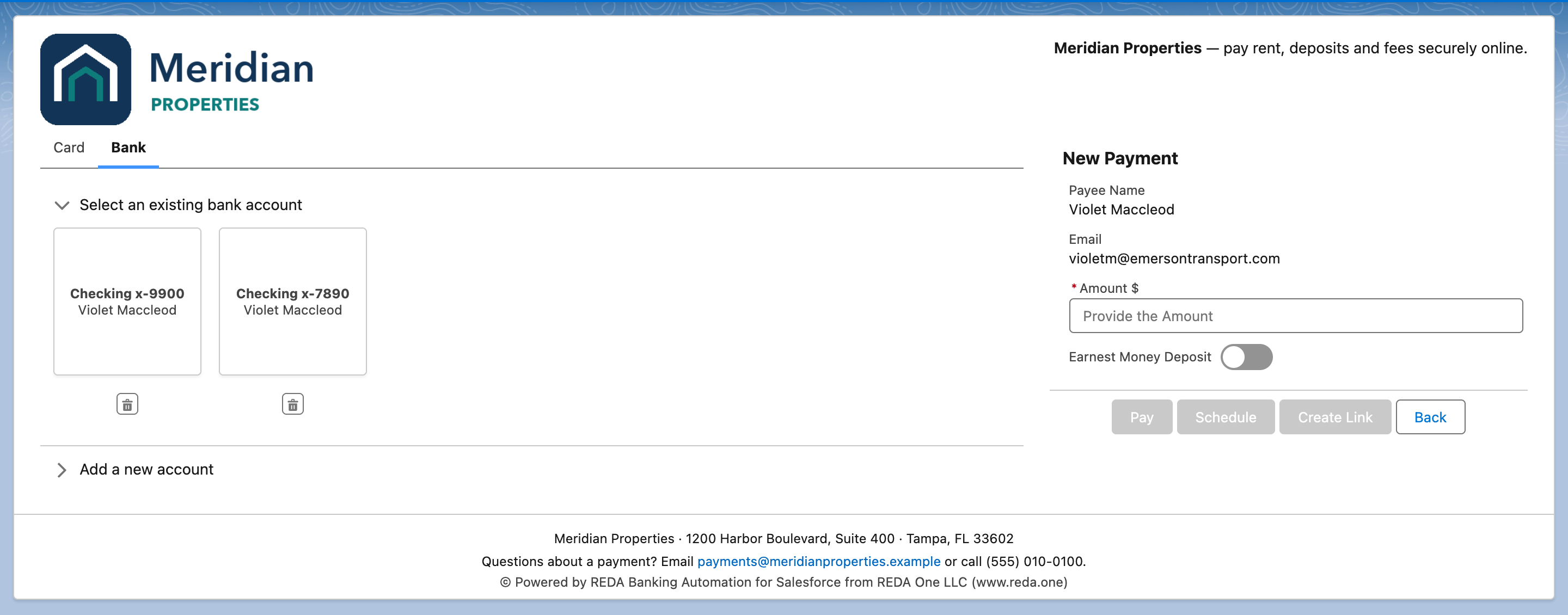
Left: how the customer pays. Right: what they pay. The buttons light up once both are valid.
Step 3 — Enter the amount
In the New Payment panel:
- Payee Name is the customer's name, read-only.
- Email shows the customer's email. If the customer has none, a Payee Email box asks for one; it is saved on the order. "Please enter a valid email address" blocks an invalid value.
- Amount $ — type the amount. "Please provide a valid amount" blocks anything that is not a positive number. If the button fixed the amount, it is shown as text and cannot be changed.
- Earnest Money Deposit — on the Bank tab only, and only when EMD is enabled for you. See Take earnest money deposits.
Pay becomes available when a method is selected, the email is valid and the amount is valid.
Step 4 — Confirm the summary
Click Pay. If the account enforces geolocation for this kind of payment, the browser asks to share your location first; declining shows "You must share geo-location access on browser or device to process the payment."
REDA Pay saves the Pay Order and opens Confirm Pay Order Summary:
| Line | Meaning |
|---|---|
| Order Number | The Pay Order's number, P-000000 |
| Order Amount | What you typed |
| Convenience Fees | The fee for the chosen method, from the account's Fee Setups — see Set up convenience fees |
| Net Amount | Order Amount plus fee: what is charged |
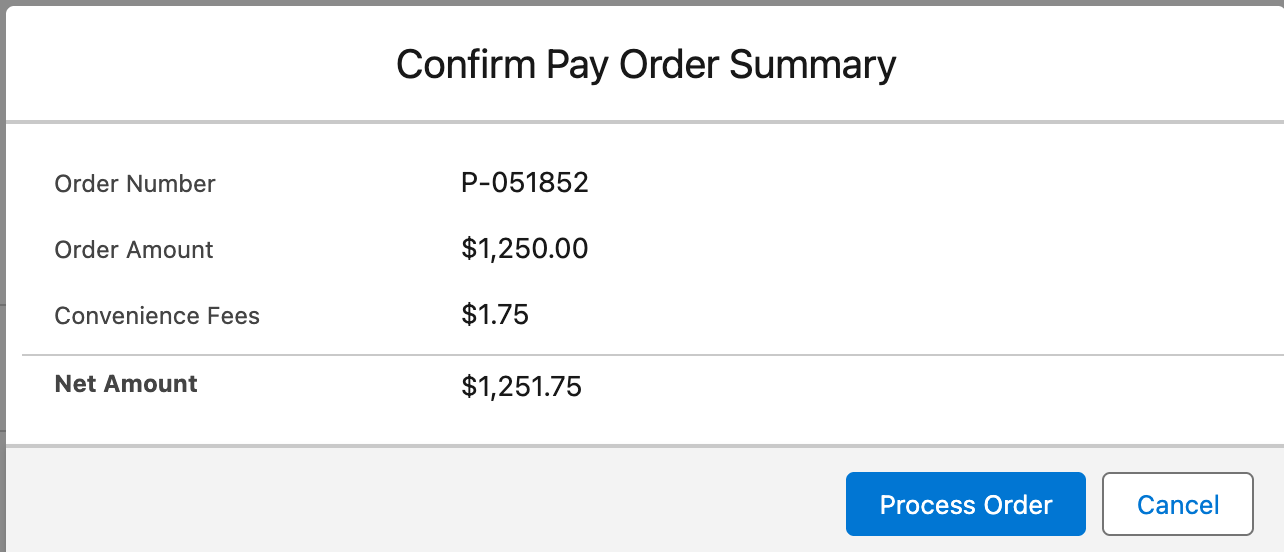
The last chance to check. Nothing has been charged yet; Cancel leaves the order unprocessed.
Tell the payer the net amount. Then click Process Order. Pressing the pay button twice in the same session is refused with "Our systems have detected a duplicate payment request. We will only consider the first payment request." — only the first press counts.
Step 5 — Read the result
Success. A message "Your payment order is successfully processed. Order Reference : P-000000" appears and you return to the record. The Pay Order's Status reads Immediate - Processed, Processed Datetime is set, and a Pay Transaction of type payment with status processed sits under it. A new card or account appears on the customer's Pay Methods, named by Payload.
Declined or failed. The error from Payload stays on screen with the order number, and a Pay Transaction with status failed and the error text is saved under the order, which stays Immediate - Not Processed. Correct the details or choose another method and pay again from the record; the order number will differ.
Unexpected error after the charge. Rarely, the connection fails after Payload has taken the payment. The screen then says "Ooops.. we have experienced an unexpected exception. Your payment method may have been debited. Do not try to pay again and quote following code to the support team…" followed by a code. Do exactly that: do not retry, and give the code to your administrator, who can recover the transaction — see When a payment fails.
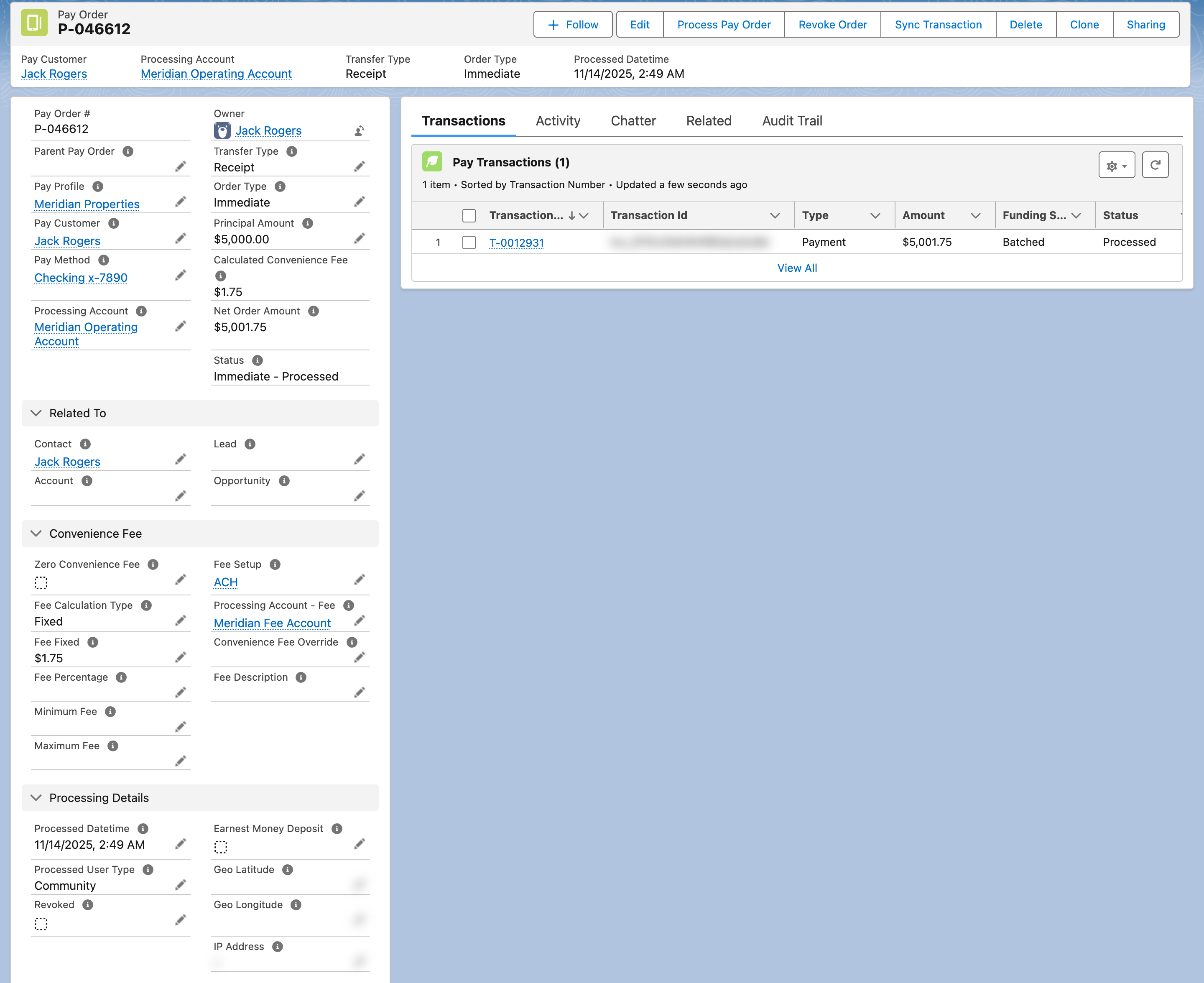
What a completed payment looks like: the order, its amounts, and the transaction Payload created.
What was saved
| Record | Created or updated |
|---|---|
| Pay Order | Customer, account, method, amounts, fee fields, direction, order type Immediate, who processed it (Processed User Type Internal), location and IP if captured, links to the Lead, Contact, Account or Opportunity |
| Pay Transaction | Payload's result: type, status, status code and message, amount, fee, funding status, reference number |
| Pay Customer | Created on first payment; registered with Payload on first payment |
| Pay Method | Created when a new card or account was entered |
Statuses keep updating afterwards through webhooks — a bank payment accepted today can be rejected days later — see Order and transaction statuses.
Mistakes to avoid
| Mistake | What happens | Fix |
|---|---|---|
| Pressing Pay again after a slow response | "duplicate payment request" — harmless, the first press continues | Wait for the result |
| Reading Order Amount as the charge | The payer is charged the Net Amount | Quote the net amount |
| Taking longer than the session allows | "Invalid request. Payment session is expired." | Reopen from the record; nothing was charged |
| Entering a card for a payout | Disbursements go to bank accounts only | Use the Bank tab |
| Retrying after the "unexpected exception" message | A second charge | Stop and report the code |
FAQ
Create the Lead, Contact or Account first; REDA Pay creates the Pay Customer from it.
Turn the screen to them, or send a payment link instead so they pay on their own device — see Create and send a payment link.
REDA Pay sends no payer emails in this release. The Pay Order and Pay Transaction hold every detail; your own email templates or automation can send a receipt from them.