
Portal access: permissions and sharing for customers
A customer who logs in to your Experience Cloud portal can only pay if Salesforce lets them open the REDA Pay screens and read the records behind them. Four things must be in place, and each one answers a different question:
| Question | Answered by |
|---|---|
| May this kind of user open the REDA Pay screens and objects at all? | The REDA Pay - Community User permission set, or the same settings on the portal profile |
| Which Pay Orders, Pay Customers and Pay Methods may they see? | A sharing set: only their own |
| May they read the Pay Profiles and Processing Accounts the screen needs? | Sharing rules or the default external access, depending on the licence |
| May they enter the site? | Site membership for their profile |
Miss any one of them and the customer sees an empty step, an error or a login loop. This article sets up all four and then tests them as a real customer. The pages themselves are covered in Let customers pay in your portal.
- Your Experience Cloud site exists and customers can log in to it.
- Each portal user is linked to a Contact (or, if payments belong to the customer's company, to an Account through that Contact).
- You are a Salesforce administrator who can edit profiles, sharing settings and the site.
Step 1 — Find out which licence your portal users have
Salesforce shares records with portal users in two different ways depending on the licence, so check it first. Open Setup → Users → Users, click a portal user, click their Profile, and read User License.
| User License | Type | What it means for REDA Pay |
|---|---|---|
| Customer Community or Customer Community Login | High-volume | Sharing rules cannot reach these users. Use the sharing set for their own records and the default external access for setup records (Step 4, route B) |
| Customer Community Plus, Customer Community Plus Login, Partner Community | Role-based | Sharing rules can reach these users. Use the sharing set for their own records and sharing rules for setup records (Step 4, route A) |
If your portal mixes licences, set up both routes.
Step 2 — Give portal users access to the REDA Pay objects and screens
Choose one of two equivalent ways. Both give exactly the same access.
Option A — Assign the permission set (recommended). Assign REDA Pay - Community User to every portal user who pays: Setup → Permission Sets → REDA Pay - Community User → Manage Assignments → Add Assignment. For a large portal, add it to a permission set group that your portal users already receive, or assign it in bulk with your usual user-provisioning process. The set is kept up to date by REDA Pay upgrades, which is why it is the recommended option.
Option B — Put the same settings on the portal profile. Some organisations manage portal access only through profiles. Then edit each portal profile that pays and give it what the permission set contains:
| On the profile | Grant |
|---|---|
| Object settings — Pay Customer, Pay Method | Read, Create, Edit |
| Object settings — Pay Order, Pay Transaction, Pay Profile, Processing Account, Fee Setup | Read |
| Field-level security on those objects | The same field access as the permission set: open REDA Pay - Community User → Object Settings and mirror each object |
| Enabled Apex Class Access | rpay.NewPayOrderController and rpay.NewPayMethodController |
| Enabled Custom Metadata Type Access | REDA Pay Process Config and REDA Pay Setup |
In the enhanced profile interface these two sections are called Apex Class Access and Custom Metadata Types.
The packaged permission set grants no Delete, View All or Modify All on any REDA Pay object; do not add them on the profile either.

What the permission set grants. If you use profiles instead, copy exactly this.
Step 3 — Create the sharing set: each customer sees only their own records
Object access says a customer may read Pay Orders; it does not say which. Without a sharing set they see none, because REDA Pay's records are private to external users by default. The sharing set grants access to the records linked to the customer's own Contact.
- Open Setup → Digital Experiences → Settings, scroll to Sharing Sets and click New.
- Enter a Label, for example REDA Pay - Customer Records.
- Under Select Profiles, add every portal profile whose users pay.
-
Under Configure Access, add Pay Customer, Pay Method and Pay Order. For each, click Set Up and choose:
- User: Contact
- Target object field: Contact
- Access Level: Read/Write
- Save.
Pay Transactions and Fee Setups need no entry: they inherit access from their Pay Order and Processing Account.
If your portal pages identify the customer by Account (the Portal Record Identifier setting User-Account — see Let customers pay in your portal), REDA Pay links the records to the Account, so map User: Account to each object's Account field instead. Every user of that company then sees the company's payments.

The sharing set is what turns "Pay Orders" into "my Pay Orders".
Step 4 — Let customers read the active Pay Profiles and Processing Accounts
The payment screen reads the Pay Profile and Processing Account to know which methods are allowed, which fees apply and how to brand the page. These records belong to no customer, so the sharing set cannot cover them.
Route A — Role-based licences (Customer Community Plus, Partner): two sharing rules. In Setup → Sharing Settings, under Pay Profile Sharing Rules click New, and create:
| Setting | Value |
|---|---|
| Label | Active Pay Profiles for portal users |
| Rule Type | Based on criteria |
| Criteria | Is Active equals True |
| Share with | The group All Customer Portal Users |
| Access Level | Read Only |
Then the same under Processing Account Sharing Rules: Is Active equals True, shared with All Customer Portal Users, Read Only.
Route B — High-volume licences (Customer Community, Customer Community Login): default external access. Sharing rules cannot include high-volume users, so open the two objects to external users instead. In Setup → Sharing Settings, click Edit under Organization-Wide Defaults (some orgs label this section Default Sharing Settings) and set Default External Access to Public Read Only for Pay Profile and Processing Account. Leave Pay Order, Pay Customer and Pay Method Private: the sharing set handles those.
With route B, external users can read every Pay Profile and Processing Account record, active or not. The screens offer only active ones, and the identifiers on these records are encrypted; card and bank details are never stored on them.

Route A: role-based portal users read active Pay Profiles through a sharing rule.
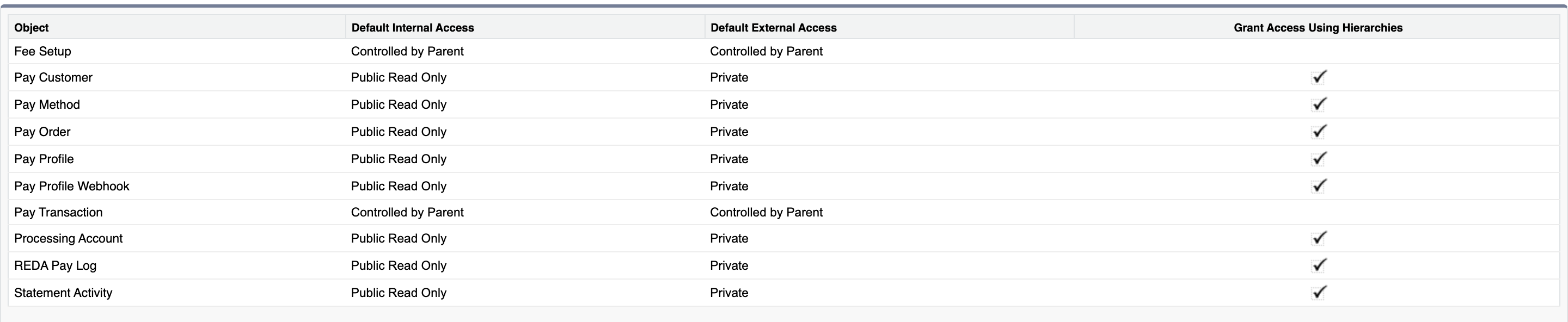
Route B changes the Default External Access column for Pay Profile and Processing Account only.
Step 5 — Make sure the profile is a member of the site
Users can only log in to a site their profile belongs to. In Setup → Digital Experiences → All Sites, click Workspaces next to your site, open Administration → Members, and check that each portal profile from Step 3 is in Selected Profiles. Add it if not, and Save.
Step 6 — Test as a real customer
An administrator sees every record, so testing as yourself proves nothing. Test as a portal user:
- Open a test customer's Contact and choose Log in to Experience as User.
- Open the payment page. If several active Pay Profiles exist, "Select Pay Profile" lists them; choose one.
- The payment screen opens with the account's branding and the customer's saved methods.
- Enter an amount, press Pay, and cancel the summary.
- Open the customer's payment history page if you have one: only that customer's Pay Orders appear.
Symptoms and what is missing
| What the customer sees | Usually missing | Fix |
|---|---|---|
| A login page, or "Insufficient Privileges" on the site | Site membership, or the page requires a profile they lack | Step 5 |
| An error when the payment page loads | Apex class access | Step 2: the permission set, or the two classes on the profile |
| "Select Pay Profile" with no choices, or no processing account | Access to setup records | Step 4: the route for their licence |
| "Bad Request. Parent record not found." or an empty screen | Their own records are not shared | Step 3: the sharing set, on the right field |
| Payment history shows nothing | Sharing set missing Pay Order, or wrong field | Step 3 |
| Works for one licence, not another | Only one route set up | Step 4: set up both |
Mistakes to avoid
| Mistake | What happens | Fix |
|---|---|---|
| Creating sharing rules for a high-volume portal | Nothing changes for customers | Use route B, default external access |
| Opening Pay Order or Pay Customer to Public Read Only | Every customer could read every payment | Keep them Private; the sharing set gives each customer their own |
| Assigning REDA Pay - User to portal users | It is an internal staff set and gives far more than customers need | Use REDA Pay - Community User |
| Mapping the sharing set to Lead | Portal users are never Leads; nothing is shared | Map User: Contact to Contact (or User: Account to Account) |
| Adding a new portal profile later and forgetting the sharing set | New customers see empty screens | Add the profile to the sharing set and the site members |
FAQ
No. The sharing set shares only records linked to the user's own Contact (or Account), and Pay Orders, Pay Customers and Pay Methods stay private to external users otherwise.
Check Setup → Installed Packages → REDA Pay: if Allowed Licenses reads Unlimited, no assignment is needed; otherwise assign a licence to each portal user before the permission set.
No. Payment links are opened by anonymous visitors through your public site's guest user, which has its own set-up — see Payment-link guest access: permissions and sharing.
Where to go next
- Let customers pay in your portal — build the payment pages.
- Portal autopay: recurring payments by customers — what customers can schedule.
- Who can do what: permission sets — all seven REDA Pay permission sets.