
Default, replace and delete payment methods
A customer's saved cards and bank accounts are Pay Method records under their Pay Customer. Over time cards expire, vendors change banks and residents move. This article covers the four things your team does with existing methods: choose the default, retire a method from the payment screen, delete it at Payload, and complete a method that was created without its card or bank details.
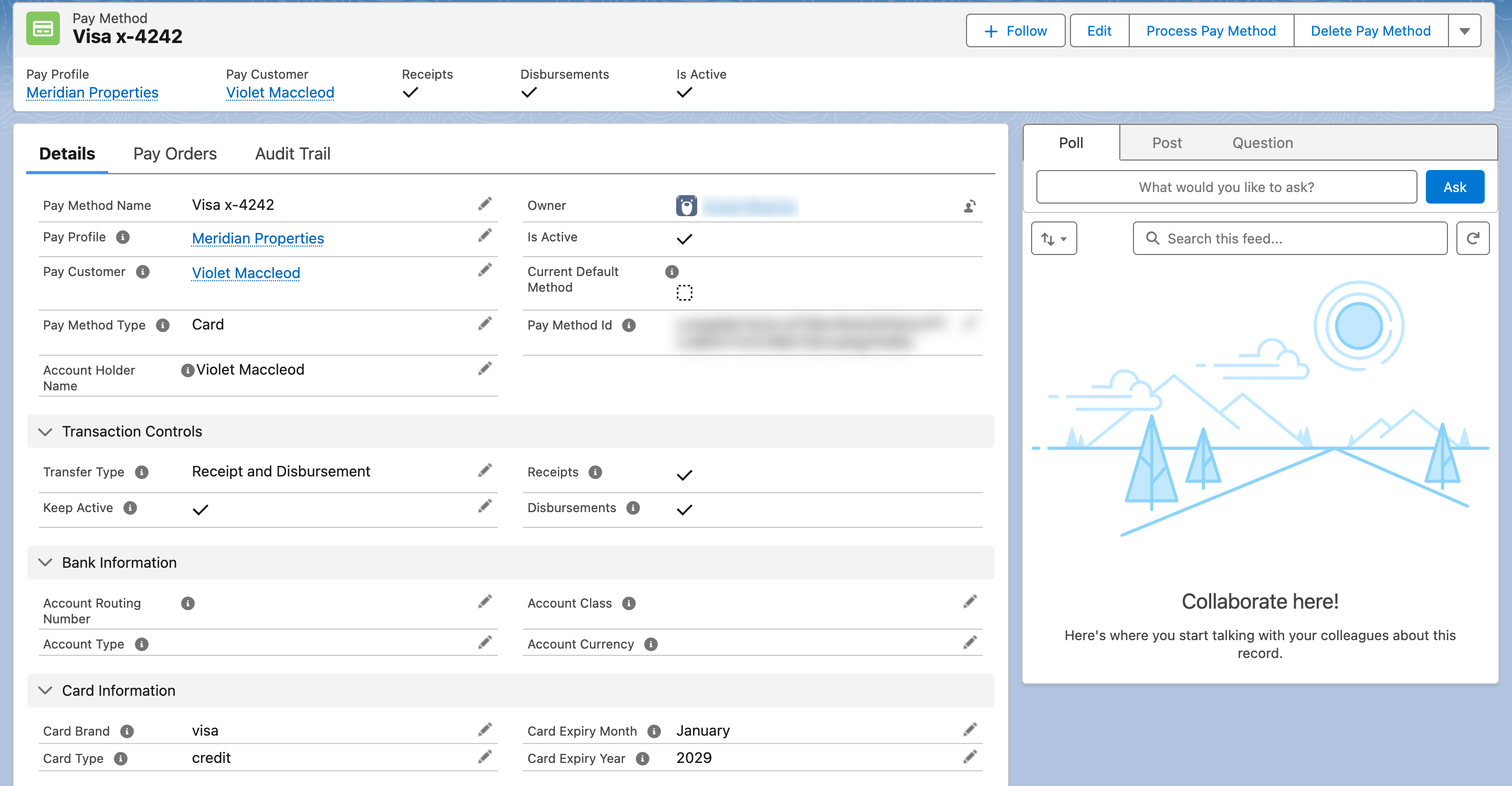
A saved card. The Pay Method Id — Payload's token — is encrypted; the card number was never stored.
The fields that matter
| Field | Meaning |
|---|---|
| Keep Active | On: the method stays available for future payments. Off: single use. Methods entered on a payment link are saved with it off |
| Is Default Payment Method | Tick to make this the customer's default. The Pay Customer's Default Pay Method is updated to this method |
| Current Default Method | Read-only: whether this method is the customer's default right now |
| Is Active | Read-only: the method has not been deleted |
| Deleted Datetime | Set when the method is deleted at Payload; the record stays for history |
| Transfer Type | Receipt, Disbursement, or both — what the method may be used for. Locked once registered |
Set the default
- Open the Pay Method and click Edit.
- Tick Is Default Payment Method and Save.
The customer's payment screen now pre-selects this method, and orders created without choosing a method use it. When the customer is allowed disbursements, the same method is written to Default Pay Method (Disbursement) on the related Account, Contact and Lead, so payout automations can find it.
Retire a method without deleting it
Untick Keep Active and Save. The method disappears from the payment screen's list of saved methods but the record and its history stay, and nothing is sent to Payload. Use this for a card the customer no longer wants offered.
Any scheduled order that uses the method stops: its Schedule Active box turns off until the order is given an active method.
Delete a method
Deleting removes the method at Payload as well.
- Open the Pay Method and click Delete Pay Method.
- The dialog warns "System will delete the pay method." Click Delete Pay Method.
- "Pay Method deleted successfully." The record stays, with Is Active off, Deleted Datetime set and the token replaced.
Customers can delete their own methods from the payment screen: each saved card or account carries a delete icon, and the screen asks "Are you sure you want to delete the pay method? Any schedule payments associated with this pay method will become inactive."
A method that was never registered reports "Pay Method is not processed."; one already deleted reports "Pay Method is already deleted."
Replace an expired card
There is no edit of a registered method — its details are locked and the number was never stored. Save the new card (see Save a payment method without paying), make it the default, then retire or delete the old one. Re-point any scheduled order to the new method by editing the order's Pay Method — see Set up a recurring payment.
Worked example: a resident's card expires
A resident pays rent by autopay from Visa x-4242, which expires this month.
- The resident adds the replacement card in the portal (New Pay Method → Card → Add Method). A new Pay Method "Visa x-7788" appears under their Pay Customer, Keep Active on.
- A staff member opens "Visa x-7788", ticks Is Default Payment Method and saves: the Pay Customer's Default Pay Method now points at it.
- The staff member opens the resident's schedule order (Status Schedule - Active), edits Pay Method to "Visa x-7788" and saves. The schedule keeps its dates; next month's run charges the new card.
- They open "Visa x-4242" and untick Keep Active. It leaves the resident's list of saved cards; its history of payments stays.
Had the old card been deleted before step 3, the schedule's Schedule Active would have turned off at that moment, and the next run would have been missed.
Complete a method created without details
A Pay Method can exist without card or bank details — for example a record created by a data load, or one left behind when a payment was abandoned before registration. Its Pay Method Id is blank and the payment screen cannot use it.
- Open the Pay Method and click Process Pay Method.
- The dialog explains "System will try to generate the token for this pay method." Choose Pay Method Type (Card or Bank Account (ACH)), fill in the card or bank form, and click Process.
- "Pay Method synced successfully." — the method is now registered and usable.
A method that is already registered reports "Pay Method is already processed."; a deleted one reports "Pay Method is deleted and can not be processed again."
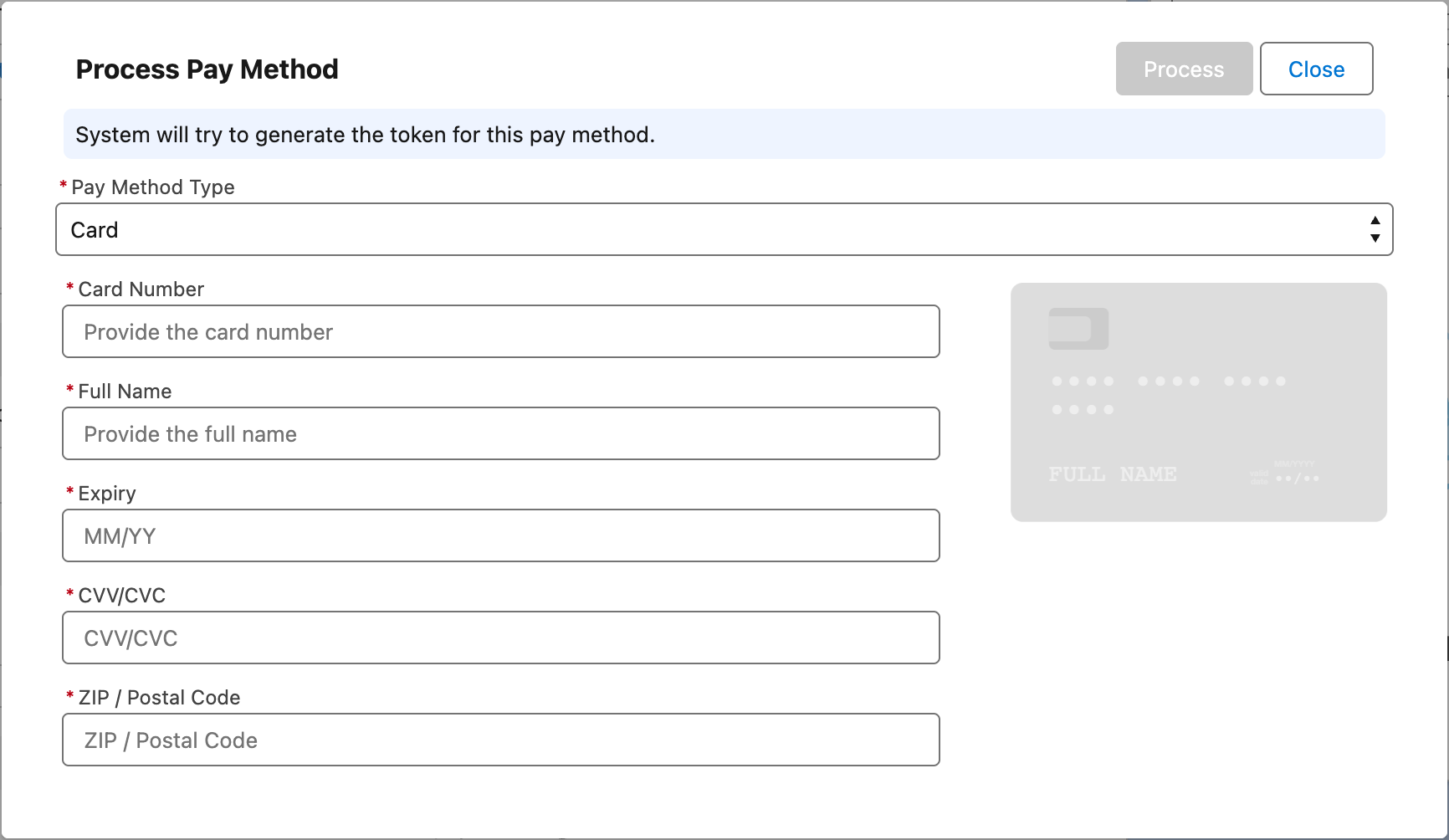
Completing a method record that has no registered card or account behind it.
Mistakes to avoid
| Mistake | What happens | Fix |
|---|---|---|
| Deleting a method that a scheduled rent payment uses | The schedule stops silently (Schedule Active off) | Set a new default or edit the order's Pay Method before deleting |
| Editing the Pay Method's card fields to "update" a card | The fields are locked; Payload still has the old card | Save a new method, then retire the old |
| Expecting deletion to remove the record | The record stays for history, marked deleted | Filter list views on Is Active |
| Two methods both ticked as default | Only one can be the default; the last saved wins | Tick one |
FAQ
In this release, defaults are set by your team or by the save-a-method screen's Default Pay Method setting. Customers can add and delete methods.
No. Payments already taken are unaffected; deleting only removes the stored card or account.
Link payments save the method with Keep Active off, so it is single-use. Tick Keep Active on the record to keep it.