
Brand the portal payment pages
A payment page in your portal has two layers. Inside the REDA Pay screen, the logo, header line and footer come from the processing account and are the same in every channel. Around it, the page belongs to your Experience Cloud site: its theme, navigation, headings, text and the result pages are yours to design. Knowing which layer controls what saves a lot of trial and error.
Inside the screen: the processing account
| Element | Field on the Processing Account |
|---|---|
| Logo top left | Interface Logo URL (public image address, shown at most 250 pixels wide) |
| Header line top right | Interface Header Content |
| Footer under the form | Interface Footer Text |
| Name of the account when the customer must choose one | Interface Label and Interface Label Description |
The screen's own colours, fonts, tab names and buttons are fixed in this release. Customers see "Card" and "Bank", "New Payment", "Pay", "Schedule", "Create Link", and the "Powered by REDA Banking Automation for Salesforce" line, whatever the site's theme says.
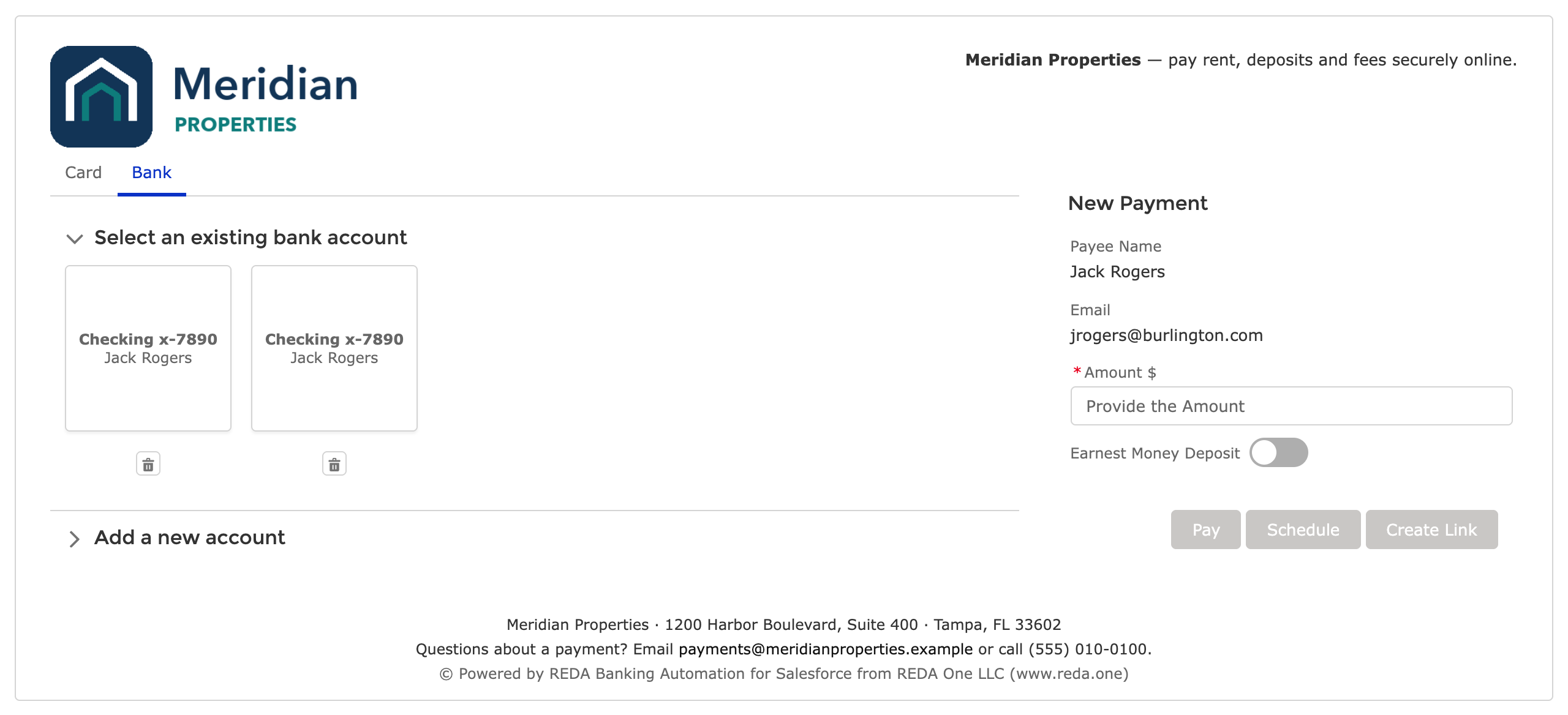
The inside layer. Everything in this card comes from the processing account; your site's theme and navigation surround it.
Around the screen: your site
Everything outside the card is ordinary Experience Builder work:
| What | Where |
|---|---|
| Colours, fonts, header, footer of the page | Experience Builder → Theme |
| Navigation item names (Pay Rent, Make a Payment) | Navigation Menu |
| Text above or beside the screen — what the payment is for, fees, who to call | A Rich Content Editor component on the same page |
| The page's width | The theme layout; give the payment page the full width, because the screen is two columns on desktop |
| Result pages | The success and error pages are yours: put your own thank-you text, next steps and a link home around the NewPayOrderResult component |
| Login page, password reset | The site's login settings |
The REDA Pay screen adapts to the width it gets: at phone widths the method tiles and the payment panel stack. Keep the page free of narrow side columns so the screen has room.
Text you cannot change, and how to work around it
| Fixed text | Workaround |
|---|---|
| "Powered by REDA Banking Automation for Salesforce from REDA One LLC (www.reda.one)" | None; it is part of the screen |
| Tab names Card / Bank, button names | Explain in your page text if your customers need other words |
| Error messages such as "Invalid request. Payment session is expired." | Put a "What to do if you see an error" note on the page |
| The amount label "Amount $" | Add the currency in your page text if your account is not in dollars |
Portal page and public link page: what differs
| Portal payment page | Public link page | |
|---|---|---|
| Who | Logged-in customers | Anyone with a link |
| Site chrome | Your portal's header, navigation, footer | Usually minimal: a logo and a title, because the visitor came for one thing |
| Entry component settings | Is Portal on; record identifier User-Contact or User-Account | Is Portal on; the order comes from the link |
| What the screen shows | Saved methods, Pay / Schedule / Create Link as allowed | A new card or account, the locked amount, Pay only |
| Result pages | Thank-you text, "view your payments", back to home | Thank-you text, what happens next, your contact details — the visitor has no "home" |
| Text around the screen | What the page is for, fees, due dates | What the payment is for in general terms; the specific notes come from the order |
Worked example: a resident portal page
Meridian Properties' Pay Rent page, top to bottom:
- The portal theme's header with the Meridian logo and the navigation (Home, Pay Rent, Payment Methods, My Payments).
- A Rich Content Editor block: "Rent is due on the 1st. Bank payments carry a $1.75 fee; card payments 3%. Set up autopay with the Schedule button so you never miss a month."
- The REDA Pay screen in a full-width section: the Meridian logo and header line inside, the Bank tab open (cards are off on this page), the resident's saved accounts.
- The theme's footer.
The Payment Success page shows the result component ("Your order is successfully processed. Order Reference: …") under a heading "Thank you", a line "Your payment will appear on your ledger within one business day", and a button back to My Payments. The Payment Error page shows the error component with "Please try another payment method or call (555) 010-0100" and the same button.
Checklist before customers see it
- Logo loads for a logged-in customer and, if you run links, for a guest in a private window.
- Header line fits on one line at phone width; shorten it if it wraps awkwardly.
- Footer carries a support contact.
- The page's own text matches the fees actually configured on the account.
- Success and error pages exist, are named in the entry component's settings, and read well.
- Test as a portal user, at desktop and phone widths.
Mistakes to avoid
| Mistake | What customers see | Fix |
|---|---|---|
| Page text that states fees different from the Fee Setups | A fee that contradicts the summary | Keep the page text in step with the account's fees, or leave fees to the summary |
| Logo set on one account but customers use another | No logo on some payments | Brand every active account |
| Payment screen in a narrow column | Cramped tiles, wrapped buttons | Full-width page |
| Result component on a page with no return link | Customers stuck on "Success" | Add a link to the portal home |
FAQ
Not in this release.
Yes. They are different Experience Builder pages — even different sites — so their themes and text can differ. The screen inside is the same because the processing account is the same.
The screen's texts are English in this release. The page around it can be in any language your site supports.