
Sync processing accounts and activate the profile
A Processing Account is a merchant account at Payload — the account that receives your payments and sends your payouts. You never create one by hand. The Sync Processing Accounts button on the Pay Profile asks Payload for the accounts under your API key and creates a Processing Account record for each. The same sync fills the profile's Profile Id, which is the last thing the profile needs before it can be activated.
- The Pay Profile exists and its API key is stored — see Create a Pay Profile.
- Your merchant accounts exist at Payload. If Payload has not finished onboarding an account, it will not appear.
- You hold REDA Pay - Admin User.
Step 1 — Run the sync
- Open the REDA Pay app → Pay Profiles tab → your profile.
- Click Sync Processing Accounts. The dialog explains: "System will update the existing and create new processing accounts."
- Click Sync.
- Wait for "Processing accounts are synced successfully." and close the dialog.
- Open the Processing Accounts tab on the profile (or the Processing Accounts list). One record per Payload merchant account is listed, named as Payload names it, with its Status at Payload.
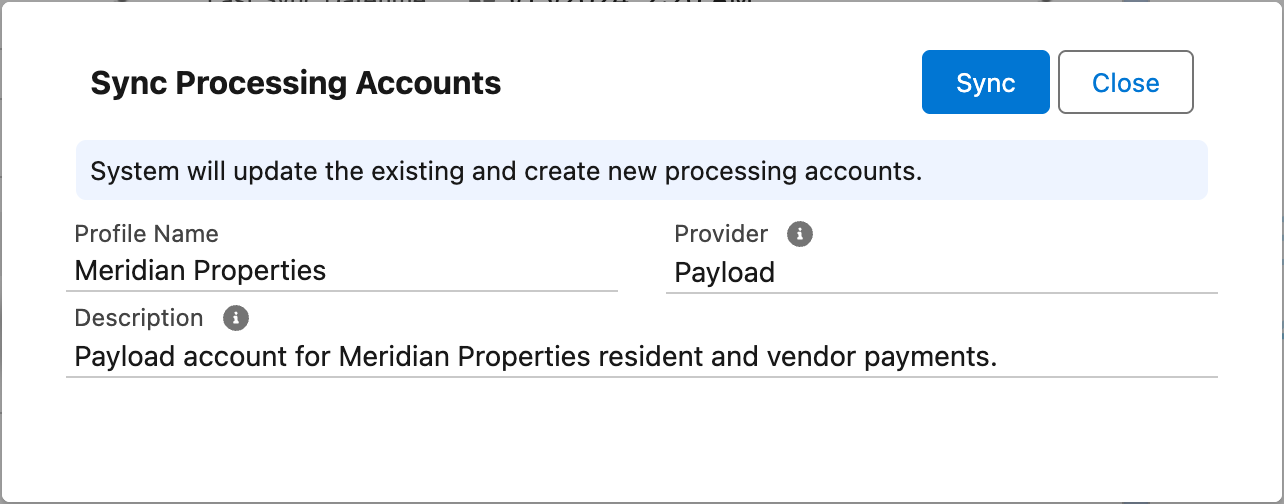
The sync dialog. Pressing Sync reads your merchant accounts from Payload and creates or updates one Processing Account for each.

After the sync, each merchant account at Payload has a Processing Account record. The rest of their configuration is yours to do.
What the sync creates, and what it overwrites
| Field on the Processing Account | Set by the sync? | Notes |
|---|---|---|
| Processing Account Name | Yes — every time | Payload's name for the account. If you rename a record, the next sync renames it back. Put your own wording in Interface Label instead; the sync leaves that alone |
| Processing Account Id, Processing Account Parent Id | Yes, encrypted | Payload's identifiers. Never edit them |
| Status | Yes | The account's status at Payload, as text |
| Pay Profile | Yes | The profile you synced from; locked once the account has an Id |
| Is Active, Allowed Transfer Type, Allowed Pay Methods, currency, fees, branding, link and session settings | No | Left for you to configure — see Configure a processing account |
On the profile itself, the sync fills Profile Id (encrypted) and Last Sync Datetime [Payload].
Run the sync again whenever Payload adds a merchant account to your organisation, or after you replace the API key. Existing records are updated in place, so your configuration on them survives — except the name, as noted above.
Step 2 — Activate the profile
- On the Pay Profile, click Edit.
- Tick Is Active and Save.
If the profile still lacks its API token or Profile Id, the save is refused with "Please provide API Key and Profile Id prior activating the profile." — go back to the previous step that is missing.
Only active profiles are offered on payment screens, and payment screens show only the active profiles the user may see, so activating is what makes the profile usable.
Step 3 — Choose a default processing account
When a profile has more than one processing account that allows the kind of payment being made, staff are asked to choose one under "Select Processing Account" every time. To avoid that:
- First configure the accounts (at least Is Active, Allowed Transfer Type and Allowed Pay Methods) as described in Configure a processing account.
- On the Pay Profile, click Edit, choose the main account in Default Processing Account, and Save. The account must belong to this profile.
A Pay Customer can also carry its own Default Processing Account, which applies to that customer's orders.
Worked example: Meridian Properties
Meridian Properties has two merchant accounts at Payload: an operating account where rent and deposits land, and a second account where convenience fees are collected. After the sync, two Processing Accounts appear. The administrator:
- Opens the first, ticks Is Active, sets Allowed Transfer Type to Receipt and Disbursement, Allowed Pay Methods to Card and Bank Account (ACH), and Interface Label to Meridian Properties.
- Opens the second, ticks Is Active, allows receipts only, and leaves it for fee routing.
- Activates the Pay Profile and sets the operating account as its Default Processing Account.
From then on, a staff member opening the payment screen on a Lead goes straight to the operating account.
Mistakes to avoid
| Mistake | What happens | Fix |
|---|---|---|
| Creating a Processing Account with New | It has no Payload identifier, and payments through it fail | Delete it and run Sync Processing Accounts |
| Renaming a Processing Account | The next sync restores Payload's name | Use Interface Label for the name payers see |
| Expecting the sync to switch the account on | New accounts arrive inactive with no allowed methods | Configure each account after the sync |
| Syncing before the API key is stored | "Bad Config Setup." or no accounts | Store the key with Update API Token, then sync |
| Activating before syncing | "Please provide API Key and Profile Id prior activating the profile." | Sync first; the sync sets the Profile Id |
FAQ
The API key belongs to a Payload organisation with no merchant accounts yet, or to a different environment (test versus live) than the accounts you expect. Check in the Payload dashboard which environment the key is for.
A record with no orders can be deleted, but if the account still exists at Payload the next sync recreates it. To stop an account being used, untick Is Active instead.
No. Fee Setups, labels, logo, header, footer and all controls stay as you set them.
Where to go next
- Configure a processing account — transfer types, methods, currency, sessions, links.
- Set up webhooks — let Payload report status changes to Salesforce.