
Schedule the daily recurring-payments job
Recurring payments are templates; a background job turns them into real payments on their due dates. REDA Pay ships the job but does not schedule it — an administrator does that once, in Setup. Until then every schedule your team or your customers create shows as active and never runs.
Schedule the job
- Open Setup, type Apex Classes in the Quick Find box and click Apex Classes.
- Click Schedule Apex at the top of the list.
- Fill in:
| Field | Enter |
|---|---|
| Job Name | A name you will recognise in the Scheduled Jobs list, for example REDA Pay - Recurring Payments |
| Apex Class | Click the lookup and choose SchedulePayOrderJob (it is listed with the REDA Pay namespace, rpay) |
| Frequency | Weekly, with every day of the week ticked |
| Start | Today |
| End | A date far in the future, for example ten years from now |
| Preferred Start Time | A quiet hour before your business day, for example 06:00. Payments due that day are created and sent at this time |
- Click Save.
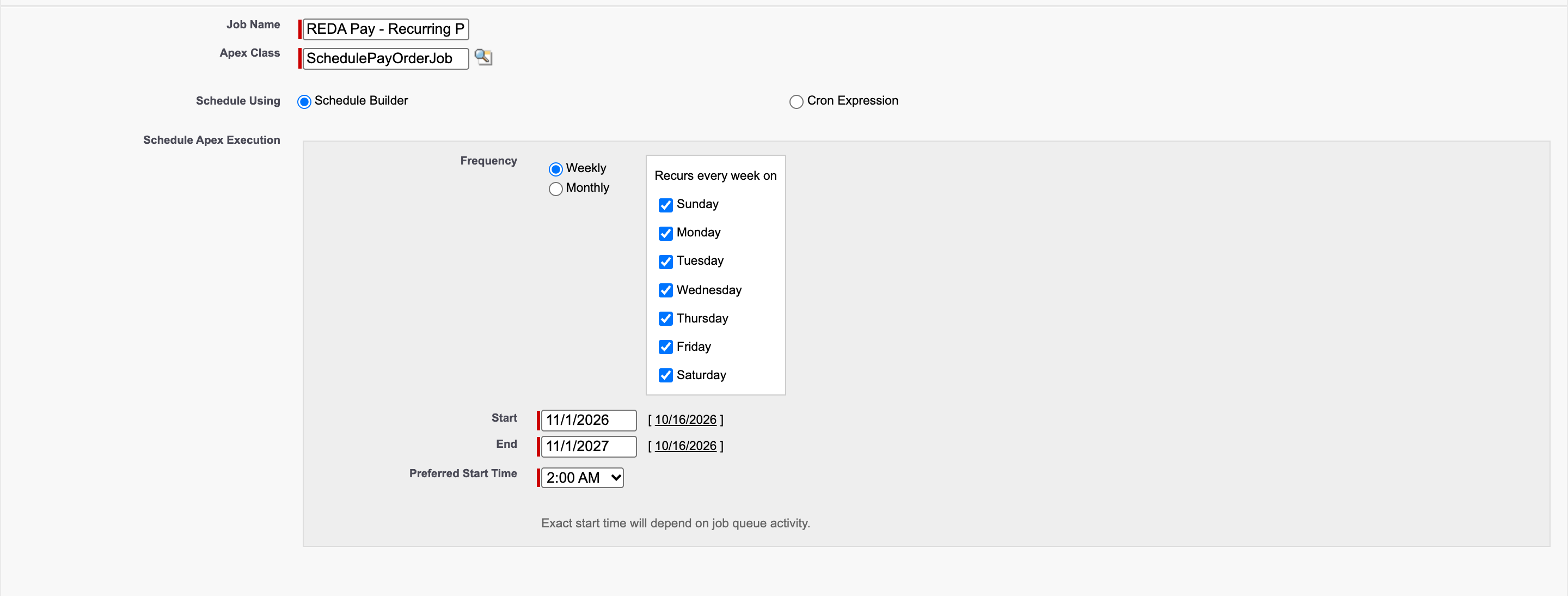
One job, every day. The time you choose is when the day's recurring payments are taken.
What the job does each day
- Finds every Pay Order of type Schedule whose Schedule Active is on and whose Schedule Next Run Date is today.
- Clones each into a new Immediate Pay Order linked back by Parent Pay Order, then processes those orders one at a time — registering nothing new, because the customer and method were registered when the schedule was created.
- Sets each schedule's Schedule Last Run Date, which moves Schedule Next Run Date forward and adds one to System Run Instances.
- Writes a REDA Pay Log if anything failed, and the order owner gets "Scheduled Payment [P-000000] failed." for each failed run.
A run that fails is not retried; the schedule simply continues on its next date. See Set up a recurring payment.
Check it is running
| Where | What to look for |
|---|---|
| Setup → Scheduled Jobs | Your job name with a Next Scheduled Run date |
| Setup → Apex Jobs | After each run, entries for the REDA Pay batch classes with status Completed |
| REDA Pay app → REDA Pay Logs → Attention Needed | Logs from the job when runs failed, with the failures attached as a file |
| Pay Orders list view Order Type - Schedule | Schedule Last Run Date = today for schedules that were due |
Worked example: one morning's run
Three schedules are due on 1 November: two residents' rent by bank account and one owner-services fee by card.
| Schedule | What the job does at 06:00 | Result |
|---|---|---|
| P-051850, $1,250.00 monthly, Checking x-7890 | Clones it into P-052001 (Parent Pay Order P-051850), processes it | T-0014601 processed; P-052001 Schedule - Processed; P-051850's Last Run Date 1 Nov, Next Run Date 1 Dec, Run Instances 1 |
| P-051860, $980.00 monthly, Checking x-1122 | Clones into P-052002, processes it | Payload declines: insufficient funds. T-0014602 failed; P-052002 Schedule - Not Processed; the owner of P-051860 sees "Scheduled Payment [P-051860] failed."; P-051860 still moves to 1 Dec |
| P-051870, $45.00 monthly, Visa x-4242 (expired) | Clones into P-052003, processes it | Declined; as above |
A REDA Pay Log for the run records two failures with the two orders and their errors in the attached file, and the administrators receive the "ATTENTION NEEDED" email. Collections follows up the two failed runs; the schedules themselves need no change unless the card is replaced.
Choosing the hour
The time you pick is in the time zone of the user who schedules the job. An early hour before the business day means failures are waiting in the Attention Needed view when staff arrive, and payers see a consistent charge time. Avoid the top of the hour your other heavy jobs run; the REDA Pay job calls Payload once per schedule and is quick, but it competes for the same batch slots.
Running it more than once a day, or for a past date
The job runs once per day by design: schedules are keyed on dates, and a second run on the same day finds nothing new to do. If the job was missed on a day — for example it was not yet scheduled, or the org was unavailable — an administrator can run it for that date from the Developer Console (Debug → Open Execute Anonymous Window):
rpay.SchedulePayOrderJob job = new rpay.SchedulePayOrderJob();
job.processDate = Date.newInstance(2026, 11, 1);   // the missed date
System.schedule('REDA Pay - catch-up ' + String.valueOf(DateTime.now().getTime()), '0 0 * * * ?', job);
This schedules a one-off run at the next hour for the given date; schedules due on that date and not yet run are processed. The job also accepts batchSize (default 50) for the number of schedules handled per batch.
Mistakes to avoid
| Mistake | What happens | Fix |
|---|---|---|
| Never scheduling the job | Every schedule stays "active" forever and nothing is charged | Schedule it; then review schedules whose Next Run Date is in the past |
| Scheduling it twice | Harmless but confusing: the second run finds nothing | Keep one job |
| Choosing a start time during business hours | Payments are taken mid-morning; failures surface while staff are busy | Pick an early hour |
| Deleting the scheduled job while "cleaning up" | Autopay stops | Reschedule it |
| Expecting the job to retry failed payments | It does not | Collect missed amounts separately |
FAQ
The job runs as the user who scheduled it. That user must hold REDA Pay - Admin User and be allowed receipts; if that person leaves, reschedule the job as another administrator.
No, but production orgs should have them so that later declines and rejections reach Salesforce — see Set up webhooks.
Delete the scheduled job (Setup → Scheduled Jobs → Del) to pause; reschedule it to resume. Schedules whose dates passed meanwhile are not caught up automatically.