
When a payment fails: logs, alerts and recovery
Payments fail for ordinary reasons — a declined card, an empty bank account, a mistyped number — and occasionally for technical ones. REDA Pay records every failure somewhere specific and alerts someone specific. This article maps the failure to the place it is recorded, the alert it raises, and the way back.
Where failures are recorded
| Failure | Recorded as | Who is told |
|---|---|---|
| A payment on screen is declined or refused | A Pay Transaction with Status failed and the reason in Error Message, under the order; the order stays Not Processed | The person at the screen, immediately |
| A payment link fails when the customer pays | Same, plus the order stays Link - Active | The order's owner: in-app notification "Payment Link [P-000000] failed." |
| A scheduled run fails | A failed transaction under the generated child order | The schedule's owner: "Scheduled Payment [P-000000] failed."; plus a REDA Pay Log for the run |
| The connection to Payload broke mid-payment | A failed transaction with Process Callout Exception ticked; the payer sees the "unexpected exception" message with a code | The failed-payment recovery job repairs it — see Turn on failed-payment recovery |
| A background job hit errors (schedules, syncs, statements, customer updates) | A REDA Pay Log with Attention Needed ticked and the failures attached as a CSV file | Every active user who receives Salesforce administration emails, plus the job's owner, by email |
| A bank payment is rejected days later | The transaction's Status becomes rejected with a Rejected Date | Nobody by default; see Disputes and rejected payments |
| A customer's name, email or phone could not be sent to Payload | Sync Error Message on the Pay Customer | Nobody; visible on the record |
Reading a failed transaction
Open the Pay Order and look at its Pay Transactions. A failed attempt has:
| Field | What to read |
|---|---|
| Status | failed |
| Error Message | Payload's reason, as "error type : description" — for example a declined card, an invalid routing number, or a customer rule such as "Payments are not allowed at this time for this customer." |
| Process Callout Exception | Ticked when the connection broke: the outcome is unknown until the recovery job runs |
| Created Date | When the attempt was made |
The order itself is untouched and can be paid again from the record with another method.
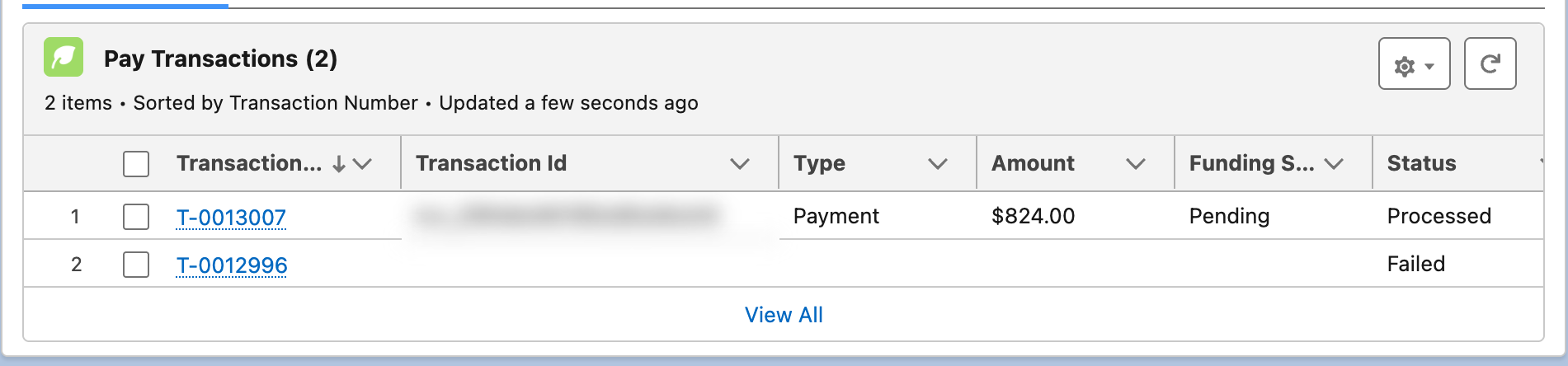
A failed attempt beside the successful retry. The failed record stays for the audit trail.
REDA Pay Logs
Every background job that meets an error writes a REDA Pay Log (RPL-000000):
| Field | Meaning |
|---|---|
| Process | Which job: scheduled orders, transaction sync, statement processing, missing transactions, customer update |
| Start / End Datetime, Total Records, Success Records, Failed Records | The run's figures |
| Exception | The error text when the job itself failed |
| Attention Needed | Ticked while there are failures nobody has resolved |
| Resolved Date Time | Fill it in when you have dealt with the log; the log leaves the Attention Needed view |
| Notes & Attachments | A CSV file listing each failed record with its error — download it to see which orders or transactions were affected |
When a log is created with failures, REDA Pay emails every active user who receives administration emails and the job's owner. The subject is "RPL-000000 - process - System Asynchronous Automation Exception" and the body begins "ATTENTION NEEDED" with a link to the log.
The REDA Pay app has a REDA Pay Logs tab with the views Attention Needed, Created Today and All; the REDA Pay Admin dashboard shows the count of logs needing attention.
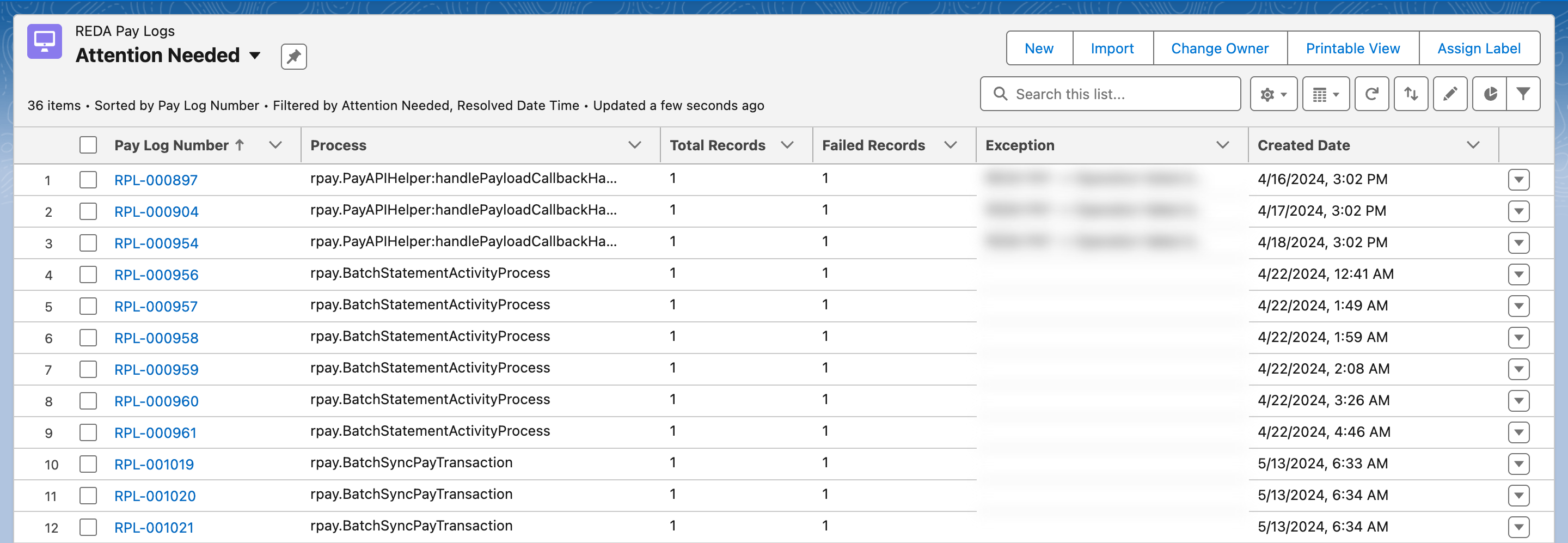
The Attention Needed view is the daily check for whoever owns payments operations.
Recovery, by situation
| Situation | Do this |
|---|---|
| Declined card or bank payment | Take the payment again with another method. The failed transaction stays as history |
| Customer rule blocked it ("not allowed for this customer", "pay method type is not allowed…") | Fix the Pay Customer's allowed methods or transfer type — see Per-customer rules — then pay again |
| Payer debited but Salesforce shows a failed attempt with Process Callout Exception | Wait for the recovery job (every 15 minutes), or open the order and press Sync Transaction to fetch Payload's record now. Do not process the order again |
| A transaction's status looks stale | Sync Transaction on the transaction (or on the order, for all of them) re-reads it from Payload |
| A scheduled run failed | Collect the missed amount with a one-off payment; the schedule continues on its next date. If the method is dead, replace it — see Set up a recurring payment |
| A log reports many failures from one job | Open the CSV, fix the common cause (an inactive account, a deleted method, a missing permission), then set Resolved Date Time |
| Statement activity stuck In Process | Reprocess it — see Reconcile deposits and payouts |
Sync Transaction
On a Pay Transaction: click Sync Transaction, then Sync. REDA Pay re-reads that transaction from Payload and updates status, status code, funding status and dates. On a Pay Order: the same action asks Payload for every transaction tagged with the order, updates the ones Salesforce has and creates any it lacks — the manual version of the recovery job, with no one-hour limit.
Error messages with technical detail
By default REDA Pay shows the technical detail of an error — line numbers and a stack trace — after the message, because the org switch ERROR_STACK_TRACE ships as TRUE. That detail helps support but belongs on no customer's screen. Before go-live, set it to FALSE — see Org switches and error messages.
Mistakes to avoid
| Mistake | What happens | Fix |
|---|---|---|
| Processing an order again after the "unexpected exception" message | A second charge | Sync first; look at the transactions |
| Ignoring the Attention Needed emails | Failed schedule runs and sync errors pile up unseen | Give one person the daily check |
| Deleting failed transactions to "tidy up" | The audit trail of the attempt is lost; transactions with refunds cannot be deleted anyway | Leave them |
| Leaving Process Callout Exception attempts beyond an hour | The recovery job no longer picks them up | Use Sync Transaction on the order |
FAQ
No. REDA Pay sends no payer emails. The payer sees the result on screen; your own automation can email them from the failed transaction.
Every active user set up to receive Salesforce administrator emails, plus the owner of the job that failed.
Build a flow on REDA Pay Log (when Attention Needed becomes true) that posts where you like.