
Send a disbursement
A disbursement is money going out: an owner's monthly proceeds, a vendor's invoice, a security deposit returned to a former resident. REDA Pay sends it from your processing account to the payee's bank account — never a card — and records it as a Pay Order with transfer type Disbursement and a Pay Transaction of type credit. Because money leaves your account, disbursements are switched off for every user until an administrator turns them on.
- Your user has REDA Pay - Enable Disbursements ticked — see Who can do what. Without it the screen says "No transfers are allowed. [Transfer Type]".
- The Processing Account's Allowed Transfer Type includes Disbursement and its Allowed Pay Methods includes Bank Account (ACH).
- The payee's Pay Customer allows disbursements (Allowed Transfer Type Disbursement or Receipt and Disbursement) — see Per-customer rules.
- The payee's bank account is saved as a Pay Method with transfer type Disbursement or both — see Request bank details from a vendor.
Step 1 — Open the screen as a disbursement
From the payee's Account (or Contact), press the Pay button. If the button is not fixed to one direction and you are allowed both, Select Transfer Type appears: choose Disbursement — To make payments to your clients, vendors and suppliers. and click Next. Profile and account questions follow as for a receipt, offering only accounts that allow disbursements.
A button dedicated to payouts fixes the direction with rpay__ttype=disb in its address — see Add REDA Pay to record pages.
Step 2 — Choose the bank account and amount
The screen opens with only the Bank tab, and the panel on the right reads New Disbursement.
- Under Select an existing bank account, click the payee's account tile. You can also open Add a new account and enter one now; it is saved to the payee for next time.
- Check Payee Name. If the payee has no email, enter one in Payee Email.
- Type the Amount $.
There is no convenience fee on a disbursement and no earnest money deposit switch. Press Pay to send the payout now.
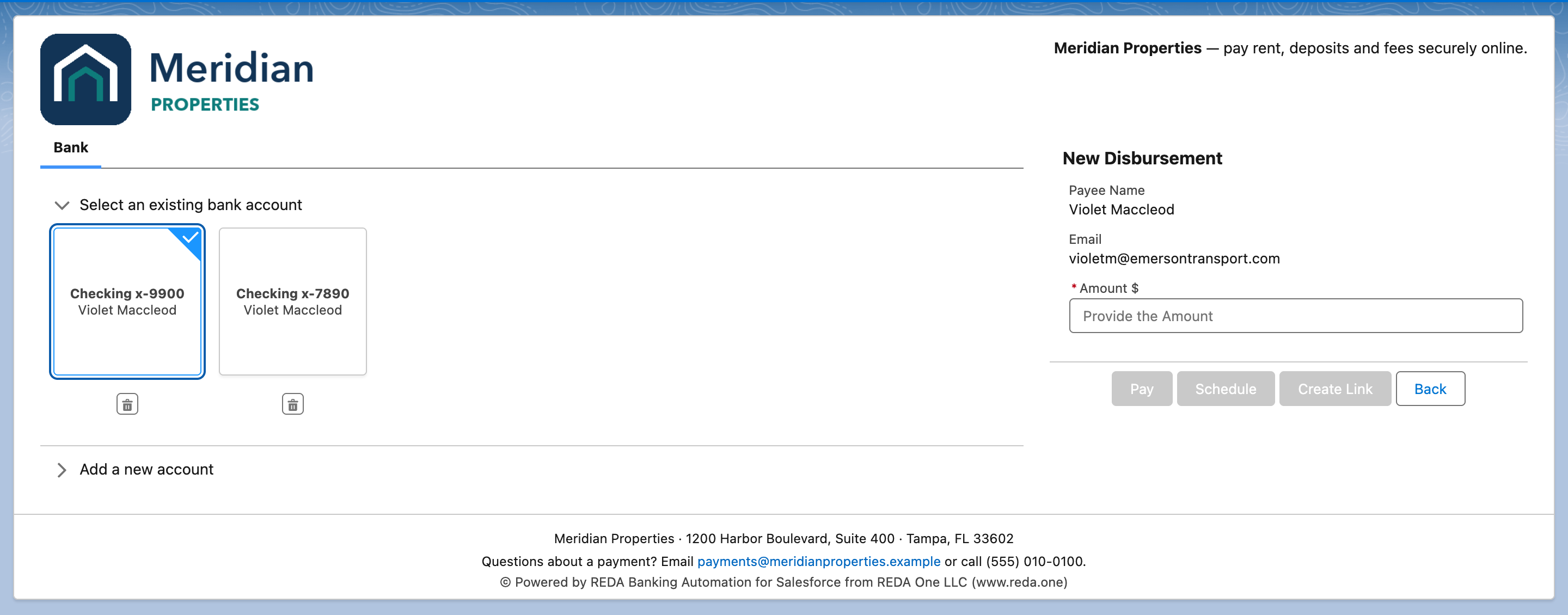
A disbursement: bank account only, no fee, "New Disbursement" instead of "New Payment".
Step 3 — Confirm and process
Click Pay. Confirm Pay Order Summary shows the order number and the amount, with Convenience Fees $0.00 and Net Amount equal to the amount. Click Process Order.
On success you return to the record with "Your payment order is successfully processed. Order Reference : P-000000". The Pay Order shows Transfer Type Disbursement and Status Immediate - Processed; the Pay Transaction under it has Type credit. Payload sends the money through the bank network; Funding Status moves from pending as Payload batches it, and a Statement Activity of type Payout arrives when it leaves your bank account — see Reconcile deposits and payouts.
Setting up a payee end to end
| Step | Where | Article |
|---|---|---|
| The payee exists as an Account (or Contact) | Salesforce | — |
| The processing account allows disbursements | Processing Account → Allowed Transfer Type | Configure a processing account |
| The payee's Pay Customer allows disbursements | Pay Customer → Allowed Transfer Type (the shipped Account mapping creates customers with Receipt and Disbursement) | Per-customer rules |
| A bank account with transfer type Disbursement or both is saved | Account → Add Pay Method, or the vendor enters it through a link | Save a payment method, Request bank details from a vendor |
| The user who pays has Enable Disbursements | User record | Who can do what |
A bank account a customer saved while paying you was registered with transfer type Receipt and cannot receive a payout. Registered methods cannot be changed, so save the account again with transfer type Disbursement (or Receipt and Disbursement) before the first payout.
Worked example: returning a security deposit
A resident moves out; $1,000 of their $1,250 deposit is to be returned.
- Their only saved method is the checking account they paid rent from, transfer type Receipt. The finance user opens the resident's Account → Add Pay Method → profile Meridian Properties → transfer type Disbursement → ticks Is Default Payment Method for Disbursement → Next, enters the same account details and clicks Add Method. A second Pay Method "Checking x-7890" now exists with Transfer Type Disbursement.
- From the Account, the finance user presses the Pay Out button (its address carries
rpay__ttype=disb). The screen opens in disbursement mode on the Bank tab with the new account pre-selected as the default. - They type
1000, press Pay, check the summary (Convenience Fees $0.00, Net Amount $1,000.00) and Process Order. - P-052040 shows Transfer Type Disbursement, Status Immediate - Processed; T-0014540 has Type credit, Status processed, Funding Status pending. Two days later the funding status is batched and a Statement Activity of type Payout for the day's disbursements lists it.
What a disbursement cannot do
| Not available | Why |
|---|---|
| Card payouts | Disbursements go to bank accounts only |
| Convenience fees | Never charged on disbursements |
| Earnest money deposit switch | Receipts only |
| A payout by a user without Enable Disbursements | The user switch is a deliberate gate |
Automating payouts
Many organisations do not press buttons for each payout. Two building blocks let an automation do it:
- Default Pay Method (Disbursement) on the Account, Contact and Lead is kept in step with the payee's default method, so a flow can find the account to pay.
- A Pay Order created by a flow or data load with Process Pay Order ticked is processed in the background.
See Automate payments with flows.
Mistakes to avoid
| Mistake | What happens | Fix |
|---|---|---|
| User without Enable Disbursements | "No transfers are allowed. [Transfer Type]" | An administrator ticks the switch on the User |
| Account allows receipts only | No account offered, or the save is refused | Set Allowed Transfer Type on the Processing Account |
| Payee's method saved as Receipt | The method is not offered for a payout | Save a bank account with transfer type Disbursement |
| Trying to pay a card | Cards cannot receive disbursements | Bank account only |
| Expecting a fee deduction | Disbursements carry no convenience fee | Deduct fees in your own accounting if needed |
FAQ
This article covers paying out now with Pay. For payouts that repeat, this guide documents an automation that creates immediate orders — see Automate payments with flows.
That depends on Payload and the bank network. Watch the transaction's Funding Status and the payout's Statement Activity.
A processed disbursement can be voided while its funding status is pending — see Void or refund a payment.