
Set up a recurring payment
A scheduled Pay Order is a template: it holds the customer, account, saved method and amount, plus a frequency and a start date, and REDA Pay creates and processes a real payment from it on each due date. Rent on the 1st of every month, a weekly fee, an annual charge — all are schedules. Staff create them from the payment screen with the Schedule button; customers can create their own in your portal (see Portal autopay).
- The daily job that runs schedules is scheduled in your org. Nothing runs otherwise — see Schedule the daily recurring-payments job.
- The customer has, or will enter, a saved card or bank account. A schedule needs a reusable method.
- The Pay button or component allows scheduling (Enable Scheduling Order on; no
rpay__nosch=1in the address).
Step 1 — Open the screen and choose the method and amount
Follow steps 1–3 of Take a payment: open the payment screen from the customer's record, select a saved method or enter a new one, and type the amount of each payment. Schedule becomes available when the method, email and amount are valid.
Step 2 — Set the schedule
Click Schedule. The Pay Order is saved and Confirm Pay Order Summary opens with the amounts and these fields:
| Field | Values | Notes |
|---|---|---|
| Schedule Type | One Time · Every Week · Every 2 Weeks · Every Month · Every 3 Months (Quarterly) · Every 6 Months · Every Year | Required |
| Process on Month Day | 1 to 28 | For monthly, quarterly, six-monthly and yearly schedules. Days 29–31 are not offered, so a schedule never skips short months |
| Process on Week Day | Monday to Sunday | For weekly and two-weekly schedules |
| Schedule Start Date | A future date | Required. "Please provide a valid future date." blocks today or earlier |
| Schedule End Date | A date after the start, or blank | Optional; not offered for One Time. "Schedule end date is optional and must be greater than start date." |
Process Order appears once the fields are valid. Click it. REDA Pay registers the customer and the method with Payload now — so the schedule can run unattended later — but no money moves today. You return to the record with the order reference.
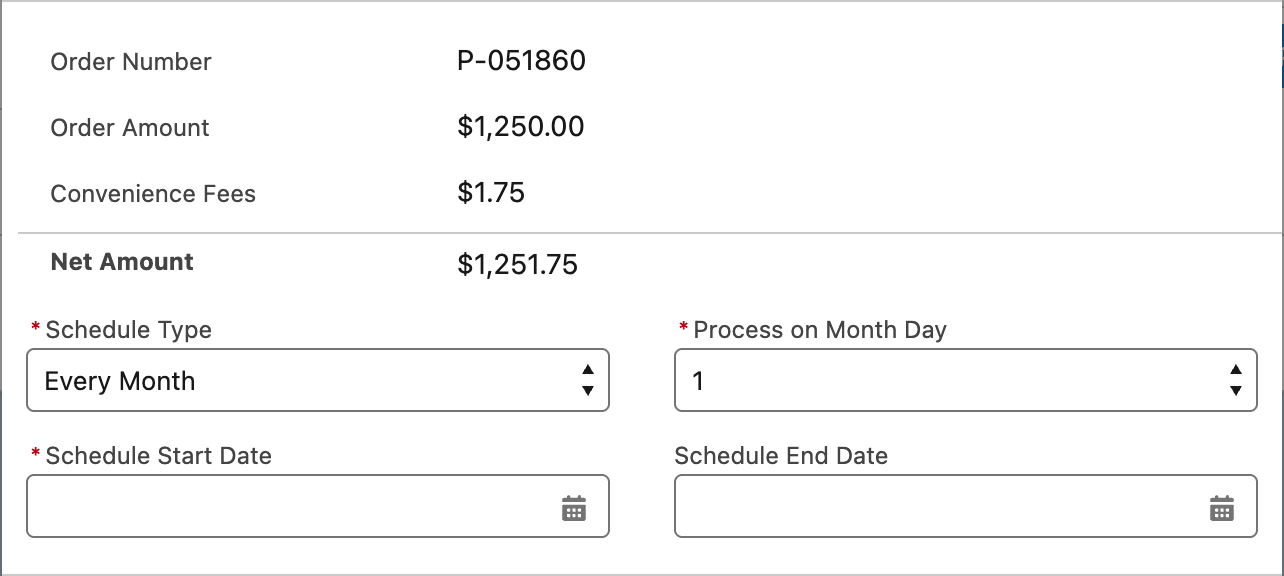
A monthly schedule. The fee shown is the fee each generated payment will carry.
How the schedule runs
- The Pay Order has Order Type Schedule and Status Schedule - Active while every condition holds: a schedule type and start date, the customer registered with Payload, an active method, profile and account, an end date that is blank or not past, and the order not revoked. Schedule Active shows this as a checkbox.
- REDA Pay calculates Schedule Next Run Date: the start date for One Time; the chosen weekday for weekly schedules; the chosen day of the month for the others. Nothing is planned after the end date.
- Each day, the recurring-payments job finds the schedules due that day and clones each into a new Immediate Pay Order linked back through Parent Pay Order, then processes it exactly like a payment taken on screen, including the fee.
- The schedule's Schedule Last Run Date is set, System Run Instances goes up by one, and the next run date moves forward.
The schedule itself is never processed; its children are. On the schedule's Pay Orders related list (or a report on Parent Pay Order) you see one child order per run, each with its own Pay Transaction.
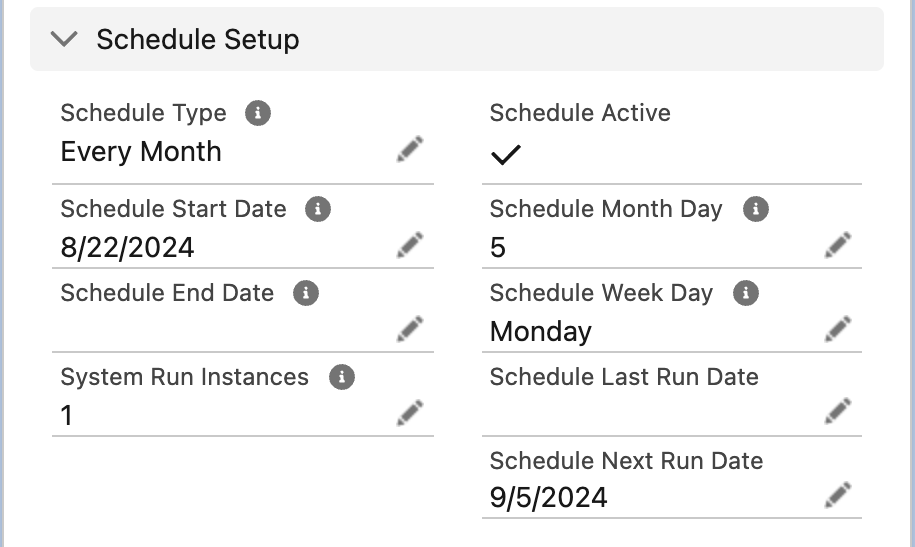
The schedule's own fields. Next Run Date is what the daily job looks at.
When a run fails
If the payment created from a schedule is declined or fails, the child order keeps a failed Pay Transaction, the schedule's owner receives an in-app notification "Scheduled Payment [P-000000] failed.", and a REDA Pay Log records the run. The schedule stays active and tries again on the next due date; it does not retry the missed one. Collect the missed amount with a one-off payment.
Change, pause or stop a schedule
| To… | Do this |
|---|---|
| Change the amount, day or frequency | Edit the schedule Pay Order's fields directly; the next run date is recalculated. Amount and fee fields are editable because the template is never processed |
| Switch to another saved method | Edit Pay Method on the schedule order |
| Pause | Set Schedule End Date to a past date, or untick Keep Active on the method. Clear or restore it to resume |
| Stop for good | Use Revoke Order on the schedule, giving a note. Revoked schedules never run again |
| See what has run | Open the schedule's related Pay Orders, or filter Pay Orders on Parent Pay Order |
Deleting the saved method from the payment screen also stops every schedule that uses it — the screen warns "Any schedule payments associated with this pay method will become inactive."
Worked example
A resident pays $1,250.00 rent by bank account on the 1st of each month from 1 November 2026 until the lease ends on 31 October 2027. The account charges $1.75 per bank payment.
| Setting | Value |
|---|---|
| Amount | 1250 |
| Schedule Type | Every Month |
| Process on Month Day | 1 |
| Schedule Start Date | 1 Nov 2026 |
| Schedule End Date | 31 Oct 2027 |
Result: twelve child orders, one on the 1st of each month, each charging $1,251.75. After the twelfth, Schedule Next Run Date is blank and Schedule Active turns off.
Mistakes to avoid
| Mistake | What happens | Fix |
|---|---|---|
| Daily job not scheduled | Schedules show as active but never run | Schedule it — Schedule the daily recurring-payments job |
| Expecting a payment today | The first payment is on the start date | Take a separate immediate payment for today |
| Schedule on a single-use method (from a payment link) | Schedule Active stays off | Tick Keep Active on the method, or save a reusable one |
| Choosing day 1 and expecting month-end | Day of month is literal | Choose 28 for "end of month" |
| Deleting the method to "stop" a schedule | Works, but also removes the method for one-off payments | Revoke the schedule instead |
FAQ
When the daily job runs — the time your administrator chose when scheduling it.
Payload declines the run; the schedule stays active and fails again next time. Replace the method and edit the schedule's Pay Method.
No. A schedule charges a fixed amount. Variable amounts need a new one-off payment each time, or an automation that creates immediate orders — see Automate payments with flows.