
Payment-link guest access: permissions and sharing
When a customer opens a payment link, they are not logged in. Salesforce treats them as the guest user of your public site: one shared, anonymous identity that every visitor of that site uses. Whatever the guest user can read, any visitor can read. So guest access is set up with care: the guest must be able to open the order behind a live link and pay it, and nothing else.
Three layers do that, and all three are needed:
| Layer | What it decides | Set up in |
|---|---|---|
| Object, class and metadata access | That a guest may use the REDA Pay screens and these record types at all | The REDA Pay - Public Site User permission set, or the same settings on the guest profile |
| Guest sharing rules | Which records: only orders with a live link, and what they need to render | Setup → Sharing Settings |
| Public pages | That the link pages open without a login | Experience Builder |
This article sets up all three for the site that hosts your payment links. Building the pages and connecting the processing account are covered in Set up the public payment-link site.
- The public site exists and its link pages are built — see Set up the public payment-link site.
- You are a Salesforce administrator who can edit profiles, sharing settings and the site.
Step 1 — Find the site's guest user
Each site has its own guest user and guest profile. Use the ones of the site that hosts the link pages.
- Open Setup → Digital Experiences → All Sites and click Builder next to the site.
- In Experience Builder, open Settings → General and, under Guest User Profile, click the profile's name. The guest profile opens in Setup.
- On the profile, click View Users (Assigned Users in the enhanced profile interface): the single user listed is the site's guest user. Note its name; you will pick it when you create the sharing rules.
Step 2 — Give the guest access to the REDA Pay objects and screens
Choose one of two equivalent ways. Both give exactly the same access.
Option A — Assign the permission set (recommended). From the guest profile's list of users, click the guest user, scroll to Permission Set Assignments, click Edit Assignments, add REDA Pay - Public Site User and Save. The set is kept up to date by REDA Pay upgrades.
Option B — Put the same settings on the guest profile. If you prefer profiles, edit the guest profile and grant what the permission set contains:
| On the guest profile | Grant |
|---|---|
| Object settings — Pay Order, Pay Customer, Pay Profile, Processing Account, Fee Setup | Read |
| Object settings — Pay Method, Pay Transaction | Read, Create |
| Field-level security on those objects | The same field access as the permission set: open REDA Pay - Public Site User → Object Settings and mirror each object |
| Enabled Apex Class Access | rpay.NewPayOrderController and rpay.NewPayMethodController |
| Enabled Custom Metadata Type Access | REDA Pay Process Config and REDA Pay Setup |
In the enhanced profile interface these two sections are called Apex Class Access and Custom Metadata Types.
The guest gets no Edit, Delete, View All or Modify All on any REDA Pay object. Create is granted on exactly two objects: Pay Method, for the single-use card or bank account the payer enters, and Pay Transaction.
The permission set also enables rpay.PayloadCallback, the class that receives Payload's webhook messages. A site that serves only payment links does not use it. If you receive webhooks on a separate site, that site's guest needs only rpay.PayloadCallback — see Set up webhooks.

Everything an anonymous payer can do, in one table. Note what is missing: no Edit, no Delete.
Step 3 — Create the four guest sharing rules
Object access says the guest may read Pay Orders; the sharing rules say which ones. REDA Pay's records are private to external users, so without these rules every link fails. In Setup → Sharing Settings, under each object's Sharing Rules list click New and create:
| Object | Rule Type | Criteria | Share with | Access |
|---|---|---|---|---|
| Pay Order | Guest user access, based on criteria | Has Active Link equals True | The site's guest user | Read Only |
| Pay Customer | Guest user access, based on criteria | Order Link Expiration Date Time not equal to (blank) | The site's guest user | Read Only |
| Pay Profile | Guest user access, based on criteria | Is Active equals True | The site's guest user | Read Only |
| Processing Account | Guest user access, based on criteria | Is Active equals True | The site's guest user | Read Only |
For the Pay Customer rule, choose the operator not equal to and leave the value empty. REDA Pay fills Order Link Expiration Date Time with the expiry of the customer's live link and clears it when their last live link ends, so the rule matches only customers who have a live link.
Fee Setups and Pay Transactions need no rule: they follow their Processing Account and Pay Order.
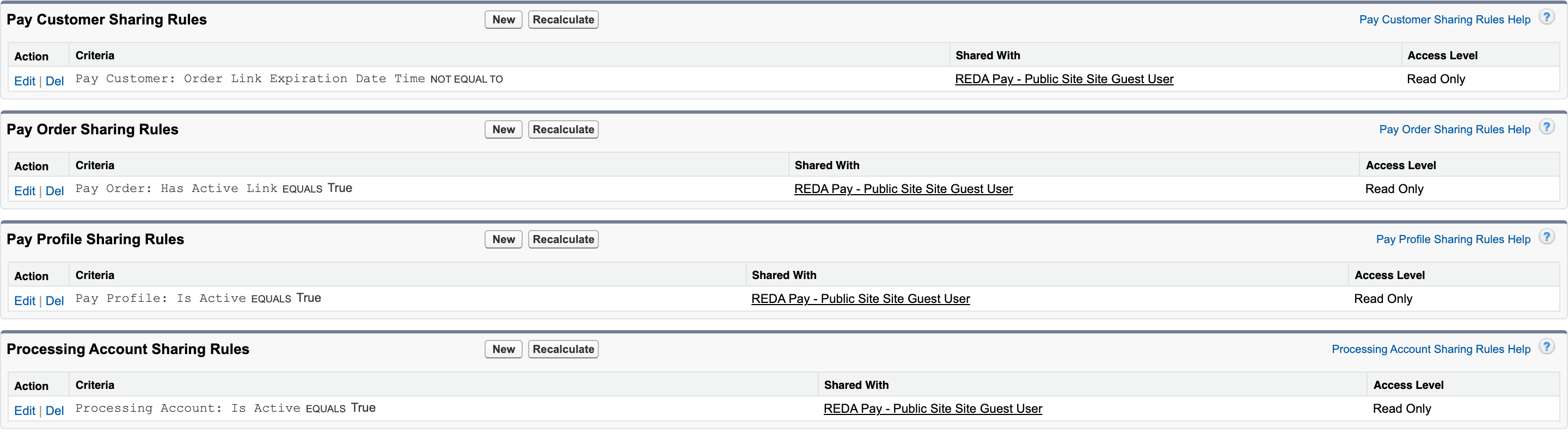
The four rules. Together they open exactly what a live link needs.
What the guest can and cannot reach
Has Active Link is ticked on a Link order while its link can be used. REDA Pay turns it off when the order is paid, when someone revokes it, and about a minute after the link expires. The order then drops out of the guest's view by itself, with no admin action. In practice:
| Situation | Can the guest open it? |
|---|---|
| A link order created a minute ago | Yes |
| The same order after it is paid | No |
| A link past its expiry, or revoked | No |
| An Immediate or Schedule order | No: they never have an active link |
| Another customer's link, with the address edited | No: the identifier in the address is encrypted, and an altered one is rejected |
The order identifier in a Link URL is encrypted with your org's key — see Generate the encryption key.
Step 4 — Make the link pages public
- In Experience Builder, open Settings → General and, under Public Access, select Guest users can see and interact with the site without logging in.
- Open each link page (entry, payment screen, success, error), click the page's Page Properties, and set Page Access to Public.
- Publish the site.
Keep any logged-in portal pages on the same site at their own access level: making these four pages public does not open the rest of the site.
Step 5 — Test as an anonymous payer
- Create a test link for a demo customer: Create and send a payment link.
- Copy the Link URL and open it in a private browser window, where you are not logged in to Salesforce.
- The branded payment screen opens with the amount locked. Cancel without paying.
- Change one character of the address and open it again: the page shows "Invalid request: Bad request Parameters." This proves the guest reaches nothing but a live link.
- Revoke the test order and open the original address again: it no longer opens a payment screen.
Symptoms and what is missing
| What the payer sees | Usually missing | Fix |
|---|---|---|
| A login page | Public access or page access | Step 4 |
| An access error on the page | Object or Apex class access for the guest | Step 2 |
| "Invalid request: Bad request Parameters." on every link | The Pay Order or Pay Customer guest rule | Step 3 |
| The page opens but no processing account or branding | The Pay Profile or Processing Account guest rule | Step 3 |
Mistakes to avoid
| Mistake | What happens | Fix |
|---|---|---|
| Sharing rules created for the wrong site's guest user | Links still fail | Each site has its own guest user: use the one of the link site |
| Giving the guest Edit or Delete | Anonymous visitors could change records | Grant only what the permission set grants |
| Assigning REDA Pay - Community User to the guest | It grants Edit on Pay Customers and Pay Methods, which anonymous visitors must not have | Use REDA Pay - Public Site User |
| A Pay Order rule without the Has Active Link criterion | Every order becomes readable by anyone | Keep the criterion exactly as above |
| Testing while logged in to Salesforce | Your own session hides missing guest access | Test in a private window |
FAQ
They can read only orders whose link is live, and only by knowing the encrypted address you sent. Card and bank numbers are never stored in Salesforce — see Security and card data.
No. The save-a-method pages run as the same guest user with the same access — see Request bank details from a vendor.
Yes. Public link pages and logged-in portal pages can live in one site; set up this guest access for the site's guest user and the portal access for its logged-in users — see Portal access: permissions and sharing for customers.
Where to go next
- Set up the public payment-link site — the pages and the processing account settings.
- Create and send a payment link — your first link.
- Payment link troubleshooting — messages and fixes.