
Brand the payment screen
Every payment screen — the one your staff use inside Salesforce, the one in your customer portal and the one behind a payment link — is the same screen, and it carries your branding, not REDA's or Payload's. The logo at the top, the line beside it, and the footer under the form all come from fields on the Processing Account. Set them once per account and every channel picks them up.
- The Processing Account exists and is configured — see Configure a processing account.
- You hold REDA Pay - Admin User.
- You have your logo as an image file (PNG with a transparent background works best) and the company details you want under the form.
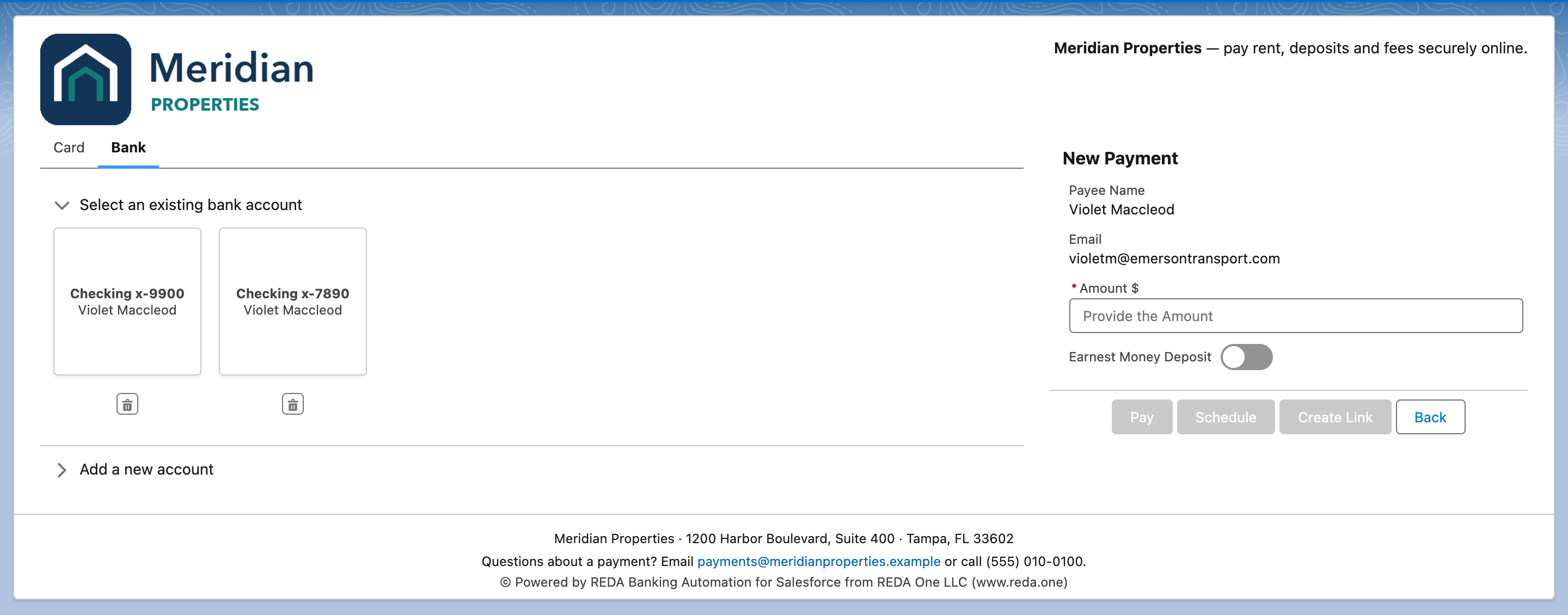
The three branded areas: logo (1), header content (2) and footer text (3). Everything else on the screen is fixed.
What you can brand
| Field on the Processing Account | Where it appears | Format |
|---|---|---|
| Interface Logo URL | Top left of the payment screen | A public web address of an image. The image is shown at most 250 pixels wide; taller logos are scaled down to fit |
| Interface Header Content | Top right of the payment screen, beside the logo | Rich text: bold, links, line breaks |
| Interface Footer Text | Under the form, above the fixed "Powered by" line | Rich text: your company name, address, support email and phone, a privacy or terms link |
| Interface Label | Wherever a payer chooses between accounts (for example "Select Processing Account" in the portal) and in notifications | Plain text, falls back to the Processing Account Name |
| Interface Label Description | Under the label on those choice screens | Plain text |
The Pay Profile has its own Interface Label and Interface Label Description, used where a payer chooses between profiles ("Select Pay Profile").
Step 1 — Host the logo at a public address
The logo must load for people who are not logged in to Salesforce — a customer opening a payment link, for example — so it needs a public address. Two options:
Option A — your website. If the logo already appears on your site, right-click it, copy the image address, and use that. Make sure it is served over https.
Option B — a Salesforce file with a public link. This keeps everything inside your org.
- In Salesforce, open the Files tab (App Launcher → Files) and click Upload Files; choose the logo.
- Open the file and click Public Link. In Create public link, switch Expiration date off if it is on: a logo link that expires leaves the payment screen without a logo. Click Create Link and copy the link.
- Paste the link into a new browser window where you are not logged in to Salesforce. A Salesforce page opens with your logo on it. Right-click the logo and copy the image address (Chrome calls this Copy image address). Use that image address in the next step, not the link itself: the link opens a page, and the payment screen needs the image.
If you cannot create a public link, ask your Salesforce administrator to check Setup → Content Deliveries and Public Links. Public Links can be enabled for users (Requires Content Deliveries) must be ticked there, and the same page notes that users also need the Create Public Links permission. Or use option A.
Step 2 — Set the fields
- Open the REDA Pay app → Processing Accounts → the account.
- In the Interface Settings section, click the pencil next to Interface Logo URL and paste the image address.
- Edit Interface Header Content. Keep it to one line: who the payer is paying and what for, for example "Meridian Properties — pay rent, deposits and fees securely online."
- Edit Interface Footer Text. Put your legal name, address and a support contact here, because this is the text a customer reads when something goes wrong. Links are allowed.
- Set Interface Label to the name customers know you by, and Interface Label Description to one short line.
- Save.
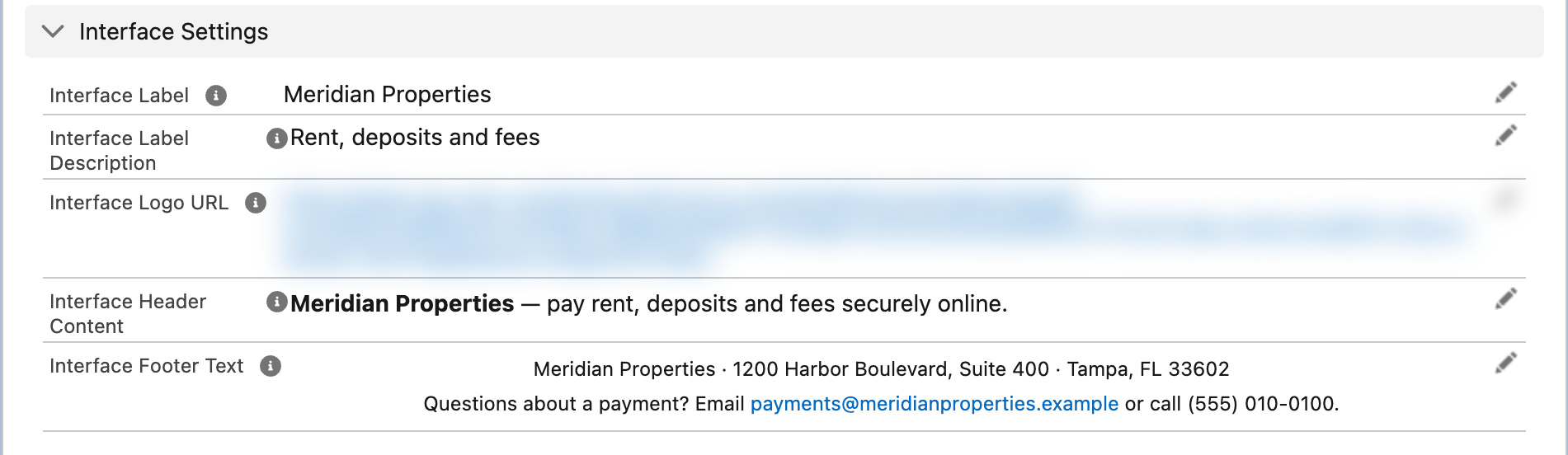
The five branding fields on the Processing Account.
Step 3 — Check every channel
Open the payment screen the way each kind of payer will:
- Staff: from a Lead, Contact or Account, press your Pay button or open the payment component.
- Portal customers: log in to your portal as a test customer and open the payment page.
- Link payers: create a test payment link and open it in a private browser window where you are not logged in.
In each, confirm the logo loads, the header fits on one line at the widths your payers use (including phones), and the footer text is complete. The screen adapts to narrow windows: on a phone the method tiles and the payment details stack vertically.
What the screen does not let you change
The payment screen's colours, fonts, layout and field order are fixed in this release. The line "© Powered by REDA Banking Automation for Salesforce from REDA One LLC (www.reda.one)" is always shown under your footer. The tabs are always called Card and Bank, and the buttons Pay, Schedule, Create Link and Back keep their names. You control which of those tabs and buttons appear through the processing account's allowed methods and the payment component's settings — see Component settings reference.
The page around the screen is yours: in your portal or public site, the Experience Builder page that holds the payment component can carry any heading, text, theme and navigation you like.
Mistakes to avoid
| Mistake | What payers see | Fix |
|---|---|---|
| Logo address that needs a login | A broken image, or no logo, for link payers | Test the address in a private window; use a public link or your website |
| The file's public link used as the logo address | A broken image: the link opens a page, not the image | Open the link and copy the image address (step 1, option B) |
Logo address served over http | The browser may block it on an https page | Use an https address |
| A very wide logo | Scaled down to 250 pixels, possibly unreadable | Use a compact logo or an icon-plus-wordmark version |
| Footer without a support contact | Payers with a declined payment have nobody to call | Add an email and phone |
| Branding set on one account only | Payments on the other account show no logo | Set the fields on every active account |
| Renaming the Processing Account instead of setting Interface Label | The next sync restores Payload's name | Use Interface Label |
FAQ
Yes. Branding lives on each Processing Account, so an organisation with two brands and two merchant accounts shows two different logos. If both brands share one merchant account, they share one logo.
Not in this release. Colours and fonts are fixed.
It is part of REDA Pay and appears on every payment screen under your footer.
It appears on the payment screen. REDA Pay sends no emails to payers in this release, and the portal result pages are ordinary Experience Builder pages you design yourself — see Let customers pay in your portal.