
What the customer sees on a payment link
Knowing exactly what a payer sees lets your team answer questions and spot a problem from a customer's description. This article walks the link from the customer's side: an email or text with a link, a public page on your site, a payment, a result. Nothing here requires the customer to log in or to have a Salesforce user.
1. Opening the link
The customer opens the Link URL your team sent. It points at the page on your public site that holds the REDA Pay entry component, with an encrypted identifier of the Pay Order attached. Nothing in the address reveals the amount, the customer or the order number.
REDA Pay checks four things before showing anything: the identifier decodes to a Link order; the order has not been processed; the link has not expired; the order has not been revoked. If a check fails, the page shows one of the messages in the table at the end instead of the payment screen.
2. The payment screen
The screen is the same one your staff use, with the parts a guest must not change locked:
| Area | What the customer sees |
|---|---|
| Top | Your logo and header line from the processing account |
| Card / Bank tabs | Only the types the link allows. If your team ticked Do Not Accept Card or Do Not Accept ACH when creating the link, that tab is absent |
| Saved methods | None: a guest always enters a card or bank account |
| Form | Add a new card: Card Number, Full Name, Expiry (MM/YY), CVV/CVC, ZIP / Postal Code. Add a new account: Account Holder Name, Account Number, Routing Number, Account Type, Account Class, Account Currency, ZIP / Postal Code |
| Right panel | New Payment with Payee Name, Email, the Amount in a greyed-out box the customer cannot change, the Customer Notes if your team wrote any, and the Earnest Money Deposit switch if the account enables EMD for guests |
| Buttons | Pay only. Schedule, Create Link and Back are not offered on a link |
| Bottom | Your footer text and the "Powered by" line |
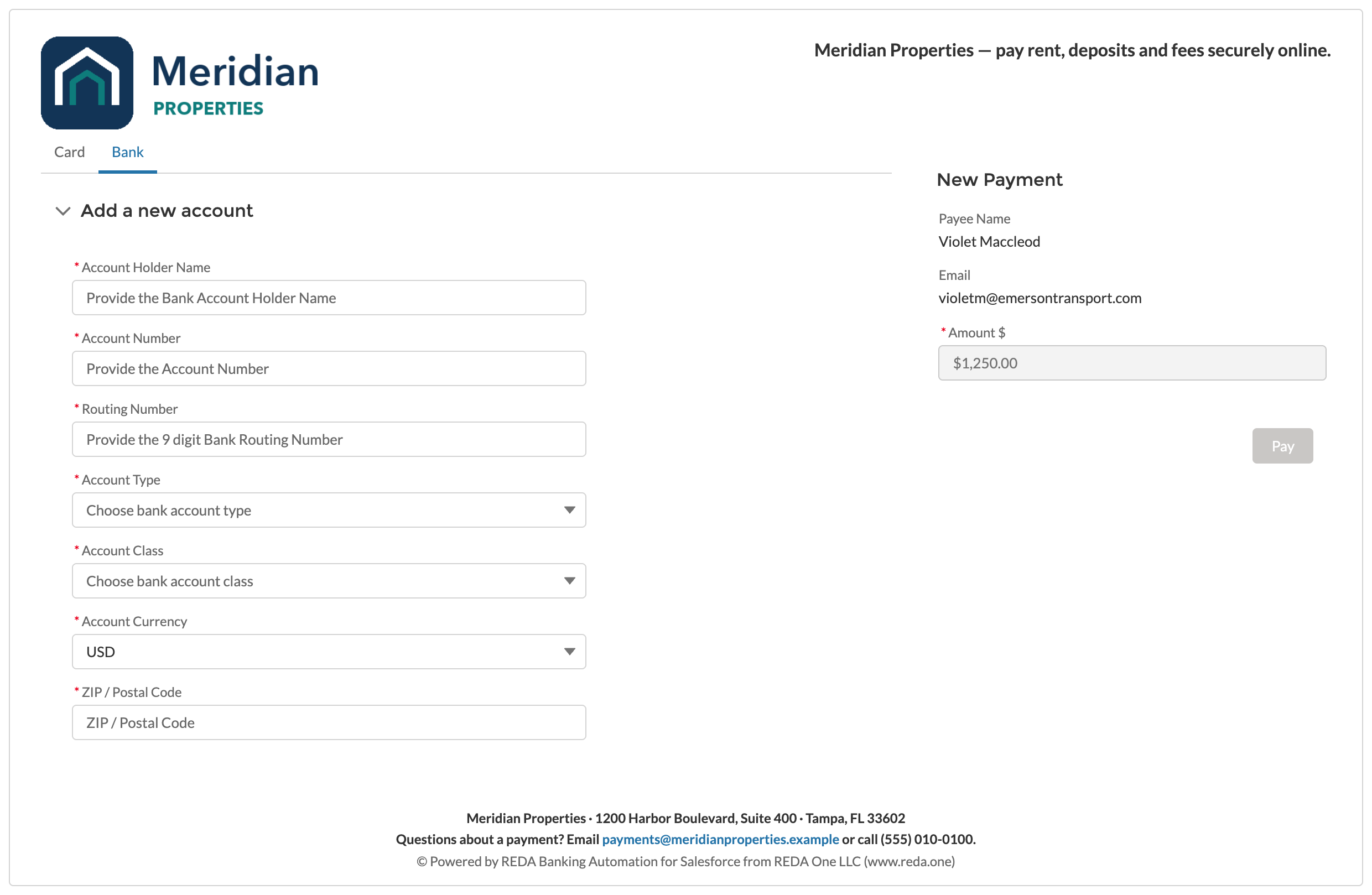
A payment link as the customer sees it. The amount is fixed; the customer only chooses how to pay.
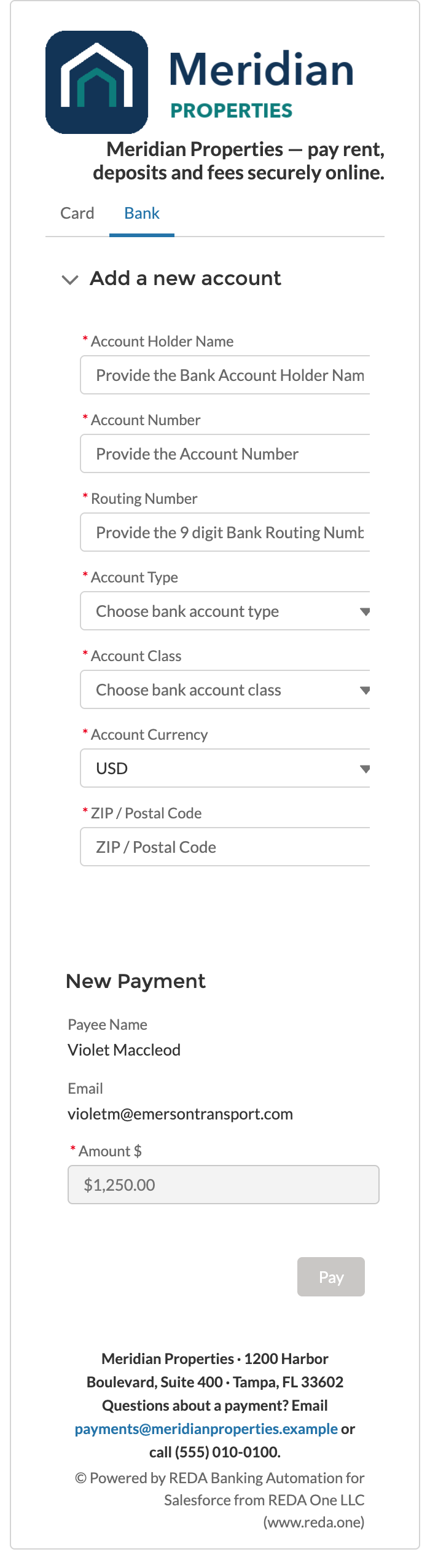
On a phone the form and the payment panel stack. There is no horizontal scrolling.
3. Paying
- The customer fills in the card or bank form and clicks Pay. If your account enforces geolocation for guests on links, the browser asks to share location first; declining shows "You must share geo-location access on browser or device to process the payment."
- Confirm Pay Order Summary shows the Order Number, Order Amount, Convenience Fees (if the link charges them) and the Net Amount.
- The customer clicks Process Order. A second click is refused as a duplicate request; the first continues.
The card or bank account entered on a link is single-use: it is registered with Payload for this payment and saved with Keep Active off, so it is not offered again and your team sees it on the Pay Customer marked as not reusable.
4. The result
What appears next depends on how your site is set up:
- With a Portal Success Page configured on the entry component, the customer is taken to that page, where the result component shows Success — Your order is successfully processed. Order Reference: P-000000.
- On a decline or error, the Portal Error Page shows Error — Error encountered while processing order. Error Log: followed by the reason from Payload.
Your team is told at the same time: the order's owner receives an in-app notification that the link was processed successfully or failed, and the Pay Order's status changes to Link - Processed (the link is now dead) or stays Link - Active after a failure so the customer can try again with another method.
Messages a link can show
| Message | Cause | What to tell the customer |
|---|---|---|
| "Invalid request: Order link has expired." | The processing account's link expiry has passed since the order was created | Ask your team for a new link |
| "Invalid request: Order is already processed." | The link was paid already | Nothing to pay; your team can confirm from the Pay Order |
| "Invalid request: Bad request Parameters." (the link was revoked) | Your team revoked the link, so the order is no longer visible to the page | Ask your team whether a new link is needed |
| "Invalid request: Bad request Parameters." | The address was altered or cut short when copied, the link was never activated (the account has no Link Expiration), or it was revoked | Resend the exact Link URL; the administrator checks Link Expiration (Minutes) and the order's Has Active Link |
| "Invalid request. Payment session is expired." | The customer left the page open longer than the account's session length | Reload the link and pay within the time |
| "Please provide a valid amount" / "Please enter a valid email address" | A field is empty or malformed | Correct the field |
| A decline from Payload on the error page | The card or bank rejected the payment | Try another card or account; the link stays open |
Mistakes to avoid
| Mistake | What the customer sees | Fix |
|---|---|---|
| Pasting the link into an email that rewraps long lines | "Invalid request: Bad request Parameters." | Send the link as a hyperlink, or on its own line |
| Forwarding one link to two payers | The second gets "Order is already processed." | One link per payment |
| Creating the link before the account's Link Expiration (Minutes) is set | "Invalid request" immediately | Set the minutes, create a new link |
| Expecting the customer to pick a saved card | Guests always enter a new method | By design; use the portal for saved methods |
FAQ
No. The amount is fixed by the order. For a different amount, create a new link.
No. The link is paid in full or not at all.
Not from REDA Pay. The result page shows the order reference; your own templates can send a receipt from the Pay Order.
Payload stores it as a single-use token for this payment; Salesforce never holds the number.