
Create a Pay Profile and store your Payload API key
A Pay Profile is the record that connects Salesforce to one Payload account. It holds the Payload API key (encrypted), remembers which Payload organisation it belongs to, and carries the settings that apply to every payment made through that account. Most orgs need exactly one. You need a second only if you run more than one Payload account — for example, one per legal entity or brand.
This article creates the profile and stores the API key. The next article, Sync processing accounts and activate the profile, pulls in your merchant accounts and switches the profile on.
- The encryption key is generated — see Generate the encryption key.
- You hold REDA Pay - Admin User.
- You can sign in to your Payload dashboard to copy an API key. REDA Pay needs an API key for the Payload environment you intend to use: a test key while you test, and the live key when you go live. The screens are identical; only the key differs.
Step 1 — Create the Pay Profile
- Open the REDA Pay app from the App Launcher and click the Pay Profiles tab.
- Click New.
- Fill in the fields:
| Field | What to enter |
|---|---|
| Profile Name | A name your team will recognise, for example Meridian Properties |
| Pay Profile Code | A short, unique code without spaces, up to 20 characters, for example MERIDIAN. You will use it later to tell a payment screen which profile to offer — see Component settings reference |
| Provider | Payload (the only choice) |
| Is Active | Leave unticked for now. Ticking it before the profile has an API token and a Profile Id is refused with "Please provide API Key and Profile Id prior activating the profile." The Profile Id arrives in the next article |
| Description | Optional, internal — for example which Payload account and environment this is |
- Click Save.
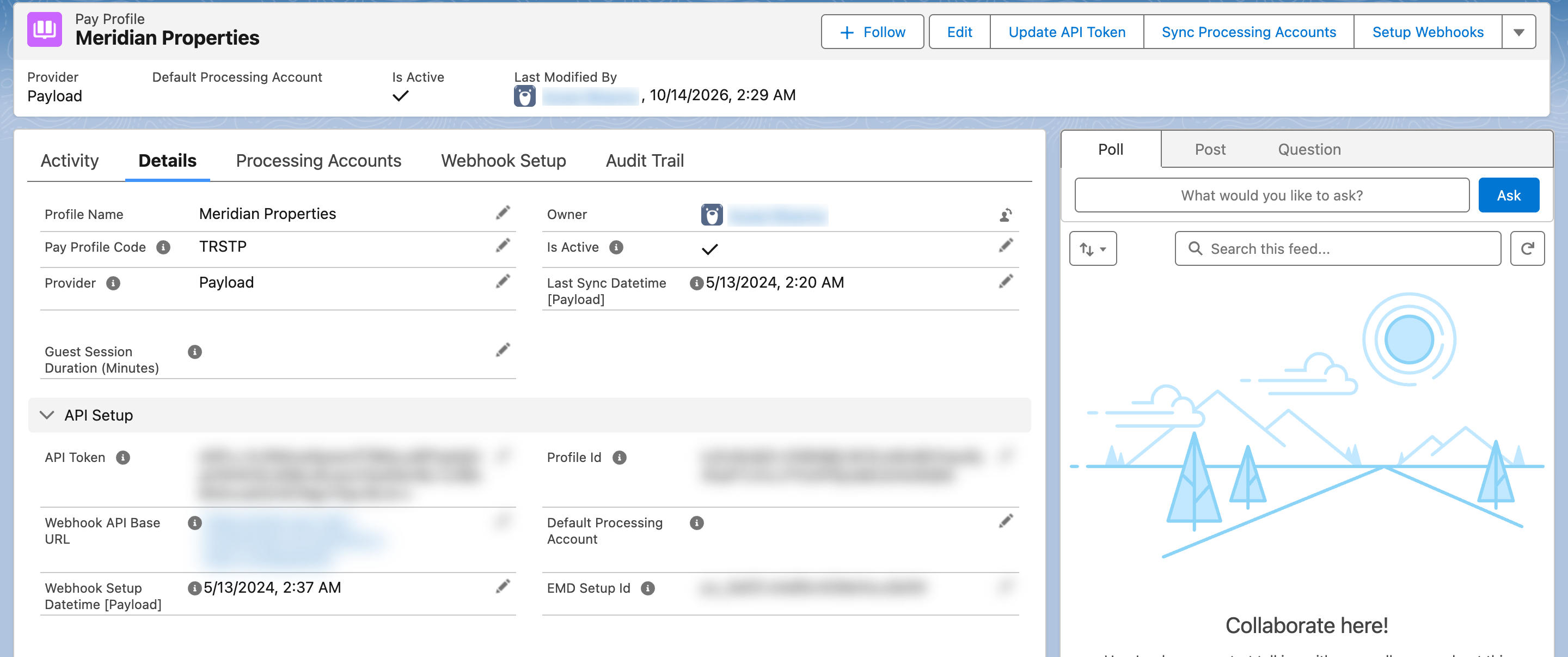
A Pay Profile after setup. On a new profile the API Setup section stays empty until you store the key in step 2 and sync in the next article.
Step 2 — Store the Payload API key
The API key is never typed into the API Token field. The field only holds an encrypted copy, and the Update API Token button is what encrypts it.
- In your Payload dashboard, create or copy an API key for the environment you want (test or live).
- On the Pay Profile, click Update API Token. A dialog titled Update Profile Token opens.
- Paste the key into the Profile API Token box. The Update Token button appears once the box has a value; click it.
- The message "API Token updated successfully." appears and the dialog closes. The API Token field on the record now shows a long encrypted string — that is expected, and you will never need to read it.
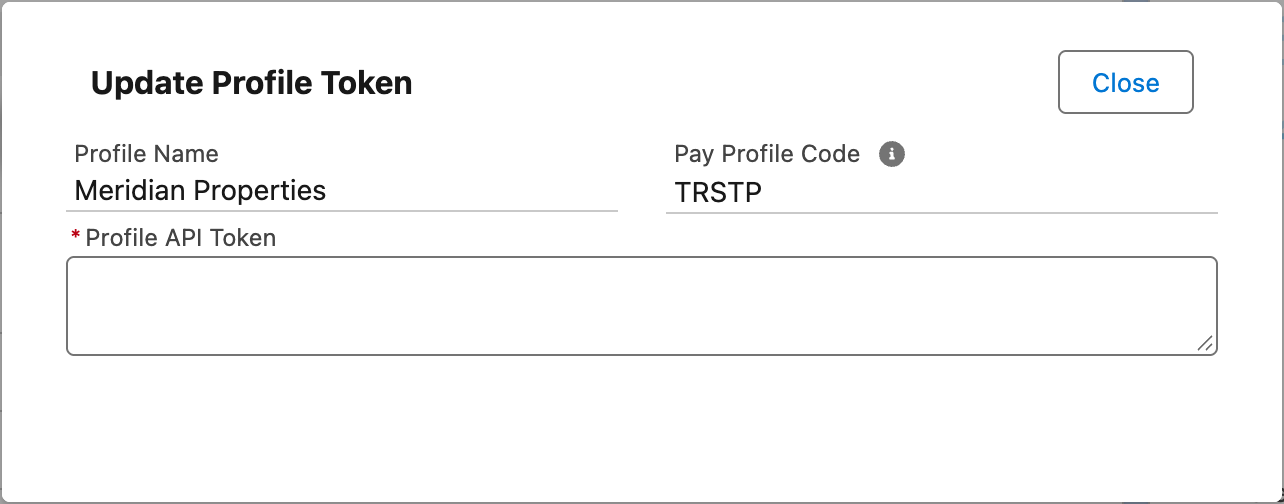
The Update Profile Token dialog. Paste the key here and press Update Token; REDA Pay encrypts it before saving.
To replace the key later — for example when you move from Payload's test environment to live, or after rotating a key — press Update API Token again and paste the new key. Then run Sync Processing Accounts and Setup Webhooks again, because both depend on the key.
Step 3 — Fill in the profile settings
These fields sit on the Pay Profile and apply to every processing account under it. Set them now or come back later.
| Field | What it does | Recommended |
|---|---|---|
| Webhook API Base URL | The public Salesforce site address Payload calls to report payment status changes. Needed before you can register webhooks | Fill it in when you reach Set up webhooks |
| Default Processing Account | The account REDA Pay pre-selects on new orders, so staff are not asked to choose one. Must belong to this profile | Set it after the next article, once accounts exist |
| Guest Session Duration (Minutes) | How long a "save a payment method" link stays usable once opened by someone who is not logged in. 15 minutes when blank | Leave blank unless vendors need longer to fill in their bank details |
| EMD Setup Id | The identifier Payload gives you when earnest money deposits are enabled on your account. Required before any EMD payment | Fill in only if you take earnest money deposits — see Take earnest money deposits |
| Interface Label | A customer-facing name for the profile, used on screens where the payer must choose between profiles. Falls back to the Profile Name | Set it if your Profile Name is internal jargon |
| Interface Label Description | A customer-facing description shown with the label | Optional |
Two more fields are filled by REDA Pay and should not be edited: Profile Id (the encrypted Payload organisation identifier, set by Sync Processing Accounts) and Last Sync Datetime [Payload].
When you need more than one Pay Profile
Create one Pay Profile per Payload account. Each has its own API key, its own processing accounts, its own webhooks and its own Pay Customers. A payment screen can be limited to one profile by its code, so a leasing team's page can use one profile and an owner-services page another. Two profiles can even point at the same Payload account, but there is rarely a reason to do that.
If several profiles are active and a payment screen is not limited to one, staff are asked to choose a profile each time they take a payment, under the heading "Select Pay Profile".
Mistakes to avoid
| Mistake | What happens | Fix |
|---|---|---|
| Typing the key into the API Token field with Edit | The value is stored unencrypted and REDA Pay cannot use it; every call to Payload fails | Use Update API Token |
| Ticking Is Active on a new profile | "Please provide API Key and Profile Id prior activating the profile." | Store the key, sync the processing accounts, then activate |
| Using a live key while testing | Test payments charge real cards and bank accounts | Use Payload's test environment key until you go live, then replace it |
| A Pay Profile Code with spaces or one already used | The save is refused — codes are unique | Choose a short code without spaces |
| Changing the key but not re-syncing | Processing accounts and webhooks still refer to the old key | After Update API Token, run Sync Processing Accounts and Setup Webhooks |
FAQ
In the Payload dashboard, under the API or developer settings for your account. Payload issues separate keys for its test and live environments. If you are unsure which key you have, ask your Payload contact; REDA Pay cannot tell the difference until a payment is attempted.
No. The field shows only the encrypted value. Keep the key somewhere safe outside Salesforce if you may need it again.
Yes. A Pay Profile is an org-wide connection, not a per-user setting. Access to it is controlled by the REDA Pay permission sets — see Who can do what.
Payload's identifier for your organisation. REDA Pay fills it in, encrypted, when you run Sync Processing Accounts. You never enter it by hand.
Where to go next
- Sync processing accounts and activate the profile — pull in your merchant accounts and switch the profile on.
- Set up webhooks — once the profile is active, let Payload report status changes to Salesforce.