
Configure a processing account
A Processing Account is a merchant account at Payload, pulled into Salesforce by Sync Processing Accounts. The sync creates the record; this article is about everything you configure on it afterwards. Most of the rules that govern a payment live here: whether the account takes money in, pays money out, or both; which payment methods it accepts; how long a payer has to finish; and what the payer sees.
- The account exists — run the sync first.
- You hold REDA Pay - Admin User.
Open the REDA Pay app → Processing Accounts tab → the account. Click Edit, or the pencil next to a field, to change a value. The fields are grouped as they appear on the record.
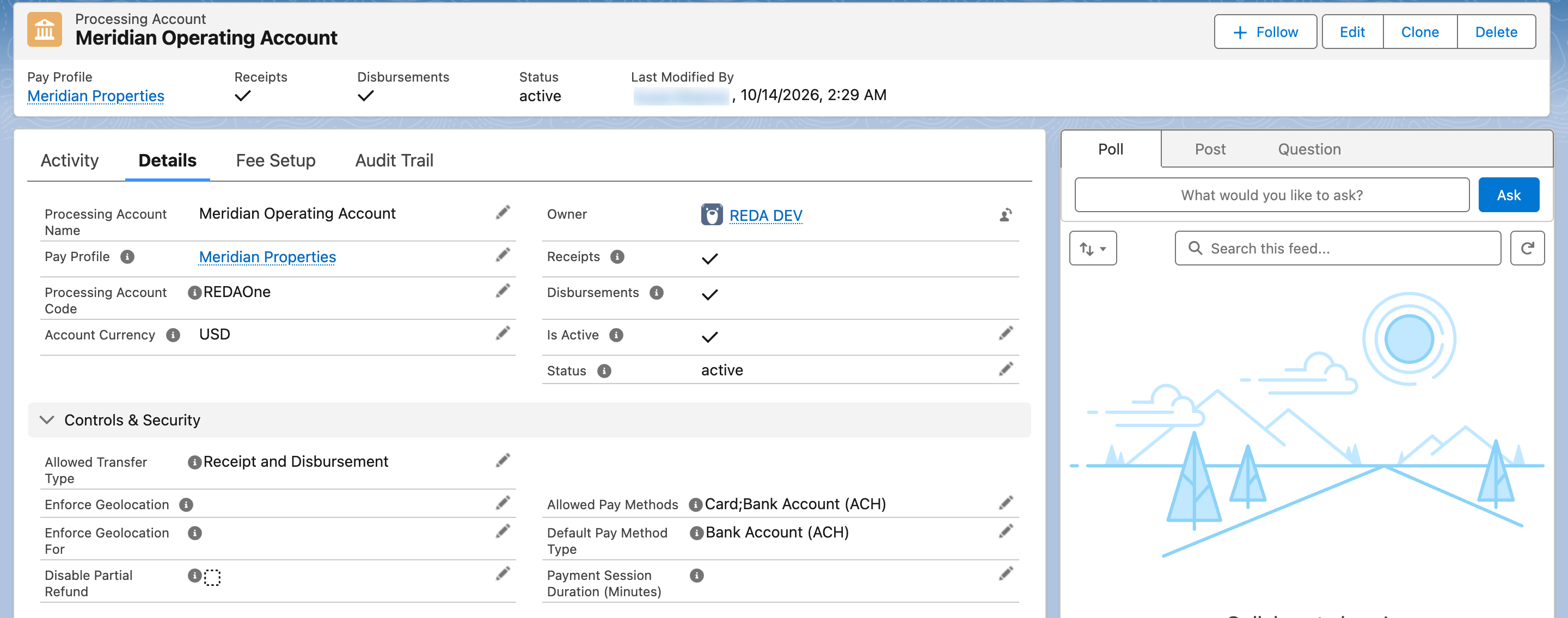
The top of a Processing Account. Receipts and Disbursements are ticked automatically from the Allowed Transfer Type.
The essentials
Three fields must be set before the account can take a single payment.
| Field | What it decides | Values |
|---|---|---|
| Is Active | Only active accounts are offered on payment screens and accept new orders | Tick it when the account is ready |
| Allowed Transfer Type | Which direction money may move through this account | Receipt (money in), Disbursement (money out, to bank accounts only), or Receipt and Disbursement |
| Allowed Pay Methods | Which payment methods payers may use | Card, Bank Account (ACH), or both. Blank means no method can be used and every payment is refused |
Two read-only checkboxes, Receipts and Disbursements, are ticked automatically from the Allowed Transfer Type so list views and reports can filter on them.
Identity fields
| Field | Notes |
|---|---|
| Processing Account Name | Payload's name for the account. The sync overwrites it every time, so do not rename it here — use Interface Label |
| Processing Account Code | A short unique code you choose. Payment screens can be limited to specific accounts by code — see Component settings reference |
| Pay Profile | The profile the account belongs to. Locked once the account has its Payload identifier |
| Processing Account Id, Processing Account Parent Id | Payload's identifiers, stored encrypted. Never edit |
| Status | The account's status at Payload, refreshed by each sync |
| Description | Internal notes |
Controls & Security
| Field | What it does | Default when blank |
|---|---|---|
| Default Pay Method Type | Which tab the payment screen opens on: Card or Bank Account (ACH). Must be one of the allowed methods | Card |
| Account Currency | The currency of the merchant account: USD, CAD, COP or BRL. Pre-filled as the currency of new bank accounts entered on this account's payment screen | — |
| Disable Partial Refund | Tick to allow only full refunds of payments taken through this account | Partial refunds allowed |
| Payment Session Duration (Minutes) | How long a payment screen stays valid after it opens. Each payment runs in an encrypted session so a page cannot be bookmarked and reused; after this many minutes the payer sees "Invalid request. Payment session is expired." and must start again | 15 minutes |
| Enforce Geolocation | For which order types (Immediate, Schedule, Link) the payer's browser must share its location before the payment is accepted | Not enforced |
| Enforce Geolocation For | For which user types (Internal, Community, Guest) the geolocation rule applies | Not enforced |
Geolocation, session and link expiry are explained together in Controls: geolocation, session and link expiry.
Interface Settings — what the payer sees
| Field | Shown where |
|---|---|
| Interface Label | The name of the account wherever a payer must choose between accounts, for example "Select Processing Account" in your portal. Falls back to the Processing Account Name |
| Interface Label Description | A short description under the label on the same screens |
| Interface Logo URL | The logo at the top of the payment screen. Must be a public image address; the image is shown at most 250 pixels wide |
| Interface Header Content | Rich text shown at the top right of the payment screen |
| Interface Footer Text | Rich text shown under the payment screen — your company name, address and support contact |
How to prepare the logo and text is covered in Brand the payment screen.
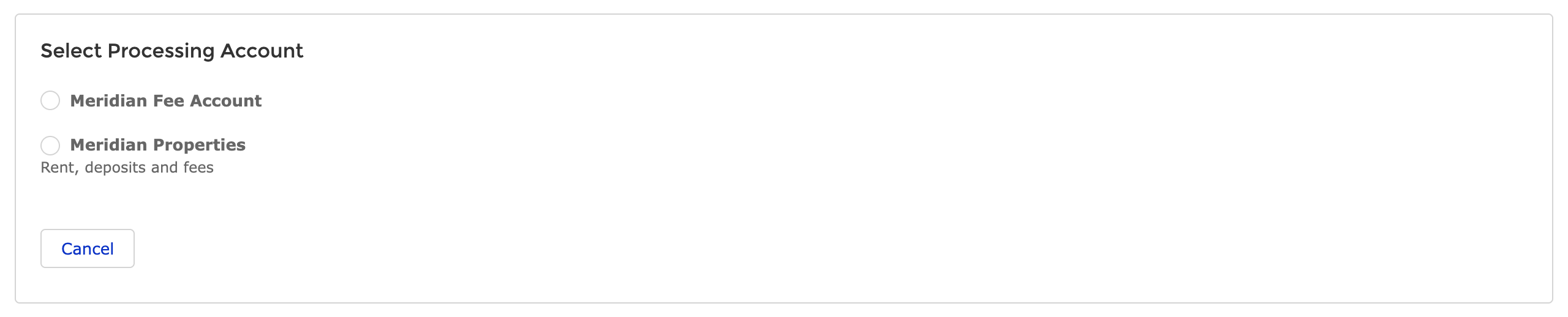
Where Interface Label and Interface Label Description appear: a customer choosing between accounts in the portal sees the label, not Payload's account name.
EMD (Earnest Money Deposit) Setup
| Field | What it does |
|---|---|
| Enable EMD Payments | The user types (Internal, Community, Guest) allowed to mark a bank payment as an earnest money deposit on this account. Needs an EMD Setup Id on the Pay Profile |
| EMD Instructions – Internal / Community / Payment Link | The text shown on the payment screen when the EMD switch is turned on, one version per user type |
See Take earnest money deposits.
Link Setup
| Field | What it does |
|---|---|
| Link Site Public URL | The address of the page on your public site that opens payment links. REDA Pay refuses to save a Link order while this is blank |
| Link Expiration (Minutes) | How long a payment link stays valid, counted from the moment the order is created. A link created while this is blank never becomes active — the customer sees "Invalid request" |
See Set up the public payment-link site.
Fee Setup tab
Convenience fees are separate records under the account, listed on the Fee Setup tab. Without any, payments through this account carry no fee. See Set up convenience fees.
Worked example: a receipts-only account for a resident portal
Meridian Properties wants residents to pay rent in the portal by bank account only, with cards allowed for staff taking payments over the phone, and nobody paid out of this account.
| Field | Value | Why |
|---|---|---|
| Is Active | ticked | |
| Allowed Transfer Type | Receipt | No payouts from this account |
| Allowed Pay Methods | Card; Bank Account (ACH) | Staff may take cards. The portal page is then limited to bank accounts through its component setting — see Let customers pay in your portal |
| Default Pay Method Type | Bank Account (ACH) | The screen opens on the Bank tab |
| Account Currency | USD | |
| Payment Session Duration (Minutes) | 30 | Residents on phones sometimes take longer than 15 minutes |
| Interface Label | Meridian Properties | What residents see |
| Link Expiration (Minutes) | 1440 | Links sent by staff last one day |
Mistakes to avoid
| Mistake | What the payer sees | Fix |
|---|---|---|
| Allowed Pay Methods left blank | "The pay method type is not allowed for the provided processing account." or no tabs on the screen | Choose Card, Bank Account (ACH) or both |
| Default Pay Method Type set to a method that is not allowed | The screen cannot open on that tab | Choose one of the allowed methods |
| Allowing disbursements on an account meant for receipts only | Staff with disbursements enabled could pay out of it | Set Allowed Transfer Type to Receipt |
| Renaming the account to a customer-facing name | The next sync restores Payload's name | Use Interface Label |
| Leaving Link Expiration (Minutes) blank and creating links | Every link reads "Invalid request" | Fill in the minutes before creating links |
| Session too short for your payers | "Invalid request. Payment session is expired." complaints | Raise Payment Session Duration |
FAQ
Yes. Allow both on the account, then restrict the portal page's payment component to bank accounts. The account's allowed methods are the outer limit; a component or a customer can narrow them, never widen them.
Payload gave your organisation two merchant accounts. A common pattern is one operating account and one account that receives convenience fees — see Set up convenience fees.
Existing processed orders are unaffected. New orders on the account are refused, and scheduled orders that use it stop running until it is active again.