
Take earnest money deposits
An earnest money deposit (EMD) is the good-faith deposit a buyer pays when making an offer on a property, or an applicant pays to hold a unit. Payload processes these deposits under a dedicated set-up on your account so they are handled as deposits rather than ordinary payments. In REDA Pay, an EMD is an ordinary bank-account receipt with the Earnest Money Deposit switch turned on; REDA Pay then tells Payload to process it under your EMD set-up.
- Payload has enabled earnest money deposits on your account and given you an EMD Setup Id. If you do not have one, ask your Payload contact; nothing in REDA Pay can create it.
- The Pay Profile and at least one Processing Account are active.
- You hold REDA Pay - Admin User.
The rules
| Rule | Detail |
|---|---|
| Bank account only | An EMD is paid from a bank account (ACH). The switch appears on the Bank tab only; an order saved with a card is refused with "Earnest Money Deposit (EMD) payments are only supported for following payments methods.[Bank Account (ACH)]." |
| Receipts only | An EMD brings money in; a disbursement cannot be marked as one |
| Three switches must agree | The Pay Profile has an EMD Setup Id; the Processing Account enables EMD for the payer's user type; the Pay Customer does not have Disable EMD Payments ticked |
| The page may forbid it | A payment component with Disable EMD Payments ticked, or a URL with rpay__noemd=1, hides the switch regardless |
| Recorded on the order | The Pay Order's Earnest Money Deposit checkbox is ticked and locked once processed |
If any rule is broken when the order is saved, REDA Pay refuses it with "Earnest Money Deposit payment is not allowed for this order."
Step 1 — Enter the EMD Setup Id on the Pay Profile
- Open the REDA Pay app → Pay Profiles → your profile → Edit.
- Paste the identifier from Payload into EMD Setup Id and Save.
One identifier serves every Processing Account under the profile.
Step 2 — Enable EMD on each Processing Account
- Open Processing Accounts → the account → Edit.
-
In EMD (Earnest Money Deposit) Setup, set Enable EMD Payments to the user types who may make them:
- Internal — your staff, taking the deposit on the payer's behalf.
- Community — logged-in customers in your portal.
- Guest — payers opening a payment link.
- Write the instruction text payers see when they turn the switch on, one per user type: EMD Instructions – Internal, EMD Instructions – Community, EMD Instructions – Payment Link. Say what an earnest money deposit is for, what it commits the payer to, and who to contact with questions.
- Save.
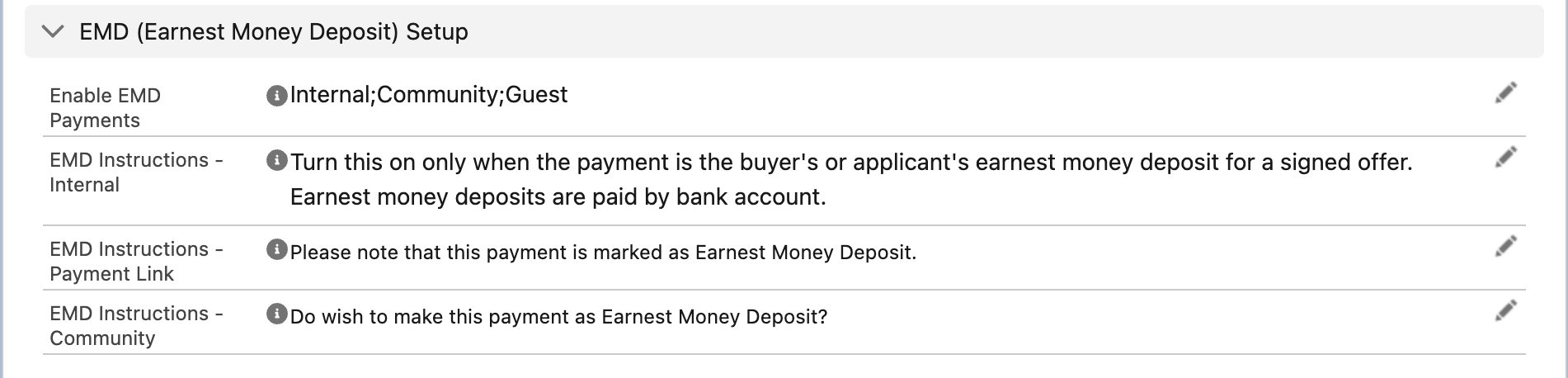
Who may make an EMD on this account, and the text each of them reads.
Step 3 — How a payer makes an EMD
- On the payment screen, open the Bank tab and choose or add a bank account.
- Turn on the Earnest Money Deposit switch under the amount. The instruction text for that user type appears.
- Enter the amount and press Pay (or Create Link to send a link; the switch is then set on the link's order).
- Confirm the summary. The deposit is processed and the Pay Order shows Earnest Money Deposit ticked.
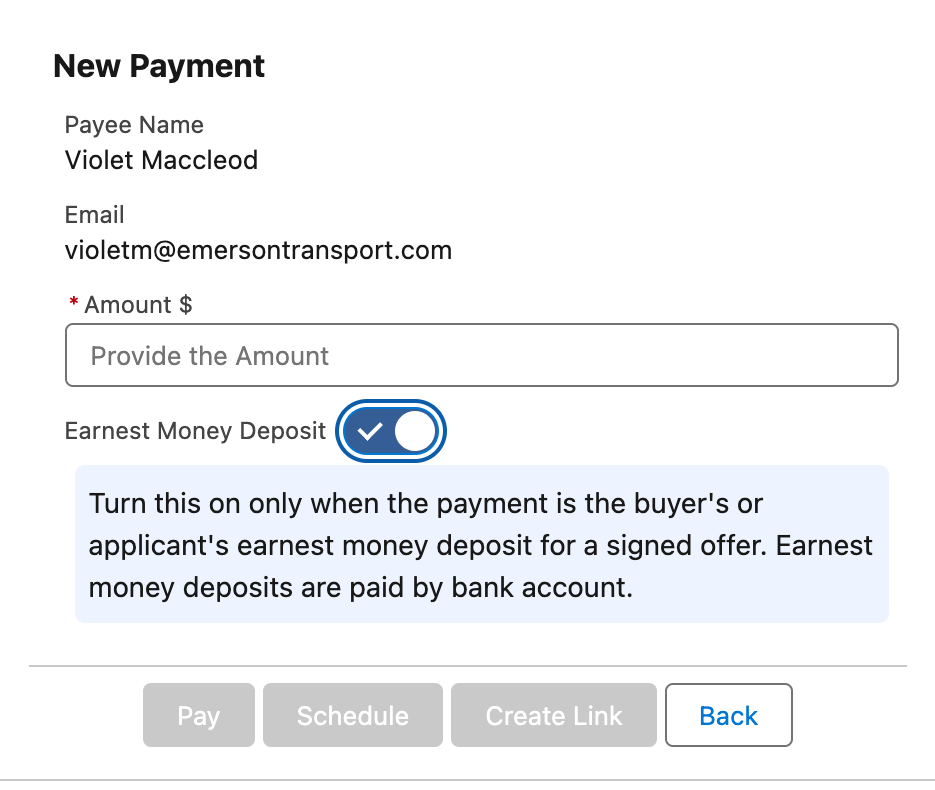
The switch and the instruction text. It is shown only when the profile, the account and the customer all allow EMD.
Worked example: a buyer's deposit
A buyer makes an offer on a property and must pay a $5,000 earnest money deposit from their checking account.
- The agent opens the buyer's Contact and presses Receive Payment. The profile is pre-set; the operating account has Enable EMD Payments = Internal, Community, Guest, and the profile has its EMD Setup Id.
- On the Bank tab the agent enters the buyer's account (or picks a saved one), types
5000, and turns on Earnest Money Deposit. The account's EMD Instructions – Internal text appears: "Turn this on only when the payment is the buyer's or applicant's earnest money deposit for a signed offer." - Pay → the summary shows the amount, the bank fee if one is configured, and the net amount → Process Order.
- The Pay Order shows Earnest Money Deposit ticked and its Pay Transaction is processed. At Payload the payment was processed under the EMD set-up identified by the profile's EMD Setup Id.
Had the agent chosen the Card tab, the switch would not have been there; had the order been saved with a card and the flag by another route, it would have been refused with the bank-account-only message.
Reporting on deposits
Filter Pay Orders on Earnest Money Deposit equals true, show Pay Customer, Principal Amount, Processed Datetime and the related Opportunity or Contact, and group by month. Because an EMD is an ordinary receipt otherwise, it appears in the packaged receipt reports too; the flag is what separates deposits from rent and fees. The order keeps the payer, amount, account and the Pay Transaction Payload created, like any other receipt, and fees apply as configured on the account.
Returning a deposit
An EMD that must be returned — a failed sale, a withdrawn application — is refunded like any payment while the money sits with Payload (see Void or refund a payment), or paid out as a disbursement to the buyer's bank account once it has been deposited to your account and the agreement says so.
Stopping EMD for one customer or one page
| To stop it for… | Do this |
|---|---|
| One Pay Customer | Tick Disable EMD Payments on the Pay Customer |
| One page or component | Tick Disable EMD Payments in the component's settings — see Component settings reference |
| One link or URL | Add rpay__noemd=1 to the URL — see URL parameters reference |
| A whole user type | Remove the type from Enable EMD Payments on the account |
Mistakes to avoid
| Mistake | What happens | Fix |
|---|---|---|
| Enabling EMD on the account without an EMD Setup Id on the profile | The switch never appears | Enter the identifier from Payload on the Pay Profile |
| Expecting the switch on the Card tab | It is on the Bank tab only | Choose a bank account |
| EMD enabled for Internal only, but customers pay in the portal | Portal customers see no switch | Add Community (and Guest for links) |
| Instruction text left as a placeholder | Payers read it | Write the real text before go-live |
FAQ
Payload processes it under the EMD set-up identified by your EMD Setup Id, which is how Payload distinguishes it from ordinary receipts. How that is reported in your Payload dashboard is a question for Payload.
It is a payment like any other in Salesforce: void before funding, refund afterwards — see Void or refund a payment.
The switch is available with the Pay and Create Link buttons. Recurring schedules are for regular charges such as rent, not deposits.