
Create and send a payment link
A payment link lets a customer pay an amount you set, on their own device, without logging in and without your team seeing their card or bank details. You create a Link order from the payment screen, REDA Pay builds a secure address, and you send that address to the customer by whatever channel you use. When they pay, the order is processed like any other and you are notified.
- The public site and the processing account's link settings are in place — see Set up the public payment-link site. In particular Link Site Public URL and Link Expiration (Minutes) are filled on the Processing Account; without the first the link cannot be saved, without the second it is never active.
- You hold REDA Pay - User (or Admin User), and the Pay button or component allows links (Enable Order Link on; no
rpay__nolnk=1). - The customer's email is on record or you have it: a link needs an email address.
Step 1 — Open the payment screen
From the customer's Lead, Contact or Account, press the Pay button, as in Take a payment. Answer the profile and account questions if asked. A link always belongs to one processing account — the one whose public page the customer will open.
Step 2 — Enter the amount and create the link
- Leave the card and bank forms alone: the customer will supply the method.
- Check Email; enter one in Payee Email if it is empty.
- Type the Amount $.
- Click Create Link. It becomes available as soon as the email and amount are valid — no payment method is needed.
Confirm Pay Order Summary opens with the amounts and three choices that apply to this link only:
| Option | Effect |
|---|---|
| Do Not Charge Convenience Fees | The customer pays the amount with no fee, whatever the account's Fee Setups say |
| Do Not Accept Card | The customer's page shows no Card tab |
| Do Not Accept ACH | The customer's page shows no Bank tab |
| Customer Notes (required) | Text the customer reads on the payment page: what the payment is for, a reference, instructions. "Please provide a valid instructions or notes for the customer" blocks an empty box |
Convenience Fees in the summary show $0.00 at this point because no method is chosen yet; the fee is calculated when the customer pays, unless you ticked Do Not Charge Convenience Fees.
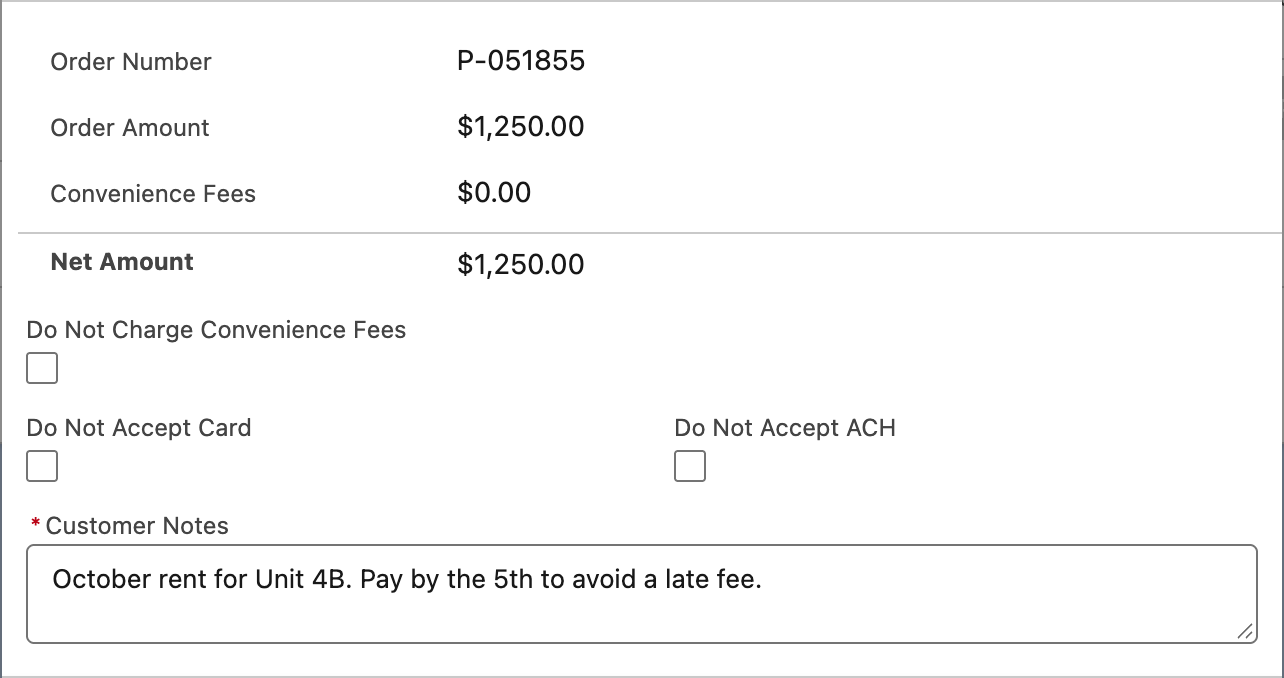
The link's own options. The notes are mandatory: they are the only context the customer gets.
- Click Process Order. Nothing is sent to Payload; the order is saved as a Link with status Link - Active, and you return to the record with "Your payment order is successfully processed. Order Reference : P-000000".
Step 3 — Find and send the link
REDA Pay does not email the link. Your team sends it:
- Open the REDA Pay app → Pay Orders → the new order (its number is in the message above; the order also appears on the customer's Pay Orders list and in the list view Order Type - Link).
- Copy the Link URL field. It is the processing account's public page address with an encrypted identifier of this order attached.
- Paste it into your email, text message or letter — as a hyperlink or on its own line, so that nothing wraps or cuts it — and send it to the customer.
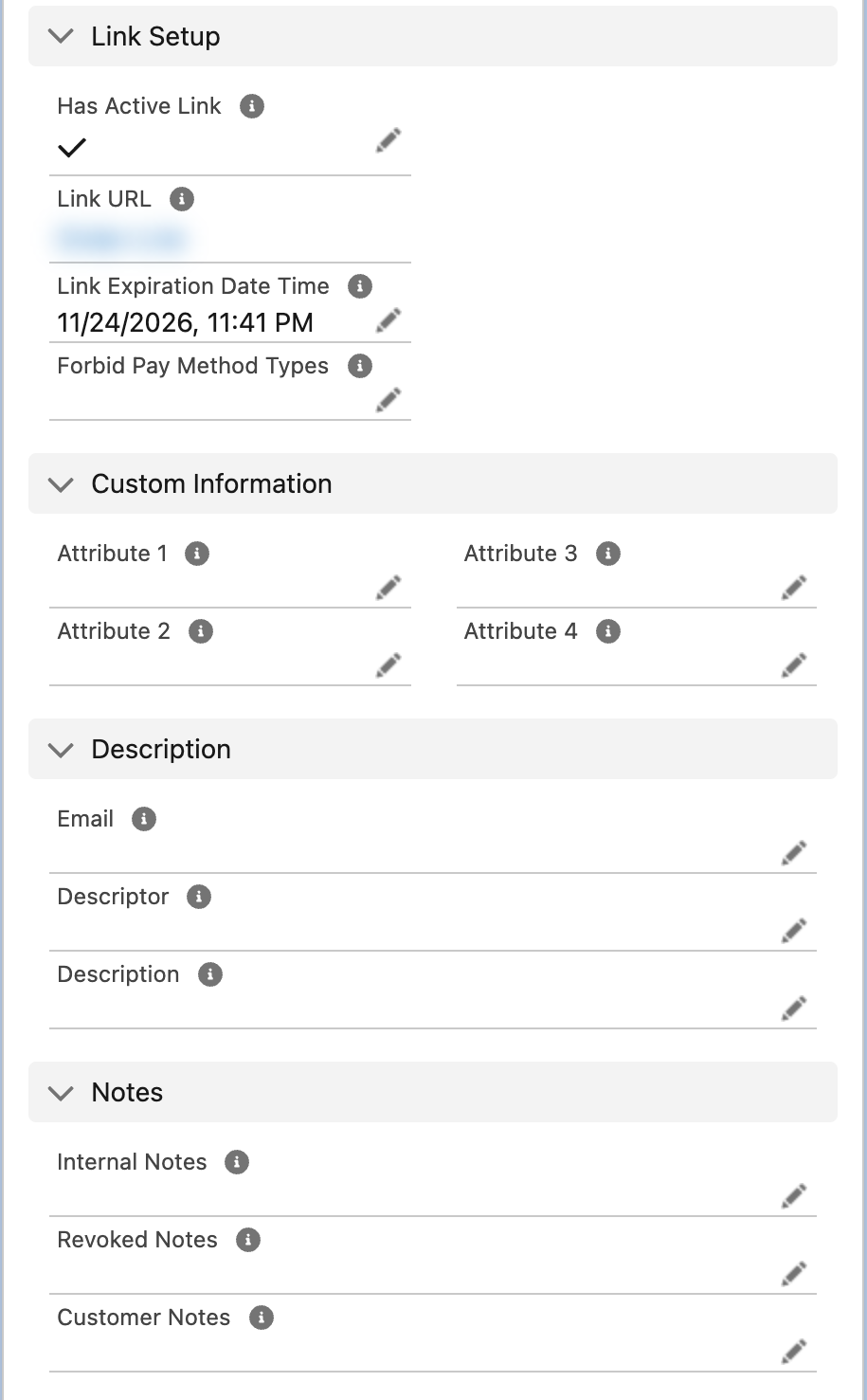
Where the link lives. Has Active Link is what lets the public page open the order.
Many organisations automate this step with a flow or an email template that merges Link URL, the amount and the customer notes from the Pay Order — see Automate payments with flows.
How long the link lives
The link is valid from creation for the account's Link Expiration (Minutes); the deadline is stored on the order as Link Expiration Date Time. Has Active Link turns off when the deadline passes, when the link is paid, or when the order is revoked. Expired links cannot be extended; create a new one.
When the customer pays
- The order's owner receives an in-app notification: "Payment Link [P-000000] processed successfully." with the text "Payment link shared with customer is processed successfully." On a failure the title reads "Payment Link [P-000000] failed."
- The order's Status becomes Link - Processed, Processed User Type is Guest, and a Pay Transaction sits under it. After a failure the order stays Link - Active so the customer can try again.
- The card or account the customer entered is saved as a single-use Pay Method.
Worked example
A leasing agent needs a $500 holding deposit from an applicant who is not in the office.
- On the applicant's Lead, press Receive Payment, type
500, click Create Link. - Tick Do Not Accept Card (the deposit must come from a bank account), type the notes "Holding deposit for Unit 4B, Harbor Boulevard. Refundable per your application terms." and click Process Order.
- Open the order, copy Link URL, email it to the applicant.
- Two hours later the bell shows "Payment Link [P-000000] processed successfully." (with the order's number). The order is Link - Processed with a bank payment of $501.75 under it: the $500.00 deposit plus the account's $1.75 bank fee, because Do Not Charge Convenience Fees was left unticked.
Mistakes to avoid
| Mistake | What happens | Fix |
|---|---|---|
| Creating the link before Link Expiration (Minutes) is set | Status Link - Inactive; the customer sees "Invalid request" | Set the minutes, create a new link |
| Sending the Pay Order's record address instead of Link URL | The customer sees a Salesforce login page | Copy Link URL |
| Forgetting the fee choice | The customer is charged the account's fee | Tick Do Not Charge Convenience Fees when creating |
| Creating two links for one payment | Both are live; the customer may pay twice | Revoke the spare one |
FAQ
No. The amount is fixed when the link is created. Create a new link for a new amount.
No. One link, one full payment.
The method is single-use by design. For saved methods, give the customer a portal login — see Let customers pay in your portal.
A Pay Order of type Link created by a flow gets its Link URL from the same processing-account settings, as long as the fields the screen would fill are set — see Automate payments with flows.