
Portal autopay: recurring payments by customers
When the payment page is in your customer portal, the same Schedule button your staff use is available to the customer. A resident can set up rent to be paid from their bank account on the 1st of every month, and from then on the daily job takes the payment without anyone's involvement. This is the pattern most organisations run at volume, so it is worth setting up deliberately.
- The portal payment pages are set up — see Let customers pay in your portal.
- The daily recurring-payments job is scheduled — see Schedule the daily recurring-payments job.
- The portal's payment component has Enable Scheduling Order on (the default).
What the customer does
- In the portal, they open the payment page (for example New Pay Order in the navigation).
- They choose a saved bank account or card, or enter a new one, and type the amount of each payment.
- They click Schedule, set Schedule Type (for example Every Month), Process on Month Day, the Schedule Start Date and an optional Schedule End Date, and click Process Order.
- They see the confirmation with the order reference. No payment is taken today.
From then on, a payment is created and processed on each due date. The customer's new card or account is saved for reuse automatically.
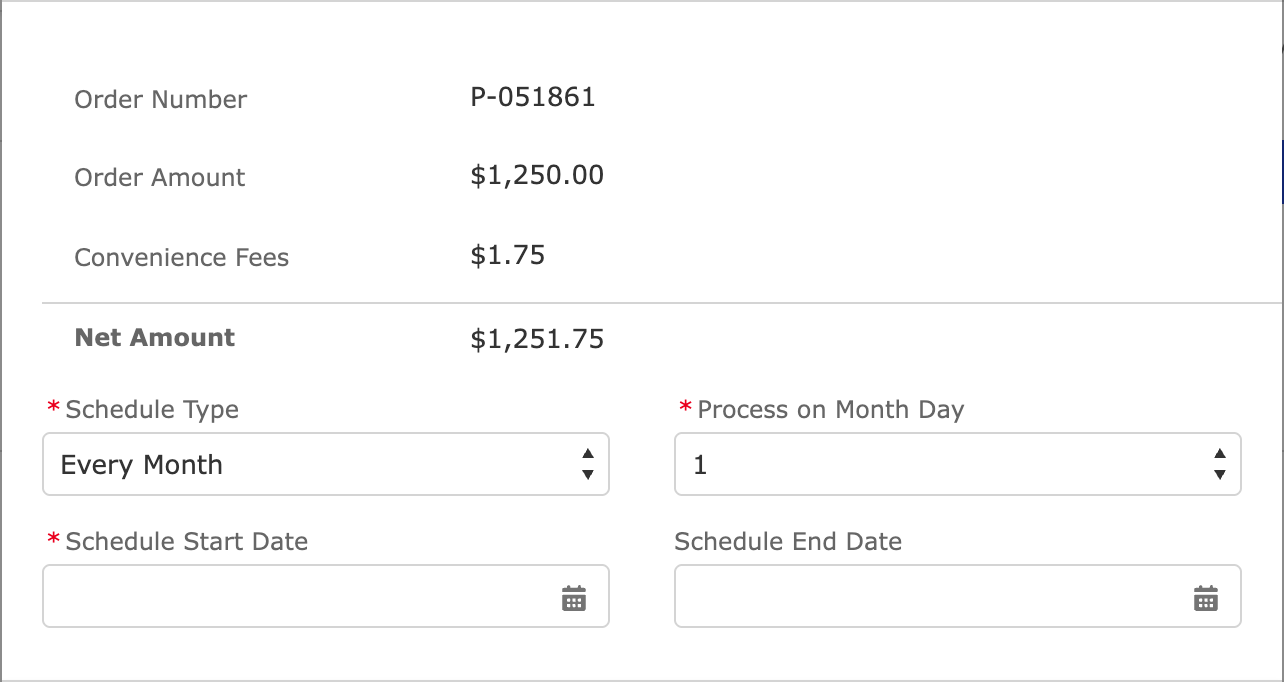
Autopay from the customer's side. The same dialog staff see, inside your portal's theme.
What the customer sees afterwards
In this release REDA Pay places no "my schedules" component in the portal. What the customer can see depends on the record pages and lists you expose in your Experience Cloud site: portal users can read their own Pay Orders and Pay Transactions (the REDA Pay - Community User permission set and the sharing set give them access to records linked to their Contact), so a list of Pay Orders filtered to Schedule - Active and a related list of payments on each are the usual way to show "your autopay" and "your payment history".
Customers can delete a saved payment method from the payment screen (the bin icon under the tile). The screen warns "Are you sure you want to delete the pay method? Any schedule payments associated with this pay method will become inactive." — which is how a customer can stop their own autopay without calling you.
What your team manages
| Task | Where |
|---|---|
| See all portal schedules | Pay Orders list view Order Type - Schedule; filter Processed User Type = Community |
| Change amount, day, frequency or method | Edit the schedule Pay Order — see Set up a recurring payment |
| Stop a schedule | Revoke Order on the schedule |
| Know when a run fails | The order owner's in-app notification "Scheduled Payment [P-000000] failed." and the REDA Pay Log for the run |
| See what was paid | The child Pay Orders (filter on Parent Pay Order) and their Pay Transactions |
The owner of a portal-created schedule is the portal user who created it; notifications about failed runs go to that owner's notification bell. If your staff should be alerted instead, use a flow on Pay Transaction to notify them — see Automate payments with flows.
Questions customers ask, and the answers
| Question | Answer |
|---|---|
| "When is the money taken?" | On the day you chose, at the time the organisation's daily job runs (state that time here) |
| "Can I change the amount or the day?" | Not from the portal in this release; contact us and we change it, or set up a new schedule |
| "Can I stop it?" | Contact us, or delete the payment method it uses from the payment screen — that stops every schedule on that method |
| "Will I be charged a fee?" | The fee shown in the summary when you set it up applies to each payment |
| "What if my account has insufficient funds that day?" | The payment fails, the schedule continues next time, and we will contact you for the missed amount |
| "Does it stop when my lease ends?" | Only if an end date was set. Otherwise it runs until stopped |
| "Can I have two schedules?" | Yes — for example rent on the 1st and a parking fee on the 15th |
Put these on the portal page next to the payment screen; they prevent most calls.
Settings that shape portal autopay
| Setting | Where | Typical choice |
|---|---|---|
| Enable Scheduling Order | Payment component on the portal page | On |
| Allow Pay Method Type - Card / Bank Account | Same | Bank only, if card fees are an issue for recurring rent |
| Do NOT Charge Convenience Fee | Same | Off if fees are passed on; on if autopay should be free |
| Fee Setups | Processing Account | A low fixed bank fee is common for autopay |
| Process on Month Day | Chosen by the customer | Only 1–28 are offered |
| Payment Session Duration (Minutes) | Processing Account | 30 for portal users |
Worked example
Meridian Properties lets residents set up rent autopay by bank account only:
- Portal payment page: Allow Pay Method Type - Card off, Enable Order Link off, Enable Scheduling Order on.
- Processing account: Bank Fee Setup $1.75; Payment Session Duration 30.
- A resident schedules $1,250.00 Every Month on day 1 from 1 November. On 1 November the job creates child order P-052001, charges $1,251.75 from Checking x-7890, and the resident's payment history shows it.
Mistakes to avoid
| Mistake | What happens | Fix |
|---|---|---|
| Daily job not scheduled | Customers set up autopay that never runs | Schedule the job before announcing autopay |
| Customer deletes their only method | Their schedule stops silently | Watch for inactive schedules; ask the customer to add a method and re-point the schedule |
| Expecting a retry after a failed run | The schedule moves on to the next date | Collect the missed amount separately |
| Notifications expected by staff | They go to the schedule's owner, the portal user | Add your own flow notification |
FAQ
Not through REDA Pay's screens. They can create a new schedule and ask you to revoke the old one, or delete the method to stop it.
Yes, if the page allows cards. Card schedules fail when the card expires; the customer then adds a new card and you re-point the schedule.
Each run carries the fee of its method per the Fee Setups, unless the page or the order has fees switched off.