
Save a payment method without paying
A Pay Method is a card or bank account registered with Payload and linked to a Pay Customer. Most are created during a payment, but you can also save one on its own: to set up a vendor's bank account before the first payout, to register a resident's account before their first scheduled rent, or to let customers keep a card on file in your portal. The method is registered with Payload immediately; Salesforce stores a token and descriptive details, never the card number, security code or full account number.
- The payer's Pay Customer exists, or the Account, Contact or Lead it will be created from — see How Pay Customers are created.
- You hold REDA Pay - User or REDA Pay - Admin User. Portal customers need REDA Pay - Community User.
- The customer's Allowed Payment Methods includes the type you are saving; otherwise the screen reports "New payment methods are not allowed at this time for this customer."
Three ways to open the screen
| Start from | How | Best for |
|---|---|---|
| A Pay Customer | Open the Pay Customer and click Add New Payment Method | A customer who already pays you |
| An Account | Open the Account and click the Add Pay Method action | A vendor or owner you will pay — the action lets you mark the method as the default for disbursements |
| Your portal | The customer opens the New Pay Method page you placed in the portal | Customers managing their own cards and accounts — see Let customers pay in your portal |
A fourth way, sending the payee a link to enter their own bank details, is covered in Request bank details from a vendor.
From a Pay Customer
- Open the REDA Pay app → Pay Customers → the customer → Add New Payment Method.
- If more than one active Pay Profile could apply, choose one under Select Pay Profile and click Next.
- On the method screen, enter Email if the customer has none on record.
-
Under Pay Method Type, choose Card or Bank Account (ACH) and fill in the form:
- Card: Card Number, Full Name, Expiry (MM/YY), CVV/CVC, ZIP / Postal Code.
- Bank account: Account Holder Name, Account Number, Routing Number (9 digits), Account Type, Account Class, Account Currency, ZIP / Postal Code.
- Click Add Method. REDA Pay registers the method with Payload and shows "Your payment method is successfully processed." The new Pay Method appears on the customer's Pay Methods list, named by Payload, for example "Visa x-4242" or "Checking x-7890".

The bank-account form. Account Currency is pre-filled from the processing account's currency.
From an Account
- Open the Account and click Add Pay Method.
- Choose the Pay Profile under Select Pay Profile (skipped when only one profile is active).
- Choose Select Transfer Type: Receipt, Disbursement or Receipt and Disbursement. This is what the method may be used for.
- For a disbursement method, tick Is Default Payment Method for Disbursement if payouts to this Account should use it by default.
- Click Next. The method screen opens as above; complete it and click Add Method.
If the Account has no Pay Customer yet, one is created on the way, using the Account mapping. If no profile is active the action stops with "Bad Configuration No Active Profile Found."
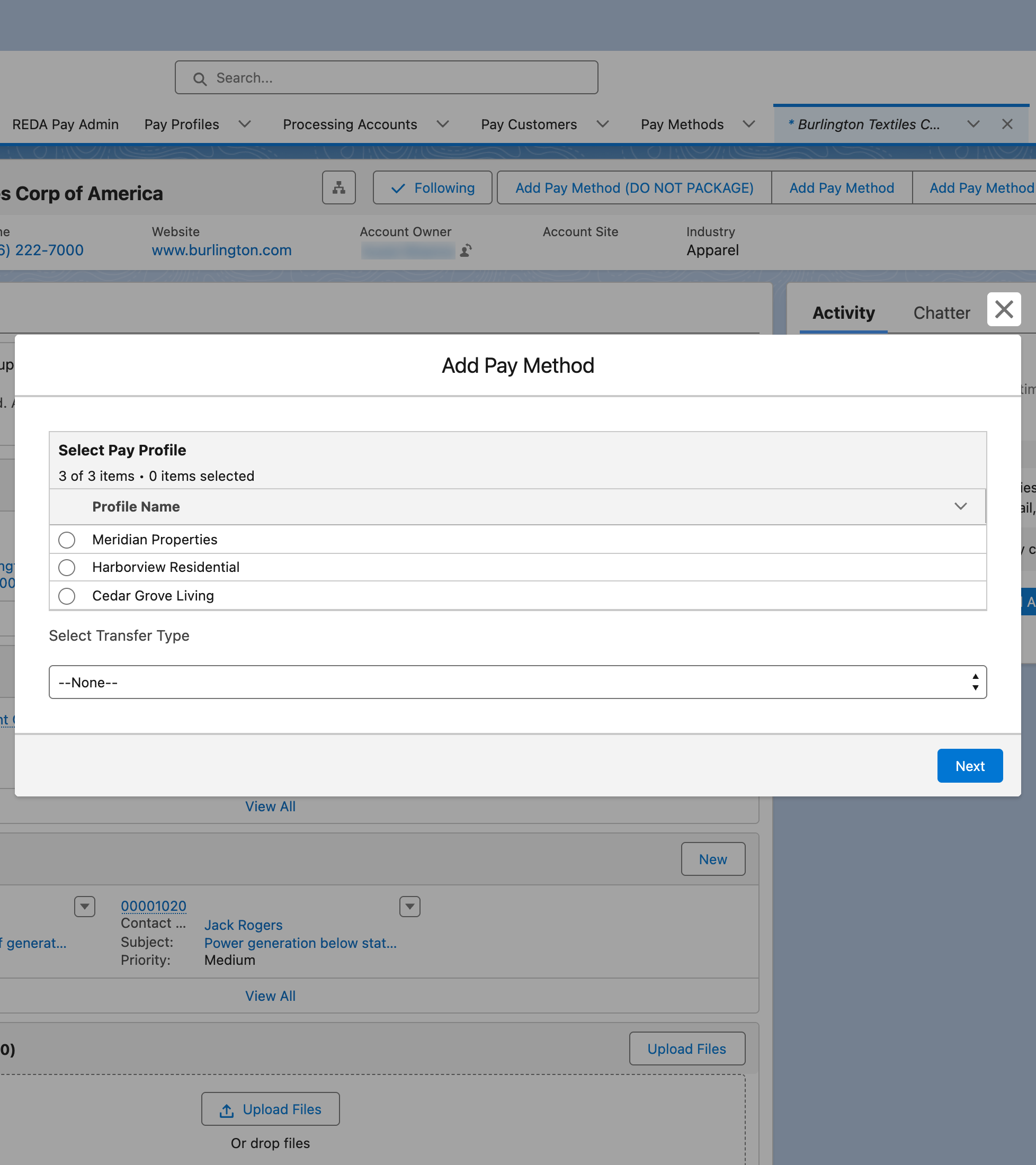
The Account action asks for the profile and the transfer type before opening the method form.
What gets stored
| On the Pay Method | Card | Bank account |
|---|---|---|
| Name | Payload's description, e.g. Visa x-4242 | e.g. Checking x-7890 |
| Pay Method Type | card | bank_account |
| Transfer Type | As chosen; Receipts / Disbursements boxes reflect it | Same |
| Stored details | Card Brand, Card Type, Expiry Month and Year, Account Holder Name, postal code | Routing Number, Account Type, Account Class, Account Currency, Account Holder Name, postal code |
| Never stored | Card number, CVV | Account number |
| Pay Method Id | Payload's token, encrypted | Same |
| Keep Active | On — the method can be reused | On |
| Is Default Payment Method | As chosen | As chosen |
Once registered, the method's type, transfer type and details are locked.
Sessions and limits
- The screen runs in a session that expires after the Pay Profile's Guest Session Duration (Minutes) — 15 minutes when blank. After that: "Invalid request. New method session is expired."
- The screen offers only the method types the customer and the component allow, and only the transfer types the customer allows.
- A customer with no email must provide one; "Please enter a valid email address" blocks an invalid value.
Mistakes to avoid
| Mistake | What happens | Fix |
|---|---|---|
| Saving a card for a vendor you intend to pay | Disbursements go to bank accounts only; the card cannot be used | Save a bank account with transfer type Disbursement |
| Choosing Receipt for a method meant for payouts | The method is refused for disbursements | Choose Disbursement or Receipt and Disbursement |
| Typing the routing number with spaces or dashes | Rejected — it must be 9 digits | Enter digits only |
| Expecting the Account's address to be sent | Only the form's fields are sent to Payload | Fill in the postal code on the form |
FAQ
No. Only the last digits in the method's name and the details listed above are kept. Payload holds the rest.
Yes, any number, with one default. The payment screen lists all active, reusable ones.
It completes a method record that was created without card or bank details — see Default, replace and delete payment methods.