
Request bank details from a vendor
To pay a vendor, owner or contractor electronically you need their bank account registered as a Pay Method. Rather than taking the details over the phone, you can send them a link to a page on your public site where they enter the account themselves. REDA Pay stores the method against their Account, ready for the first disbursement.
Two things make this work: a public page on your site that holds the save-a-method component, and a link to that page stored on each Account in the field Pay Method (Disbursement) Link. The Request Pay Method action on the Account emails that link to the contacts you choose.
- Your public site has a page carrying the REDA Pay save-a-method component, with the guest user set up as described in Set up the public payment-link site.
- The vendor's Account has at least one Contact with an email address.
- You hold REDA Pay - User or REDA Pay - Admin User.
Step 1 — Build the link for the Account
REDA Pay does not fill Pay Method (Disbursement) Link by itself. You build it once per Account — by hand, with a formula, or with your own automation — in this form:
https://<your public site address>/s/<the page with the save-a-method component>?rpay__rid=<Account Id>&rpay__default=1| Part | Meaning |
|---|---|
rpay__rid=<Account Id> | The Account the method belongs to. Use the 18-character Id |
rpay__default=1 | Make the saved account the Account's default disbursement method. Omit to leave the default unchanged |
rpay__cnotes=<text> | Optional: a note shown to the payee on the page |
rpay__ttype=disb | Optional: fix the transfer type to disbursement |
A formula field or a flow on Account can build this automatically from the Account Id so nobody types it. The full list of parameters is in URL parameters reference.
Place the field on the Account page layout if it is not there: Setup → Object Manager → Account → Page Layouts, drag Pay Method (Disbursement) Link onto the layout.
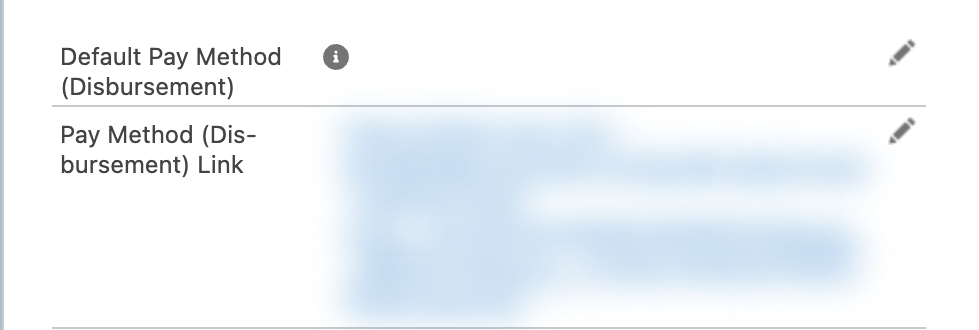
The two REDA Pay fields on Account: the link you send, and the default method the vendor's entry fills.
Step 2 — Send the request
- Open the Account and click Request Pay Method.
- The screen Select Contact to Send Email lists the Account's contacts that have an email. Tick one or more and click Next.
- Read the confirmation: "Upon receiving confirmation, an email notification will be dispatched to the designated contact(s)." Click Finish.
Each selected contact receives an email with the subject Payment Details for Invoice Settlement. It greets the contact by first name, says that your organisation requires their bank account details to clear their invoices, gives the link, and is signed with the Account owner's name and email.
If the Account's Pay Method (Disbursement) Link is blank, the action stops with "Bad Configuration Parent Record Not Found." — the message names the wrong cause; the fix is to fill in the link (Step 1).
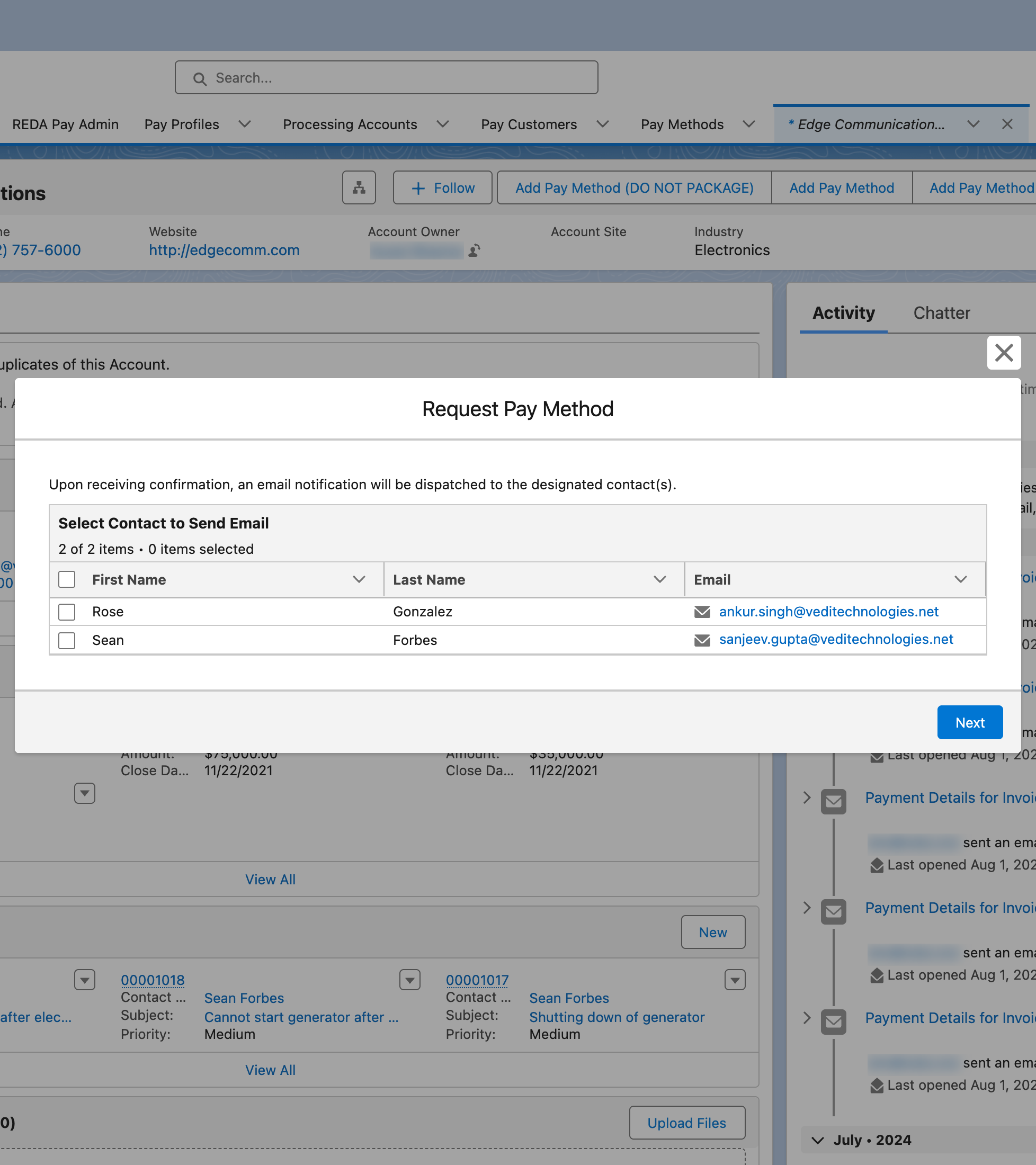
Choose who receives the email. Only contacts with an email address are listed.
Step 3 — What the payee does
- They open the link. The page shows your logo and branding from the processing account and, if you added one, your note.
- They enter an email if the Pay Customer has none, choose Bank Account (ACH), and fill in Account Holder Name, Account Number, Routing Number, Account Type, Account Class, Account Currency and ZIP / Postal Code.
- They click Add Method and see "Your payment method is successfully processed." (or the result page you configured on the site).
The link is open for the Pay Profile's Guest Session Duration (Minutes) once opened — 15 minutes when blank.
Step 4 — What you see afterwards
- A Pay Customer for the Account exists (created on the way if it did not).
- A new Pay Method named by Payload, for example "Checking x-5144", with Transfer Type Disbursement.
- If
rpay__default=1was in the link, Default Pay Method (Disbursement) on the Account points to it, and so does the Pay Customer's Default Pay Method. Your disbursement orders for this Account now pick it up automatically — see Send a disbursement.
Mistakes to avoid
| Mistake | What happens | Fix |
|---|---|---|
| Sending the request before filling the link field | "Bad Configuration Parent Record Not Found." | Fill Pay Method (Disbursement) Link on the Account |
| Linking to a page without the save-a-method component | The payee sees an empty page | Place the component and publish the site |
Leaving out rpay__rid | "Bad Request. Parent record not found." on the page | Include the Account Id |
| Guest user without access to the site page | The payee sees a login page or an error | Complete the public-site set-up |
| Expecting the vendor to be able to enter a card | Disbursements go to bank accounts only | The page should allow bank accounts (set rpay__card=0 in the link to hide cards) |
FAQ
Yes, if the vendor has a portal login: give them the portal's New Pay Method page. The public link is for payees who do not log in.
The link identifies the Account, not any payment, and the page accepts bank details only into that Account's Pay Customer. Anyone with the link can add a method to that Account, so send it only to the vendor's contacts.
They can add another through the same link. Your team sets the default and deletes the old method — see Default, replace and delete payment methods.