
The administrator's map of REDA Connect
Once REDA Connect is installed and sending messages, administering it means knowing where each kind of configuration lives. Everything falls into a small number of places: a handful of records in the REDA Connect app itself, three settings areas in Setup, four preference fields on the user record, three permission sets, and the logs and reports you watch after go-live. This article is the map — each section says what lives where in one paragraph and links to the detailed article.
- You need administrator access to your org (the System Administrator profile, or equivalent permissions to manage Setup and other users).
- This article assumes REDA Connect is already installed and working. If you are still setting up, start from the Setup roadmap instead.
Connect Accounts and their configurations
A Connect Account is the record that holds one messaging identity — a WhatsApp business number and/or an SMS number, together with its provider credentials and channel options. Under each Connect Account sit its Connect Account Config records, which tell REDA Connect, per object and channel, where phone numbers live and how incoming messages find their records. These are ordinary records inside the REDA Connect app, not Setup pages. Start at What is a Connect Account?, keep credentials healthy with Updating your API tokens safely, and control which account each message uses with Default accounts and routing order. Per-object wiring is covered in Object configuration overview.
Message templates
Connect Templates are reusable message bodies — plain text with optional merge fields, or richer WhatsApp formats. They live as records in the app and have a strict lifecycle: a template must be tested before it can be activated, and an active template must be deactivated before it can be edited. See What are templates?.
Chat scripts
Chat Scripts are simple guided conversations: a chain of steps, each sending a message and capturing the customer's reply, optionally writing the answer back to a field. They are records in the app, built from a script template with steps and actions. See What are chat scripts?.
The three settings areas (Custom Metadata)
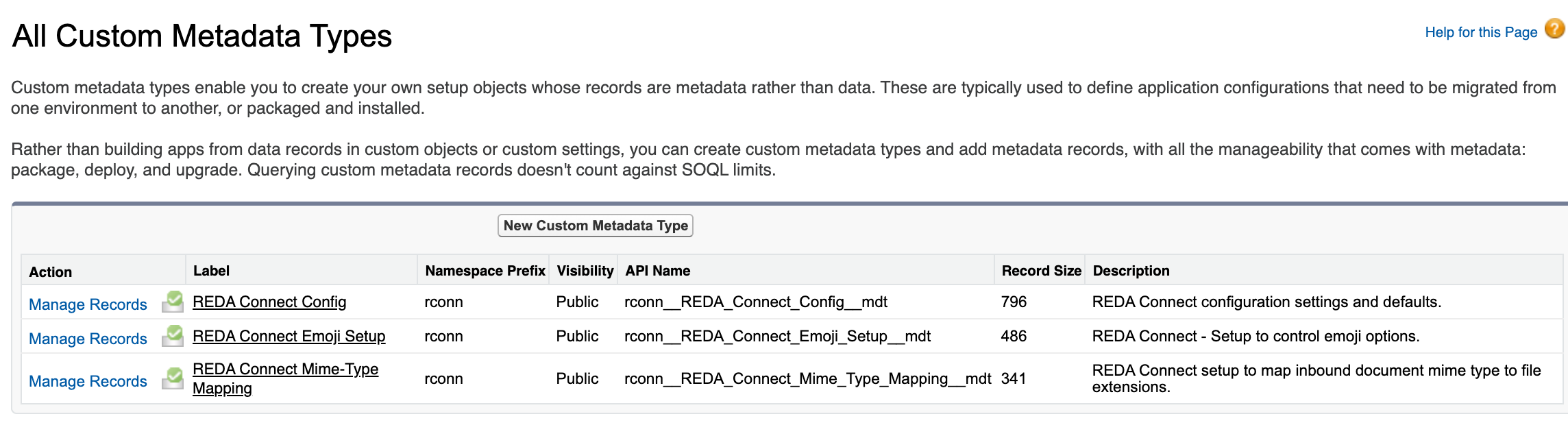
REDA Connect's org-wide settings live in Custom Metadata Types — a Salesforce mechanism for configuration records that ship with an app and can be edited by an administrator in Setup. To reach them: click the gear icon, choose Setup, type Custom Metadata Types in the Quick Find box, click Custom Metadata Types, then click Manage Records next to the type you want. There are three:
- REDA Connect Config — org-wide defaults: date and time display formats, and the settings that tune the Connect Feed. Detailed record-by-record in Global settings, with the feed-tuning subset explained in Feed performance settings.
- REDA Connect Emoji Setup — the emoji categories agents see in the feed's emoji picker.
- REDA Connect Mime-Type Mapping — how incoming WhatsApp files get their file extensions. Both are covered in Emoji categories and incoming file types.
Everything in these three areas is org-wide. A change applies to every user immediately — there are no per-user or per-profile values here.
User preferences
Four packaged fields on the User record hold per-person preferences: two personal default Connect Accounts (one per channel), the inbound-message alert tone, and the default "My Messages" feed view. These are the only per-user knobs in the product. See User preferences.
Permission sets
Access is granted through three packaged permission sets — an administrator set, a standard user set, and a read-only set. Assigning one of them is what makes the app, tabs and feed visible to a person. See Giving your team access.
Logs and reports
Every failed automation writes a Connect Log record; messages themselves carry their own status and error text. The package also ships six reports and one dashboard ("Connect Messaging - Summary") in the REDA Connect report folder. Start with Connect Logs and Reports and dashboards; the symptom-based guides are indexed in the Troubleshooting index.
Day-2 operations checklist
A light routine keeps a messaging org healthy:
| Cadence | Task | Where |
|---|---|---|
| Daily or weekly | Review new Connect Log records and the Failed Messages list view; resolve or note the cause | Connect Logs |
| Weekly | Check the "Connect Messaging - Summary" dashboard for volume and failure trends | Reports and dashboards |
| Monthly | Review who has opted out, and confirm agents are respecting the flags | Opt-out fields on records |
| On your security schedule | Rotate the WhatsApp token and SMS credentials — always through the update quick actions, never by editing fields directly | Updating your API tokens safely |
| When volume grows | Revisit the feed window and list sizes so the feed stays fast | Feed performance settings |
| After onboarding new objects | Confirm a Connect Account Config exists for every object users message from | Object configuration overview |
FAQ
No. Org-wide settings live in the three Custom Metadata areas in Setup; messaging identities and their per-object wiring are records in the app; per-person preferences are fields on the User record. This article maps which of the three places to look in.
No. Editing a Custom Metadata record in Setup takes effect for the whole org right away — users see the change the next time the feed loads or the setting is read.
The feed window and list-size settings in REDA Connect Config. They are covered, with recommended values by messaging volume, in Feed performance settings.
The three packaged permission sets control app access for users. Setup areas (Custom Metadata, user fields) follow your org's normal Salesforce administration permissions — anyone who can edit Custom Metadata can edit these settings, so treat that permission with care.
Where to go next
- Global settings — every REDA Connect Config record, its shipped value and what it means.
- Limits and considerations — the honest list of what REDA Connect does and does not do.
- Feed performance settings — tuning the feed for busy orgs.