
Sending a bulk message from a list view
This walkthrough sends one templated message to a list of Leads or Contacts — the steps are identical for both objects. You select the people on a list view, click Send List Message, choose the channel, account and template, give the batch a name, and confirm. The whole thing takes under a minute once your template exists.
- An active Connect Account for the channel you'll use — see Creating a Connect Account.
- An object configuration for Leads or Contacts on that channel — it tells REDA Connect which phone field to read. See Configuring Contacts and Leads.
- An active template for the channel. On SMS only Text templates work. See Testing and activating a template.
- Phone numbers stored in the format REDA Connect expects — see How to enter phone numbers.
- If any of your recipients may have opted out, read Tracking a bulk send first — one opted-out person blocks the entire send.
Step 1 — Open a list view and select your people
- From the App Launcher or navigation bar, open the Leads or Contacts tab.
- Switch to a list view that contains your audience — for example a view filtered to
Lead Status = OpenorMailing City = Austin. (Mass-action buttons don't appear on the Recently Viewed view; pick or create a real list view.) - Tick the checkbox next to each person you want to message. Use the header checkbox to select everyone shown on the page.
Prepare selections of at most 1,000 people. The lookup limits each object configuration to 1,000 records. You may see the warning You have selected more than 1000 records. Only first 1000 records in the list are considered. — split larger audiences into multiple list views or filters and verify the eligible count. Multiple matching configurations do not guarantee a global cap.
Selected Records for Messaging : 38). Always check the count in the banner at the top of the bulk page before going any further.
Expected result: the rows you chose show as selected, and the list-view toolbar shows the Send List Message button.
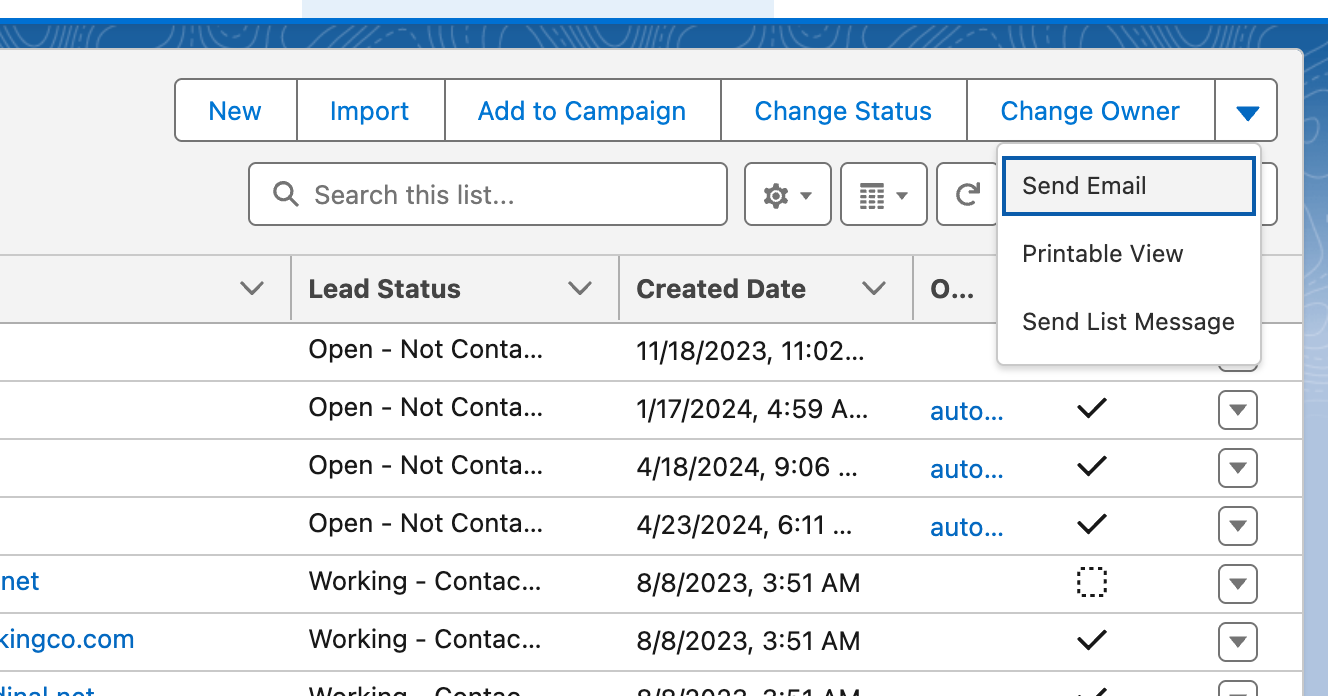
Step 2 — Click Send List Message
Click Send List Message in the list-view toolbar. The bulk messaging page opens with your selection loaded.
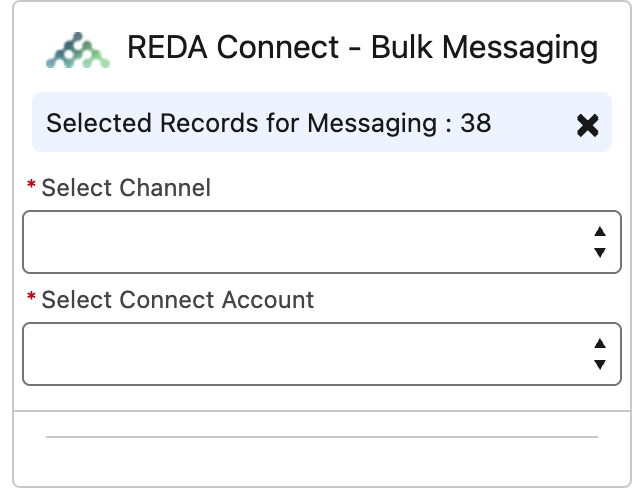
Step 3 — Choose the channel, account, template and batch subject
Work through the choices on the page:
- Messaging channel — WhatsApp or SMS.
- Connect Account — only accounts that are active and configured for this object and the chosen channel are offered. If the list is empty you'll see
No active connect accounts found for selected channel and sobject type.— finish the object configuration for this object and channel first. - Template — this walkthrough uses templates; if free text is also offered, channel restrictions still apply. Only active templates for the chosen channel are offered (on SMS, that means Text templates). An empty list shows
No active template found for the provided messaging channel. - Message Batch Subject — a short name for this batch, for example
August rent reminder. Every message in the send is stamped with it, and it's how you'll find the batch afterwards — make it specific and dated.
On screen, the first two inputs are labelled exactly Select Channel and Select Connect Account (both marked required); the template and batch-subject inputs only render after a channel and account are chosen.
Expected result: all four choices are filled in and the send button is available.
Step 4 — Confirm and send
Click the send button. A confirmation appears:
This action is not reversible. Are you sure to send list messages?
There is genuinely no undo — once confirmed, messages start going to real phones. Check the template and the selection one last time, then confirm.
Expected result: you see the success message Your request to send bulk messages is queued successfully. You can check the status by filtering the message report by provided batch subject. The messages now send one at a time in the background — a large batch takes a while, which is normal. Follow the batch's progress in Tracking a bulk send.
Troubleshooting
| Symptom | Cause | Fix |
|---|---|---|
The send is blocked with Recipient has opted out of receiving WhatsApp Messages. (or the SMS equivalent) | At least one selected person has opted out of this channel — and one opted-out person blocks the entire send | Remove opted-out people from the selection and send again — see Tracking a bulk send and Opt-out fields on Leads and Contacts |
No active connect accounts found for selected channel and sobject type. | No active Connect Account is configured for this object + channel combination | Create or activate the object configuration |
No active template found for the provided messaging channel. | No template is active for this channel; on SMS, no active Text template | Test and activate a template of the right type |
No records found meeting criteria for sending messages for provided channel and account. | None of the selected people has a phone number in the configured field for this channel | Check the phone field on the records and the phone number format |
| Fewer messages created than people selected | People without a phone number for the channel are skipped without an error | Filter the list view on the phone field to see who's missing one |
FAQ
Not per recipient. The reliable check is the template itself — test it on a sample record with the Test Template button before the send, and send a one-off to a test record from its feed. See Testing and activating a template.
The list-view send goes out immediately on confirmation. There's no schedule option on the bulk messaging page.
Selections apply per page in standard Salesforce list views. Select and send a page at a time, or narrow the view's filters so the audience fits on fewer pages.
It appears on Leads and Contacts list views only (not Recently Viewed), and your admin must have given you REDA Connect access — see Giving your team access.
Where to go next
- Tracking a bulk send — find the batch by its subject and read the delivery statuses.
- Bulk messaging overview — what bulk messaging can send and its limits.
- Understanding delivery statuses — what Queued, Sent, Delivered and Failed mean.