
What are Connect Templates?
A Connect Template is a reusable message body you write once and send many times — a welcome message, a payment reminder, a viewing confirmation. Instead of typing the same text into the Connect Feed again and again, your team picks the template and REDA Connect fills in the details. Templates can include merge fields that pull live values from a Salesforce record (like {{FirstName}}), so every customer still receives a personal message.
Templates live on their own object — Connect Templates — and every template moves through a short quality gate before it can be used: you write it, you test it, and you activate it. Only active templates can be sent.
The lifecycle in one picture
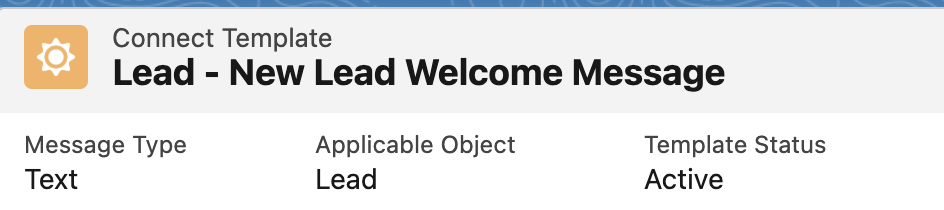
Every template has a read-only Template Status field that is always one of three values:
 Pending Test ──(test succeeds)──▶ Pending Activation ──(Activate Template)──▶ Active
      ▲                                    ▲                                      │
      │                                    └────────(Deactivate Template)─────────┘
└──────(a failed re-test clears the test stamp and deactivates)| Status | What it means | What you can do |
|---|---|---|
| Pending Test | The template has never been tested successfully | Edit freely; run Test Template |
| Pending Activation | Tested successfully, but not yet active | Edit freely; run Activate Template |
| Active | Tested and switched on — available for sending | Nothing can be edited. Deactivate first |
The full mechanics — including the exact error messages and the rule that an Active template rejects every edit — are in Testing and activating a template.
Where templates are used
| Where | How the template is used |
|---|---|
| Connect Feed composer | The template picker in the composer lists active templates for the record's object. Text templates are merged and dropped into the message box for editing; media and interactive templates are sent as authored. See Sending your first message. |
| Chat scripts | Each step of a chat script can send a template instead of fixed text. See Chat script steps. |
| Bulk messaging | The documented list-view procedure for Leads and Contacts uses a template. This does not mean every bulk messaging mode requires one. See Bulk messaging overview. |
| Scheduled and record-based sends | For the documented direct-record workflow, including scheduled messages, attach a template to supply the content. A message with no body, template or chat-script content fails with 3. Bad Request - Provide either the message body or connect template. See Scheduling messages. |
In the feed, you can type one-off messages because the feed builds the body. The bulk messaging and scheduling procedures documented here use a template. Prepare it first for these workflows; this does not mean every automation that supplies a body requires a template.
What a template contains
At its heart a template is three decisions:
- Message Type — what kind of message it produces: Text, Image, Video, Document, Location, an interactive button/list message, or a Meta-approved WhatsApp Template. SMS supports Text only.
- Template Body — the text itself (or, for Image/Document media types, the public web address of the file to send).
- Merge fields — optional
{{FieldName}}placeholders, plus the Applicable Object they resolve against.
Every field is walked through in Creating a template, and merge fields have their own article — Using merge fields — including the one trap that sends raw {{...}} text to customers if you miss a checkbox.
FAQ
Users with create and edit access to Connect Templates, typically through REDA Connect Admin. REDA Connect User grants read-only template access; check other effective permissions too. See Giving your team access.
A Text template can be sent on either channel. Every other message type (Image, Document, Video, Location, interactive types, WhatsApp Template) is WhatsApp-only — SMS through REDA Connect carries text only, in both directions.
Two usual reasons: the template isn't Active yet, or its Applicable Object names a different object than the record you're messaging from. The picker lists active templates whose Applicable Object is blank or matches the record's object.
Not for one-off replies in the Connect Feed: type freely. The bulk messaging and scheduling procedures documented here use a template to supply content. There is no universal template requirement for every automation that supplies its own message body.
Where to go next
- Creating a template — the full field-by-field walkthrough.
- Using merge fields — personalise templates with record data.
- Testing and activating a template — get the template from draft to sendable.