
The packaged reports and dashboard
REDA Connect installs its own analytics: six reports and one dashboard, ready to run the moment the package is installed — no setup required. They live in a shared folder named REDA Connect, and together they answer the everyday questions: how much are we messaging, on which channel, by whom, in which direction, and what's scheduled to go out.
- Any user with one of the three REDA Connect permission sets can run these — all three include the Run Reports permission (Giving your team access).
- What each user sees in the results follows your org's normal record visibility — two users can legitimately get different numbers from the same report.
Finding the folder
- Open the Reports tab (App Launcher →
Reports). - In the left sidebar, click All Folders and open the folder named REDA Connect.
- For the dashboard: same steps on the Dashboards tab.
Expected result: the folder lists the six reports below; the Dashboards tab's REDA Connect folder shows one dashboard.
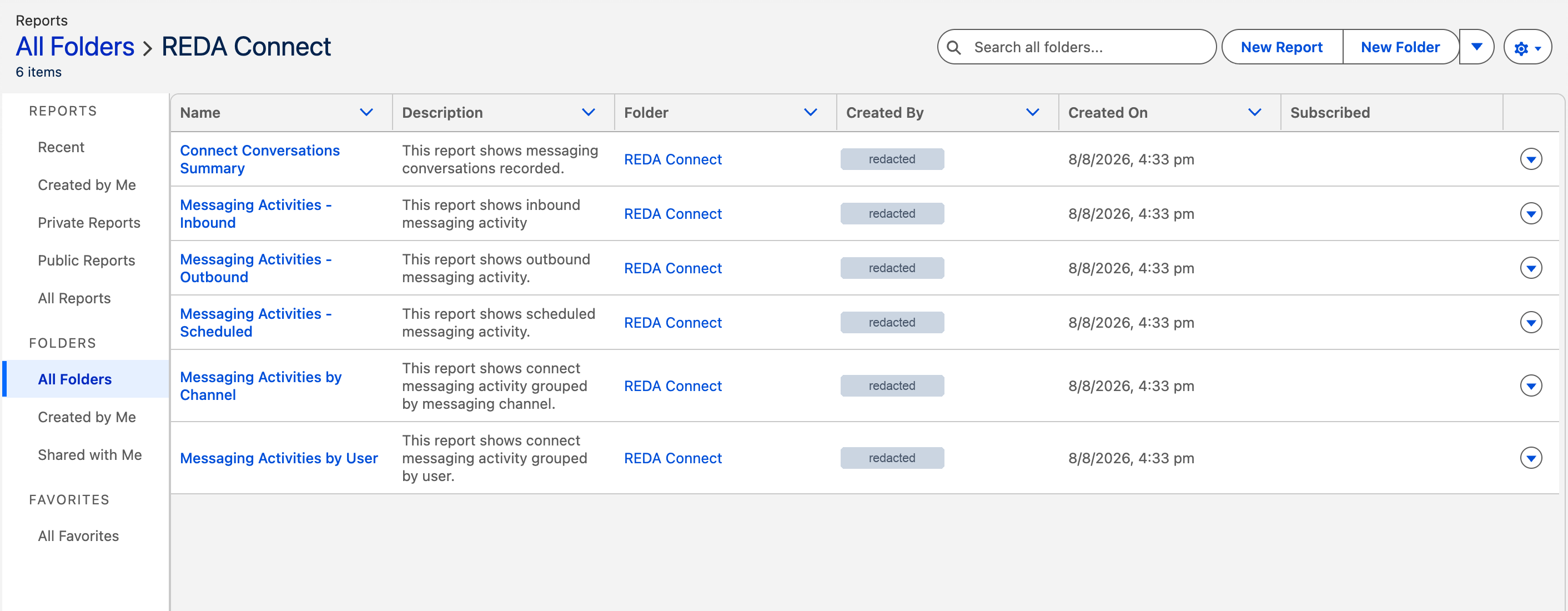
The six reports
| Report | The question it answers |
|---|---|
| Messaging Activities by Channel | How is our volume split between WhatsApp and SMS? Use it to see which channel your customers actually use and to spot a channel going quiet (which can signal a delivery problem). |
| Messaging Activities by User | Who on the team is sending how much? Workload balancing and adoption tracking. |
| Messaging Activities - Inbound | What have customers sent us? The inbound stream on its own — volumes and details of received messages. |
| Messaging Activities - Outbound | What have we sent out? The outbound mirror — including how many ended in each delivery status. |
| Messaging Activities - Scheduled | What is queued for the future? Every message with a schedule that hasn't gone out yet — check it before campaigns and after bulk scheduling. |
| Connect Conversations Summary | How many WhatsApp conversation windows are we opening? This report summarises Connect conversation records for activity and conversation-window context; it does not measure your Meta invoice. Meta charges per delivered message, with charges depending on the market and message category. Check Meta’s current WhatsApp Business Platform pricing for the applicable pricing rules. |
Each is a standard Salesforce report: open it, adjust the date filter, and click Apply to narrow the window you're looking at.
The dashboard: Connect Messaging - Summary
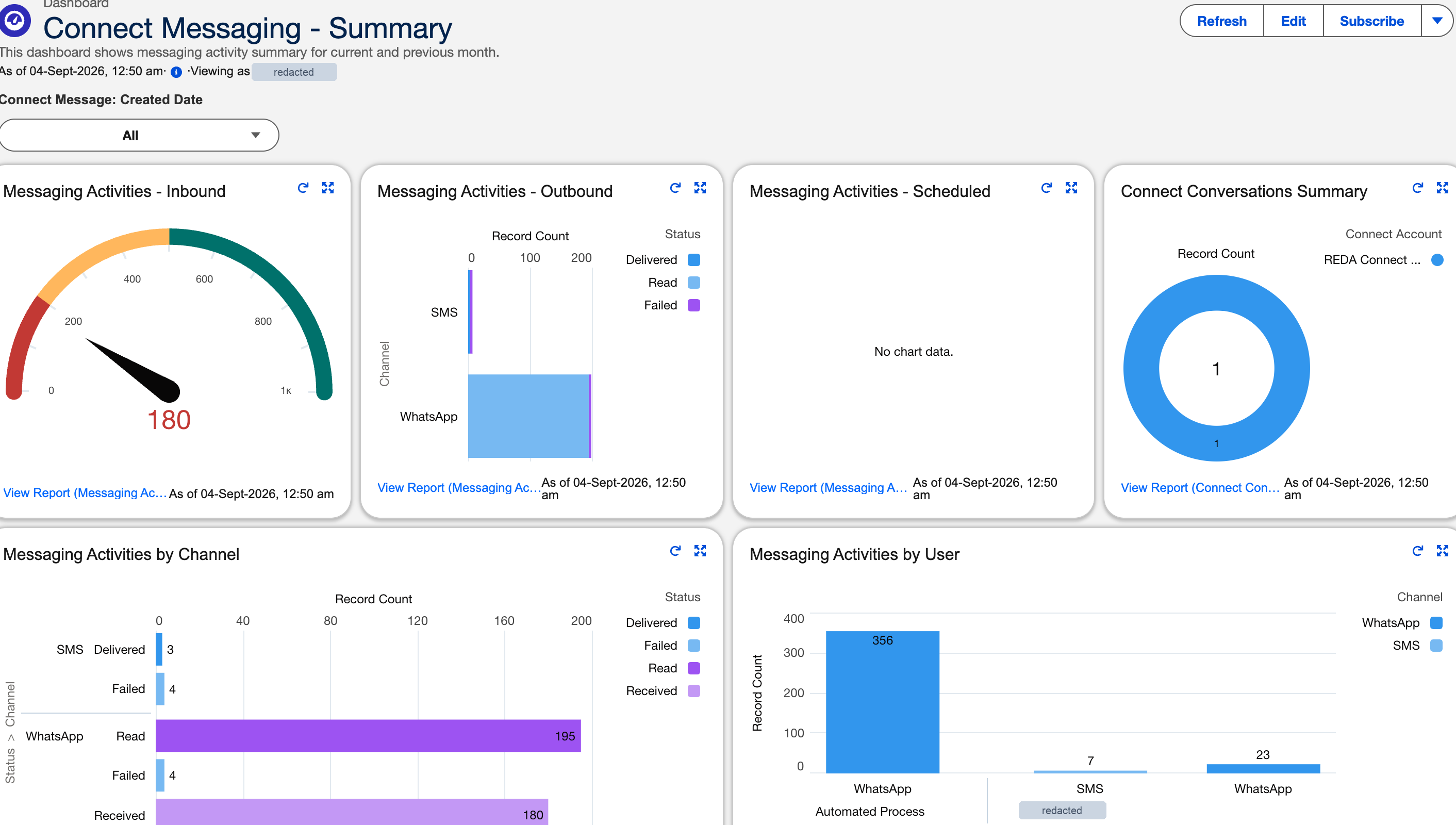
The Connect Messaging - Summary dashboard (Dashboards tab → REDA Connect folder) puts the reports above onto one screen — your messaging operation at a glance. Open it and click Refresh for current numbers; dashboards show data as of their last refresh, not live.
Customising: clone into your own folder
The packaged folder is managed — treat its contents as read-only masters. To adapt a report:
- Open the packaged report and click Save As (under the ▾ arrow, top right).
- Give your copy a clear name (for example
Messaging Activities by User - Support Team). - Save it into a folder you own (create one via New Folder on the Reports tab if needed) — never try to save into the REDA Connect folder.
- Edit your copy freely: add filters (a specific Connect Account, one channel, a date range), group differently, add charts.
The same applies to the dashboard: clone it (Save As) into your own dashboard folder before changing components. Your copies survive package upgrades untouched; the packaged originals may be updated by future versions.
Expected result: your tailored copies live in your folders; the packaged six stay pristine as reference masters.
Worked example
Your support lead wants a Monday-morning email of last week's inbound volume. You open Messaging Activities - Inbound, Save As → Inbound Messages - Weekly into your Messaging Operations folder, set the date filter to Last Week, save — then Subscribe to it for Mondays 8:00 AM (the same subscription mechanics as in Getting notified about errors). The lead now gets the numbers without opening Salesforce.
FAQ
No — reporting is not enabled on the Connect Account object in this version. The account's details are on its record page; messaging volumes per account are visible by filtering the message reports.
Yes. Connect Messages, Connect Logs, Conversations, Templates and Chat Scripts all support reporting — pick the matching report type when you click New Report. Cloning is just the faster path when a packaged report is close to what you need.
Report results respect record visibility and sharing. A user who can only see their own messages gets smaller numbers than an admin. Compare filters and roles before suspecting the data.
Yes — every bulk message is an ordinary Connect Message record. To isolate one bulk send, filter a message report by the batch subject you entered when sending — see Tracking a bulk send.
Changes inside the packaged folder aren't yours to make (it's managed); clones in your own folders are never touched by upgrades. That's exactly why cloning is the supported customisation path.
Where to go next
- Getting notified about errors — subscribe to a Connect Log report and make monitoring automatic.
- Tracking a bulk send — follow one batch through the reports.
- Understanding delivery statuses — what the status values in the outbound report actually mean.