
Prepare WhatsApp in your Meta app
Use Meta's WhatsApp setup to prepare a test number, confirm a permitted recipient and collect the identifiers REDA Connect needs. Complete app creation first. The current navigation was checked on 10 October 2026.
1. Open the WhatsApp use case
- In Meta for Developers, open the intended app.
- Open Use cases and customize Connect with customers through WhatsApp.
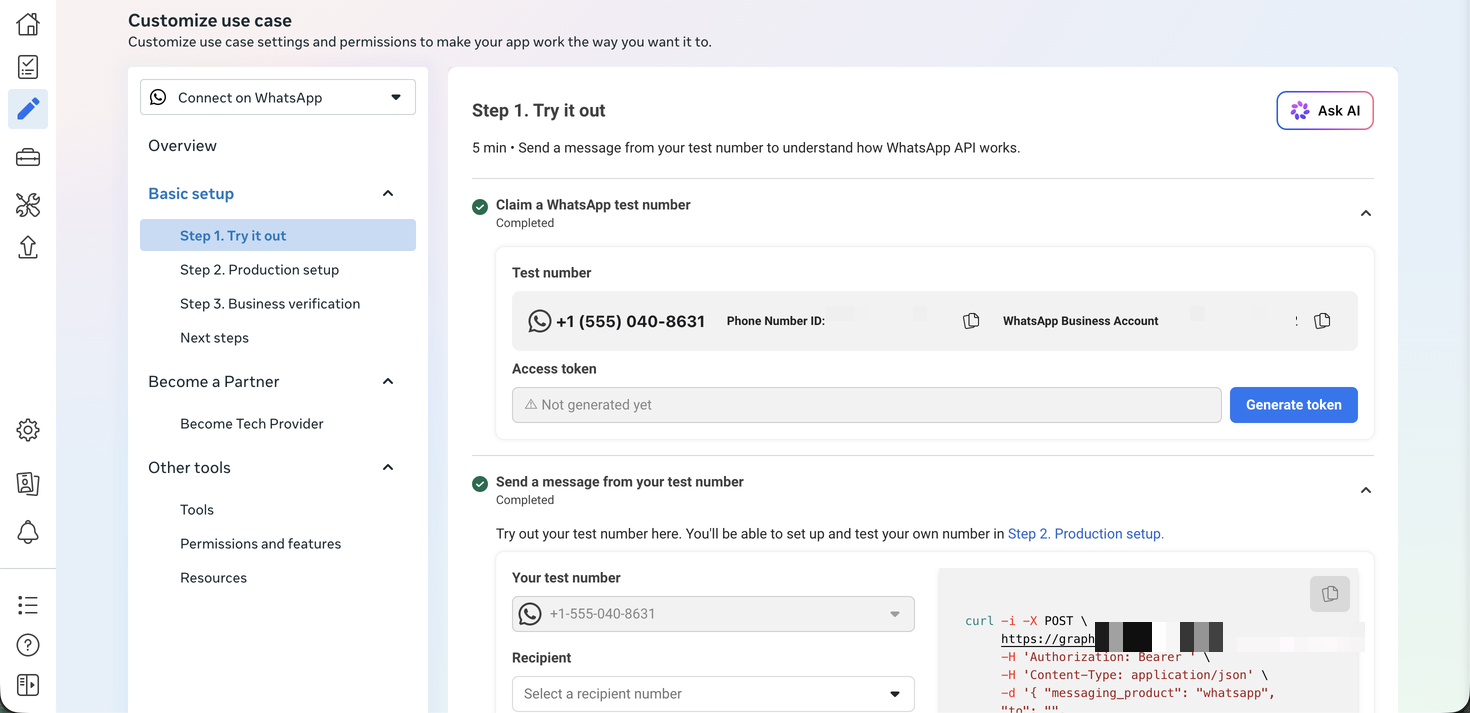
- In the use-case navigation, select Connect on WhatsApp → Basic setup → Step 1. Try it out.
The current page groups the first test into Claim a WhatsApp test number, Send a message from your test number, and Check test webhooks. Older dashboards may show an API setup/getting-started screen with the same number and account values.
2. Inspect the test number and obtain the test token
Expand Claim a WhatsApp test number and follow the claim/setup prompt if it is not already complete. Confirm that a test number and its IDs are shown. The token input initially reads Not generated yet; use Generate token and complete the authorization presented by Meta.

Keep the token private. For the continuing Salesforce integration, follow the System User token guide.
3. Add an agreed test recipient
- In Send a message from your test number, confirm From is the Meta test number.
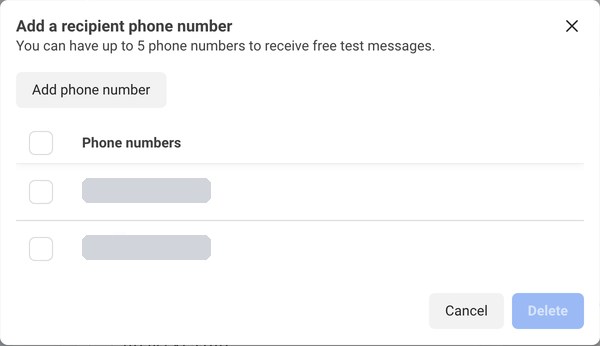
- Open To and choose the option to manage/add a recipient when your test phone is not listed.
- Enter the agreed participant's number and complete the verification Meta requests. The recipient must be able to receive that verification.
- Select the verified recipient in To.
4. Send the dashboard's sample message
Choose the sample message available in the test screen and click Send message. Confirm it arrives in WhatsApp on the selected phone. This establishes the Meta-side test send; it does not yet establish Salesforce receipt processing or record matching.
If the send control is disabled, check that a token and permitted recipient have been selected. If Meta returns an error, read it before continuing to Salesforce. Do not repeatedly regenerate credentials when the error concerns the recipient.
5. Collect each identifier separately
| On Meta's screen | Meaning | Salesforce field |
|---|---|---|
| Test number / production number | The telephone number customers contact | WhatsApp Number, digits only with country code |
| Phone Number ID | Identifier for that specific number | WhatsApp Number Id |
| Messaging account ID / WhatsApp Business Account ID | The WABA containing the number | WhatsApp Account Id |
| App settings → Basic → App ID | The integration app | Meta App Id |

6. Prepare your own number when ready
Continue to Step 2. Production setup to register the intended business number and review payment requirements, then Step 3. Business verification as applicable. Follow the production guide for an existing number or migration. Do not overwrite the test account's identifiers with a mixture of test and production values.
Next: credentials and Salesforce
Create the ongoing access token, then the Connect Account. The Salesforce setup action handles token storage and webhook connection. Complete a separate end-to-end test after the relevant publication requirements are met.