
Testing and activating a template
A new template cannot be sent until it passes two gates: a successful test and an explicit activation. This article walks through both, explains what a failed test does (more than you might expect), and covers the editing lock on active templates.
- You need a saved template — see Creating a template. Its Template Status should read Pending Test.
- If the template uses merge fields, have a record Id of the Applicable Object ready — the test merges against a real record. See Using merge fields.
- Upgraded from an older version? Your template page may show two similar sets of actions — for example both Test Template and Test Connect Template (Deprecated). Always use the ones without "(Deprecated)": Test Template, Activate Template, Deactivate Template. The deprecated twins are older versions kept for continuity.
Step 1 — Run Test Template
- Open the template record.
- Click the Test Template action.
- If Merge Field(s) is ticked, you are prompted for a record to test against — the on-screen text reads:
Provide a 18 character record id of the applicable object to test the template.Paste a record Id of the Applicable Object (copy it from the record's URL). - Run the test.
Expected result (success): the message Template Testing Successful appears, the system-managed Template Testing Date Time field is stamped with the current date and time, and Template Status changes to Pending Activation.

Template Testing Successful. For a merge-field template, have a record Id of the Applicable Object ready.If the test fails, you'll see Template Testing Failed together with the reason (for example Input parameters provided are invalid. when the record Id doesn't match the Applicable Object). Fix the template or the test input and run the test again.
Step 2 — Activate the template
- On the tested template, click the Activate Template action.
Expected result: the message Connect template activated successfully. appears and Template Status changes to Active. The template now appears in the Connect Feed's template picker and in bulk messaging.

Connect template activated successfully. After the toast, Template Status on the record reads Active and the template starts appearing in the feed's template picker.Activation is blocked until the template has a successful test on record:
- Ticking Is Active by hand on an untested template fails the save with the validation error:
Only tested templates can be marked as Active. To test the template use the "Test Template" button on the record. - Running Activate Template on an untested template shows:
Template must be tested prior Activation. - Running it on an already-active template shows:
Template is already Active.
Editing an Active template — you can't
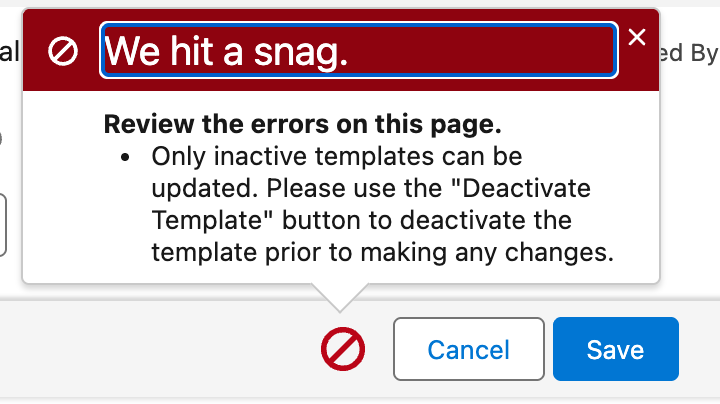
An Active template is frozen. Any edit to any field is rejected with:
Only inactive templates can be updated. Please use the "Deactivate Template" button to deactivate the template prior to making any changes.
The working cycle for changing a live template is therefore:
- Deactivate Template → you'll see
Connect template deactivated successfully.and the status returns to Pending Activation. (Running it on an inactive template showsConnect template is already Inactive.) - Make your edits and save.
- Test Template again — see the rule below.
- Activate Template.
While the template is deactivated, agents cannot pick it and automated sends referencing it will fail — plan edits to live templates outside your messaging peak.
Troubleshooting
| Symptom | Cause | Fix |
|---|---|---|
Template must be tested prior Activation. | No successful test on record | Run Test Template first |
Template Testing Failed + Input parameters provided are invalid. | Missing or wrong-object record Id for a merge template | Test with an 18-character record Id of the Applicable Object |
| Template suddenly shows Pending Test and inactive | A re-test failed — the stamp was cleared and the template deactivated | Fix the body (a field was likely renamed/deleted), re-test, re-activate |
Only inactive templates can be updated. ... when saving edits | The template is Active | Deactivate Template, edit, re-test, Activate Template |
Test succeeded but the customer got raw {{...}} text | Merge Field(s) unticked — the test validated it as plain text | See the merge-field trap |
FAQ
The test calls the template renderer. When merging is enabled, it extracts merge fields, queries the record, substitutes values and applies formatting. A failure in that processing fails the test. It does not validate provider delivery or guarantee future data remains valid. For an end-to-end check, send the activated template to your own number.
No. The test renders the template inside Salesforce only; nothing is delivered to a phone. For a true end-to-end check, send the activated template to your own number from the feed.
Your org upgraded to version 1.93, which replaced these actions with new versions under the same names and relabelled the old ones "(Deprecated)". Both still work, but use the non-deprecated ones; your admin can remove the deprecated actions from the page layout.
Anyone with edit access to the template record — the actions respect your normal object permissions. See Giving your team access.
Where to go next
- Sending your first message — use the newly active template from the Connect Feed.
- Bulk messaging overview — send it to a whole list.
- Using merge fields — if the test failed on merge syntax.