
Installing REDA Connect
REDA Connect installs like any Salesforce managed package: open the install link, sign in to the org you want to install into, and confirm. The installation itself takes a few minutes; afterwards nothing is switched on yet — users get access through permission sets, and messaging starts working only after the setup steps in the Setup roadmap. This article covers the install, what lands in your org, how to verify the installed version, and the one manual step upgrades need.
- You need the System Administrator profile (or the Download AppExchange Packages permission) in the target org.
- Decide which org you are installing into. Install into a sandbox first if you have one — the whole setup can be rehearsed there and repeated in production.
Step 1 — Get your install link, then open it
REDA does not publish install links publicly. Package versions change with every release, and the right link depends on the edition and version you are licensed for — so the link comes to you directly.
- Request the install link for REDA Connect from your REDA account executive, or email support@reda.one. If you have already been onboarded, the link may also be in your onboarding materials. Tell them which org you are installing into (sandbox or production) and they will give you the correct link for your edition and the current release.
- Open that link in your browser.
- Sign in with the username of an administrator of the target org (double-check the org — the install goes wherever you sign in).
Expected result: the package installation page opens, showing the package name REDA Connect and the version being installed.
Step 2 — Choose "Install for Admins Only" and confirm
- On the install page, select Install for Admins Only. This is the recommended option: it grants nothing to regular users at install time, and you give your team access deliberately afterwards, through the packaged permission sets — see Giving your team access.
- If Salesforce asks you to approve access to third-party websites, tick the approval box and continue. These are the messaging providers' addresses (
api.twilio.comfor Twilio andgraph.facebook.comfor WhatsApp) that the package registers so your org can call them. - Click Install and wait. Large packages sometimes finish in the background — if you see "This app is taking a long time to install", you will get an email when it completes.
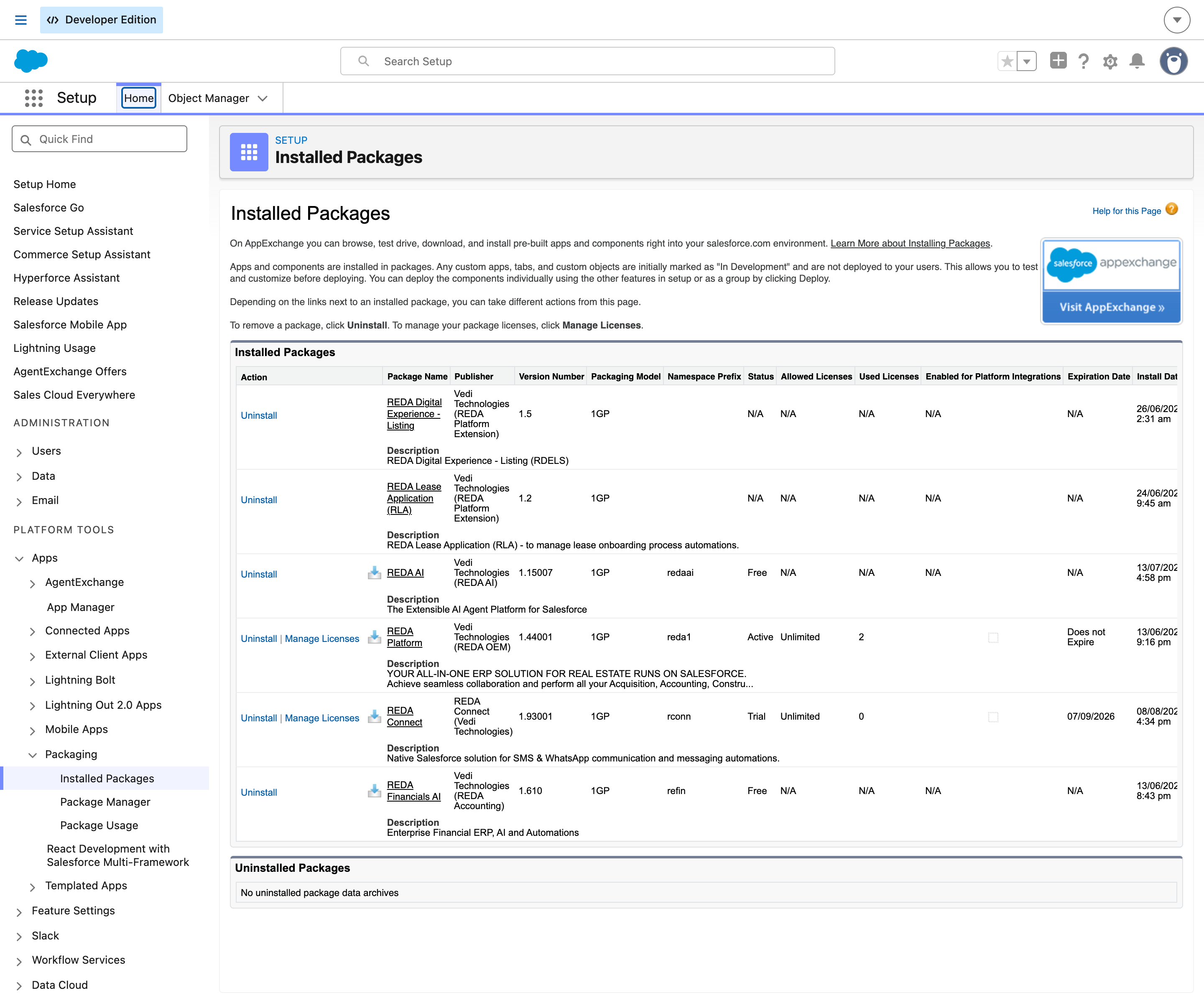
Expected result: an "Installation Complete!" confirmation on screen (or by email), and REDA Connect appears under Setup → Installed Packages.
Step 3 — Verify the installed version
- In Salesforce, click the gear icon (top right) and choose Setup.
- In the Quick Find box, type
Installed Packagesand click Installed Packages under Apps → Packaging. - Find the row named REDA Connect and check its Version Number.
Expected result: REDA Connect is listed with version 1.93 or later. This documentation set is verified against 1.93 — if your version is older, upgrade before following these articles.
What gets installed
The following components are installed together inside your Salesforce org. Messaging also requires configuration of the external Meta or Twilio service used by your channel:
| Component | What it is |
|---|---|
| The REDA Connect app | An app in the App Launcher with tabs for the Connect Feed, Connect Messages, Connect Conversations, Connect Accounts, Connect Templates, Chat Scripts, Connect Logs, plus Reports and Dashboards |
| 9 objects | Connect Account, Connect Account Config, Connect Message, Connect Template, Chat Script (and its steps and actions), Connect Conversation, Connect Log |
| Fields on standard objects | Opt-out checkboxes on Lead and Contact, per-user preference fields on User |
| 3 permission sets | REDA Connect Admin, REDA Connect User, REDA Connect User - Read Only — see Giving your team access |
| 6 reports + 1 dashboard | Ready-made messaging analytics in the REDA Connect folder, including the Connect Messaging - Summary dashboard |
| 2 Remote Site Settings | For api.twilio.com and graph.facebook.com. A third one is required but deliberately not installed — see The Remote Site Setting WhatsApp media needs |
| Automation and settings | The flows, scheduled processing and seeded configuration values that make messaging run — no assembly required |
Upgrading from an earlier version
Upgrades install over the existing package with the same link and keep all your data and configuration. Two things to check after upgrading to 1.93 or later:
-
Swap the "(Deprecated)" quick actions. Version 1.93 replaced five quick actions with modernised versions that keep the familiar names; the old ones remain but are now labelled "(Deprecated)". Salesforce does not change your existing page layouts on upgrade, so layouts you have customised may still carry the old buttons. On each layout, remove the deprecated action and add its replacement:
Where (Object Manager → object → Page Layouts) Remove Add instead Connect Template Test Connect Template (Deprecated) Test Template Connect Template Activate Template (Deprecated) Activate Template Connect Template Deactivate Template (Deprecated) Deactivate Template Connect Account Update WhatsApp Auth Token (Deprecated) Update WhatsApp Auth Token Connect Account Update SMS API Tokens (Deprecated) Update SMS API Tokens The replacements run the same logic and show the same messages — only the buttons need swapping.
- Note the two Connect Feed tabs. 1.93 introduced a rebuilt Connect Feed. The tab named Connect Feed is the current one; the old tab is now labelled Connect Feed (Deprecated) and is reachable only from the App Launcher, kept so old bookmarks still work. Point your team at the current tab, and when placing the feed on pages in Lightning App Builder, always pick the component without "(Deprecated)" in its name — see Adding the feed to a record page.
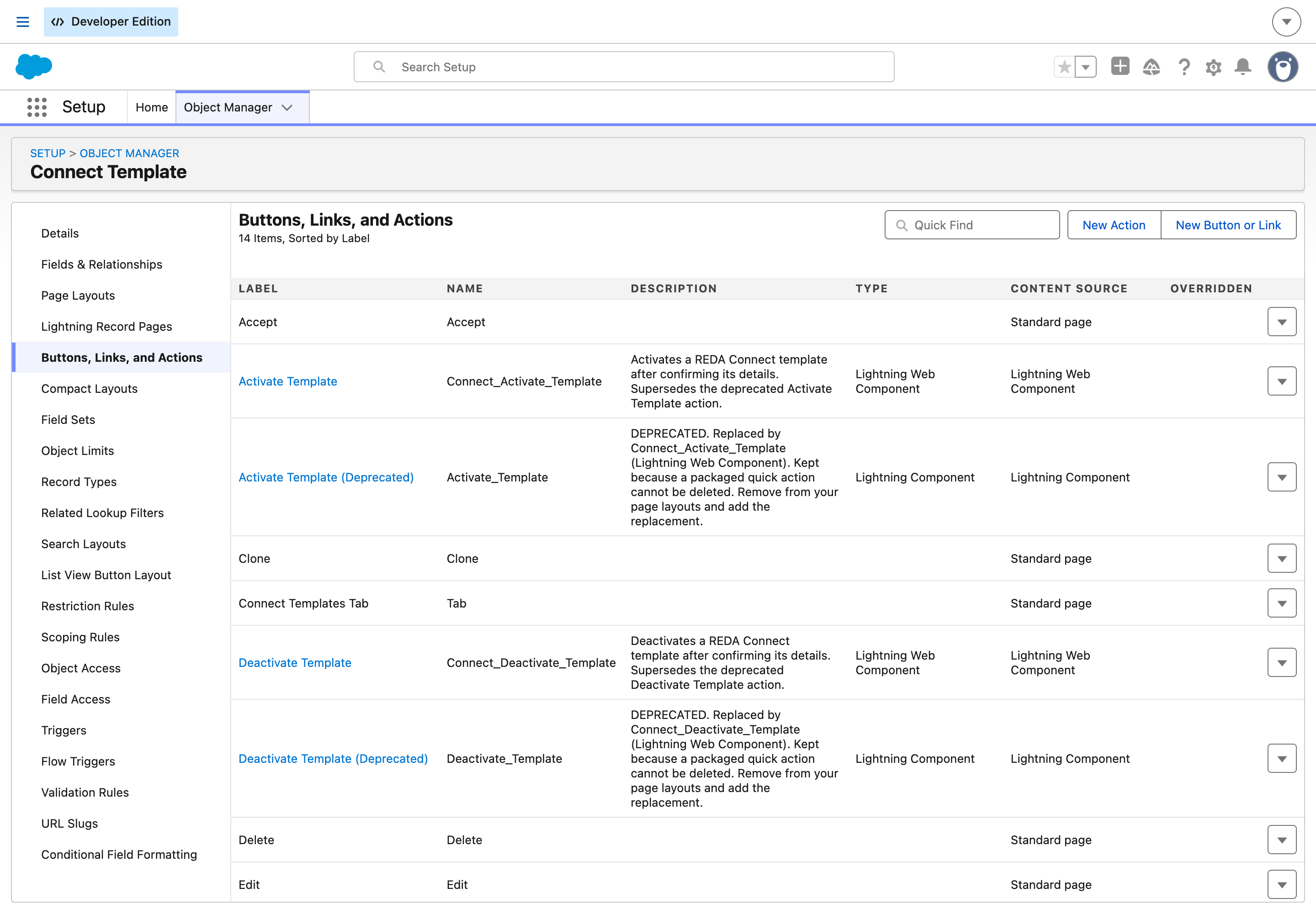
Connect_ prefix on its API name, the retired one is a Lightning Component without it. The shipped description says why both still exist — “a packaged quick action cannot be deleted” — so the retired ones stay in this list forever and it is your page layouts that need changing, not the object.FAQ
No — "Install for Admins Only" is the recommended choice. The packaged permission sets are the intended way to grant access, they are finer-grained (admin / user / read-only), and they keep the install reversible without touching profiles.
With "Install for Admins Only", no. Users see nothing until you assign them a REDA Connect permission set.
Yes, and it's recommended. The same install link works for sandboxes and production. Remember that sandbox setup (Site, webhooks, provider credentials) is separate from production's.
Setup → Installed Packages → Uninstall next to REDA Connect. Salesforce blocks the uninstall while components are still in use (for example, the feed still placed on your pages) and deletes the package's data with it — export anything you need first.
Where to go next
- Giving your team access — assign the permission sets so people can actually see the app.
- Setup roadmap — install to first message — the full ordered checklist that starts where this article ends.
- Creating the public Site for incoming messages — the first hands-on setup step after installing.