
Verifying your SMS connection
Everything is configured — now prove it. This article runs one message in each direction and tells you exactly what you should see at every stage. Twenty minutes from now you either have working two-way SMS, or you know precisely which earlier step to revisit.
- [ ] Twilio account with an SMS-capable number — What you need before connecting SMS
- [ ] Public Site created, guest access granted — Creating the public Site
- [ ] SMS Connect Account saved, tokens stored via the action, Is Active ticked — Creating the SMS Connect Account
- [ ] The number's "A message comes in" webhook points at your Site address — Connecting the Twilio webhooks
- [ ] A test record (Contact or Lead) whose phone field holds your own mobile number in digits-only international format (e.g.
14155550123) — see How to enter phone numbers - [ ] On a Twilio trial: your mobile number is verified in the Twilio console
Step 1 — Send the outbound test
- Open your test Contact or Lead and open its Connect Feed (or use the feed in the utility bar). Full walkthrough: Sending your first message.
- Choose the SMS channel and, if prompted, your SMS Connect Account.
- Type a short message —
REDA Connect SMS test— and send.
Expected result: the message appears in the feed immediately, and your phone buzzes within a few seconds. On a trial account the text arrives with Twilio's trial notice (wording like "Sent from your Twilio trial account") in front of your message — that's normal and disappears when you upgrade.

Step 2 — Watch the status climb
Open the message (or watch its status in the feed). A healthy SMS walks up this ladder:
Queued → Sent → Delivered
- Queued (sometimes Accepted or Sending) — Twilio has taken the message.
- Sent — Twilio handed it to the carrier.
- Delivered — the carrier confirmed delivery to the handset.
The steps after Queued arrive via the SMS Status Callback URL — so this ladder is itself a test: if your message reaches your phone but the status never moves past Queued or Sent, the callback isn't coming back (see the failure table below). Statuses in full detail: Understanding delivery statuses.
Step 3 — Reply from your phone
- Reply to the received SMS from your phone:
Reply test. - Watch the Connect Feed on your test record.
Expected result: the reply appears in the feed within a few seconds, as an inbound message with status Received, threaded on the same record.
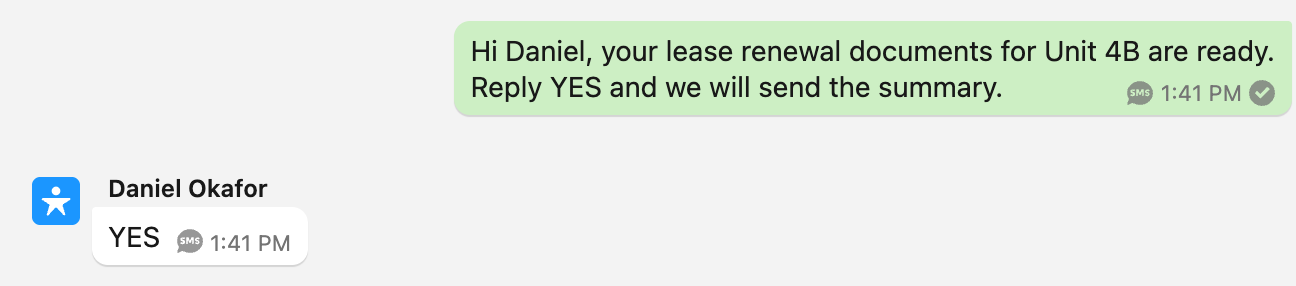
The two-way checklist — you are done when…
- [ ] Outbound message reached your phone
- [ ] Its status reached Delivered in Salesforce
- [ ] Your reply appeared in the Connect Feed on the right record
- [ ] No Failed messages sit in the Failed Messages list view (App Launcher → Connect Messages → list view Failed Messages)
All four boxes ticked = your SMS channel is live. On a trial account, remember the reach restriction: until you upgrade, only verified numbers receive your messages.
Common first-test failures
| Symptom | Likely cause | Fix |
|---|---|---|
| Message Failed immediately; error mentions the recipient being unverified, or permissions | Trial-account restriction — the To number isn't verified in Twilio | Verify the number in the Twilio console, or upgrade the account — prerequisites |
| Status reaches Sent or even Delivered but nothing arrives, or Undelivered — often only for some carriers | Unregistered sender — carrier filtering of unregistered traffic (e.g. US A2P 10DLC) | Complete sender registration — prerequisites, section 3 |
Message Failed with an invalid-number style error, or the error text shows a number starting ++ | Phone format — a + or separators stored in the record's phone field or in SMS From Number | Store digits-only international everywhere — phone number formats |
| Message Failed with an authentication or not-found error from Twilio | Wrong endpoint SID — the SMS Production API Endpoint contains someone else's (or a mistyped) Account SID, or tokens were typed into the fields instead of the Update SMS API Tokens action | Rebuild the URL and re-run the action — Creating the SMS Connect Account, Steps 4 and 6 |
Save of the message is blocked with Recipient has opted out of receiving SMS Messages. | The test Lead/Contact has the SMS opt-out flag ticked | Untick Opt Out (REDA Connect - SMS) on the record — see Consent and opt-out |
| Delivered to the phone, but status stuck at Queued/Sent | Callback URL wrong or missing its trailing / | Fix SMS Status Callback URL — Creating the SMS Connect Account, Step 5 |
| Reply from the phone never appears in Salesforce | Webhook direction broken | Work through Connecting the Twilio webhooks troubleshooting |
For anything else, the message's Error Message field carries the exact reason, and Twilio's own log at Twilio Console → Monitor → Logs → Messaging shows each message from Twilio's side . Deeper guides: A message isn't sending and An incoming message didn't arrive.
FAQ
No — REDA Connect SMS is text-only in both directions. An incoming picture creates a Failed message with the error "Inbound media messages are not supported currently for Twilio." Use WhatsApp for media — What you can send on each channel.
Seconds, normally. Delivery receipts can lag by a minute or two on some carriers. If nothing has moved in ten minutes, treat it as a failure and use the table above.
Two-way transport is working — that's this article's success condition. Which record an inbound message lands on is controlled by object configuration; see Inbound record matching.
You can leave them — they're real Connect Messages and harmless. If you delete the test records, note that messages linked to them stay in the global feed.
Where to go next
- Using a Twilio Messaging Service — optional extras: sender pools, sticky sender, advanced opt-out.
- Object configuration overview — control which records inbound messages attach to, and enable messaging on more objects.
- Sending your first message — the full messaging walkthrough for your users.