
Set up Instagram with Facebook login
Bring messages sent to your Instagram professional account into the Salesforce Connect Feed. REDA Connect 1.94000 uses Instagram API with Facebook login: your Instagram account is linked to a Facebook Page, and the setup action derives the Page token and discovers the linked Instagram account. Meta navigation was checked on 10 October 2026.
Meta also offers API setup with Instagram login. That screen has a separate Instagram App ID, secret, token and webhook configuration. Do not copy those credentials into this REDA Connect setup. Use the Meta app's App settings → Basic secret and its Page-linked Instagram webhook.
1. Check the professional account and Page
- The Instagram account must be a Business or Creator account.
- It must be linked to the Facebook Page used by your Connect Account.
- The administrator must have access to the Page, professional account, business portfolio and Meta app. Check the actual assets, even when they have similar names.
- Complete the app and Page foundation in Facebook Messenger setup. You may use Instagram without enabling the Facebook Messenger channel for agents, but the Page-linked foundation is still required.
In Meta Business Suite → Settings, check Accounts → Pages and Accounts → Instagram accounts. Meta's current linking guidance requires the professional account and Page in the same portfolio and full control of the Page. Coordinate with the asset owner if the account belongs to a different portfolio; do not create a duplicate account to work around missing access.
2. Link Instagram to the Page
Meta's current mobile route is through the professional Instagram profile:
- Open your business's Instagram profile and choose Edit profile.
- Under Public business information (Business accounts) or Profile information (Creator accounts), select Page.
- Choose Connect or create, then continue to Facebook login.
- Confirm the Facebook login that has access to the intended Page; switch accounts if needed.
- Select that Page and connect it. Return to the profile and confirm the displayed Page is correct.
Expected result: the professional profile is associated with the business Page. Linking personal profiles in Accounts Center is not a substitute for this Page association. See Meta's current Page-linking instructions.
3. Allow connected tools to access messages
On the professional Instagram account, open Settings → Messages and story replies → Message controls → Connected tools and enable Allow access to messages. Menu wording can vary by Instagram app version; look for the connected-tools message-access setting. This is separate from simply linking the Page.
Expected result: connected business tools can access the professional account's messages. If an account owner manages this setting on their phone, ask them to confirm it there before retesting inbound messages.
4. Select the correct API setup in the Meta app
- Open the intended app in Meta for Developers.
- Under Use cases, add or customize Manage messaging & content on Instagram.
- In the Instagram API navigation, choose API setup with Facebook login.
- Under Send messages on Instagram, inspect the messaging permissions, then use Go to permissions and features to manage access.

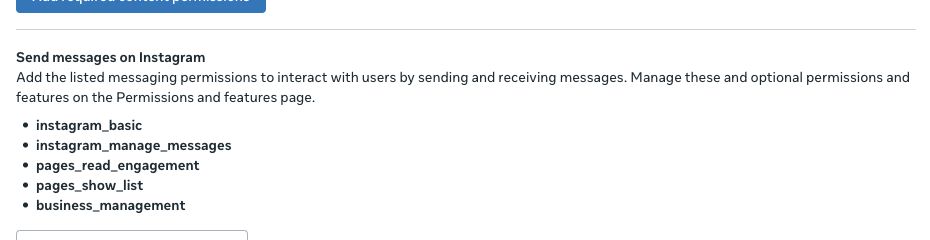
The Facebook-login messaging flow uses instagram_basic, instagram_manage_messages, pages_read_engagement, pages_show_list and the portfolio access required by Meta, shown here as business_management. Page subscription also uses pages_manage_metadata. If you enable Messenger too, include pages_messaging. See tokens and asset assignments.
5. Save credentials and discover the Instagram account
- In Salesforce, open the Connect Account for this app and Page. Confirm Meta App Id and Meta Page Id.
- Click Set Up Messenger and Instagram.
- Provide the User/System User token with access to the Page and linked Instagram account, and the Meta app's App Secret. Click Verify and Save.
- Review the resulting Page and Instagram account information. The action fills Instagram Account Id from the Page's linked professional account.
- If no Instagram account is found, recheck the Page link, asset assignments and permissions. Do not substitute an Instagram username or the separate Instagram-login App ID.
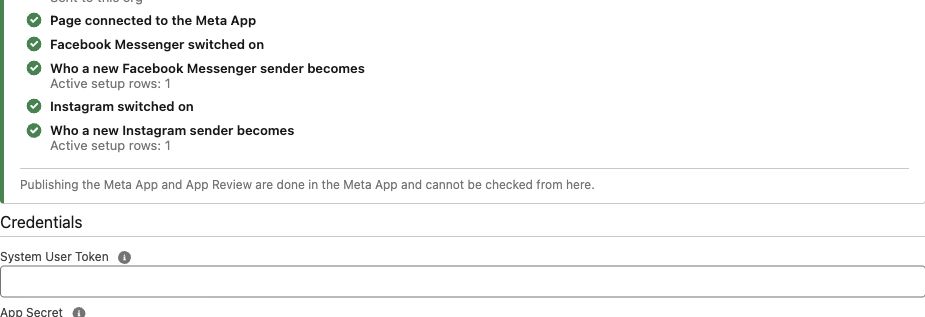
If Messenger is already working, retain its configuration. Obtain a token covering the additional Instagram permissions and assets, save it through the same action, then check both channels again.
6. Configure Salesforce record matching and webhooks
- Add an active Instagram Connect Account Config row. For a Lead, use
rconn__Instagram_ID__cas Channel Identity Field; choose the default new-record mapping as described in the Salesforce configuration guide. - In the setup action, confirm the public Site callback and click Connect Webhooks. Review any existing-destination conflict before choosing Replace.
- On the account, select Instagram in Messaging Channels and confirm Is Active.
- Return to setup and click Check again. Confirm the Instagram account, Instagram webhook, Page connection, channel activation and active configuration rows.
The Instagram webhook belongs to the Instagram object on the Meta app's Webhooks page for this Facebook-login route. It is not the webhook section within “API setup with Instagram login”. See manual webhook inspection if you need to compare destinations.
7. Test Instagram separately from Messenger
- Use a separate eligible test account to open the professional profile and send a direct message. Ensure the account is permitted by the app's development/test setup; do not assume a random personal account can test an unpublished app.
- Filter the Salesforce Connect Feed to Instagram. Check the text and the matched or newly created record.
- Reply within 24 hours of the customer's message and verify the reply in Instagram. Check the send result and read update where Meta supplies it.
- For file workflows, send a small JPEG or PNG into Salesforce, then send one back. If PDF is required, include it in your own acceptance test. The Instagram picker supports JPEG, PNG and PDF, with REDA Connect's 4.4 MB limit; Meta can still reject a particular upload.
New-sender creation can use the profile name, username and an Instagram profile URL through the configured placeholders. Existing matches keep their existing record mapping. Missing profile information does not prevent message creation; see default values and fallbacks.
8. Make the channel available to customers
Complete the permissions, App Review and publishing requirements shown for the app. Development-role success is only a development test. Use the go-live sequence, then test with an agreed participant outside the app's development roles. Do this independently for Instagram even if Messenger is already working.
If nothing arrives, check the route, Page association, message-access setting, account permissions and app availability in that order using Meta setup troubleshooting.
Official reference: Meta: Instagram API with Facebook login.