
Creating the SMS Connect Account
A Connect Account is the record in Salesforce that holds everything REDA Connect needs to send and receive messages on one channel — for SMS, that means your Twilio credentials, your Twilio phone number, the web address REDA Connect calls to send messages, and the web address Twilio calls back with delivery receipts. This article configures the SMS channel field by field, including the two details that cause almost every failed first setup: the endpoint URL must embed your own Account SID, and the From number must be digits only.
- Your three Twilio values are collected — see Getting your Twilio credentials.
- Your public Site exists and you know its address — see Creating the public Site for incoming messages.
- You know your Twilio phone number.
- If Connect Accounts are entirely new to you, read What is a Connect Account? first. This article works both for a new account and for adding SMS to an existing WhatsApp account — the fields are the same.
Step 1 — Open or create the Connect Account
- Open the App Launcher (the nine-dot grid, top left), search for Connect Accounts, and open the tab.
- Either click New, or open the existing account you want to add SMS to. (For the generic create walkthrough, see Creating a Connect Account.)
- In Messaging Channels (a required multi-select), move SMS to the chosen list. If the account also does WhatsApp, keep WhatsApp selected too — one account can carry both.
Step 2 — Fill in the SMS fields
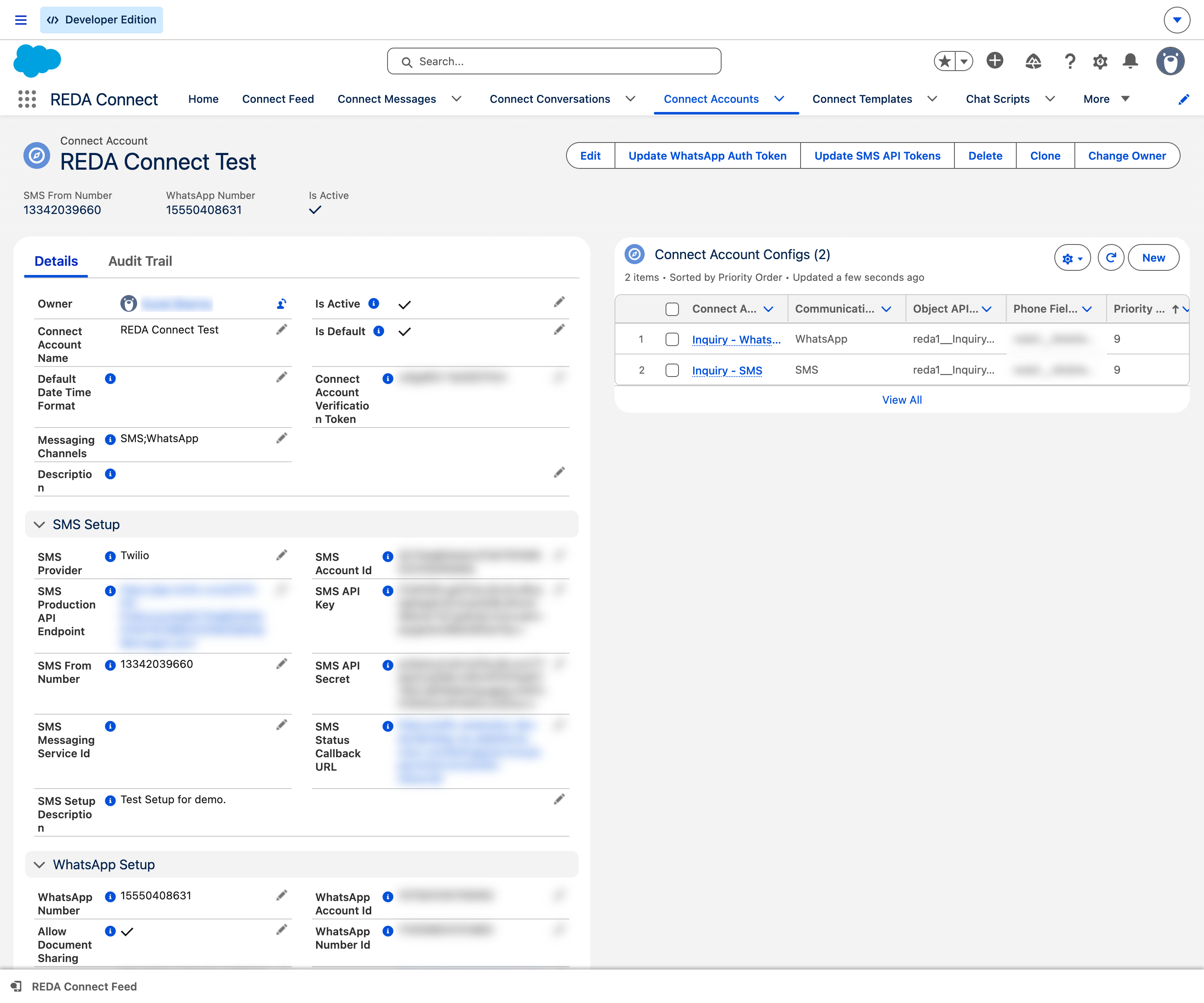
Every SMS field on the record, in the order you should think about them. Labels are exactly as they appear on screen; the "What to enter" column is your instruction.
| Field label | What to enter |
|---|---|
| Connect Account Name | Any recognisable name, e.g. Acme Rentals SMS. |
| SMS Provider | Leave as Twilio (the default and only choice). On-screen help: "Choose SMS Service provider for this Connect Account. Please note that the SMS integration setup is dependent on SMS Service provider." |
| SMS From Number | Your Twilio number, digits only, with country code, no + and no spaces — see Step 3. |
| SMS Account Id | Your Twilio Account SID (starts with AC). On-screen help: "Provide SMS Account Id created at SMS provider end. Used to identify Connect Account for inbound messages." |
| SMS Production API Endpoint | The Twilio Messages URL with your Account SID embedded — see Step 4. |
| SMS Status Callback URL | Your Site address + the fixed path, ending in / — see Step 5. |
| SMS API Key | A temporary placeholder on first save — see Step 6. Never paste the real key here directly. |
| SMS API Secret | A temporary placeholder on first save — see Step 6. Never paste the real secret here directly. |
| SMS Messaging Service Id | Leave blank unless you use a Twilio Messaging Service — see Using a Twilio Messaging Service. |
| SMS Setup Description | Optional notes for future admins ("Key rotated 2026-08, registered campaign XYZ"). |
| Is Active | Leave unticked until Step 7. On-screen help: "Only active accounts can be used to send and receive messages." |
| Is Default | Tick if this should be the fallback account when nothing more specific applies — see Default accounts and routing order. |
Step 3 — The From number: digits only, international
REDA Connect matches and dials phone numbers in exactly one format: country code + number, digits only — no +, no spaces, no dashes. Remove a national prefix only where the country’s international format requires it; keep significant zeros. For a US number (222) 333-4444 enter 12223334444; for an Indian number enter 918888888888.
The field's own help text says the same: "Provide the SMS Number for the Connect Account. The number must be provided in the following format: \<Country ISD Code\>\<Number\>. The number must not contain any special characters and spaces."
A stored + actively breaks sending — REDA Connect adds the + itself when it talks to Twilio, so a stored +14155550123 goes out as ++14155550123 and fails. The same digits-only rule applies to every phone number REDA Connect touches, including the customer phone fields on your records — the full explanation is in How to enter phone numbers.
Step 4 — The endpoint URL embeds YOUR Account SID
SMS Production API Endpoint is the web address REDA Connect calls to send each SMS. For Twilio it is always this shape — with your own Account SID in the middle:
https://api.twilio.com/2010-04-01/Accounts/<your Account SID>/Messages.jsonWorked example. Your Account SID (from Getting your Twilio credentials) is AC0123456789abcdef0123456789abcdef. Then you enter:
https://api.twilio.com/2010-04-01/Accounts/AC0123456789abcdef0123456789abcdef/Messages.jsonBuild it by pasting the template into a text editor and replacing only the <your Account SID> part — keep Accounts/ before it and /Messages.json after it exactly as shown. A copied example from someone else's setup will send their SID and fail authentication — this is one of the most common first-test failures.
Step 5 — The status callback URL (trailing slash matters)
SMS Status Callback URL is where Twilio reports delivery receipts (Sent, Delivered, and failures) back to your org. It is your Site address plus a fixed path:
https://<your-site-domain>/services/apexrest/rconn/twilio-inbound/If your Site was created with a path suffix (for example reda), it goes right after the domain:
https://<your-site-domain>/reda/services/apexrest/rconn/twilio-inbound/This is the SMS webhook address from Step 4 of Creating the public Site for incoming messages — the same address you will also give Twilio in the next article.
Two rules:
- A new record pre-fills the field with
<SITE-URL>/services/apexrest/rconn/twilio-inbound/— the literal text<SITE-URL>is a placeholder you must replace with your real Site address. - Keep the trailing
/. REDA Connect extends this address per message when it asks Twilio for delivery receipts; without the final slash the receipts arrive but are never recognised, and your messages stay stuck at Queued or Sent forever.
Step 6 — First save: placeholders, then the real tokens
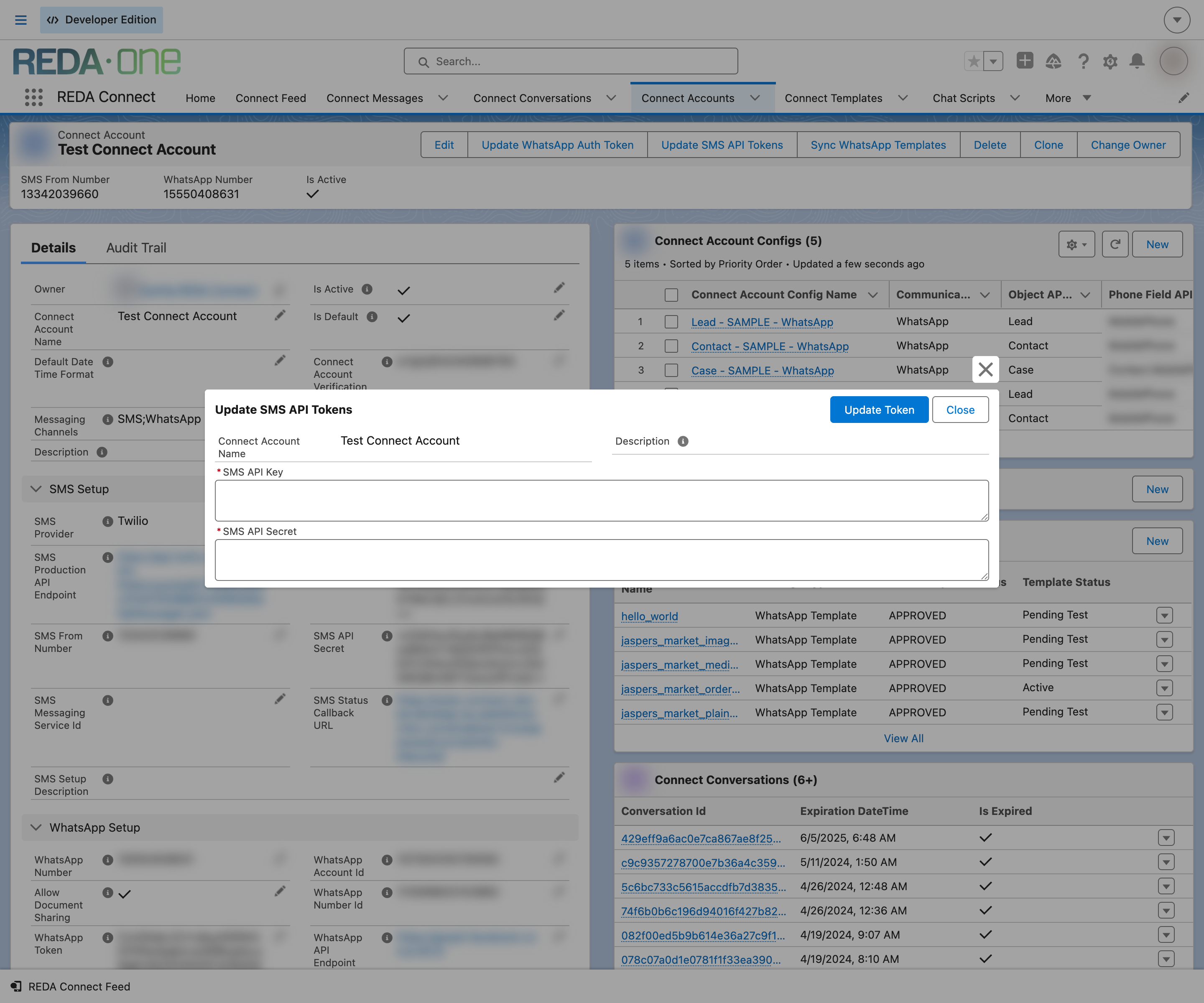
The SMS API Key and SMS API Secret fields store their values encrypted, and the encryption only happens when the values go in through the dedicated action — never by typing into the fields. Both fields' on-screen help says: "Do not update directly. Use the "Update SMS API Tokens" button to update the value."
But the record also refuses to save with those fields empty. So the first save is a two-step dance:
- Enter a short throwaway value (e.g.
TEMP) in SMS API Key and SMS API Secret, and click Save. - On the saved record, click the Update SMS API Tokens action (in the record's action buttons — use the one without "(Deprecated)" in its name), paste your real API key SID and Secret from Getting your Twilio credentials, and confirm.
Expected result: the toast API tokens updated successfully. appears. The fields now show long encrypted strings — that is correct, and you will never see your real values on this record again. Full background: Updating your API tokens safely.
If you try to save with any required SMS value missing, the record is blocked with exactly this message:
You must provide value to the following fields:
SMS API Endpoint,
SMS API Key,
SMS API Secret,
SMS Provider,
SMS From Number
(The first line refers to the field labelled SMS Production API Endpoint on screen.)
If the account also has WhatsApp in Messaging Channels and its WhatsApp fields aren't complete yet, the equivalent WhatsApp check blocks the save with:
You must provide value to the following fields:
WhatsApp API Endpoint,
WhatsApp Auth Token,
WhatsApp Number,
Either complete the WhatsApp fields (see Creating the WhatsApp Connect Account) or remove WhatsApp from Messaging Channels until you're ready for it.
Step 7 — Activate the account
Edit the record, tick Is Active, and save. Only active accounts can send or receive — an inactive account is also invisible to incoming-message matching, so replies would be dropped with an error in the logs.
Expected result: the account appears in the Active Connect Accounts list view.
Troubleshooting
| Symptom | Cause | Fix |
|---|---|---|
| Save blocked with "You must provide value to the following fields: SMS API Endpoint, …" | One of the five required SMS values is blank | Fill it — for Key/Secret use a placeholder, then Step 6 |
| Save blocked with the WhatsApp fields message | WhatsApp is selected in Messaging Channels but not configured | Complete WhatsApp setup or deselect the channel for now |
| First test message fails with an authentication error | Wrong Account SID in the endpoint URL, or tokens typed into the fields instead of via the action | Rebuild the URL (Step 4); re-run Update SMS API Tokens (Step 6) |
| Messages stay at Queued/Sent, ticks never update | SMS Status Callback URL missing the trailing /, or still contains <SITE-URL> | Re-enter it per Step 5 |
FAQ
Yes — select both in Messaging Channels and complete both field groups. Many orgs prefer one account per channel purely for clarity; both patterns work.
All three credentials: Getting your Twilio credentials. The Site address: Creating the public Site. The phone number: your Twilio console under Phone Numbers → Manage → Active numbers.
Values typed directly are stored as-is, unencrypted and unusable — sending will fail authentication. The Update SMS API Tokens action is what encrypts and stores them correctly.
No — the permission for your org to call api.twilio.com (a Remote Site Setting) ships with the package.
One Connect Account per From number. Use Is Default and object configuration to route which account each team or object uses — see Default accounts and routing order.
Where to go next
- Connecting the Twilio webhooks — tell Twilio where to deliver incoming SMS: the other half of two-way messaging.
- Verifying your SMS connection — the end-to-end test once the webhook is in.