
Creating your Meta app
A Meta app identifies the integration that connects your business messaging assets to REDA Connect. It contains the channel use cases, permissions and webhook subscriptions. This guide covers the app foundation for WhatsApp, Messenger and Instagram; the creation screens were checked on 10 October 2026.
Before you start
Confirm the correct business portfolio and assets, and use a Facebook login with administrator access. If a suitable app already exists, inspect its use cases, access and callback destinations before creating a duplicate. A different Meta app requires its own Connect Account; the enabled Meta channels on one Connect Account share its App ID.
1. Register as a developer
- Open Meta for Developers and sign in.
- If this is your first visit, complete Meta's developer registration and required account verification.
- Open My Apps.
Expected result: you can see the Apps page and Create App. If your business app is already listed, open it and check its portfolio before proceeding.
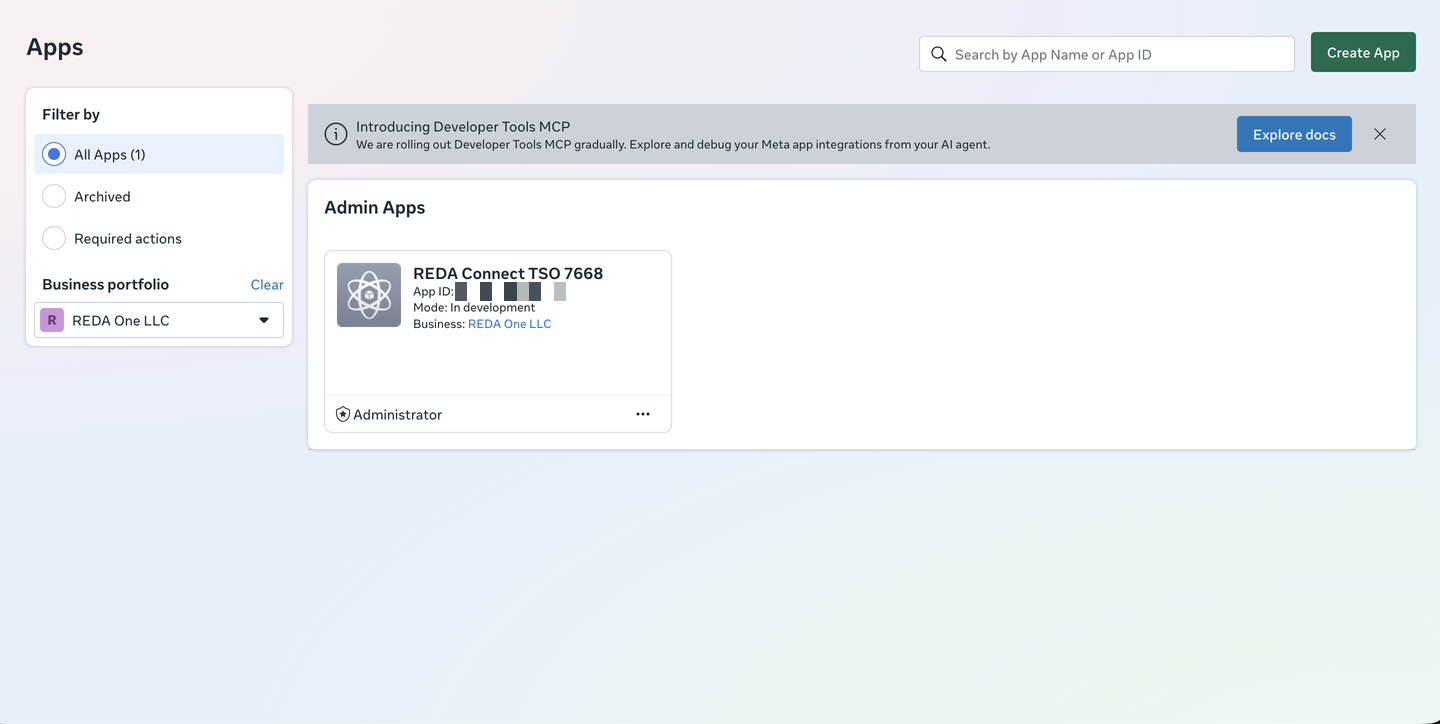
2. Complete the creation wizard
- Click Create App. The current wizard uses App details → Use cases → Business → Requirements → Overview.
- Enter a recognizable App name and a monitored App contact email. Click Next.
- In Use cases, filter to Business messaging. Choose the appropriate use case below.
- In Business, select the portfolio that will own/manage these assets. If it is absent, resolve portfolio access before selecting an unrelated business.
- Complete the requirements and overview shown by Meta, then create the app.
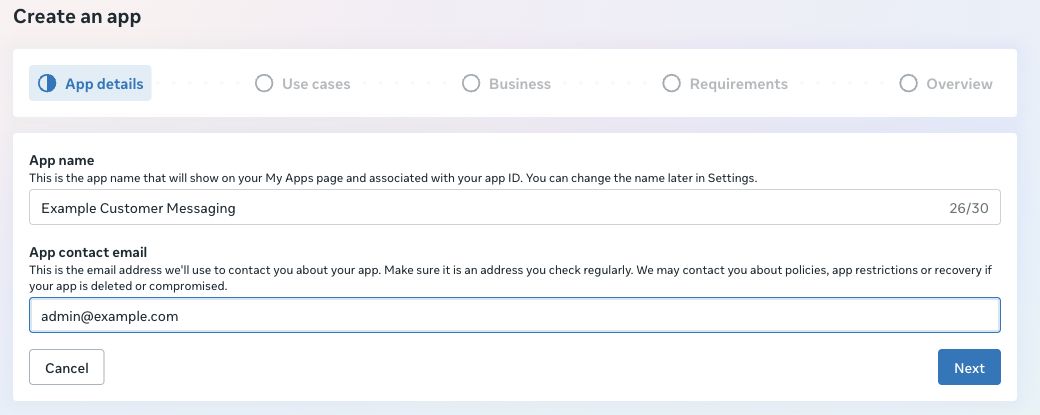
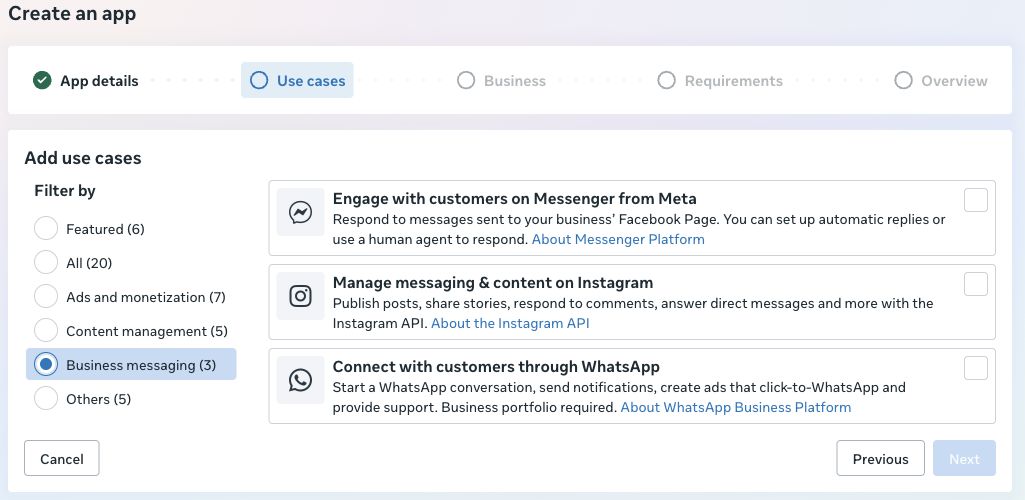
| Intended channel | Use case | Next setup page |
|---|---|---|
| Connect with customers through WhatsApp | Connect on WhatsApp → Basic setup | |
| Facebook Messenger | Engage with customers on Messenger from Meta | Messenger from Meta → Messenger API Settings |
| Manage messaging & content on Instagram | Instagram API → API setup with Facebook login |
Expected result: the app dashboard lists its use cases and setup requirements. On an existing app, use Add use cases where available to add the intended messaging capability.
3. Find App ID and App Secret
Open App settings → Basic. Copy the App ID; for Messenger/Instagram, use Show beside App Secret when ready to supply it to the Salesforce setup action.
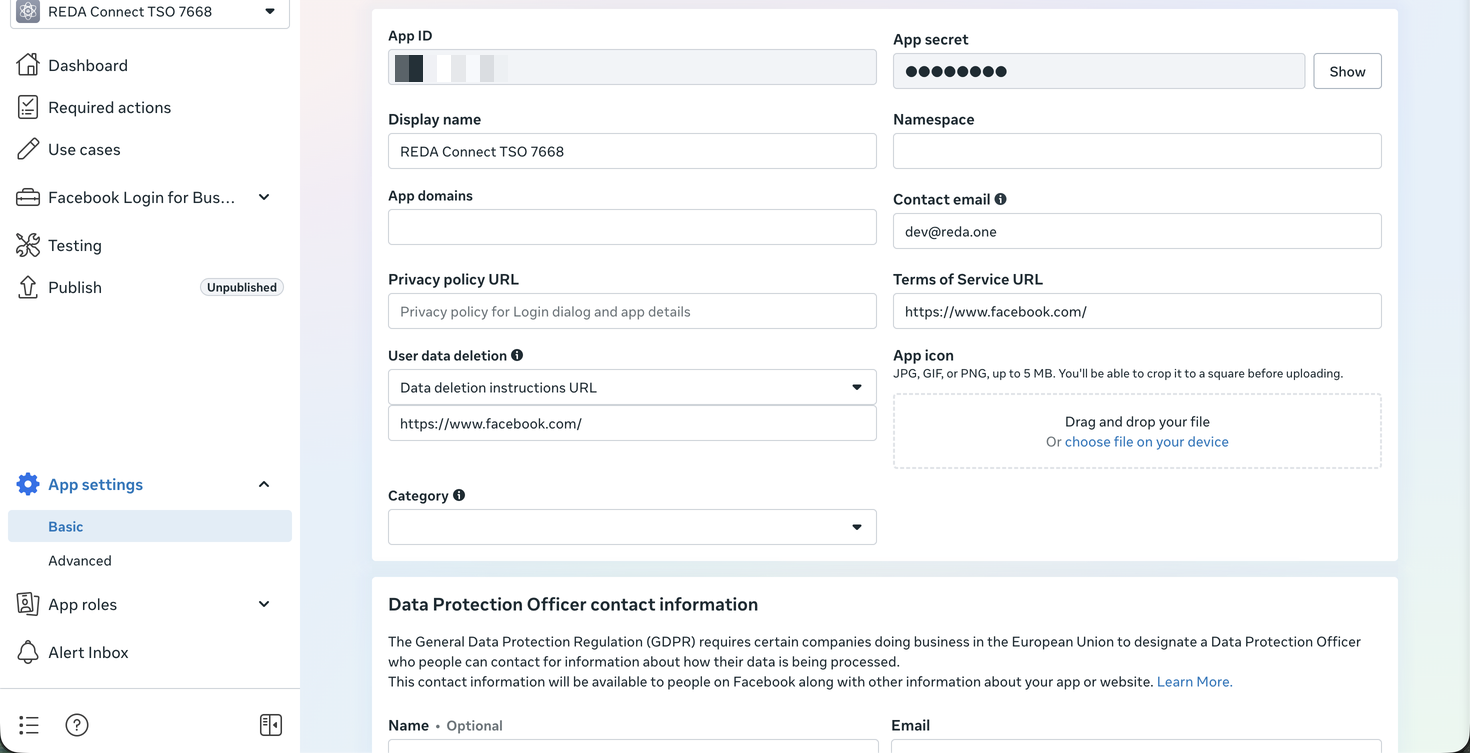
In version 1.94000, Meta App Id is used by the setup and shared Meta configuration and appears on the packaged administrator layout. If you use a custom layout, add the existing field.
4. Understand testing and publishing
A new app begins unpublished. Complete the channel setup before customer launch, but follow the channel's actual testing restrictions:
- WhatsApp: the current production setup warning says unpublished apps receive dashboard test webhooks only, with no production deliveries even for app-role users.
- Messenger: the setup screen permits development testing with administrators, developers and testers. Review/access and publishing are needed before general customer use.
- Instagram: use the Facebook-login route and its test access; complete the appropriate permissions/review and publication before customer availability.
Follow the channel-specific verification and go-live checklist. Do not assume publishing one use case proves another channel is correctly configured.