
Getting your Twilio credentials
REDA Connect authenticates to Twilio with exactly three values: your Account SID, an API key SID, and that key's Secret. This article shows where each one lives in the Twilio console, how to create the API key (its Secret is shown once, so this is the step people get wrong), and which REDA Connect field each value will go into. Collect all three now — the next article uses them.
- You need a Twilio account — see What you need before connecting SMS.
- Have a password manager or secure note ready. One of the three values cannot be viewed again after creation.
The three values and where they land in REDA Connect
| Twilio value | Looks like | Where you'll enter it in REDA Connect |
|---|---|---|
| Account SID | AC followed by 32 characters | The SMS Account Id field, and embedded inside the SMS Production API Endpoint URL |
| API key SID | SK followed by 32 characters | The SMS API Key field (via the Update SMS API Tokens action) |
| API key Secret | A long random string, shown once | The SMS API Secret field (via the Update SMS API Tokens action) |
You'll do the actual entering in Creating the SMS Connect Account — this article is only about collecting the values safely.
Step 1 — Copy your Account SID
The Account SID is your Twilio account's public identifier. It is not a secret, but REDA Connect needs it in two places, so copy it exactly.
- Log in at console.twilio.com.
- On the console home page, find the Account Info panel — it shows Account SID, Auth Token, and your Twilio phone number.
- Click the copy icon next to Account SID and save the value. It always starts with
AC.
Expected result: you have a 34-character value starting with AC saved in your notes.
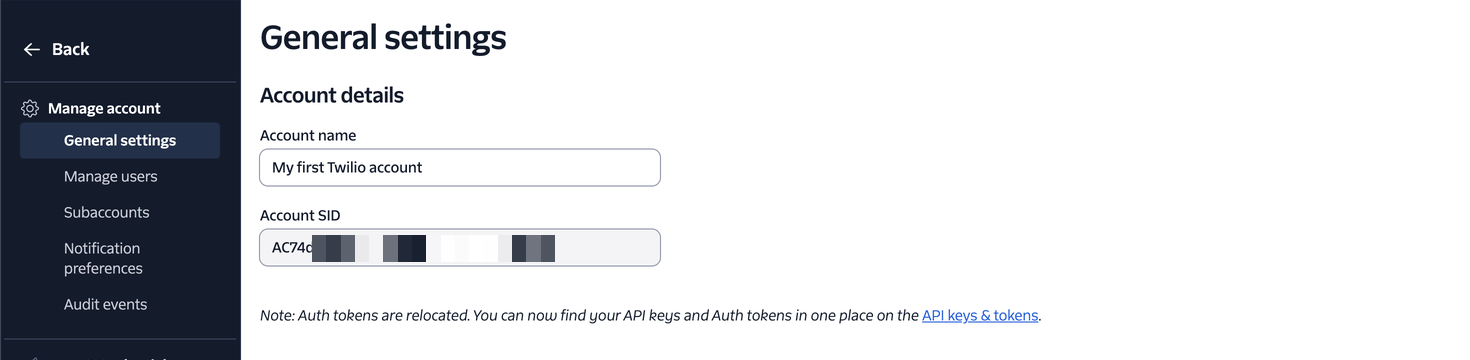
AC) in Admin → Account management → General settings. Copy it exactly — it goes into the endpoint address on your Connect Account.Step 2 — Create a Standard API key
An API key is a separate credential that acts on behalf of your account. You create one specifically for REDA Connect:
- In the Twilio console, go to Twilio Console → Settings → API keys & tokens.
- Click Create API key.
-
Fill in the form:
- Friendly name: something you'll recognise later, e.g.
REDA Connect SMS. - Key type: Standard. (A Standard key can send and receive messages but cannot manage your account or other keys — exactly the level of access REDA Connect needs. Do not pick Restricted or Main.)
- Friendly name: something you'll recognise later, e.g.
- Click Create / Next.
Expected result: Twilio shows the new key's SID (starts with SK) and its Secret — this is the only time the Secret is ever displayed.
- Copy both values into your secure notes now. Twilio makes you tick a Got it! checkbox confirming you saved the Secret before you can click Finish.
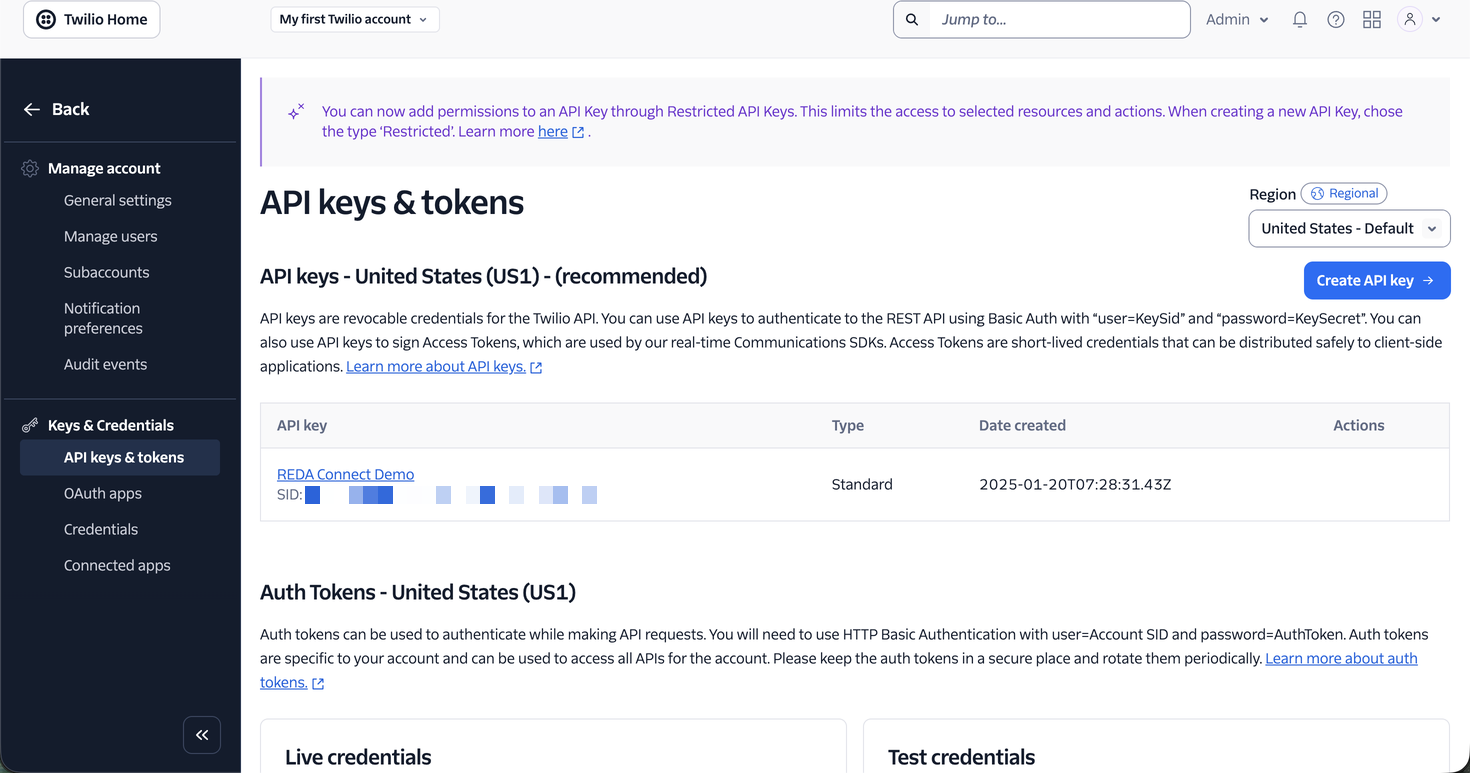
Why an API key instead of the Auth Token?
Technically, Twilio accepts either your Account SID + Auth Token or an API key SID + Secret for sending messages, and REDA Connect's credential fields would hold either pair. Use the API key:
- Independent rotation. A dedicated API key can be replaced without changing the account Auth Token. Create, update and test the replacement before revoking the old key where appropriate; deleting a key still in use causes failed calls.
- Scoped. A Standard key cannot change account settings or create other keys; the Auth Token can do everything.
- Auditable. A key named
REDA Connect SMStells you what it's for. Auth Token usage is anonymous.
Keep-safe rules
- Store all three values in a password manager, not in email, chat, or a shared spreadsheet.
- The Secret is the sensitive one — treat it like a password.
- Once entered into REDA Connect, the key and secret are stored encrypted and can only be changed through the Update SMS API Tokens action — you will never read them back out of Salesforce, so your password manager copy is the reference copy.
- Never paste any of these values into a support ticket or screenshot. When REDA support needs to see your setup, they need the field names, not the values.
FAQ
Not really — it identifies your account but can't authorise anything alone. Still, don't publish it needlessly. The API key Secret is the truly sensitive value.
It works, but create one key per org (REDA Connect PROD, REDA Connect UAT). If a sandbox is refreshed or compromised you can revoke its key without touching production.
Ask for the Account SID, a Standard API key SID + Secret created for REDA Connect, and the phone number you may send from. You do not need their Auth Token or console ownership — though console access helps for the webhook step later.
If REDA Connect uses the API key pair described here, rotating the account Auth Token does not replace that key pair. If your org instead configured Account SID + Auth Token, coordinate its update in REDA Connect. Check the credentials actually in use before rotation.
Where to go next
- Creating the SMS Connect Account — enter the three values into REDA Connect, field by field.
- Updating your API tokens safely — how credential storage works in REDA Connect and how to rotate values later.