
Sending your first message
Sending from the Connect Feed is deliberately simple: open the conversation, type, click the channel's send button. This article walks through that first send from a record, what you'll see happen afterwards, and — just as importantly — the exact messages the feed shows when a send is blocked, so you know what each one means.
- You need the REDA Connect User (or REDA Connect Admin) permission set — the Read Only set can open the feed but not send.
- The record's object must have an active configuration and the record a phone number the system can resolve — an administrator sets this up once per object in Configuring messaging for any object.
Step 1 — Open the conversation
Either open the record (if the feed is on its page), or open the Connect Feed tab and click the conversation in the list. The composer — the typing box — appears at the bottom of the stream. If no conversation is selected on the tab, the composer does not appear — pick a conversation first.
Step 2 — Type your message
Click into the box (placeholder: "Type a message") and write. Two things people expect from other messaging apps that work differently here:
- Enter does not send. Pressing Enter starts a new line — useful for multi-paragraph messages agents often paste. Only the send button sends.
- There is no character counter or length limit in the box. Keep SMS messages reasonably short anyway; long texts may be split or billed as multiple segments by your SMS provider.
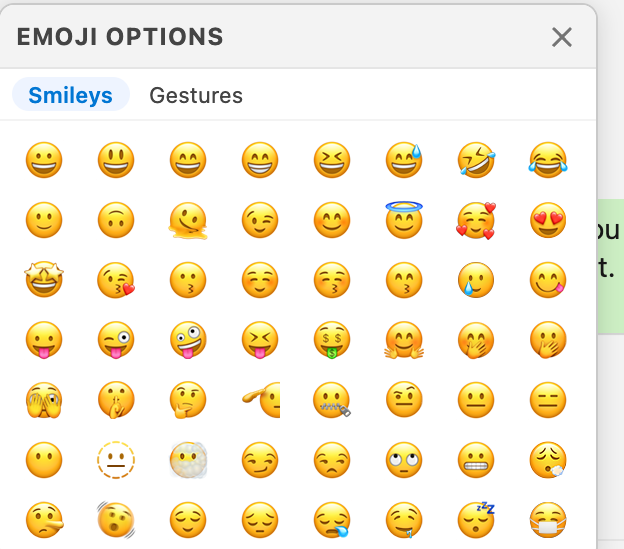
The composer also offers, depending on setup: an emoji button (categories your administrator configured), a template picker for pre-approved wording (see What are templates?), and a chat script picker for guided conversations (see What are chat scripts?).

Step 3 — Click the channel's send button
You get one send button per channel available for this record — a green WhatsApp button and/or a blue SMS button. Which ones appear depends on the object configuration and which channels resolve a phone number and an active Connect Account for this record. In a narrow panel the buttons shrink to icons only.
Click the button for the channel you want.
Expected result:
- The typing box empties and briefly shows a "Sending..." status.
- The message appears in the stream immediately, with a small clock icon — it is on its way.
- Within moments the clock becomes a check mark and then walks through the delivery statuses — decoded in Understanding delivery statuses.
If the provider rejects the message, the bubble turns into a failed message with the reason shown inside it, and the same reason appears in a dismissible red row under the feed header. Nothing is silently lost — a failed send is always visible.
When sending is blocked — the exact messages
| What you see | What it means | Who fixes it |
|---|---|---|
| "Sobject setup is not found." (instead of the composer) | This object has no active messaging configuration | An administrator — Configuring messaging for any object |
| "No active connect account is found." | Configuration exists, but no phone number or active Connect Account resolves for this record | Check the record's phone field; an administrator checks the account chain in Default accounts and routing order |
| "Recipient has opted out of receiving WhatsApp Messages." | The person's WhatsApp opt-out box is ticked | Respect it. See How opt-out works |
| "Recipient has opted out of receiving SMS Messages." | The SMS opt-out box is ticked | Same as above, per channel |
| The composer does not appear | No conversation is selected on the Connect Feed tab | Select a conversation |
| A message starting "Insufficient Access" | Your permission set allows viewing only | Ask for REDA Connect User — see Giving your team access |
FAQ
By design — Enter makes a new line so agents can compose and paste multi-line messages safely. Every send is an explicit click of the channel button.
Only channels that fully resolve for this record get a button. A Contact with a mobile number and a WhatsApp-only Connect Account setup shows just the WhatsApp button, for example.
Not per message. The sending account is resolved automatically: object configuration first, then your user default, then the org default — see Default accounts and routing order.
No. Failed means the provider did not accept it for delivery. The reason is shown in the bubble and in the message's Details panel; see A message isn't sending.
Not from the composer — there is no scheduling button in the feed. Scheduling is done at the record level; see Scheduling messages.
Where to go next
- Understanding delivery statuses — what the clock, checks and Read mean.
- What you can send on each channel — SMS and WhatsApp are not equal.
- Sending files, images and video — the paper-clip, WhatsApp only.