
Using merge fields in templates
Merge fields turn one template into a personal message for every customer. You write a placeholder like {{FirstName}} in the Template Body, and at send time REDA Connect looks up the record the message is being sent against and swaps the placeholder for the real value. This article covers the syntax, the two settings that make merging work, and the single most common template mistake in REDA Connect.
- You should know how to create a template — see Creating a template.
- You'll need the API names of the object and fields you want to merge. Find them under Setup → Object Manager → (your object) → Fields & Relationships. API names are exact —
FirstName, notFirst Name.
The syntax: a field path in double curly braces
A merge field is a field path, resolved against the template's Applicable Object:
{{<Field API Name>}}                          — a field on the Applicable Object itself
{{<Relationship Name>.<Field API Name>}}      — a field on a related record
For example, on a Contact template: Dear {{FirstName}}, your balance is {{Outstanding_Balance__c}}. — the paths start straight at the field, because the Applicable Object already says which object they belong to.
Three things people coming from other Salesforce tools get wrong:
- Double curly braces, not
{!...}. REDA Connect does not use the{!Object.Field}formula-style syntax you may know from email templates and buttons.{!FirstName}is just text here and will be sent to the customer as-is. - Never prefix the object's own name. Writing
{{Lead.FirstName}}on a Lead template looks natural, but REDA Connect reads everything before the first dot as a relationship to walk — and a Lead has no relationship called "Lead". The test fails with:Invalid relationship Lead for Lead. On a Lead template the token is simply{{FirstName}}. - Related records are reached by relationship name, exactly as in SOQL:
{{Owner.Name}}merges the record owner's name; on anOpportunitytemplate,{{Account.Name}}walks the Opportunity's Account relationship and merges the account name.
Related-record fields are supported for text values only (the on-screen help puts it as: relational fields of only data type "Text" are supported). A related record's number, date, or checkbox field is not reliable through a relationship path — copy such values onto the template's own object first, or merge them directly from the Applicable Object.
The two settings that make merging work
- Applicable Object — must name the object your merge fields belong to (API name, exact value). Saving a template with the merge checkbox ticked and no Applicable Object fails with:
If merge fields are provided in the template body the "Applicable Object" must be provided. - Merge Field(s) — the checkbox that switches merging on. It is entirely manual, which brings us to the trap.
{{...}}. If you write merge fields but leave Merge Field(s) unticked, the template is treated as plain text and your customer receives the raw placeholder text, verbatim: "Dear {{FirstName}}, your balance is...". Worse, testing does not catch it — with the checkbox off, the test just checks the body as plain text, "succeeds", and the template can be activated. The only defence is the checkbox itself: if the body contains {{, tick Merge Field(s) before you save.

{{FirstName2}}, {{Owner.Name}} and {{Owner.Phone}}. Merge Field(s) is ticked and Applicable Object names the object the field paths resolve against.How values are rendered
| Situation | What the customer sees |
|---|---|
| Field has a value | The value, in place of the placeholder |
| Field is empty on the record | A single space — the message still sends, with a small gap where the value would be. No error, no blank-field warning |
| Date field | Formatted per the template's Date Format, or the org default (EEE, d MMM,yy as shipped) |
| Date/Time field | Formatted per DateTime Format, or the org default (d MMM,yy h:mm aaa as shipped) |
Because empty fields merge silently as a space, templates that lean on optional fields can produce odd-looking sentences ("Dear , your..."). Merge from fields your process guarantees are filled, or word the sentence so a missing value still reads naturally.
Worked example — three merge fields
Template (Applicable Object Contact, Merge Field(s) ticked):
Dear {{FirstName}}, thanks for visiting {{Account.Name}}.
Your consultant {{Owner.Name}} will call you within one business day.
{{FirstName}} is the Contact's own field; {{Account.Name}} and {{Owner.Name}} walk the Contact's Account and Owner relationships.
Sent against the contact Maria Silva (account Acme Rentals, owner Alex Chen):
Dear Maria, thanks for visiting Acme Rentals.
Your consultant Alex Chen will call you within one business day.
Sent against a contact whose FirstName is empty:
Dear  , thanks for visiting Acme Rentals.
Your consultant Alex Chen will call you within one business day.
— note the lone space after "Dear". That's the silent-blank behaviour above.
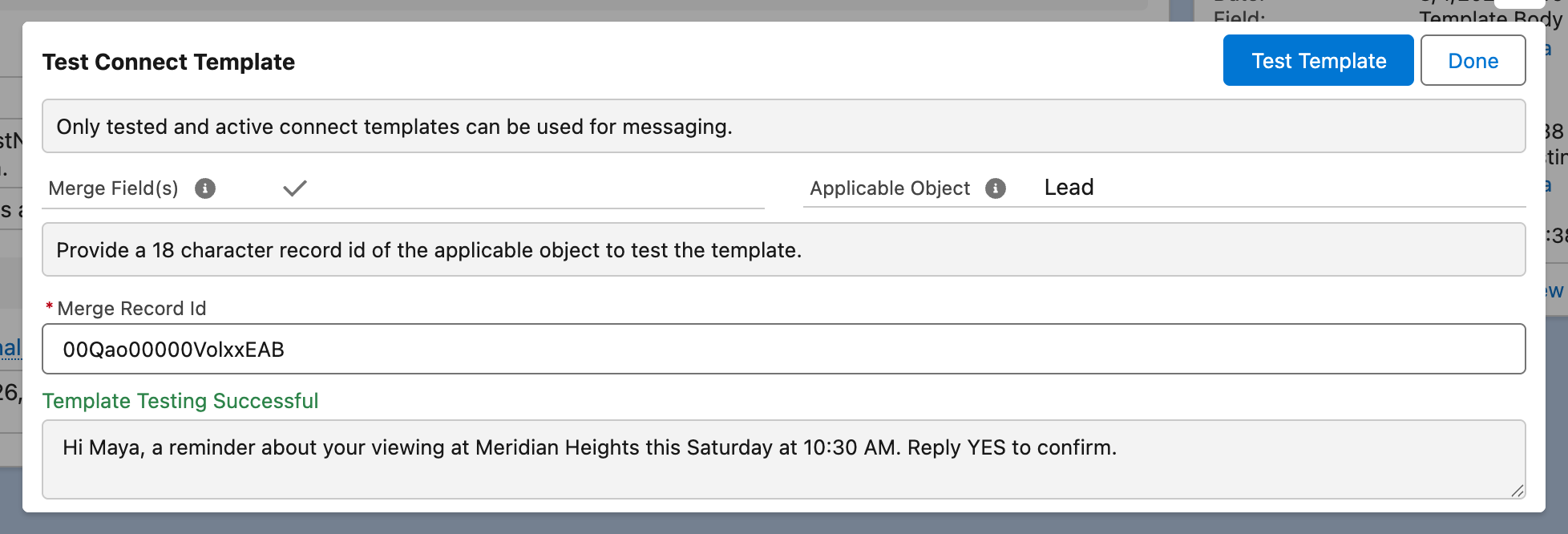
{{FirstName}} came back as Maya — the test ran against the Lead whose 18-character Id was pasted into Merge Record Id, and Template Testing Successful sits above the fully merged message.Testing a merge template needs a record
When you run Test Template on a template with merge fields, you are asked for a record to merge against — the on-screen text reads: Provide a 18 character record id of the applicable object to test the template. Copy a record Id of the Applicable Object from the browser's address bar (the 18-character value in the record's URL). Testing with an Id from the wrong object fails with Input parameters provided are invalid. The full test-and-activate flow is in Testing and activating a template.
Troubleshooting
| Symptom | Cause | Fix |
|---|---|---|
Customer received literal {{FirstName}} | Merge Field(s) was unticked | Deactivate, tick the checkbox, set Applicable Object, re-test, re-activate |
Test fails with Invalid relationship Lead for Lead (or similar) | The merge field starts with the object's own name — e.g. {{Lead.FirstName}} on a Lead template | Drop the object prefix: {{FirstName}}. Only genuine relationships go before the dot |
Test fails with Input parameters provided are invalid. | Record Id missing or from a different object than Applicable Object | Test with an Id of the Applicable Object |
Sent message's Error Message shows 5. Template Error: Input parameters provided are invalid. | The message was created without a record of the Applicable Object to merge against (common in custom automations) | Ensure automated sends supply the record the template merges from |
| Value merges but the sentence has a stray gap | The field is empty on that record — empties render as a single space | Fill the field, or reword the template |
Merge output garbled, or send errors, when a field value contains $ or \ | Special characters in the merged value can corrupt the substitution | Avoid $/\ in fields you merge from, or test with realistic values |
FAQ
No. A template has exactly one Applicable Object, and every merge field must belong to it. Reach related data through relationship paths from that object (text values only), e.g. {{Account.Name}} on a Contact template.
They are designed for Text bodies. Media templates (Image/Document) carry a file's web address as the body, which is not a place for personalisation.
Set Date Format / DateTime Format on the template using Java SimpleDateFormat patterns (e.g. dd/MM/yyyy). Blank means the org-wide default from Global settings.
Field labels can change freely — merge fields use API names. If the API name itself changes or the field is deleted, re-test the template: the test will surface the parse error before a customer does.
Where to go next
- Testing and activating a template — every merge template should be tested against a real record before it goes live.
- Creating a template — the rest of the template fields.