
Creating the public Site for incoming messages
When a customer sends you a WhatsApp message or an SMS, WhatsApp (Meta) or Twilio has to deliver that message to your Salesforce org over the internet. They deliver it to a webhook — a web address in your org that can receive messages without anyone being logged in. In Salesforce, the way to expose such an address is a Salesforce Site: a public web endpoint attached to your org, used by a special limited user called the guest user.
REDA Connect does not create this Site for you — every org must set it up once, by hand, following the steps below. It takes about ten minutes. Without it, outgoing messages will still work, but nothing your customers send will ever reach Salesforce, and neither WhatsApp nor Twilio delivery receipts will arrive.
- You need the System Administrator profile (or the Customize Application and Manage Users permissions).
- REDA Connect must already be installed — see Installing REDA Connect.
- You do NOT need your WhatsApp or Twilio accounts yet. The Site comes first; you'll paste its web address into Meta and Twilio later, in Connecting the WhatsApp webhook and Connecting the Twilio webhooks.
Step 1 — Register your Sites domain (first Site in the org only)
Every org has one Sites domain — a web address that all its Sites share. If your org has never used Sites before, register it now; if a domain already exists, skip to Step 2.
- In Salesforce, click the gear icon (top right) and choose Setup.
- In the Quick Find box (top left of Setup), type
Sitesand click Sites under User Interface → Sites and Domains. - If you see a screen asking you to choose a domain name, your org has no Sites domain yet. Enter a domain name — your company name is the usual choice. This name becomes part of the web address WhatsApp and Twilio will deliver to (for example
yourcompany.my.salesforce-sites.com). It can never be changed once registered, so pick something you're happy to keep. - Click Check Availability, accept the terms, and click Register My Salesforce Site Domain.
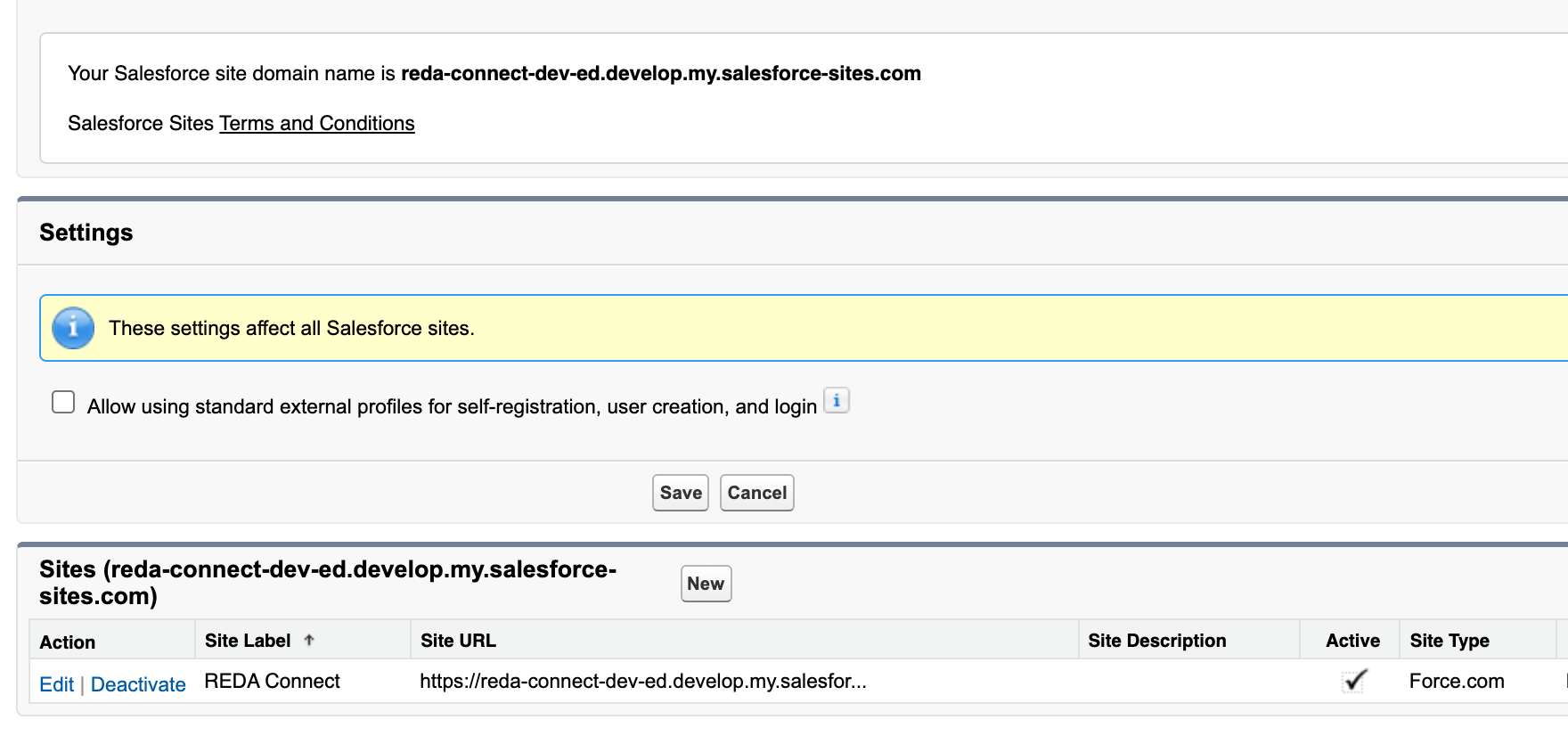
Expected result: the Sites page now shows your domain at the top and an empty list of sites.
Step 2 — Create the Site
- Still on Setup → Sites, click New.
- Fill in the new site form:
| Field | What to enter | Why |
|---|---|---|
| Site Label | REDA Connect | Display name; anything recognisable works |
| Site Name | REDA_Connect | Salesforce fills this automatically from the label |
| Site Contact | Leave as yourself | Receives Site-related notifications |
| Default Web Address | Leave the suffix blank, or enter a short path like reda | If you enter a path, it becomes part of your webhook address — note down what you chose |
| Active | Tick it | An inactive Site returns an error page to WhatsApp and Twilio |
| Active Site Home Page | Click the lookup and pick UnderConstruction | Required by Salesforce. Nobody will ever browse this page — the Site exists only to receive messages |
- Leave every other field at its default and click Save.
Expected result: the Site's detail page opens, showing Site URL — an address ending in .my.salesforce-sites.com. Note this full URL down; you will use it in Step 4 and again when you connect WhatsApp and Twilio.

Step 3 — Give the guest user access to the two REDA Connect endpoints
Incoming messages arrive as the Site's guest user — an automatic, unlicensed user Salesforce creates for every Site. Out of the box this user can access nothing. It needs permission to run exactly two REDA Connect endpoint classes — and nothing else. No object permissions, no field permissions, no extra permission sets: REDA Connect is designed so that the guest user only hands the message over; all processing happens afterwards in Salesforce's own secure system context.
- On the Site's detail page, click Public Access Settings. This opens the Site's guest user profile.
- Find the Enabled Apex Class Access section (use the section links at the top of the page, or scroll), and click Edit.
-
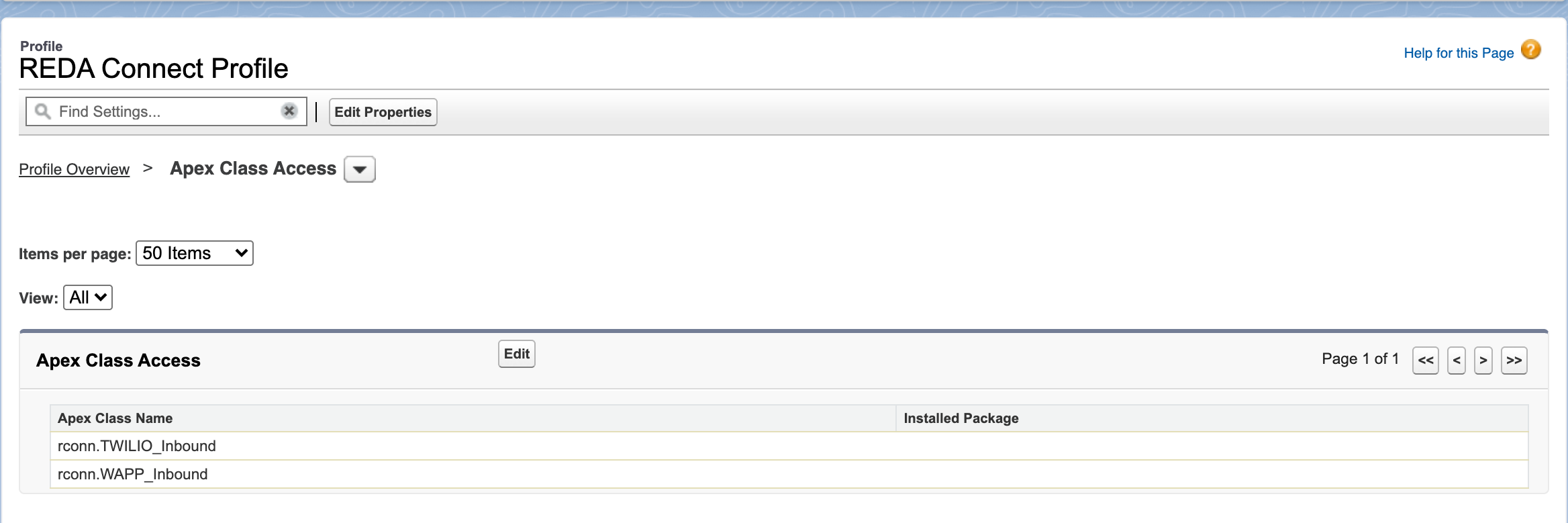
In the Available Apex Classes list, select these two classes and move them to Enabled Apex Classes with the Add arrow:
rconn.WAPP_Inboundrconn.TWILIO_Inbound
- Click Save.
Expected result: Enabled Apex Class Access lists exactly those two classes.
Step 4 — Write down your two webhook addresses
Your webhook addresses are built from the Site URL (Step 2) plus a fixed path. If you left Default Web Address blank:
WhatsApp:  https://<your-site-domain>/services/apexrest/rconn/wapp-inbound/
SMS:       https://<your-site-domain>/services/apexrest/rconn/twilio-inbound/
If you entered a path suffix (for example reda), it goes right after the domain:
WhatsApp:  https://<your-site-domain>/reda/services/apexrest/rconn/wapp-inbound/
SMS:       https://<your-site-domain>/reda/services/apexrest/rconn/twilio-inbound/
Both addresses must keep the trailing slash — the SMS address in particular is used as a prefix that REDA Connect extends per message, and without the final / delivery receipts will not be recognised.
Worked example
Suppose you registered the domain acmerentals and created the Site with the path suffix reda. Your Site URL shows as https://acmerentals.my.salesforce-sites.com/reda, so:
- into Meta (later, in Connecting the WhatsApp webhook) you will paste:
https://acmerentals.my.salesforce-sites.com/reda/services/apexrest/rconn/wapp-inbound/ - into Twilio (later, in Connecting the Twilio webhooks) you will paste:
https://acmerentals.my.salesforce-sites.com/reda/services/apexrest/rconn/twilio-inbound/
Troubleshooting
| Symptom | Cause | Fix |
|---|---|---|
| The webhook address shows an "Authorization Required" page in a browser | The two classes aren't enabled for the guest user, or the Site is inactive | Repeat Step 3; confirm Active is ticked on the Site |
| Meta refuses to verify the webhook | Wrong verify token, not the Site (covered in the WhatsApp webhook article) | Continue setup — verification is checked in Connecting the WhatsApp webhook |
| "You can't create a Site" or the New button is missing | Sites not available in your edition, or no Sites domain registered | Complete Step 1; Sites are available in Enterprise, Performance, Unlimited and Developer editions |
| Delivery receipts (Sent/Delivered) never update on SMS | The SMS webhook address was saved without the trailing slash | Re-enter it ending in / — see Step 4 |
FAQ
The address accepts messages only for the two REDA Connect endpoints, and the guest user it runs as has no access to your data — it can only hand the incoming message to REDA Connect for processing. This is the same pattern any Salesforce-native messaging product uses.
Yes. Open the existing Site's Public Access Settings and complete Step 3 there. Your webhook addresses then use that Site's URL and path. Keep in mind that whoever administers that Site now also affects your messaging.
No — one Site serves both. The two channels use different paths on the same address.
An Experience Cloud site can technically expose the same endpoints, but the plain Salesforce Site described here is simpler and is the supported configuration. Use a dedicated Site.
Where to go next
- Setup roadmap — from install to first message — see where you are in the overall setup sequence.
- The Remote Site Setting WhatsApp media needs — the other one-time step that silently breaks incoming pictures and documents if skipped.
- Setting up WhatsApp or Setting up SMS with Twilio — connect your first channel.