
Updating your API tokens safely
Every Connect Account holds credentials that let REDA Connect send on your behalf — a WhatsApp Token for Meta, and an SMS API Key / SMS API Secret pair for Twilio. These values are entered in exactly one way: through two dedicated actions on the Connect Account record, Update WhatsApp Auth Token and Update SMS API Tokens. You never type, paste, or edit a token directly in a field. The actions store encrypted values and their dialogs do not redisplay the current credentials.
Why so strict? The token fields on the record hold the encrypted value, not the token itself. The field help text says it outright — the SMS fields read "Do not update directly. Use the 'Update SMS API Tokens' button to update the value.", and the WhatsApp field reads "Please do not update the token directly on the field. Use the Update WhatsApp Auth Token button to update the token." A raw token typed straight into a field is not in the form the system expects, and sends through that account will fail until the action is used properly.
- The Connect Account record must already exist — see Creating a Connect Account.
- Have the new credential ready in a password manager: the Meta permanent access token (from Creating a permanent access token) or the Twilio API key and secret (from Getting your Twilio credentials).
- The update dialogs do not show the current stored credentials. Keep any required reference copy in your approved password manager or vault.
The two actions at a glance
| Action | Channel | What it stores | Success message (verbatim) |
|---|---|---|---|
| Update WhatsApp Auth Token | The Meta access token, into the WhatsApp Token field | WhatsApp authentication token is updated successfully. | |
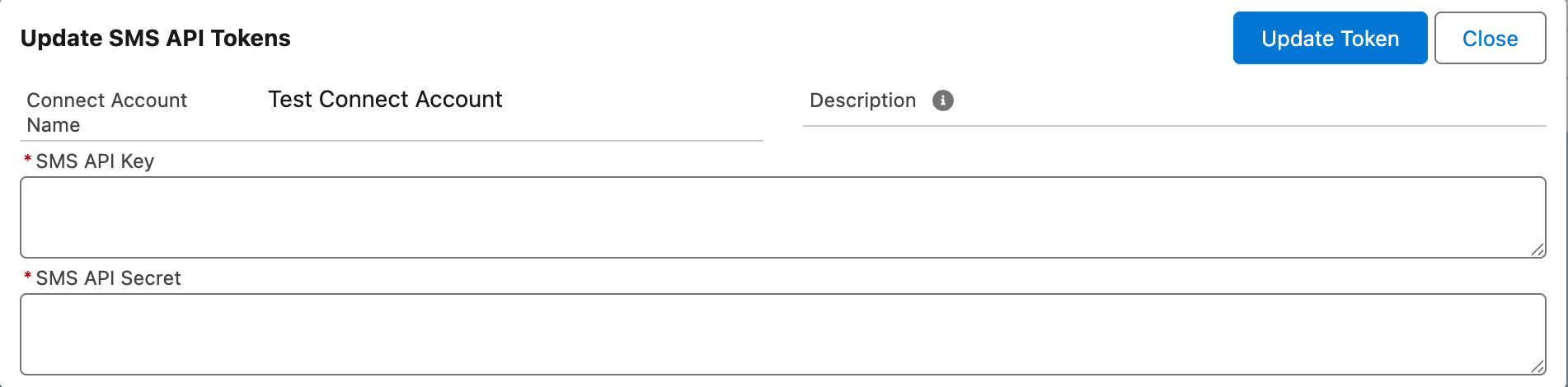
| Update SMS API Tokens | SMS | The Twilio API key and secret, into the SMS API Key and SMS API Secret fields | API tokens updated successfully. |
Updating a token
- Open the REDA Connect app from the App Launcher, click the Connect Accounts tab, and open the account whose credential you are updating.
- Click the action — Update WhatsApp Auth Token or Update SMS API Tokens — in the record's action bar (click the dropdown arrow at the end of the bar if it isn't directly visible).
- Paste the new value(s) into the dialog and confirm. The WhatsApp dialog is titled Update WhatsApp Auth Token and has a single required WhatsApp Auth Token box; the SMS dialog is titled Update SMS API Tokens and has required SMS API Key and SMS API Secret boxes. Both show the read-only Connect Account Name, an optional Description, and confirm with the Update Token button (Close cancels).
- Watch for the confirmation toast:
WhatsApp authentication token is updated successfully.orAPI tokens updated successfully.
Expected result: the toast appears and the stored credential is replaced. The next message sent through this account uses the new token — there is nothing else to restart or re-save.

When to rotate a token
Update the stored credential whenever:
- Meta or Twilio rotates or invalidates it — for example the Meta token was regenerated, or the Twilio API key was deleted and re-created.
- Someone who knew the credential leaves the team, or a device that held it is lost.
- You suspect any exposure — a token pasted into a chat, a ticket, or a shared document counts. Generate a fresh credential at the provider first, then store it here.
Create the replacement credential, update the Connect Account through the matching action, and test it before revoking the old credential where your security policy permits. Revoking a credential still in use interrupts its calls; rotation is not automatically downtime-free.
What happens while a token is wrong
Messaging through the account keeps trying — and fails visibly:
- Outbound messages end up with Status
Failed, and the Error Message field on each message records what the provider said (for WhatsApp, Meta's error detail; for SMS, Twilio's error text). An expired or mistyped credential typically produces an authentication error from the provider. - If a required credential field is effectively empty or the account's channel setup is incomplete, the message's Error Message contains
Bad Connect Account Setup.instead — the send is rejected before the provider is even contacted.
Either way, the fix is the same: store a known-good credential through the action, then resend. For reading message errors systematically, see A message won't send.
Troubleshooting
| Symptom | Cause | Fix |
|---|---|---|
The action shows Bad Request: Please try again or contact your system administrator. | The action was invoked without the input it needs, or on an unsuitable record | Reopen the record and run the action again; if it persists, contact your administrator |
| Sends fail with authentication errors from Meta or Twilio in the message's Error Message | The stored token is expired, revoked, or was mistyped when pasted | Generate a fresh credential at the provider and run the matching action again |
Sends fail with Bad Connect Account Setup. | The account is inactive, or a required channel field (endpoint, number, credential) is missing | Review the account against Creating a Connect Account and re-store the credential |
| Someone typed a token straight into the field | The stored value is not in the encrypted form the system expects | Run the proper action with the real token — it overwrites the field correctly |
| Two versions of the action appear | The layout still carries the pre-1.93 actions labelled "(Deprecated)" | Use the non-deprecated ones; have an administrator remove the deprecated actions from the Connect Account page layout |
FAQ
The update dialogs do not redisplay the stored credential in plain text. Values are stored encrypted and decrypted for provider authentication. Use your approved vault or generate a replacement if you no longer have the value; do not edit the encrypted fields directly.
No — each send attempt fails on its own with Status Failed and an Error Message. After you store the correct credential, failed messages don't retry themselves; resend what matters.
No. Run the action on the live account; the new value takes effect for subsequent sends immediately.
Update WhatsApp Auth Token fills WhatsApp Token. Update SMS API Tokens fills SMS API Key and SMS API Secret. Ignore the lookalike fields labelled SMS API Key [DEPRECATED] and SMS API Secret [DEPRECATED] if they appear on your layout — they belong to an older version and are no longer used.
Where to go next
- Creating a permanent access token — generate the Meta token this article stores.
- Getting your Twilio credentials — generate the Twilio key and secret this article stores.
- A message won't send — read and act on message-level errors.